Collibra Insights widget
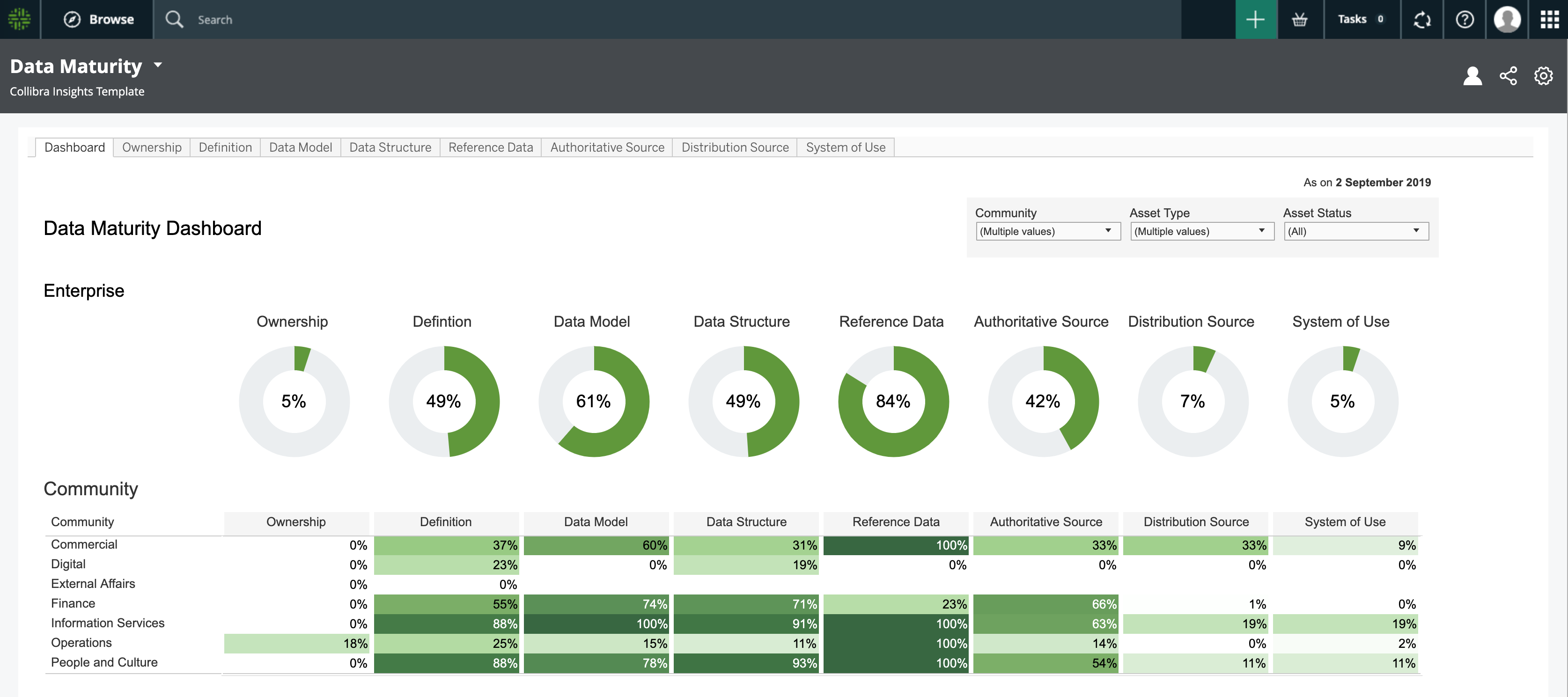
The Collibra Insights widget is a reporting widget that you can use to show a dashboard report on a dashboard, such as Privacy Risk Readiness, Data Maturity Dashboard, or Process Register, or any report from a webpage.
Note Before configuring dashboard reports, you must set up Insights Data Access. You can then configure dashboard reports via the Collibra Data Intelligence Cloud settings or generate the dashboard reports via a URL from tools such as Tableau Online, Power BI, Qlik, or ThoughtSpot. Insights Data Access is not a free, out-of-the-box product. For more information, go to Insights Data Access.
Important Whether or not a third-party webpage can be embedded is determined by the security settings of the third party.
Configure the Collibra Insights widget
Requirements and permissions
- If you want to manage your own dashboard: You have a global role that has the Manage your own Views, Dashboards, Search filters global permission.
- If you want to manage another user's dashboard: You have a global role that has the Manage shared Views, Dashboard and Search Filter global permission.
- Insights Data Access is set up.
Steps
- Access the dashboard for which you want to configure the Collibra Insights widget.
- On the dashboard bar, click
 → Edit widgets.
 - If required, add the Collibra Insights widget to the dashboard.
- On the widget, click
 .
.
- On the Report tab, either select the dashboard report that you want to be shown on the widget or click Enter a URL to add a report.
- If you clicked Enter a URL:
- In the Enter a URL to view field, enter the address of the webpage that contains the report that you want to be shown on the widget.
- To securely show the report, select the Run in sandbox checkbox.
Warning We recommend that you select the Run in sandbox checkbox to reduce security risks.
- On the Widget tab, enter the required information.
- Click Save.
- Click Close & save edits.