The Collibra Data Intelligence Cloud user interface contains a number of common elements that appear throughout the product.
You can navigate through Collibra Data Intelligence Cloud using your mouse or keyboard. For more information, see Accessibility.
Page layout
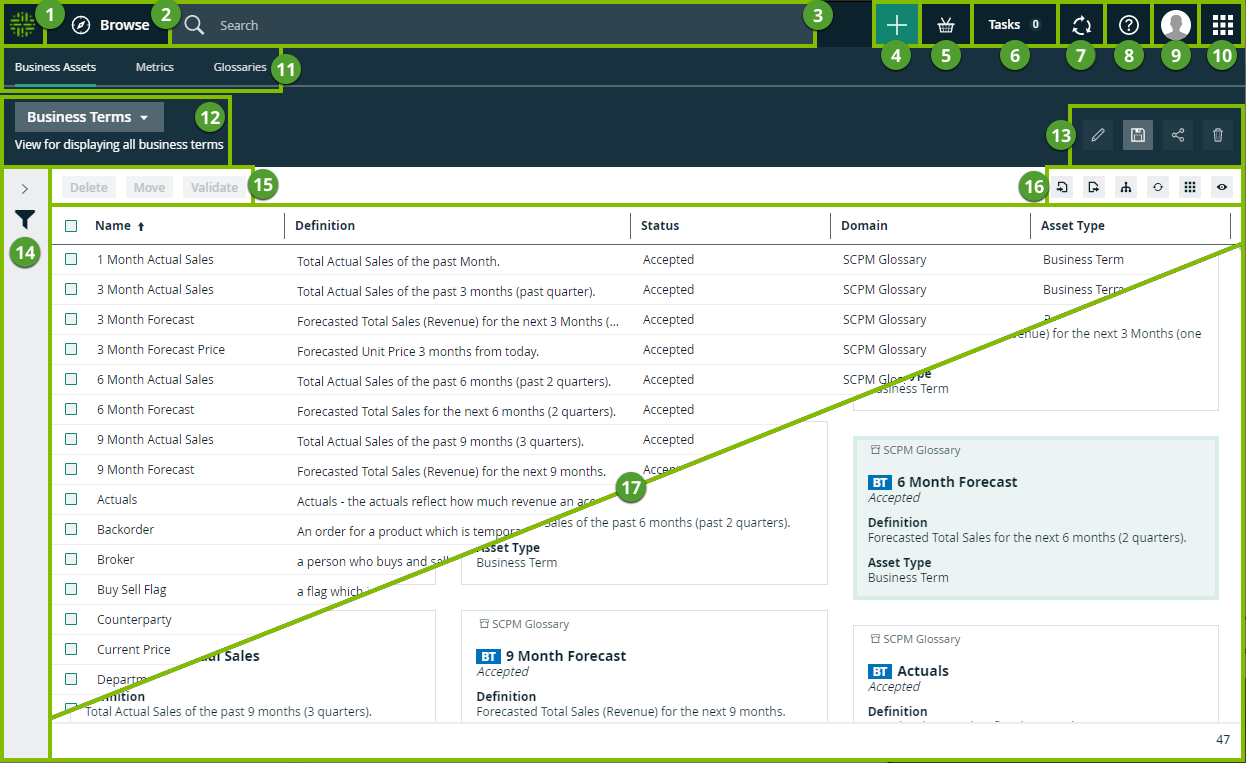
| No. | Element name | Description |
|---|---|---|

|
Home button | |

|
Navigation browser |
Open the Browse pane. |

|
Search field | Search for any resource in Collibra. |

|
 button button |
Create any resource from any location. |

|
Shopping basket | Request access to data sets and reports. |

|
Tasks indicator | Check how many workflow tasks are awaiting your attention and manage those tasks from the My tasks page. |

|
Activities tracker |
Check the Collibra activities and view the history of all the jobs you started. |

|
Info |
Get access to the product documentation, to Collibra Product Resource Center and University, and to the Collibra support portal. Note If you have the Sysadmin role, you can access the API documentation. |

|
Avatar | View and modify your profile, sign out, and report a problem. |

|
Application menu |
Open another application:
|

|
Submenu |
Open one of the subpages of the current application. |

|
View selector |
|

|
View toolbar |
Manage the current view. |

|
Filter pane |
Filter the resources in the view. |

|
Action toolbar |
Perform actions on the assets that you selected in the view or start a workflow. |

|
Content toolbar |
Manage the resources in the current view. |

|
Table or set of tiles |
See the resources in the current view in a table or as tiles. |


 Global view: See all assets in a single view.

