After you registered your data source via Edge, you configure the synchronization of your data source by means of synchronization rules to determine which schemas and tables are ingested and how they are ingested. After this, you can synchronize them.
Before you begin
- You have registered your database via Edge.
- Make sure the Database asset has an assigned Owner.
To validate this, go to the Database asset →Responsibilities tab. The owner is assigned during the registration of the data source. The Owner doesn't need to be the same user as the user who triggers the synchronization.
Required permissions
- You have a global role with the Catalog global permission, for example, Catalog Author.
- You have a global role with the View Edge connections and capabilities global permission, for example, Edge integration engineer.
- You have a resource role with the Configure external system resource permission, for example, Owner.
Steps
- Open a Database asset page.
-
In the tab pane, click
 Configuration.
 - In the Metadata Synchronization tab page, select a schema.Tip
- You can search for a schema in the drop-down list or use the filter to show only schemas with or without a synchronization rule.
- You can refresh the schema list, by clicking the
 Refresh List icon.
- If required, create or edit the synchronization rules:
- Perform one of the following steps:
- To create a new rule, click Add Rule.
- To edit an existing rule, click Edit in the upper right corner.
- To create a new rule, click Add Rule.
- Enter the required information.
Rule field Description Include Tables A comma-separated list of the names of the tables you want to synchronize.
- In the list, add a space after each comma. For example,
CUSTOMERS, ORDER, SKU. - You can use
*as a wildcard. For example,SKU*. - The default value is
*, which means all tables are taken into account. - If the name of a table contains a special character, like . + * \ ? ^ $ ( ) [ ] { } | then add a \ before the special character for it to be correctly evaluated. For example,
*SKU\+*. - The Include Tables field is processed before the field.
Example- Out of all tables in a schema, you only want to synchronize the table with name "CUSTOMERS" and the tables with a name that starts with "ORDER".
To do this:
In the Include Tables field, enter:CUSTOMERS, ORDER*. - Out of all tables in a schema, you only want to synchronize the tables with a name that contains "SKU".
To do this:
In the Include Tables field, enter:*SKU*. - Out of all tables in a schema, you only want to include the tables with a name that contains "SKU+".
To do this:
In the Include Tables field, enter:*SKU\+*.
Exclude Tables A comma-separated list of the names of the tables you do not want to synchronize.
- In the list, add a space after each comma. For example,
CUSTOMERS, ORDER, SKU. - You can use
*as a wildcard. - If the name of a table contains a special character, like . + * \ ? ^ $ ( ) [ ] { } | then add a \ before the special character for it to be correctly evaluated. For example,
*SKU\+*. - The Include Tables field is processed before the field.
You can use exclude to do the following:
- Synchronize all tables in a schema except the ones defined in the Exclude Tables field.
- Synchronize only tables as defined in the Include Tables field, with the exception of tables that are listed in the Exclude Tables field.
Example- Out of all tables in a schema, you do not want to synchronize a table with the name "ADDRESS" and tables with a name that ends with "PHONE".
To do this:
In the Include Tables field, enter:*and in the Exclude Tables field, enter:ADDRESS, *PHONE. - Out of all tables in a schema, you only want to exclude the table with name "example$table".
To do this:
In the Include Tables field, enter:*and in the Exclude Tables field, enter:example\$table. - Out of all tables in a schema, you want to synchronize the tables with a name that starts with "SKU", but exclude the tables with a name that contains "bkp".
To do this:
In the Include Tables field, enter:SKU*and in the Exclude Tables field, enter:*bkp*.
From the following list, only "SKU_1" and "SKU_2" will be synchronized.
SKU_1 , SKU_2, SKU_bkp_1, SKU_bkp_2, New, bkp, bkp_SKU
Target Domain The Physical Data Dictionary domain in which the schema is synchronized.
The default value is Schema domain. This means the metadata is placed in a domain located in the same community as the domain of your Database asset. If that domain doesn't exist yet, Data Catalog creates the domain using the following naming convention: [edge_connection_name] > [database_name] > [schema_name], for example Snowflake Connection > CERTIFICATION > CUSTOMERS.
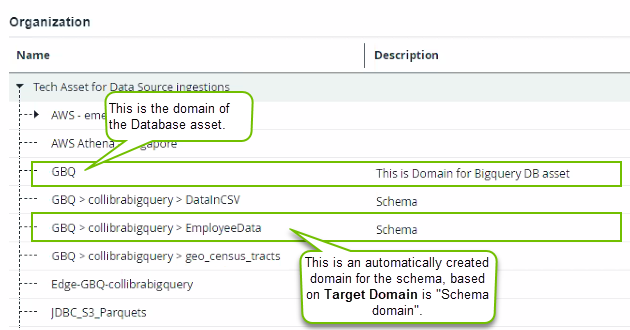
You can select any other Physical Data Dictionary domain for which you have a resource role with the Configure External System resource permission. It is advised, however, to have a domain per schema.
Options Additional options to specify which type of tables you want to synchronize.
Exclude Database ViewsA checkbox to exclude database views from the synchronization process. If selected, no assets of the type Database view are created.
Tip You can also use Include Tables and Exclude Tables to include or exclude specific database views.
Include Source TagsThis option is only available if you have enabled the synchronization of source tags.
If you select this option, the tags defined on the assets in the data source are registered and available from the Schema, Table, Database View, and Column assets in the Source Tags attribute.
Note Currently, you can synchronize source tags only from Snowflake.
Important- You can add up to five synchronization rules. The Schema asset and the Foreign Key assets are always ingested in the domain defined in the first rule.
Check out the examples below to understand how the order of the rules impacts the synchronization. - Views and Source Tags are taken into account for the tables according to the defined rule.
- In the list, add a space after each comma. For example,
- Click Save.
A table icon ( ) appears next to the schema name in the schema list.
- Perform one of the following steps:
- If required, click Delete Rule to delete a rule.
Note Only schemas with a synchronization rule can be synchronized .
Examples
- Rule 1: Include Tables: * , Include Views: false , Target Domain: A
- Rule 2: Include Tables: * , Include Views: true , Target Domain: B
Result: The Schema asset, and the Table, Column, and Foreign Key assets are added in Domain A. All Database View assets are added in Domain B.
- Rule 1: Include Tables: A,B,C , Include Views: true , Source Tags: false , Target Domain: A
- Rule 2: Include Tables: D , Include Views: true , Source Tags: true , Target Domain: A
Result: All assets are created in Domain A. Only Table D has synchronized Source Tags.
What's next?
You can now synchronize the schemas to ingest the metadata into Collibra.