After you create a connection to Tableau, you can add the Technical Lineage for Tableau capability.
Requirements and permissions
A global role that has the following global permissions:
- System administration
-
- Register profiling information
Steps
- Open an Edge site.
-
On the main menu, click
 , and then click
 Settings.
The Settings page opens. -
In the tab pane, click Edge.
The Sites tab opens and shows a table with an overview of the Edge sites. - In the table, click the name of the Edge site whose status is Healthy.
The Edge site page opens.
-
On the main menu, click
- In the Capabilities section, click Add capability.
The Add capability page appears. - Enter the required information.
Field Description Required Capability
This section contains general information about the capability.
NameThe name of the Edge capability.
 Yes
Description
Yes
DescriptionThe description of the Edge capability.
 NoCapability template
The capability template for TableauI. Select Technical Lineage for Tableau.
Yes
Main Properties
The required information for creating a technical lineage.
Source IDThe name of the data source. You can give this any name, as long as it is unique.
Warning If you are switching between the lineage harvester and Edge, the value in this field must exactly match the value of the
idproperty in your lineage harvester configuration file. Yes
Tableau connectionThe Tableau connection that you created for ingestion in Data Catalog.
Tip Select the name that you provided in the Name field when you created a connection to Tableau.
Yes
Domain IDThe unique reference ID of the domain in Collibra Data Intelligence Cloud in which you want to ingest the Tableau assets.
How do I find a domain reference ID?Open the relevant domain in Collibra. The URL looks like: https://<yourcollibrainstance>/domain/22258f64-40b6-4b16-9c08-c95f8ec0da26?view=00000000-0000-0000-0000-000000040001. In this example, the reference ID is in bold.
Yes
REST onlyIndication whether or not you want to use both the Tableau REST API and Tableau Metadata API to harvest Tableau metadata.
- Cleared (default): The lineage harvester will use the REST API and Metadata API to harvest Tableau metadata.
- Selected: The lineage harvester will only use the REST API to harvest Tableau metadata.
Note This filed must be cleared, to:- Enable technical lineage and the automatic stitching of Column assets to Tableau Data Attribute assets.
- Harvest owner information for Tableau projects, workbooks and data models.
NoExclude imagesIndication whether or not you want to excluding the downloading of images.
- Cleared: Images are downloaded.
- Selected (default): Images are not downloaded.
Note The maximum number of images that can be uploaded to Collibra per day is determined by the configuration of the file upload service, in Collibra Console. For complete details, see the Upload configuration settings in DGC service configuration: options.
NoSite IDThe site IDs of the Tableau sites that you want to include in the ingestion process.
If you leave this field empty, Collibra Data Lineage will ingest the default Tableau site.
To ingest from multiple Tableau sites, enter each site ID in a separate Site ID field.
To ingest the default Tableau site, enter "Default" or leave the field empty. This field is not case sensitive.
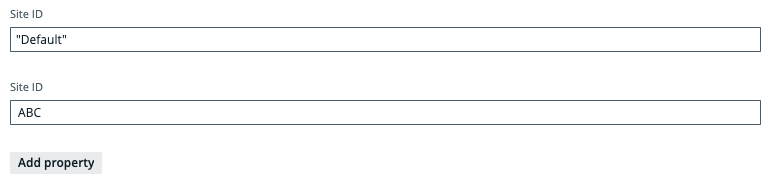
Warning If you enter "Default", you must include the double quotation marks. The site IDs of any other Tableau sites must not be enclosed in double quotation marks. If the formatting of the site IDs does not conform to this detail, ingestion will fail.Example Let's say that you want to ingest from the default Tableau site and a site named "ABC".- In the Site ID field, enter "Default" for the default Tableau site.
- Click Add property.
An empty Site ID field is added. - In the new Site ID field, enter the ID of the Tableau site ABC.
 Tip Ensure that you specify the correct value. The correct value is the URL of the site to which you want to sign in. When you manually sign in to Tableau Server or Tableau Online, the site ID is the value that appears after /site/ in the browser address bar. In the following example URLs, the site ID is
MarketingTeam:- Tableau Server: http://MyServer/#/site/MarketingTeam/projects
- Tableau Online: https://10ay.online.tableau.com/#/site/MarketingTeam/workbooks
On Tableau Server, however, the URL of the default site does not specify the site. For example, the URL for a view named Profits, on a site named Sales, is http://localhost/#/site/sales/views/profits. The URL for this same view on the default site is http://localhost/#/views/profits. The site name Sales does not figure in the URL. NoSite NameThe site name, or names, of the Tableau sites you specified in the Site ID field.
If you don't provide a site ID in the Site ID field, in which case the default Tableau site is ingested, leave this field blank.
NoConcurrency levelThis field is intended to help if you are experiencing HTTP 401 Unauthorized errors due to too many concurrent HTTP calls, using the same token. It allows you to specify the internal sizing, meaning the amount of tasks that can be executed at the same time.
The default value is "10", meaning as many as 10 HTTP requests can take place in parallel. Consider reducing the value if you are experiencing HTTP 401 Unauthorized errors. Setting the value to "1" effectively disables the concurrency level, so that HTTP requests will be run in a synchronous manner, instead of in parallel.
NoSource configurationThis field allows you to provide JSON code for database mapping, domain mapping and filtering.
Tip If you previously integrated Tableau via the lineage harvester, you can copy and paste in this field the JSON code from your Tableau <source ID> configuration file.
Show me some examplesDatabase mapping:
"databaseMapping": {
	"<hostname:port>":"<actual database name>"
},
Domain mapping:
"domainMapping": {
	"<Site-1>": "reference-id-of-Domain-1",
	"<Site-1> > <Project-Default>": "reference-id-of-Domain-2"
	}
Filtering:
"filters": { "projects":{"site_name2 > project_name2": "domain-reference-id2", "site_name3 > project_name3 > subproject_name": "domain-reference-id2"} } NoCustom Properties
This section identifies to which Collibra Data Lineage service instance you want to upload the Tableau metadata.
Warning This section applies only to US government customers.
techlinKeyThe unique API key to connect to the Collibra Data Lineage service instance.
A unique user key is needed for each Collibra environment. If you're not sure what your user key is, please contact your Collibra Customer Success Manager.
Warning This section applies only to US government customers.
NotechlinHostThe URL of he Collibra Data Lineage service instance to which you want to upload Tableau metadata, for example "techlin-gcp-eu.collibra.com".
Warning This section applies only to US government customers.
NoAdvanced Properties
This section contains the advanced properties for creating a technical lineage.
Delete Raw Metadata After ProcessingTechnical lineage via Edge harvests raw metadata from specified data sources and uploads it in a ZIP file to a Collibra Data Lineage service instance. This option indicates whether the raw metadata should be deleted from the Collibra Data Lineage service instance after the metadata that is targeted for ingestion in Data Catalog is processed.
Select this option to indicate that the raw source metadata is deleted after processing.
Clear the checkbox to keep the raw source metadata after processing. In this case, it is stored in the Collibra infrastructure.
Note Selecting this option can negatively impact performance.
Analyze OnlyThis option determines whether to only load and analyze the source data on the Collibra Data Lineage service instances.
When you select this option, the technical lineage of the data source is not created during the synchronization of the capability. Selecting this option is equivalent to entering the
load-sourcesandanalyzecommand with a source specified when you use the lineage harvester.This option is not enabled by default.
Use caseYou can use this option to control when to start full synchronization of data sources. For example if you have three data sources, A, B, and C, you can synchronize the data sources as follows:
- During weekdays, synchronize data sources A and B with the Analyze Only checkbox selected in the capabilities. Collibra Data Lineage only loads and analyzes data sources A and B without synchronizing the technical lineage.
- On the weekend, synchronize data source C without selecting the Analyze Only checkbox in the capability. Collibra Data Lineage synchronizes the technical lineage for all data sources including A, B, and C.
No
ActiveThe option determines whether to include or remove the technical lineage of the data source.
Select this option to include the technical lineage of this data source.
Clear the checkbox to exclude the technical lineage of this data source.
NoPagingThis section allows you to customize the Tableau API pagination settings.
The default values are sufficient in most cases; however, you can decrease them to help mitigate node limit errors, or increase them to speed up API calls.The complete list of pagination settings, descriptions and default values"paging": { "databasesPageSize": 100, "tablesPageSize": 100, "tablesColumnsPageSize": 100, "tableColumnsPageSize": 1000, "datasourcesPageSize": 50, "datasourcesFieldsPageSize": 50, "datasourceFieldsPageSize": 100, "worksheetsPageSize": 100, "worksheetsFieldsPageSize": 100, "worksheetFieldsPageSize": 1000, "usersPageSize": 100, "dashboardsPageSize": 100, "columnsLimit": 20, "fieldsLimit": 20 }Settings per metadata type and descriptions
Metadata type Setting and description Dashboard dashboardsPageSize: The number of dashboards per page.
Worksheet worksheetsPageSize: The number of worksheets per page.worksheetsFieldsPageSize: The number of worksheet fields per page.
Database databasesPageSize: The number of databases per page.
Table tablesPageSize: The number of tables per page.tablesColumnsPageSize: The number of table columns per page.
Table columns tableColumnsPageSize: The number of table columns per page.
Users usersPageSize: The number of users per page.
Data source datasourcesPageSize: The number of data sources per page.datasourcesFieldsPageSize: The number of data source fields per page.columnsLimit: The number of data source field columns per page.fieldsLimit: The number of referenced data source fields per page.
Data source field datasourceFieldsPageSize: The number of data source fields per page.columnsLimit: The number of data source field columns per page.fieldsLimit: The number of referenced data source fields per page.
No - Click Create.
The Edge site connects to your data source.
What's next?
Synchronize the Tableau technical lineage