You can add a relation to link two assets.
Prerequisites
The relation's type is in the relevant assignment of the asset's type.
Tip If the minimum cardinality of the relevant relation type is greater than 0, or if a relation of that type already exists, the asset page always contains a relation table for the relation type.
Add a relation from the asset page
- Open an asset page.
-
In the tab pane, click
Add Characteristic.
The Add a characteristic dialog box appears. - Click Relations.
- Search for and click <the relation type that you want to create>.
The Add relation type <asset type> dialog box appears. - Enter the required information.
Option Description Assets The name of the .
Filter suggested assets by organization
Option to filter the suggestions based on selected communities and domains.
If this option is selected, the organization tree appears. You can then filter and select domains and communities.
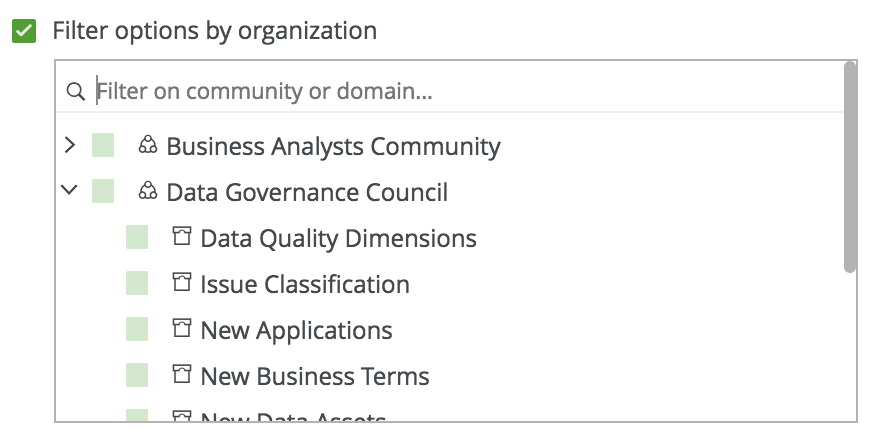
Start date Optionally enter the date on which the relation between the assets becomes applicable. End date Optionally enter the date on which the relation between the assets is no longer applicable. Leave this field empty to create a permanent relation. - Click Save.
Add relations from a table
- Open a view in the table display mode.
- If you don't see the column of the relation type, add it to the table:
- Above the table, to the right, click
 →
→  Fields.
 - Click Select fields → Relations.
- Select the relevant relation types.
- Click Update.
- Click Save.
- Above the table, to the right, click
- Perform one of the following steps:
- Double-click a cell.
- Hover your mouse over a cell and click .
- Enter one or more assets.
- Perform one of the following steps:
If you want to change... do... the current row only: -
Click
 .
.
all visible rows: - Click Apply to all visible rows.
-
Click .
selected rows: - Select one or more rows.
- Click Apply to all selected rows.
-
Click .
-
Click