You can configure the classification acceptance and rejection thresholds in two places: Collibra Settings and the Data Classification Configuration. If you configure the classification thresholds in one place, they are also updated in the other place.
Via Collibra settings
Depending on your environment, follow this procedure either in the Services Configuration section of the Collibra settings or in Collibra Console:
Before you start
- You have the ADMIN or SUPER role in Collibra Console.
- You have a global role that has the System administration global permission.
- The Services Configuration tab is available in the Collibra settings.
Steps
-
Open the Services Configuration page.
-
On the main menu, click
 , and then click
 Settings.
The Settings page opens. - In the tab pane, click Services Configuration.
- Click Edit configuration.
Open the DGC service settings for editing:- Open Collibra Console.
Collibra Console opens with the Infrastructure page. - In the tab pane, expand an environment to show its services.
- In the tab pane, click the Data Governance Center service of that environment.
- Click Configuration.
- Click Edit configuration.
-
On the main menu, click
- Go to the Data Classification- Classification Thresholds section.
- Enter the required information:
Setting
Description
 True: The automatic acceptance and rejection of data classification suggestions is active.
 False (default): Data classification suggestions are not automatically accepted or rejected.
Tip Start using the Automatic Data Classification tool by manually accepting and rejecting the data classification suggestions. Only activate the automatic acceptance and rejection feature if you are comfortable with the results the tool provides.
Automatic acceptance threshold The percentage from which data classification suggestions must be accepted automatically.
If you set this value to 75, then the classification suggestions with a confidence level of 75% or higher are automatically accepted.
If multiple classification suggestions meet the threshold condition for a column, the classification suggestion with the highest confidence level percentage is accepted automatically if this classification suggestion is the only one to have that confidence level percentage.ExampleYou set the automatic acceptance threshold to 85%. You classify a table with 2 columns.
- For column A, three classification suggestions are possible, one with confidence level 93%, one with 92%, and one with 90%.
- For column B, two classification suggestions are possible. Their confidence level is the same, 86%.
The results of the automatic acceptance will be:
- For column A, the classification suggestion with 93% will be accepted automatically.
- For column B, nothing is done, both suggestions will be visible.
The default acceptance threshold is 90.
Automatic rejection threshold The percentage from which data classification suggestions must be rejected automatically. If you set this value to 49, then all data classification suggestions with a confidence level of 49% or lower are automatically rejected.
The default rejection threshold is 10.
Note If the acceptance threshold and rejection threshold are set to the same value, and a data classification suggestion has this confidence level percentage, the classification suggestion will be rejected.
- Click Save all.
Via Data Classification Configuration
-
On the main menu, click , and then click
Stewardship.
- Click Data Classification.
A list of all data classes opens. - Click the Data Classification Configuration icon
 .
.
The Data Classification Configuration dialog opens. - Select Enable automatic classification acceptance and rejection.
Tip Start using the Automatic Data Classification tool by manually accepting and rejecting the data classification suggestions. Only activate the automatic acceptance and rejection feature if you are comfortable with the results the tool provides.
- Move the rejection threshold indicator to the required value.
The default rejection threshold is 10%.ExampleIn this example, we move the rejection indicator to value 25. This means all data classification suggestions with a confidence level of 25% or lower will be rejected automatically. They won't appear as data classification suggestions.
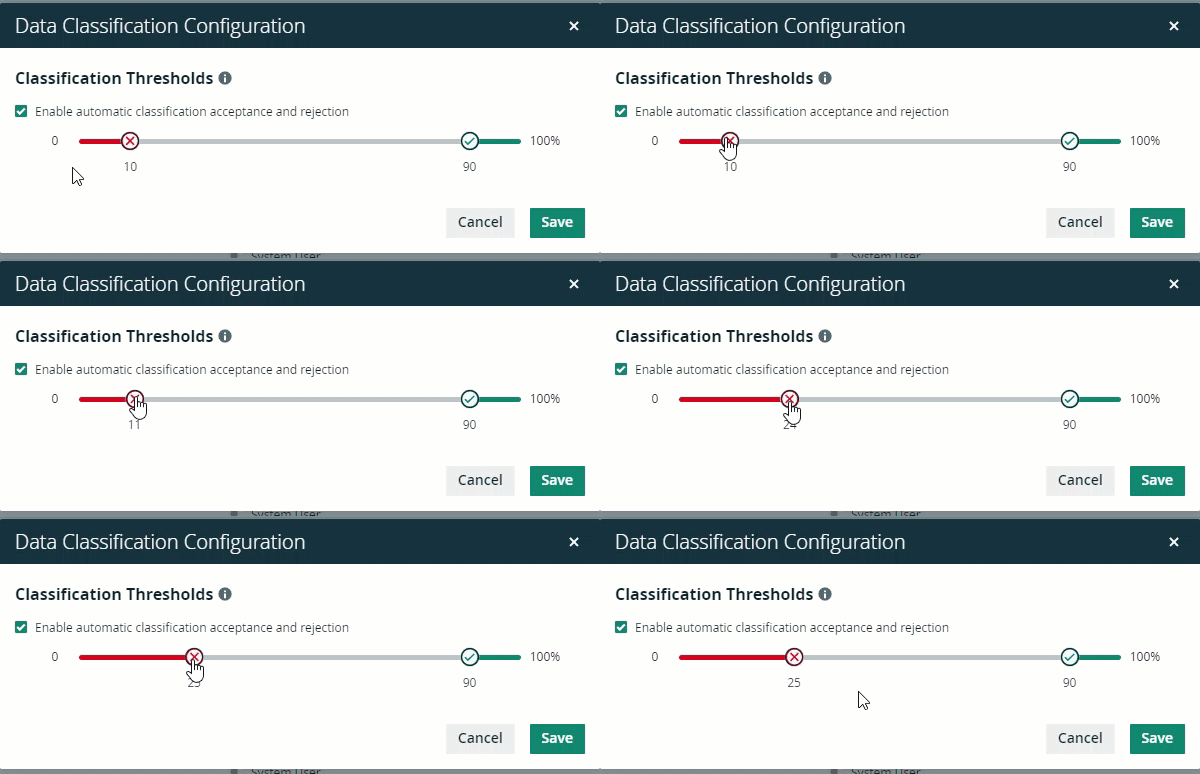
- Move the acceptance threshold indicator to the required value.
The default acceptance threshold is 90%. - Click Save.