About technical lineage
Technical lineage is a detailed lineage graph that shows how data transforms and flows from source to destination across its entire lifecycle. It enables you to easily discover where tables and columns are used and how they relate to each other. You can view a technical lineage for the following asset types:
- Table
- Column
- Power BI Report
- Power BI Table
- Power BI Column
- SSRS Report
- SSRS Column
- Tableau Worksheet
- Tableau Data Attribute
- Looker Look
During the technical lineage process, relations of the type "Data Element targets / sources Data Element" are automatically created:
- Between data objects in your data source and assets from registered data sources.
- Between ingested assets from BI sources and Data Catalog assets from registered data sources.
Tip For detailed information on how a technical lineage is created, including how the lineage harvester interacts with your data sources and the Collibra Data Lineage service, and the interaction between the Collibra Data Lineage service and Data Catalog, see the Typical workflow section, in About the lineage harvester.
Steps to create a technical lineage
The following table shows which steps you have to take to create a technical lineage and which prerequisites you need to execute each step.
|
Step |
What? |
Description |
Prerequisites |
|
|---|---|---|---|---|
|
1 |
Prepare Data Catalog physical data layer |
Before you create a technical lineage, you prepare Data Catalog's physical data layer. This is necessary to automatically stitch assets in Data Catalog and the data elements in the data source for which you want to create a technical lineage. By preparing Data Catalog's physical data layer, you create assets of the following types:
Note If you don't prepare the Data Catalog physical data layer, you can still create a technical lineage. However, stitching will not be performed. |
|
|
|
2 |
Set up the lineage harvester |
You use the lineage harvester to collect source code from your data sources and create new relations between data elements from your data source and existing assets into Data Catalog. You can download the lineage harvester from the Collibra Community Downloads page. |
|
|
|
3 |
Prepare the configuration file |
You create a configuration file to determine for which data sources you want to create a technical lineage. The configuration file is used by the lineage harvester to extract information from data sources for which you want to create a technical lineage. Tip You can use the configuration file generator to create an example configuration file with the properties of your choosing. You can easily copy this example to your configuration file and replace the values of the properties to match your data source information. When you have created a configuration file, you can use specific commands to perform different actions on the data sources that are defined in your configuration file. For example, you use the full-sync command to upload the source code from the data sources in the configuration file to the Collibra Data Intelligence Cloud, where they are analyzed and processed and where the technical lineage is created. Tip
|
|
|
| 4 | Run the lineage harvester. |
After you prepared the lineage harvester configuration file, you can run the lineage harvester. |
Not applicable. | |
| 5 | View the technical lineage. |
After you created the technical lineage, you can go to a Power BI Column, Looker Look, Column or Table asset page and click the Technical lineage tab to view the technical lineage. You can use the Browse tab pane to search for different data objects and trace their dependencies or use the Settings tab pane to edit or export the technical lineage and see the logs created by the lineage harvester. |
|
Data objects
You can see two types of data objects in your technical lineage:
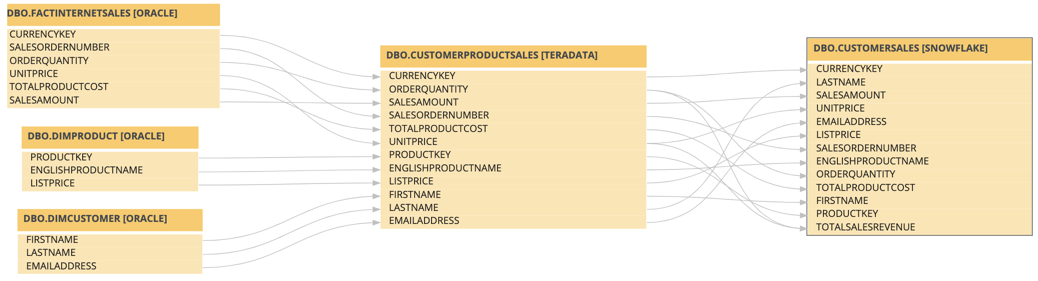
- Data objects from your data source that are stitched to assets in Data Catalog and for which you created the technical lineage. These assets have a yellow background. Example
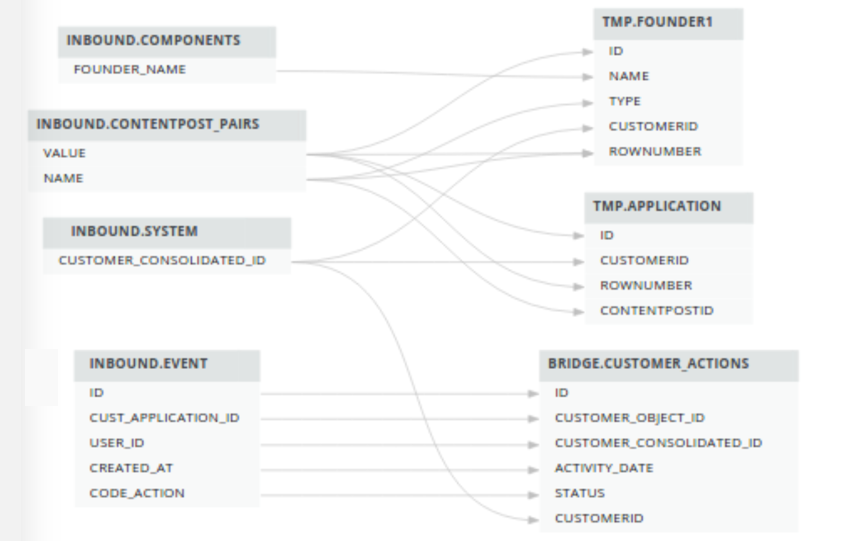
- Other objects, for example temporary tables and columns, that the lineage harvester collects from your data sources, but are not stitched to assets in Data Catalog. These objects have a gray background.
Example
Note We do not support stitching for Looker or MicroStrategy assets.
Naming convention
When you create a technical lineage, Data Catalog follows a strict naming convention for the full names of assets. Each asset has a display name and full name. You can freely edit the display name. However, you should never edit the full name, because Data Catalog needs it to refresh data sources for which you created the technical lineage and to refresh the technical lineage itself.
When you prepare the Data Catalog physical data layer and the configuration file, you should always use the full name as the name of the corresponding data object in your data source for the following assets:
- System
- Database
- Schema
Note If you want to create a technical lineage for a Google BigQuery database, the project name in the configuration file must be the same as the full name of the Database asset.
Warning Editing the full name of the Schema, Database and System assets may lead to errors during the technical lineage creation process.