Prepare an external directory folder
If you want to create a technical lineage for an external directory such as Informatica PowerCenter, SQL Server Integration Services (SSIS) or IBM InfoSphere DataStage, you must prepare a folder with the external directory's data source files.
If the external directory files do not have the necessary information, for example a database and a schema, to stitch the data sources, you have to provide the connection definitions manually via a JSON configuration file. This is required at each connection, regardless of whether the useCollibraSystemName property in the lineage harvester configuration file is set to true or false.
Select an external directory:
Note You can also create and configure a JSON file to define a custom technical lineage.
Note For best technical lineage results, we recommend harvesting JDBC sources when possible, rather than using an external directory of source files. If harvesting a JDBC source is not possible, the files in your external directory need to be ordered alphabetically.
Prerequisites
- You have IBM InfoSphere Information Server version 11.5 or newer.
- You have Informatica PowerCenter version 9.6 or newer.
- You have SQL Server Integration Services 2012 or newer with package format version 6 or newer.
- You have Microsoft Visual Studio version 2012 or newer.
- You have downloaded the lineage harvester and you have the necessary system requirements to run it.
- You have prepared the physical data layer in Data Catalog.
Tip If you want to create a technical lineage for Informatica Intelligent Cloud Services Data Integration, you don't have to create a folder with data source files. You add your data source information directly to the lineage harvester configuration file.
Steps
- Create a local folder.
- Export the Informatica objects or repository for which you want to create a technical lineage to the local folder.
Manually exporting Informatica objects in Informatica PowerCenter 10.0.0.
- Open Informatica PowerCenter Repository Manager.
- Connect to your Informatica repository.
- In the navigation panel, navigate to the workflow that contains the Informatica objects that you want to export.
- Right-click on the workflow and click Dependencies.
- In the Dependencies dialog box, do the following:
- Select Primary/Foreign Key dependencies.
- Select Global Shortcut dependencies.
- In the Object Types selector, select all object types except User-Defined.
- Click OK.
The Dependencies dialog box closes.
A dialog box with all Informatica objects appears. - Select all objects.
- In the toolbar, click
 (Export to XML).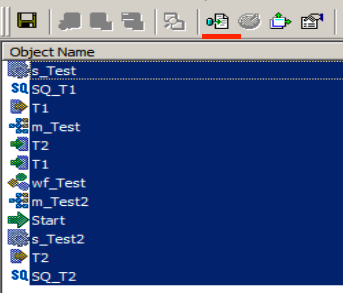
- Save the resulting XML files in your local folder.
Exporting Informatica repository objects in Informatica PowerCenter via command line.- In the Informatica PowerCenter Client or PowerCenter Services bin directories, open pmrep.
- Export Informatica PowerCenter repository objects.
Note Make sure that you export the same Informatica PowerCenter repository objects as during a manual export.
- Save the resulting XML files in your local folder.
- All XML and parameter files, for example PAR, TXT or PRM files in this folder and its subfolders are taken into account when you create a technical lineage, but Collibra Data Lineage only shows a technical lineage for workflows that have mappings with sources, transformations and targets. Collibra supports the most common Informatica PowerCenter transformations. For more information, see the Informatica PowerCenter documentation.
- A technical lineage is created when the following tags are present in your XML file:
- <REPOSITORY>
- <FOLDER>
- <SOURCE> / <TARGET>
- <SESSION>
- <MAPPING>
- <TRANSFORMATION> (within a <MAPPING> tag)
- Put your parameter files in the right location.
If...
Then...
all parameter files are PAR files
No action required
not all parameter files are PAR files
- Create a new folder in the local folder.
- Name the folder techlin-param.
- Move all parameter files that are used by the exported XML to the techlin-param folder.
- In the lineage harvester configuration file, set the
recursiveproperty totrue.
Note The lineage harvester only takes into account parameter files in the techlin-param folder. - Optionally, create a source ID configuration file with connection definitions and system names:
Tip If you previously created a technical lineage for Informatica PowerCenter with connection definitions, the connection_definitions.conf file will still be taken into account.
- Create a new JSON file in the lineage harvester config folder.
- Give the JSON file the same name as the value of the
Idproperty in the lineage harvester configuration file.Example The value of theIdproperty in the lineage harvester configuration file isinformatica-source-1. As a result, the name of your JSON file should be informatica-source-1.conf. - For each data source, add the following content to the JSON file:
Property
Description connectionDefinitions
This section contains the connection properties to a source in Informatica PowerCenter.
<connectionName>The type of your source or target data source.
This section contains the connection properties to a source or target in Informatica PowerCenter.
dbnameThe name of your source or target database. schemaThe name of your source or target schema.
dialectThe dialect of the referenced database.
See the list of allowed values.You can enter one of the following values:
- azure, for an Azure SQL Server data source.
- bigquery, for a Google BigQuery data source.
- db2, for an IBM DB2 data source.
- hana, for a SAP Hana data source.
- hana-cviews, for SAP Hana data calculation views.
- hive, for a HiveQL data source.
- greenplum, for a Greenplum data source.
- mssql, for a Microsoft SQL Server data source.
- mysql, for a MySQL data source.
- netezza, for a Netezza data source.
- oracle, for an Oracle data source.
- postgres, for a PostgreSQL data source.
- redshift, for an Amazon Redshift data source.
- snowflake, for a Snowflake data source.
- spark, for a Spark SQL data source.
- sybase, for a Sybase data source.
- teradata, for a Teradata data source.
collibraSystemNames
This section contains the system or server name that is specified in your database and referenced in your connection.
Note This section is only required when the useCollibraSystemName flag in the lineage harvester configuration file is set to
true.databasesThis section contains the database information. This is required to connect directly to the system or server of the database.
dbnameThe name of the database. The database name is the same as the name you entered in the <connectionName> section. collibraSystemNameThe system or server name of the database.
connectionsThis section contains the connection information. This is required to reference to the system or server of the connection.
connectionNameThe name of the connection.
collibraSystemNameThe system or server name of the connection.
See an example.
{
	"connectionDefinitions": {
		"oracle_source": {
			"dbname": "oracle-source-database-name1",
			"schema": "my Oracle source schema",
			"dialect": "oracle"
		},
		"oracle_target": {
			"dbname": "oracle-target-database-name2",
			"schema": "my other oracle target schema",
			"dialect": "oracle"
		}
	},
	"collibraSystemNames": {
		"databases": [
			{
				"dbname": "oracle-source-database-name1",
				"collibraSystemName": "oracle-system-name1"
			},
			{
				"dbname": "oracle-target-database-name2",
				"collibraSystemName": "oracle-system-name2"
			}
		],
		"connections": [
			{
				"connectionName": "oracle-connection-name1",
				"collibraSystemName": "oracle-system-name1"
			},
			{
				"connectionName": "oracle-connection-name2",
				"collibraSystemName": "oracle-system-name2"
			}
		]
	}
}
Tip Click
to copy the example to your clipboard.
- Add a new section for Informatica PowerCenter to the lineage harvester configuration file.
$DBConnection_dwh=DWH_EXPORT then you add the following connection definitions to the JSON file:
{
	"DWH_EXPORT":

		{ "dbname": "DWH", "schema": "DBO" }
}- Create a local folder.
- Export the SSIS files for which you want to create a technical lineage. Tip You can export them directly from the SQL Server Integration Services repository or via Microsoft Visual Studio. For more information, see the SQL Server Integration Services documentation.
- Store the SSIS files to your local folder. Typically, the folder contains the following files:
- SSIS package files (DTSX), containing the SQL Server Integration Services source code.
- Connection manager files (CONMGR), containing environment and connection information.
- Parameter files (PARAMS), if applicable.
Note- All files in this folder and subfolders are taken into account when you create a technical lineage. The lineage harvester automatically detects data sources in the SSIS files.
- Not all SSIS files are processed and shown in the technical lineage. The lineage harvester retrieves all of the SSIS package files from the server, but only the files that contain lineage information, meaning those that contain a data flow, or Pipeline, are processed.
- Optionally, configure the connection definitions:
Tip If the
useCollibraSystemNamein the lineage harvester configuration file is set totrue, you must provide the connection_definitions.conf file.- Create a new JSON file in the local folder.
- Name the JSON file connection_definitions.conf.
- For each supported data source, specify the relevant translations.
Property
Description ConnStringRegExTranslation
The parent element that opens the connection definitions.
<regular expression>
A regular expression that must match one or more connection strings.
NoteImportant considerations:
- By default, the regular expression is not case sensitive. As a consequence, a regular expression can match with connection strings containing uppercase characters or lowercase characters.
- The connection string is part of the SSIS connection manager.
- SSIS connection managers are included in an SSIS package files (DTSX) or in connection manager files (CONMGR).
ExampleRegular expression:
Server=sb-dhub;User ID=SYB_USER2;Initial Catalog=STAGEDB;Port=6306.*
Explanation: The first section, up to .*, is a literal, but not case-sensitive, match of the characters. The dot (.) can match any single character. The asterisk (*) means zero or more of the previous, in this case any character.
Match: Any connection string that starts withServer=sb-dhub;User ID=SYB_USER2;Initial Catalog=STAGEDB;Port=6306.
Example:Server=sb-dhub;User ID=SYB_USER2;Initial Catalog=STAGEDB;Port=6306;Persist Security Info=True;Auto Translate=False;.dbnameThe name of your database, to which the data source connection refers. schemaThe name of your schema, to which the regular expression refers.
dialectThe dialect of the referenced database.
See the list of allowed values.You can enter one of the following values:
- azure, for an Azure SQL Server data source.
- bigquery, for a Google BigQuery data source.
- db2, for an IBM DB2 data source.
- hana, for a SAP Hana data source.
- hana-cviews, for SAP Hana data calculation views.
- hive, for a HiveQL data source.
- greenplum, for a Greenplum data source.
- mssql, for a Microsoft SQL Server data source.
- mysql, for a MySQL data source.
- netezza, for a Netezza data source.
- oracle, for an Oracle data source.
- postgres, for a PostgreSQL data source.
- redshift, for an Amazon Redshift data source.
- snowflake, for a Snowflake data source.
- spark, for a Spark SQL data source.
- sybase, for a Sybase data source.
- teradata, for a Teradata data source.
collibraSystemNameThe name of the referenced data source's system or server.
This property is only required when you set the useCollibraSystemName property in the lineage harvester configuration file to
true. If this property is set tofalse, you can remove the collibraSystemName property or enter an empty string.Note Specify this property with the same name as the full name of the System asset that you create when you prepare the physical data layer in Data Catalog. If you don't prepare the physical data layer, Collibra Data Lineage cannot stitch the data objects in your technical lineage to the assets in Data Catalog.If the “useCollibraSystemName" property is:
false, system or server names in table references in analyzed SQL code are now ignored. This means that a table that exists in two different systems or servers is identified (either correctly or incorrectly) as a single data object, with a single asset full name.true, system or server names in table references are considered to be represented by different System assets in Data Catalog. The value of the "collibraSystemName" field is used as the default system or server name.
See an example.{ "ConnStringRegExTranslation": { "Data Source=dhb-sql-prod;Initial Catalog=SFG_repl_staging;Provider=SQLNCLI11;Integrated Security=SSPI.*": { "dbname": "DATAHUB", "schema": "DBO", "dialect": "mssql", "collibraSystemName" : "WAREHOUSE" }, "Server=sb-dhub;User ID=SYS_USER;Initial Catalog=STAGEDB;Port=6306.*": { "dbname": "STAGEDB", "schema": "STAGE_OWNER", "dialect": "sybase", "collibraSystemName" : "" } } }Tip Click
to copy the example to your clipboard.
- Add a section for SQL Server Integration Services to the lineage harvester configuration file.
- Create a local folder.
- Export the DataStage project files (DSX) for which you want to create a technical lineage.
- Store the DataStage files in your local folder.
- Optionally, if your DataStage project uses environment variables, manually export the environment files (ENV).
- Give the environment files the same name as the DataStage project files. For example, if your project file is named datastage-project-1.dmx, you have you name your environment file datastage-project-1.env.
- Store the environment files in the same local folder.
Important
- The lineage harvester only supports DSX and ENV files.
- You can have one DSX file per DataStage project.
- You can have one or none ENV file per DSX file.
- The name of the DSX file and the ENV file has to be the same.
- Optionally, configure the connection definitions:
- Create a new JSON file in the local folder.
- Name the JSON file connection_definitions.conf.
- For each data source, specify the relevant translations:
Property
Description OdbcDataSources
Open Database Connectivity data sources in IBM InfoSphere DataStage for which you want to create a technical lineage.
<data-source-name>The ODBC data source name that you use in your DataStage projects.
This section contains the properties to translate the database, schema and dialect.
dbnameThe name of your database, to which the ODBC data source connection refers. schemaThe name of your schema, to which the ODBC data source connection refers.
dialectThe dialect of the referenced database.
See the list of allowed values.You can enter one of the following values:
- azure, for an Azure SQL Server data source.
- bigquery, for a Google BigQuery data source.
- db2, for an IBM DB2 data source.
- hana, for a SAP Hana data source.
- hana-cviews, for SAP Hana data calculation views.
- hive, for a HiveQL data source.
- greenplum, for a Greenplum data source.
- mssql, for a Microsoft SQL Server data source.
- mysql, for a MySQL data source.
- netezza, for a Netezza data source.
- oracle, for an Oracle data source.
- postgres, for a PostgreSQL data source.
- redshift, for an Amazon Redshift data source.
- snowflake, for a Snowflake data source.
- spark, for a Spark SQL data source.
- sybase, for a Sybase data source.
- teradata, for a Teradata data source.
collibraSystemNameThe name of the data source's system or server.
This property is only required when you set the useCollibraSystemName property in the lineage harvester configuration file to
true. If this property is set tofalse, you can remove the collibraSystemName property or enter an empty string.Note Specify this property with the same name as the full name of the System asset that you create when you prepare the physical data layer in Data Catalog. If you don't prepare the physical data layer, Collibra Data Lineage cannot stitch the data objects in your technical lineage to the assets in Data Catalog.NonOdbcConnectors
Other data source connectors in IBM InfoSphere DataStage for which you want to create a technical lineage. For example, DB2, Oracle or Netezza.
Note This section is optional.
<data-source-connector-ID>The data source username and database of the connector that you use in your DataStage projects. This usually looks like for example admin@database-name. The combination of the username and database name should be unique.
The following section contains the properties to translate the database, schema and dialect.
dbnameThe name of your database, to which the data source connection refers. schemaThe name of your schema, to which the data source connection refers.
dialectThe dialect of the referenced database.
See the list of allowed values.You can enter one of the following values:
- azure, for an Azure SQL Server data source.
- bigquery, for a Google BigQuery data source.
- db2, for an IBM DB2 data source.
- hana, for a SAP Hana data source.
- hana-cviews, for SAP Hana data calculation views.
- hive, for a HiveQL data source.
- greenplum, for a Greenplum data source.
- mssql, for a Microsoft SQL Server data source.
- mysql, for a MySQL data source.
- netezza, for a Netezza data source.
- oracle, for an Oracle data source.
- postgres, for a PostgreSQL data source.
- redshift, for an Amazon Redshift data source.
- snowflake, for a Snowflake data source.
- spark, for a Spark SQL data source.
- sybase, for a Sybase data source.
- teradata, for a Teradata data source.
collibraSystemNameThe name of the data source's system or server.
This property is only required when you set the useCollibraSystemName property in the lineage harvester configuration file to
true. If this property is set tofalse, you can remove the collibraSystemName property or enter an empty string.Specify this property with the same name as the full name of the System asset that you create when you prepare the physical data layer in Data Catalog. If you don't prepare the physical data layer, Collibra Data Lineage cannot stitch the data objects in your technical lineage to the assets in Data Catalog.See an example.{ "OdbcDataSources": { "oracle-data-source": { "dbname": "my-oracle-database", "schema": "my-oracle-schema", "dialect": "oracle", "collibraSystemName": "my-system" }, "mssql-data-source": { "dbname": "my-mssql-database", "schema": "my-mssql-schema", "dialect": "mssql", "collibraSystemName": "my-system" } }, "NonOdbcConnectors": { "admin@database-name": { "dbname": "my-netezza-database", "schema": "my-netezza-schema", "dialect": "netezza", "collibraSystemName": "my-system" }, "admin@second-database-name": { "dbname": "my-second-netezza-database", "schema": "my-second-netezza-schema", "dialect": "netezza", "collibraSystemName": "my-system" } } }Tip Click
to copy the example to your clipboard.
- Add a section for IBM InfoSphere DataStage to the lineage harvester configuration file.
What's next
You can now prepare the rest lineage harvester configuration file and run it to create a technical lineage for
When you run the lineage harvester, the content in your local folder is sent to the Collibra Data Lineage service for processing.
Note For more information about the scope, see the overview of supported data sources.