Prepare the lineage harvester configuration file for Tableau
You have to prepare a configuration file before you run the lineage harvester. The lineage harvester collects your Tableau metadata and sends it to the Collibra Data Lineage service, where it is processed and analyzed. Collibra Data Intelligence Cloud then imports the Tableau assets and relations to Data Catalog.
Before you begin
- Set up the latest lineage harvester.
- Test your connectivity with the Tableau server.
- Prepare the Data Catalog physical data layer for technical lineage.
- Create one or more BI Data Catalog domains in which you want to ingest the Tableau assets.
Requirements and permissions
- Collibra Data Intelligence Cloud.
- A global role with the following global permissions:
- Catalog, for example Catalog Author
- Data Stewardship Manager
- Manage all resources
- System administration
- Technical lineage
- A resource role with the following resource permission on the community level in which you created the BI Data Catalog domain:
- Asset: add
- Attribute: add
- Domain: add
- Attachment: add
Steps
- Start the lineage harvester to create an empty lineage harvester configuration file by entering the following command:
- Windows:
.\bin\lineage-harvester.bat
- For other operating systems:
chmod +x bin/lineage-harvesterand thenbin/lineage-harvester
An empty configuration file is created in the config folder.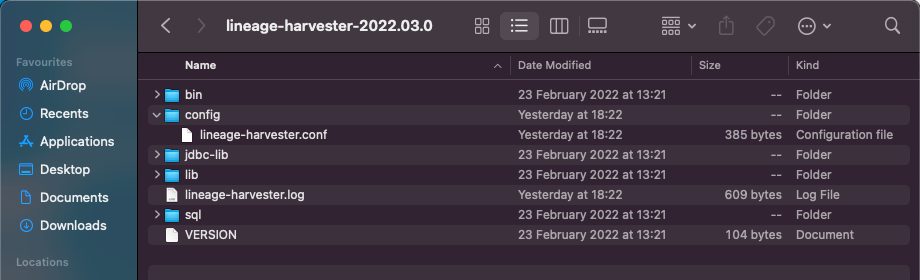
- Windows:
-
Open the lineage-harvester.conf file and enter the values for each property.
Properties Description general This section describes the connection information between the lineage harvester and Data Catalog.
catalogThis section contains information that is necessary to connect to Data Catalog.
urlThe URL of your Collibra Data Intelligence Cloud environment.
Note You can only enter the public URL of your Collibra DGC environment. Other URLs will not be accepted.
usernameThe username that you use to sign in to Collibra.
useCollibraSystemNameIndication whether you want to use the system or server name of a data source to match to the System asset you created when you prepared the physical data layer. This is useful when you have multiple databases with the same name.
By default, the
useCollibraSystemNameproperty is set tofalse. If you want to use it, set it totrue.Important- If you set this property to
true, the lineage harvester reads the value of thecollibraSystemNameproperty in your Tableau <source-ID> configuration file. - If you set the
useCollibraSystemNameproperty tofalse, the lineage harvester ignores thecollibraSystemNameproperty in the <source-ID> configuration file.
Note If you set theuseCollibraSystemNameproperty totrue, but you don't define the system name in the Tableau <source ID> configuration file, the system name in the technical lineage is DEFAULT.sources This section contains all of the Tableau connection properties.
typeThe kind of data source. In this case, the value has to be Tableau.
idThe unique ID to identify the Tableau metadata that was uploaded to the Collibra Data Lineage.
Warning In the
sourcessection of your lineage harvester configuration file, you can only specify oneidproperty peridproperties for a singleidproperties in the configuration file, it means you intend to ingest from multiple uniqueTip This value can be anything as long as it is a unique. The lineage harvester uses the ID to identify a batch of data on the Collibra Data Lineage service.
urlThe link to the data in Tableau.
The username you use to sign in to the Tableau server.
Warning As of October 2022, Tableau is enforcing multi-factor authentication for Tableau Cloud Admin users. However, the lineage harvester doesn’t support multi-factor authentication. Therefore, Tableau Cloud users with an Admin role must use
Important If you want to use token-based authentication, you need to replace
usernamewithtokenName. You must specify eitherusernameortokenName; if both exist, thentokenNameis used.tokenNameThe lineage harvester authentication token.
Note For token-based authentication, use this property in your lineage harvester configuration file, instead of the
usernameproperty. If both properties are present,tokenNameis used.siteIdsThe site IDs of the Tableau sites that you want to include in the ingestion process.
If you want to ingest the metadata in a Tableau site in a specific domain, specify the following properties:
- This property.
- The
site_name: domain_idproperty in thefilterssection in the Tableau <source ID> configuration file.
Important The site ID is the URL of the site to which you want to sign in. When you manually sign in to Tableau Server or Tableau Online, the site ID is the value that appears after /site/ in the browser address bar. In the following example URLs, the site ID isMarketingTeam:- Tableau Server: http://MyServer/#/site/MarketingTeam/projects
- Tableau Online: https://10ay.online.tableau.com/#/site/MarketingTeam/workbooks
On Tableau Server, however, the URL of the Default site does not specify the site. For example, the URL for a view named Profits, on a site named Sales, is http://localhost/#/site/sales/views/profits. The URL for this same view on the Default site is http://localhost/#/views/profits. The site name Sales does not figure in the URL. If you can't see the site ID, leave this property empty:"siteIds": [""]Example If you want to ingest two Tableau sites "Site 1" and "Site 2", you can enter the following information in the siteIds property: ["site ID of Site 1", "site ID of Site 2"].siteNamesThe site names of the corresponding site IDs.
Important This property is:- Optional for Tableau Server
- Mandatory for Tableau Online.
Warning If you have Tableau Server and you don't use this property, you must delete it from your configuration file. Don't leave the property in the configuration file without a value.restOnlyIndication whether or not you would like to use both the Tableau REST API and Tableau Metadata API to harvest Tableau metadata.
false(default): The lineage harvester will use the REST API and Metadata API to harvest Tableau metadata.true: The lineage harvester will only use the REST API to harvest Tableau metadata.
Note This property must be set tofalse, to:- Enable technical lineage and the automatic stitching of Column assets to Tableau Data Attribute assets.
- Harvest owner information for Tableau projects, workbooks and data models.
The unique reference ID of the domain in Collibra Data Intelligence Cloud in which you want to ingest the Tableau assets.
How do I find a domain reference ID?Open the relevant domain in Collibra. The URL looks like: https://<yourcollibrainstance>/domain/22258f64-40b6-4b16-9c08-c95f8ec0da26?view=00000000-0000-0000-0000-000000040001. In this example, the reference ID is in bold.
excludeImagesOptional property for excluding the downloading of images.
To exclude the downloading of images, set this property to
true.To indicate the projects that you want to ingest in different domains, specify the
filterssection in your Tableau <source ID> configuration file.Note The maximum number of images that can be uploaded to Collibra per day is determined by the configuration of the file upload service, in Collibra Console. For complete details, see the Upload configuration settings in DGC service configuration: options.
This optional property is intended to help if you are experiencing HTTP 401 Unauthorized errors due to too many concurrent HTTP calls, using the same token. It allows you to specify the internal sizing, meaning the amount of tasks that can be executed at the same time.
The default value is "10", meaning as many as 10 HTTP requests can take place in parallel. Consider reducing the value if you are experiencing HTTP 401 Unauthorized errors. Setting the value to "1" effectively disables the concurrency level, so that HTTP requests will be run in a synchronous manner, instead of in parallel.
deleteRawMetadataAfterProcessingThe lineage harvester harvests metadata from specified data sources and uploads it in a ZIP file to a Collibra Data Lineage service instance, for processing.
You can use this optional property to specify whether or not the raw metadata should be deleted after it has been processed.
The default value is
false.If the property is set to
true, the raw metadata is deleted after processing. If set tofalse, it is stored in an Amazon S3 bucket.Note- Setting this property to
truecan negatively impact performance. - This property is not yet supported by the technical lineage backend, so it can't be used yet. Backend support is coming soon.
pagingOptional property for customizing the Tableau API pagination settings.
The default values are sufficient in most cases; however, you can decrease them to help mitigate node limit errors, or increase them to speed up API calls.The complete list of pagination settings, descriptions and default values"paging": { "databasesPageSize": 100, "tablesPageSize": 100, "tablesColumnsPageSize": 100, "tableColumnsPageSize": 1000, "datasourcesPageSize": 50, "datasourcesFieldsPageSize": 50, "datasourceFieldsPageSize": 100, "worksheetsPageSize": 100, "worksheetsFieldsPageSize": 100, "worksheetFieldsPageSize": 1000, "usersPageSize": 100, "dashboardsPageSize": 100, "columnsLimit": 20, "fieldsLimit": 20 }Settings per metadata type and descriptions
Metadata type Setting and description Dashboard dashboardsPageSize: The number of dashboards per page.
Worksheet worksheetsPageSize: The number of worksheets per page.worksheetsFieldsPageSize: The number of worksheet fields per page.
Database databasesPageSize: The number of databases per page.
Table tablesPageSize: The number of tables per page.tablesColumnsPageSize: The number of table columns per page.
Table columns tableColumnsPageSize: The number of table columns per page.
Users usersPageSize: The number of users per page.
Data source datasourcesPageSize: The number of data sources per page.datasourcesFieldsPageSize: The number of data source fields per page.columnsLimit: The number of data source field columns per page.fieldsLimit: The number of referenced data source fields per page.
Data source field datasourceFieldsPageSize: The number of data source fields per page.columnsLimit: The number of data source field columns per page.fieldsLimit: The number of referenced data source fields per page.
- If you set this property to
- Save the configuration file.
- Start the lineage harvester again in the console and run the following command:
- for Windows:
.\bin\lineage-harvester.bat full-sync - for other operating systems:
./bin/lineage-harvester full-sync
- for Windows:
- When prompted, enter the password or client secret to connect to your Collibra Data Intelligence Cloud and Tableau environment.The passwords are encrypted and stored in /config/pwd.conf.
Example
{
 "general": {
   "catalog": {
     "url": "https://<organization>.collibra.com",
     "username": "<your-collibra-username>"
   },
   "useCollibraSystemName": false
 },
 "sources": [
  {
   "type": "Tableau",
   "id": "unique-ID",
   "url": "URL to Tableau server",
   "username": "Admin",
   "siteIds": ["site ID of Tableau Site 1", "site ID of Tableau Site 2"],
   "siteNames": ["site name of Tableau Site 1", "site name of Tableau Site 2"],
   "restOnly": false,
   "domainId": "Domain-resource-ID",
   "excludeImages": true,
   "concurrencyLevel": 1,
   "deleteRawMetadataAfterProcessing": true,
   "paging": {
	  "pagination-setting": 100,
	  "pagination-setting-2": 100
	}
  }
 ]
}
What's next?
The lineage harvester triggers Collibra to import Tableau assets and their relations and create a technical lineage for Tableau Data Attribute assets.
If issues occur during the Tableau ingestion process, check the Tableau troubleshooting section to solve your problems.
To refresh the Tableau metadata, you can run the lineage harvester again or schedule jobs to run them automatically.
Tip You can check the progress of the Tableau ingestion in Activities. The results field indicates how many relations were imported into Data Catalog.