Understanding the process to display sample data
If you open a Column, Table or Data Set asset page, Collibra performs a series of checks to determine if sample data is displayed.
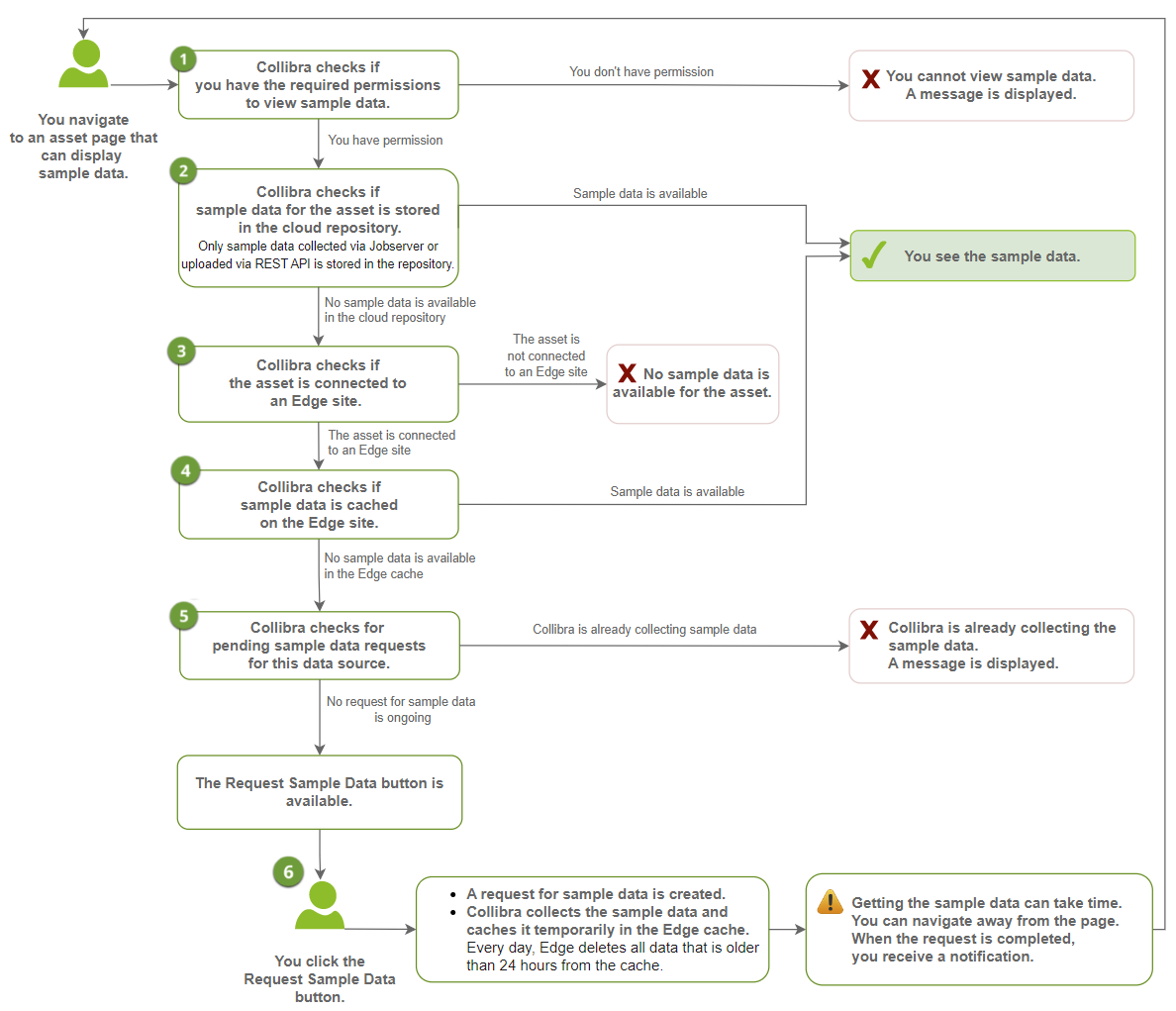
Currently, you can only request sample data via Edge for Table and Column assets.
| Check or Action | Description | Positive outcome | Negative outcome |
|---|---|---|---|
| 1 | Collibra checks if you have the required permissions to view sample data. |
You have the required permissions:
|
You don't have the required permissions:
|
| 2 |
Collibra checks if sample data is stored in the Collibra cloud repository. Tip
This is only possible if:
|
Sample data is available in the Collibra cloud repository:
|
No sample data is available in the Collibra cloud repository:
|
| 3 |
Collibra checks if the asset is connected to an Edge site. Tip An asset can be connected to an Edge site via its related Database asset. |
The asset is connected to an Edge site:
|
No sample data is available for the asset:
|
| 4 | Collibra checks if sample data is available in the cache of Edge. This is possible if sample data has been requested before and the cache has not been cleared in the meantime. Once a day, Edge deletes all data that is older than 24 hours from its cache. |
Sample data is available in the cache:
|
No sample data is available in the cache:
|
| 5 | Collibra checks if a sample data request is pending for the data source. |
A sample data request is pending for the data source:
|
No sample data request is pending for the data source:
|
| 6 | You click the Request Sample Data button. |
|
|