Preconfigure the Browser Extension
If you are an administrator, you can preconfigure the Collibra Browser Extension via Collibra Console. The preconfiguration enables faster onboarding of new users of the Browser Extension.
Preconfiguring the Browser Extension involves specifying the web domains to show the Browser Extension overlay for a quick search and to enable auto-matching for tools such as Power BI and Tableau.
The preconfiguration eliminates the need for users to specify the web domains. They can, however, still add their own web domains.
Steps
- Open the DGC service settings for editing:
- Open Collibra Console.
Collibra Console opens with the Infrastructure page. - In the tab pane, expand an environment to show its services.
- In the tab pane, click the Data Governance Center service of that environment.
- Click Configuration.
- Click Edit configuration.
- Open Collibra Console.
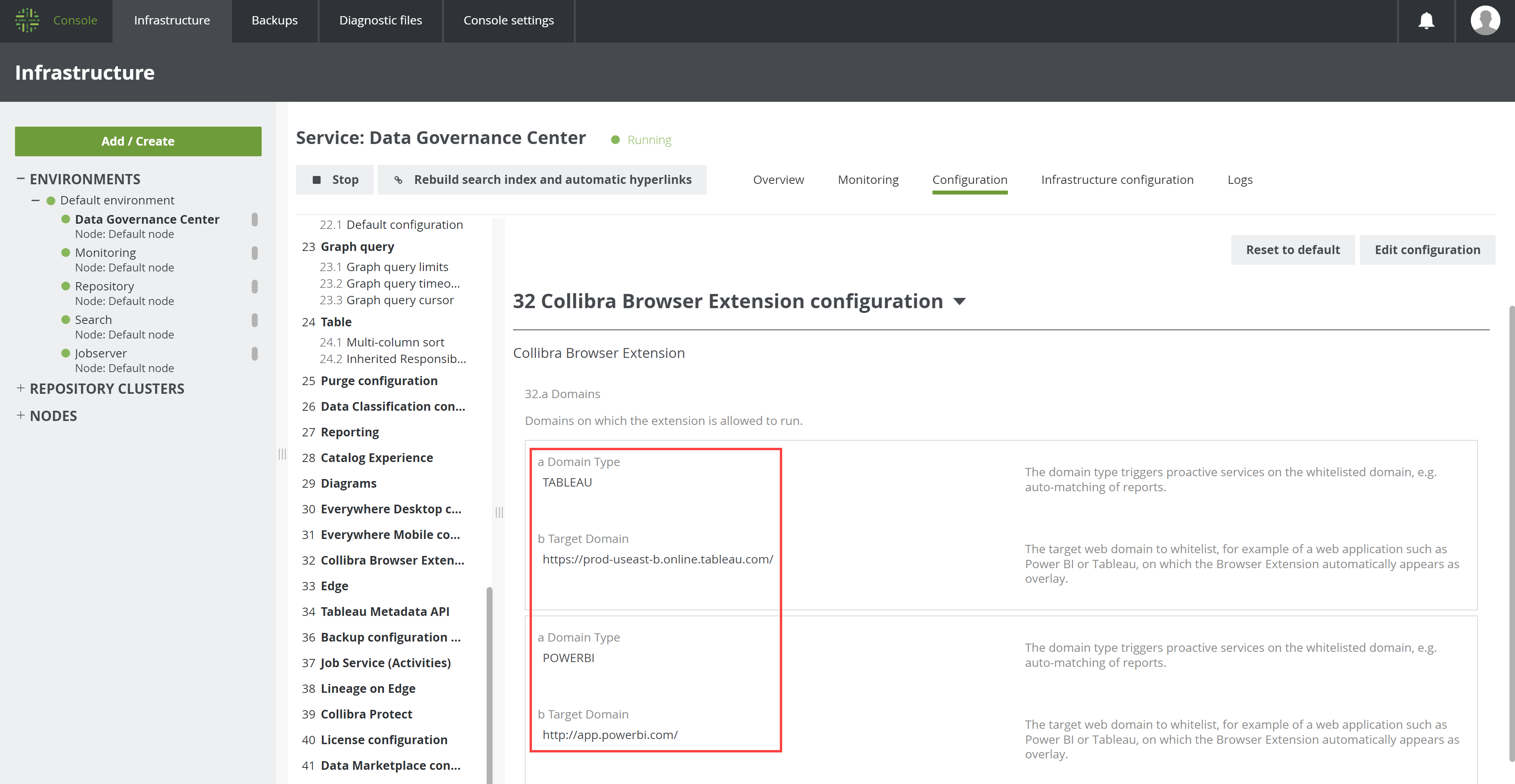
- Go to the Collibra Browser Extension configuration section.
- Enter the required information.
Field
Description
Domain Type
The type of web domain that you want to add (for example, Power BI or Tableau). Target Domain The address of the web domain. Tip To add more web domains, in the Collibra Browser Extension configuration section, click Add. - Click Save all.
You have preconfigured the Browser Extension.
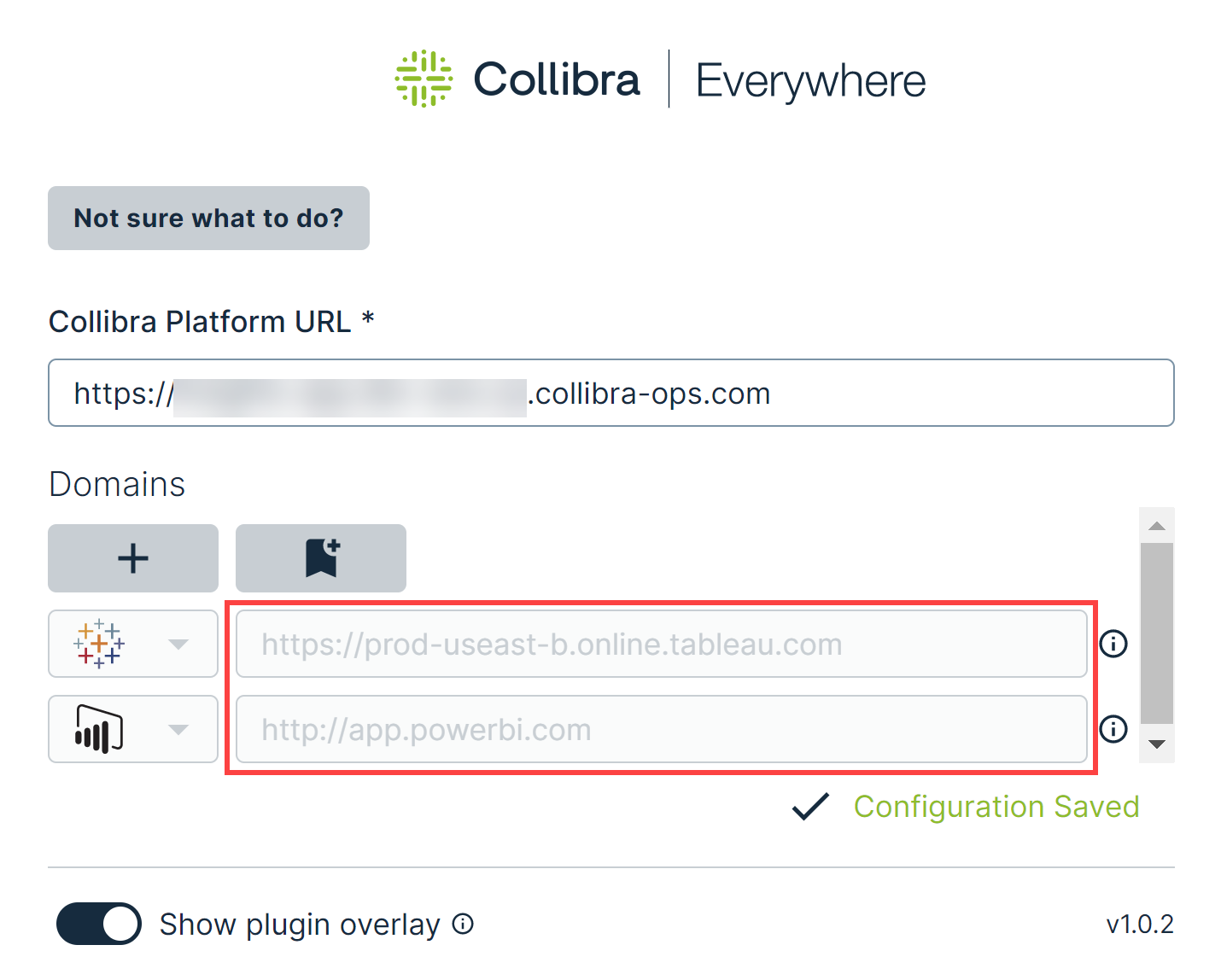
Note The web domains that you specified appear in the Browser Extension.