Configure the Browser Extension
After adding Collibra Browser Extension, you must set the address (URL) of your Collibra Data Intelligence Cloud environment. Optionally, you can add web domains for Power BI, Tableau, and other important web applications. Collibra recommends that you pin the extension to the toolbar of your browser.
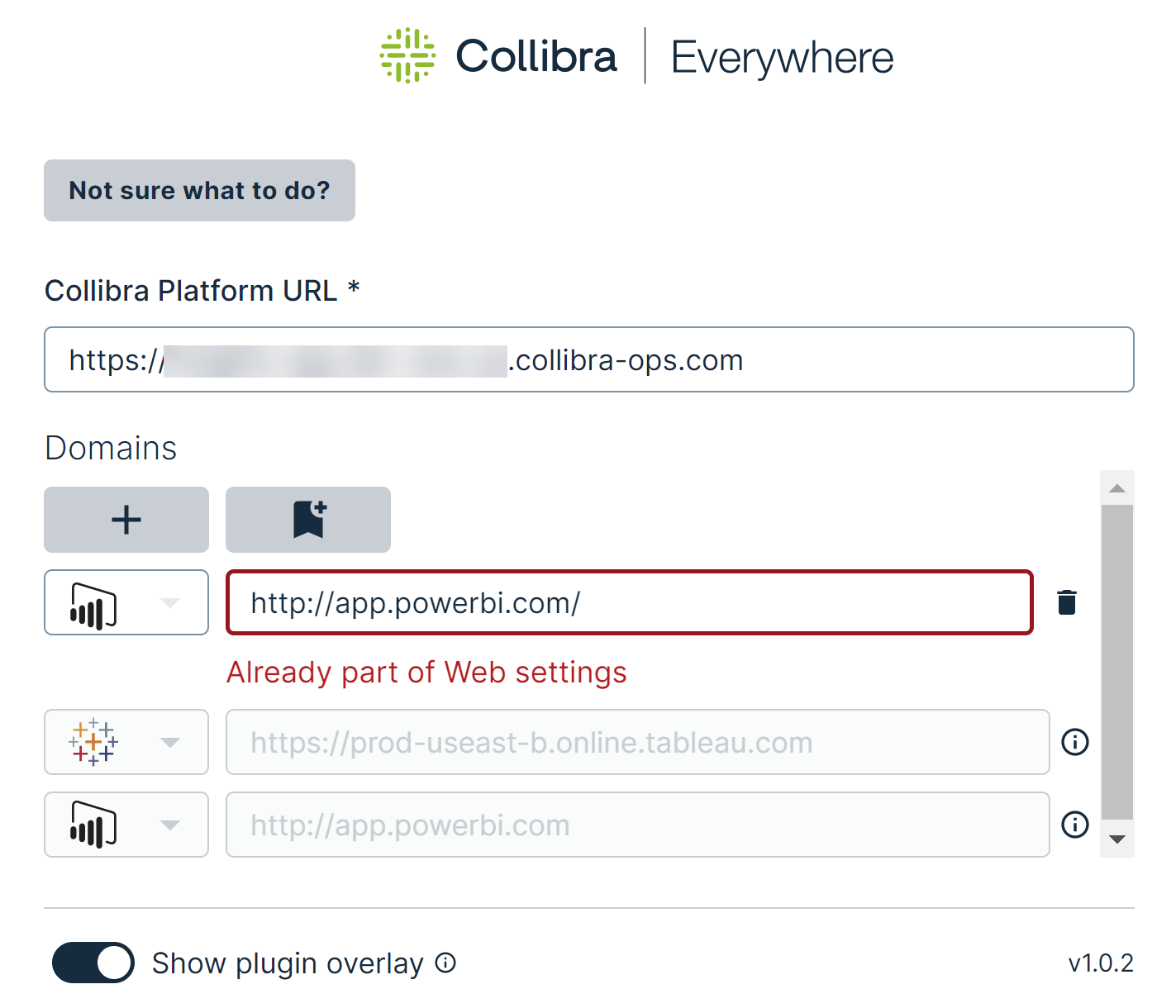
Before you can use the Browser Extension, you must set the URL of your Collibra environment.
Steps
- Open Collibra Browser Extension.
- In the Collibra Platform URL field, enter the URL of your Collibra Data Intelligence Cloud environment.
The configuration is saved.
Some web applications have their own context menu, for example, Google Docs and Tableau. On such applications, you cannot perform a search via a context menu, as you would on other applications. You can consider adding web domains for such applications so that you can use the Browser Extension via the Collibra Browser Extension logo.
You can also consider adding web domains for the web applications that you consider important so that the Collibra Browser Extension logo appears on those applications as a reminder for you to use the extension. Adding web domains also allows you to benefit from the auto-matching feature.
Steps
- Open Collibra Browser Extension.
- In the Domains section, click
 .Tip
.Tip- If you want to add the URL of the web page that is currently open, click
 instead and ignore the following steps.
 - is disabled if the URL of the web page that is open is already added.
- If you want to add the URL of the web page that is currently open, click
- In the drop-down list box, select the web application, for example, Tableau or Power BI.Tip If the required web application is not available in the list, select Other.
- In the field, enter the URL of the web page.
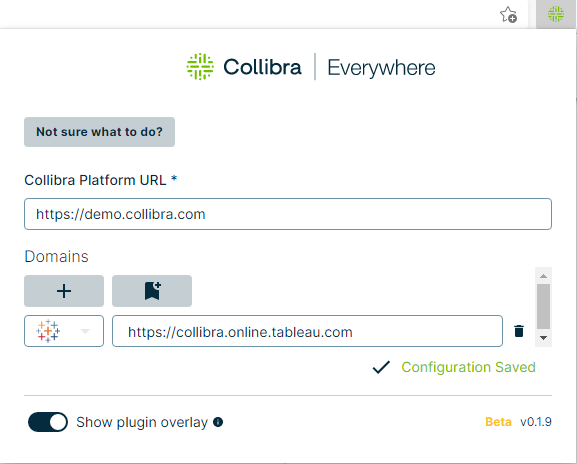
- To remove a web domain, click
 next to it.
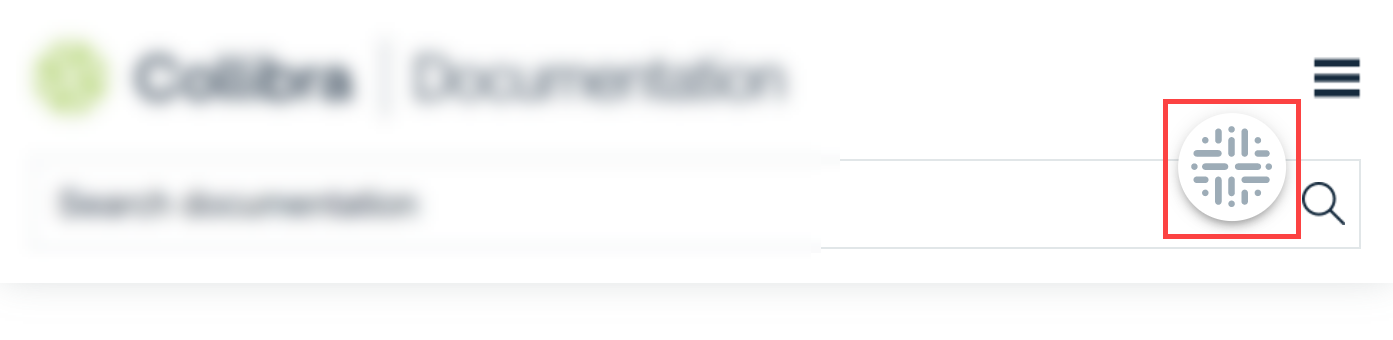
 - The Show plugin overlay option is selected by default, indicating that the Collibra Browser Extension logo appears on the web pages that you added.
Note When you search via the Browser Extension for the first time, you are prompted to enter your credentials.
An administrator can add web domains in advance via Collibra Console.
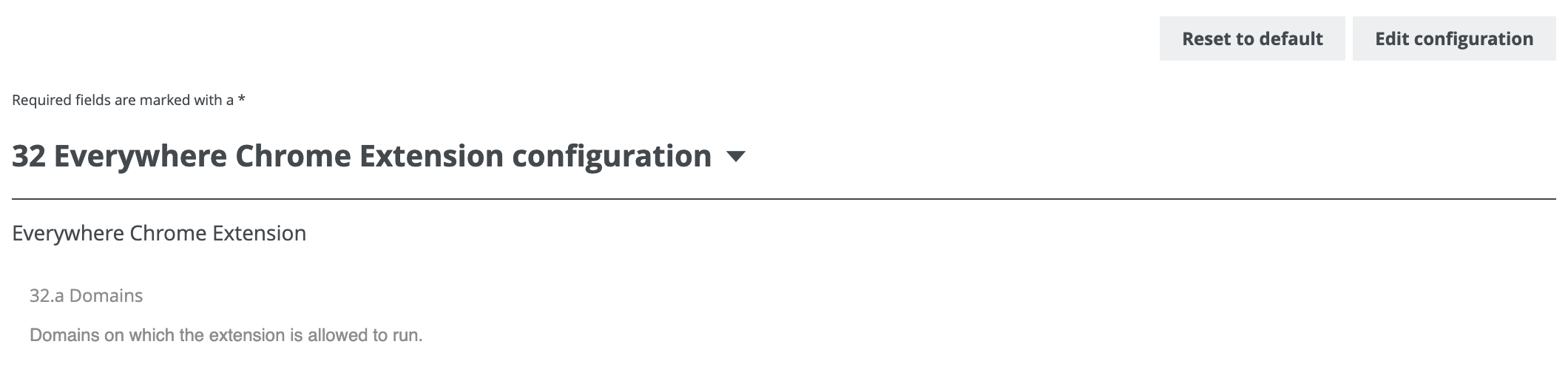
In the Browser Extension configuration window, you cannot edit or remove a web domain that is added via Collibra Console. In addition, if the web domain that is added via Collibra Console already exists in your local settings, you are asked to remove that web domain.
Tip Ensure that extensions are visible in the toolbar of your browser.
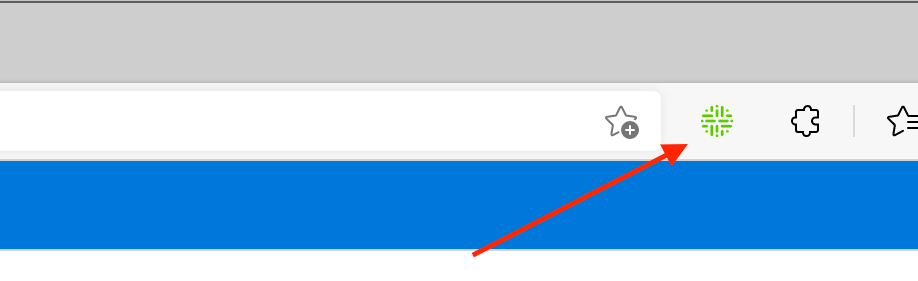
If you want the extension to always be accessible in the browser, pin the extension in your extension list as shown in the following image.
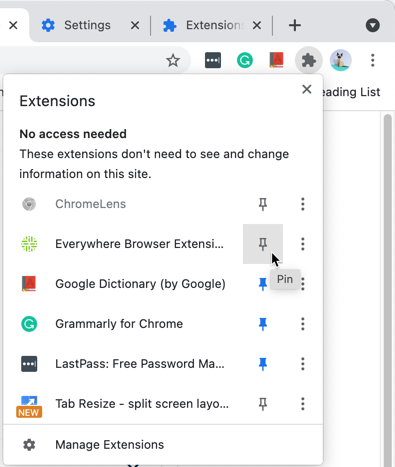
When you pin the extension, the Collibra logo appears in the extension list of your browser.