Create a data set with the Query Builder
With the Query Builder, you select all the data that you may need to visualize data. From the discover data use case, we know that we have to find the following relations:
- Database to column
- Column to data domain
- Column to (privacy) standard
To organize the data, we also want to find the relation between columns and data concepts and data domains.
Besides relations, we will also show how you can add attributes to the data set. Adding responsibilities follows the same steps.
Add database-column relations
We recommend that you use Collibra for Desktop to find the necessary relations.
|
Actions in Collibra for Desktop |
Follow-up actions in Asset Grid |
|---|---|
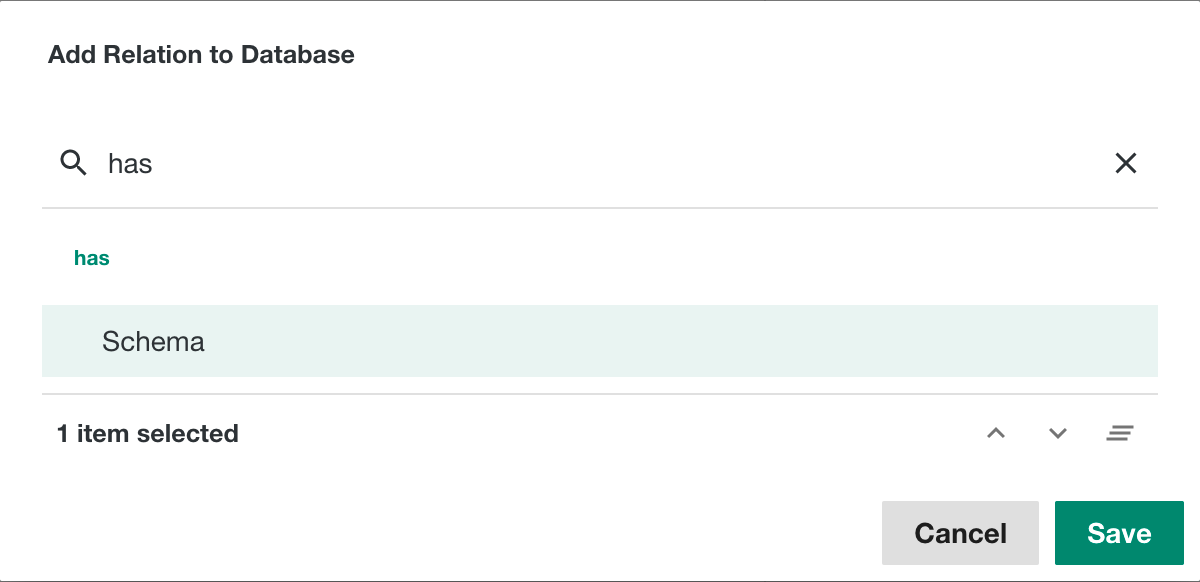
This is the first relation that you have to add in the Query Builder. |
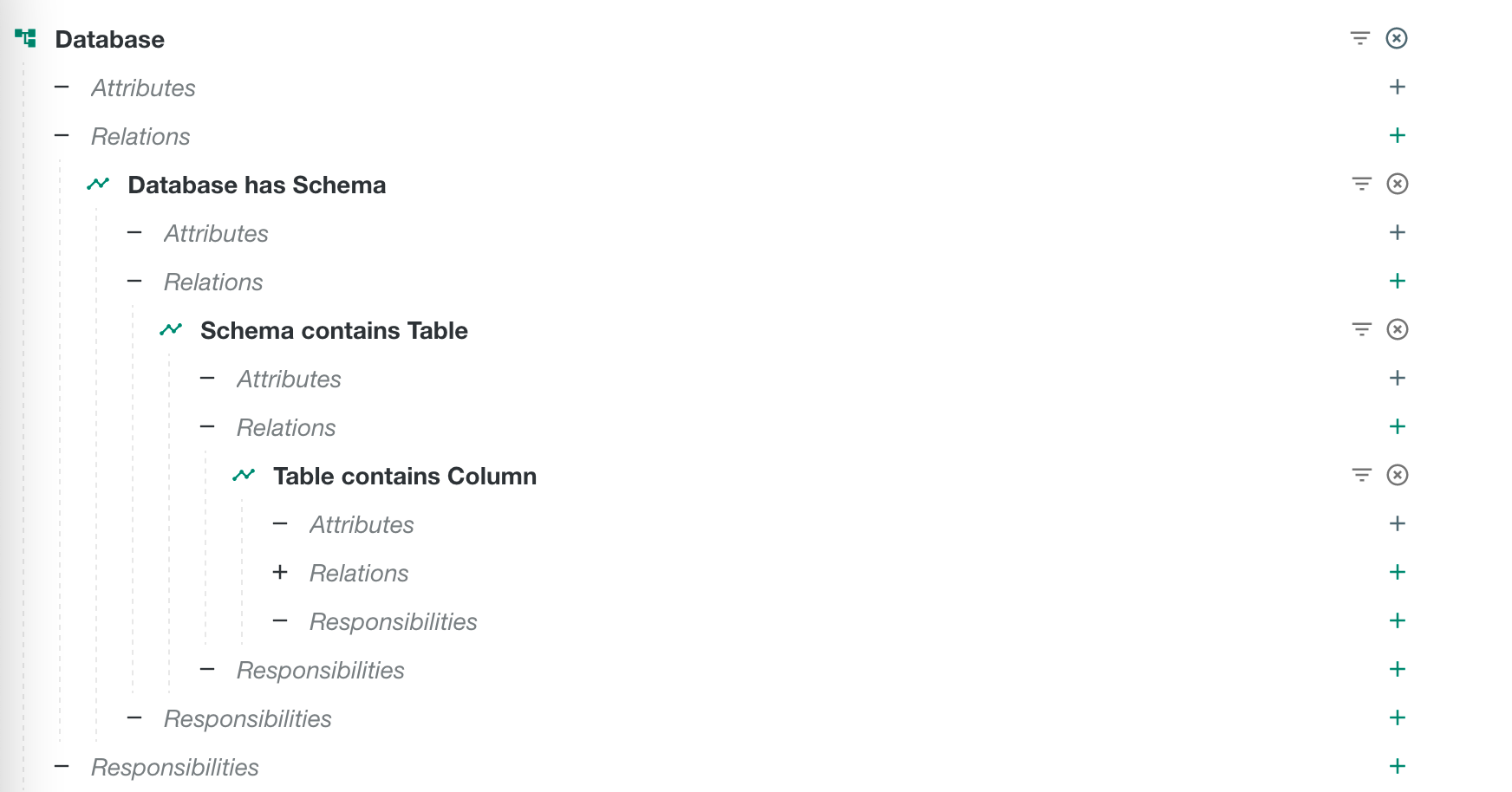
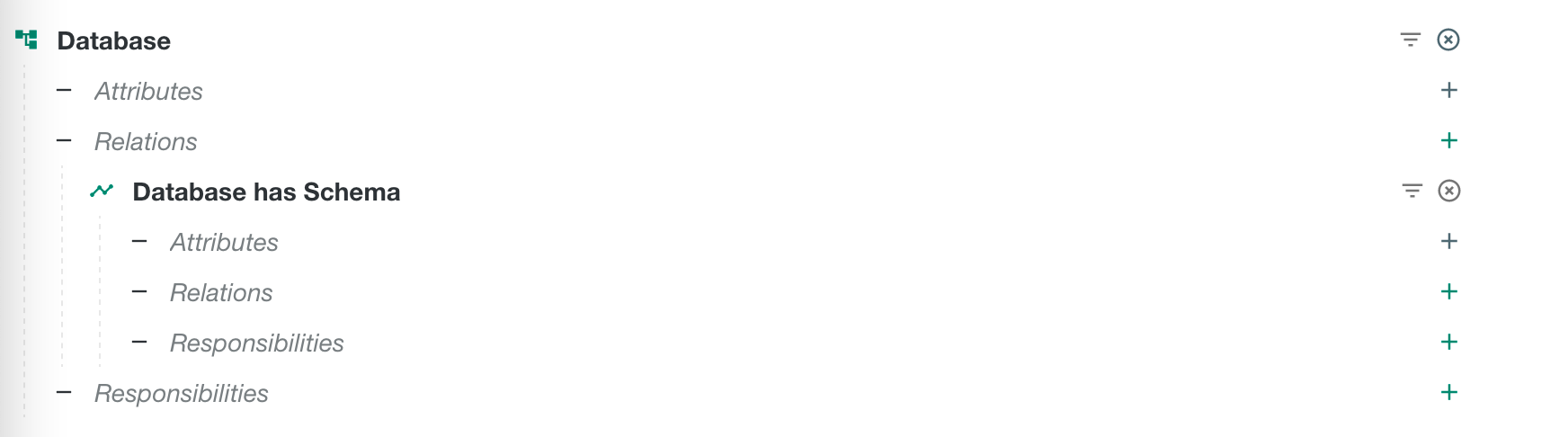
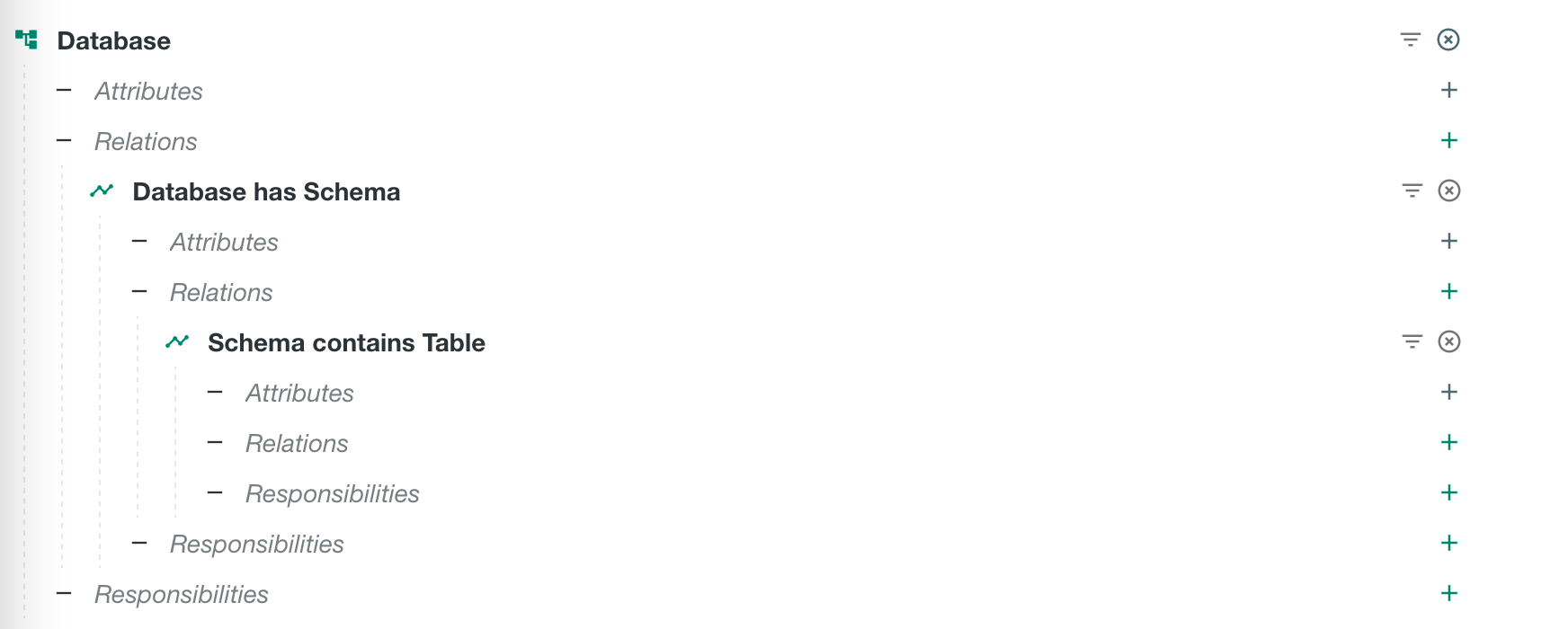
You have added the first relation Database has Schema. This means that your data set contains schemas.
|
This is the next relation to find the relationship between database and column assets. |
You have added the relation Schema contains Tables. This means that your data set contains tables.
|
This is the next relation to add in the Query Builder. You then have traversed from database to column. |
You have added the relation Table contains Column. This means that your data set contains tables.
|

Add column-data domain relations
Finding the relation between Column assets and Data Concept assets and Data Domain assets is less straightforward.
Again, it is best to use Collibra for Desktop to find the relation.
We can now go in both directions, either find the relations from a data domain to a column or the other way around. It might be easier to start from a data domain and traverse over relations until you have a link with a column. If you start from a column, it is possible that you have to open many columns before you can find the relations path towards the data domain.
- Look up a data domain in Collibra for Desktop.
- A data domain groups data concepts.
- A data concepts classifies data attributes.
- Data attributes represents columns.
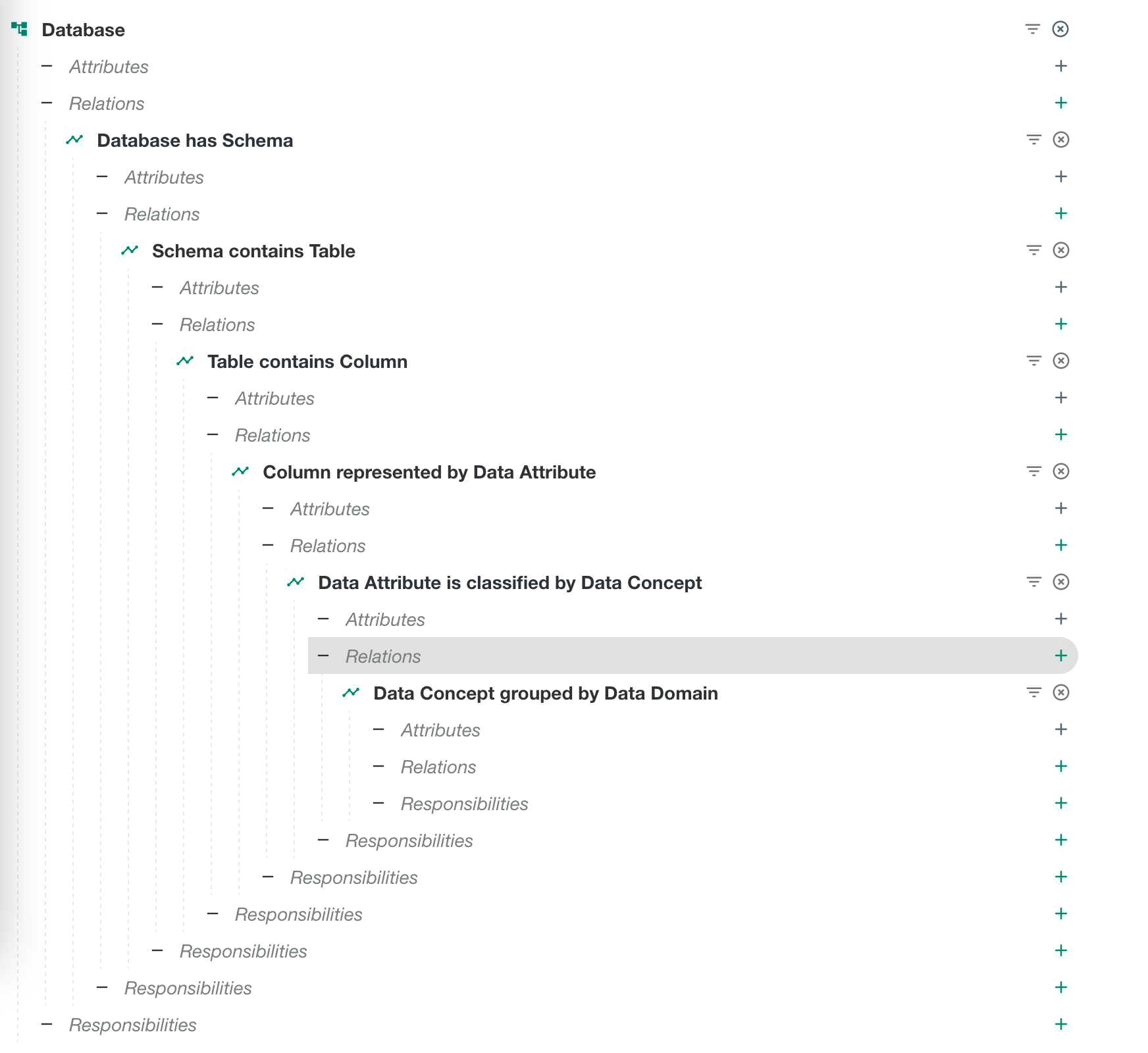
We have now found the relations between data domain and a column but for our use case, we have to revert the relations, leading to this result:
- Column is represented by a data attribute.
- A data attribute is classified by a data concept.
- A data concept is grouped by a data domain.
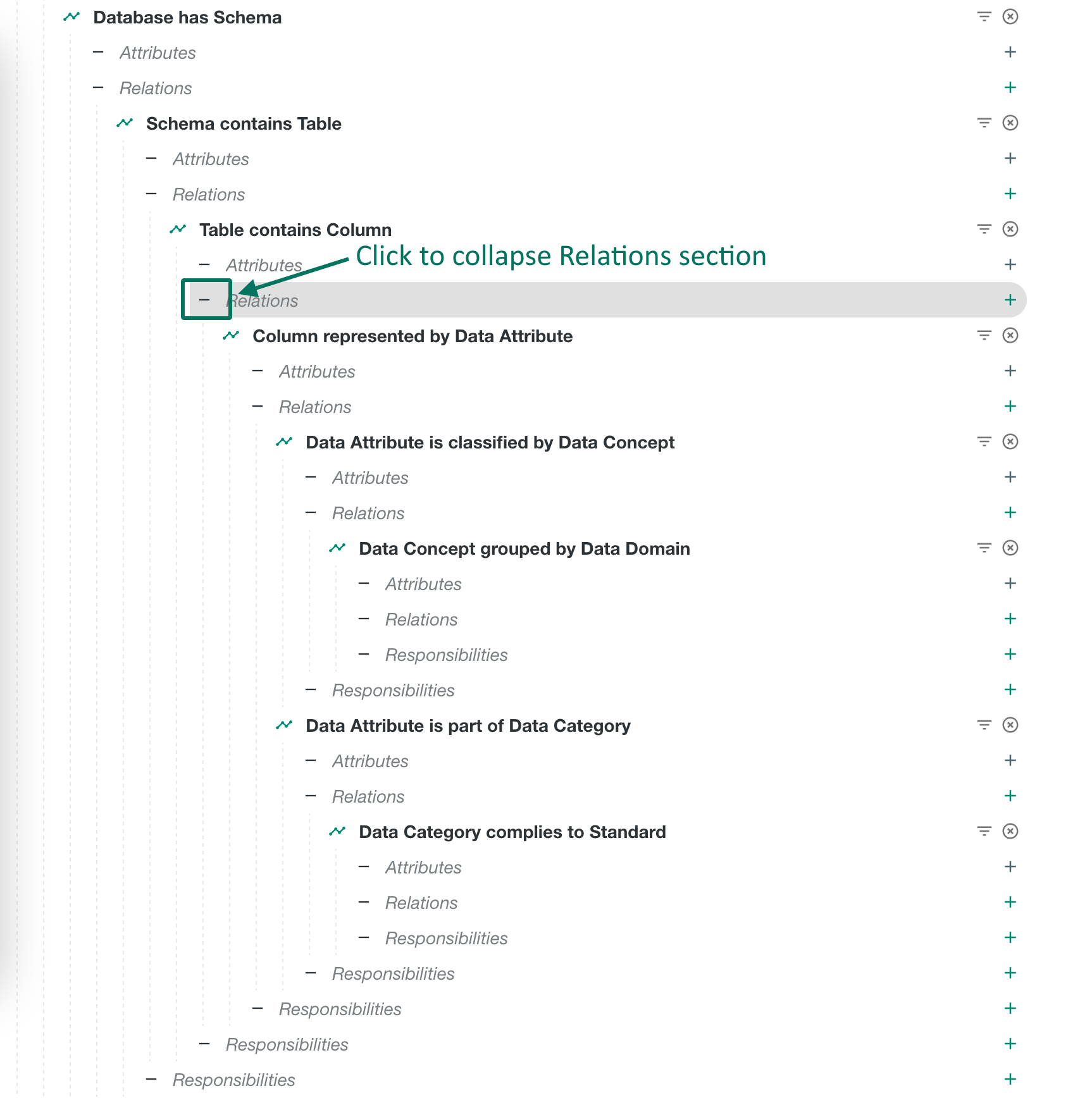
These are the three relations that you have to add in the Query Builder, starting from the last relation (Table contains Columns) that you added.
Tip Instead of typing the relation type in the search field, you can also enter the asset type, for example data attribute.
Add column-standard relations
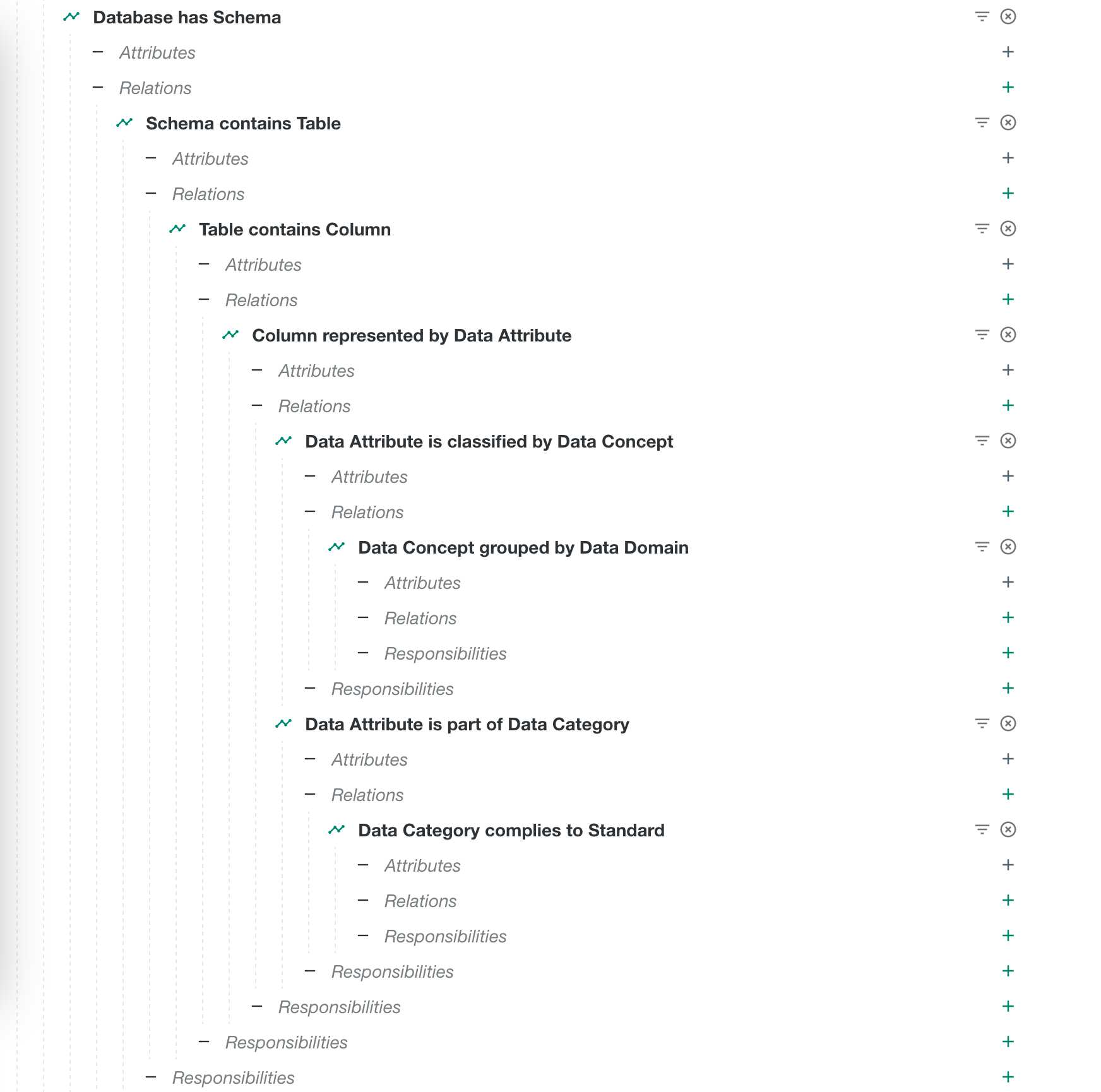
In this section, we will add the relation between columns and privacy standards as we want to know which standard applies to the column. In this case, we can already start from the Column represented by Data Attribute relation.
On a data attribute asset, we see that there is a relation is part of Data Category, where some categories indicate a privacy law, for example CCPA or GDPR.
When you have added this new relation, you can easily add the new relation complies to Standard.
Add attributes to the data set
If you want to show extra information on the details page of an asset in your grid, you can add it per asset type that you have added.
- Click
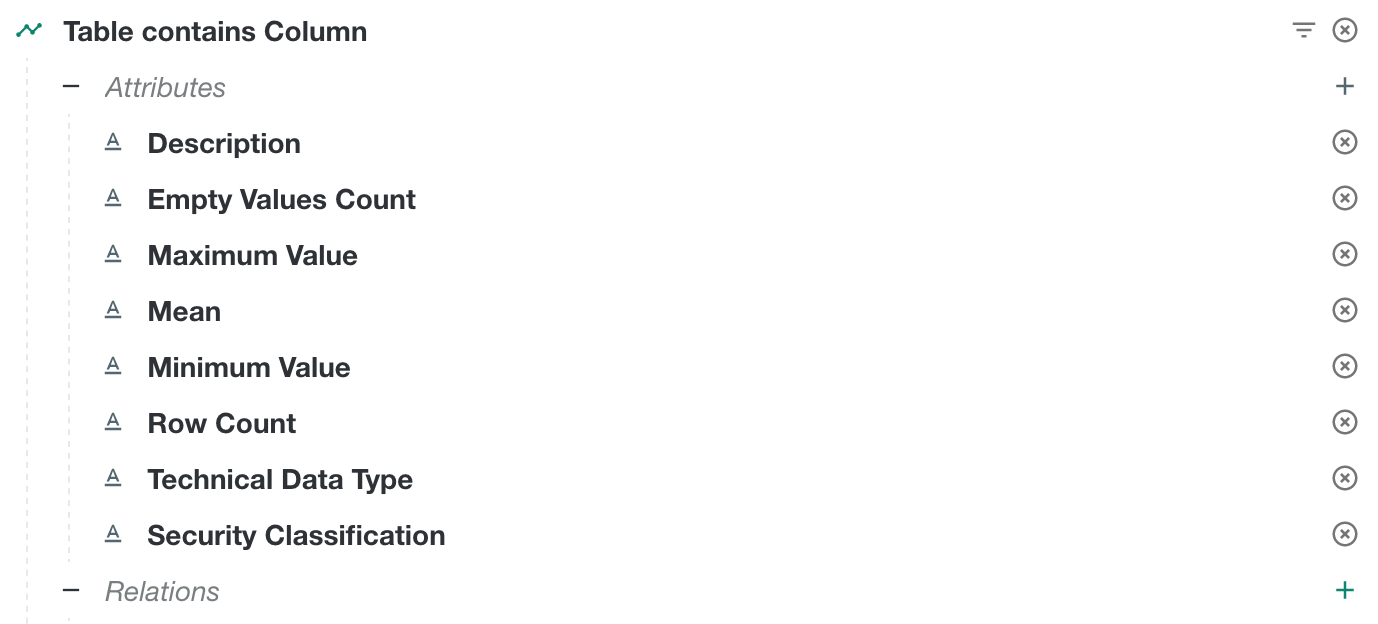
 next to Attributes of the asset type, for example in the Schema contains Table section for table attributes as shown below.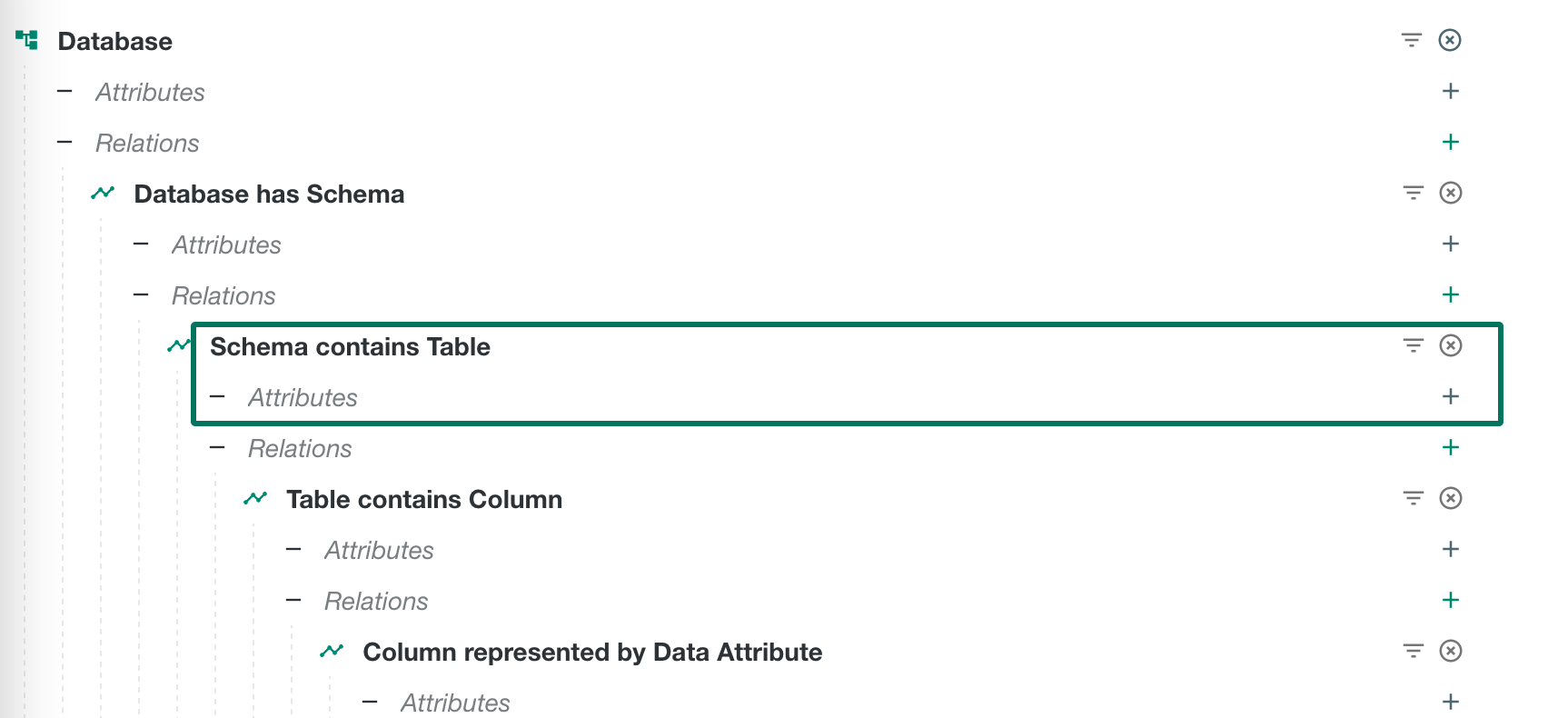
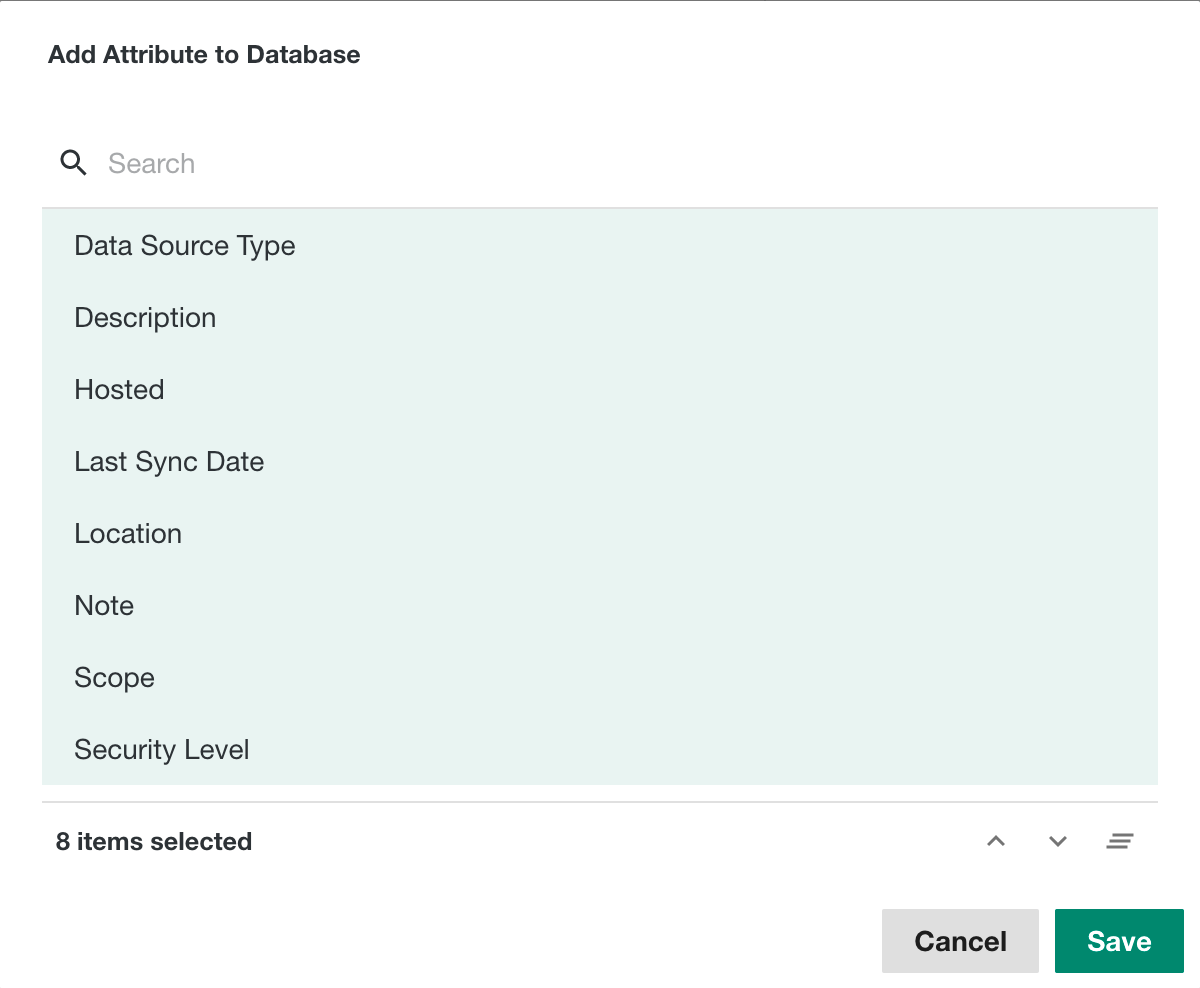
- In the Add Attribute window, click the relevant attributes, so that they are highlighted.
- Click Save.
The selected attributes are shown under Attributes.
For this use case, add attributes of the Database and Column asset types, as shown in the following images.
Add responsibilities to the data set
This section is just for information as we're not adding responsibilities for this use case.
If you want to show responsibility information in the asset preview in your grid, you can add it per asset type that you have added.
- Click next to Responsibilities of the asset type, for example in the Table contains Column section.
- In the Add Responsibility window, click the relevant roles, so that they are highlighted.
- Click Save.
The selected roles are shown under Responsibilities.
If there are already a lot of relations expanded, ensure that you select the Responsibilities of the correct section. To easily find the correct section, collapse the relations in the section to which you want to add a responsibility by clicking  on the left of Relations.