Working with tables
All tables in DGC have some common features and actions. For some tables, you can do additional actions.
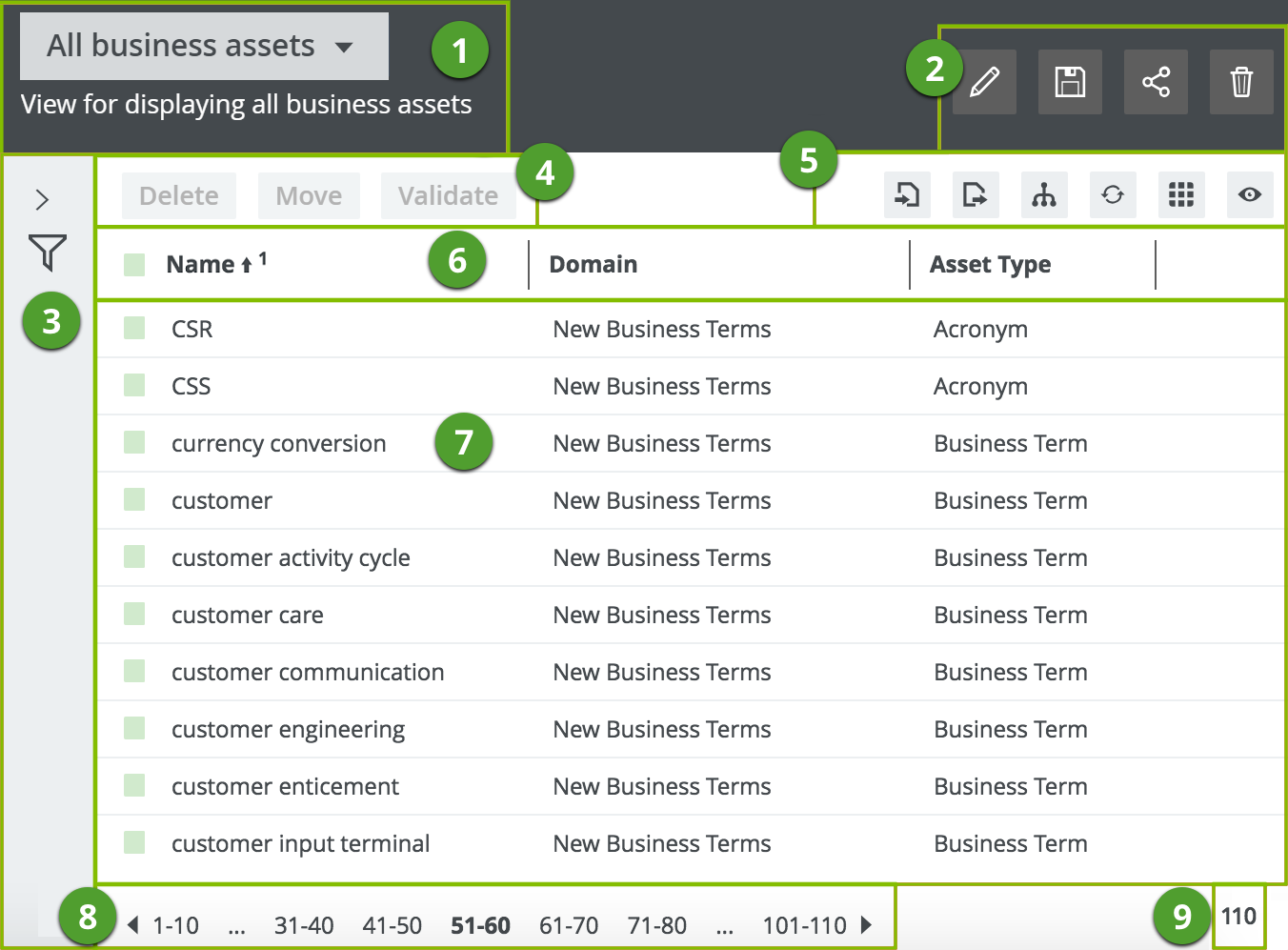
| No. | Element name | Description |
|---|---|---|
| 1 | View selector | The view selector shows the name and description of the current view, and allows you to choose another view. |
| 2 | View toolbar | The view bar contains buttons to save, edit, share and delete the current view. |
| 3 | Asset filter | You can use an asset filter to limit the number of assets shown. |
| 4 | Action menu | The action toolbar contains a selection counter and actions that you can perform on assets you select in the table. |
| 5 | Table menu | The table menu contains buttons for actions that you can perform on the table. |
| 6 | Fields |
The fields are the column headers. You can customize the table to determine which fields are shown and in which order they're shown. You can also rename the field display names. From the header, you can |
| 7 | Body |
The body of the table shows the actual content of the table in rows. From a table, you can do the following:
|
| 8 | Pages |
The table pages. This section appears if the table contains more rows than you are displaying. You can do the following: |
| 9 | Counter |
The total number of assets in the table. If the table contains more than 10 000 rows, the counter displays 10 000 +. Click it to see the exact count. |