Prepare the Data Catalog physical data layer for technical lineage
You prepare Data Catalog's physical data layer to enable Data Catalog to automatically stitch the data objects in your technical lineage to the assets in Data Catalog.
Prerequisites
- Catalog Experience is enabled in Collibra Console.
- You have a global role with the Catalog global permission, for example Catalog Author.
- You have set up the JDBC driver of your source data, for example MySQL.
- You have configured one or more Jobservers in Collibra Console. If there is no available Jobserver, the Register data source actions will be grayed out in the global create menu of Collibra Data Intelligence Cloud.
- You have a resource role with the following resource permissions on the Schema community:
- Asset > add
- Attribute > add
- Domain > add
- Attachment > add
- You have the permissions to retrieve the metadata of the following database components through the JDBC Driver Database Metadata methods:
- Schemas
- Tables
- Columns
Steps
- Create a System asset:
Tip The full name of your System asset must match the exact name of the system of the data source that you register in the configuration file.
- Open Catalog.
- In the main menu, click the
Create (
 ) button.
The Create dialog box appears. - Click the Assets tab.
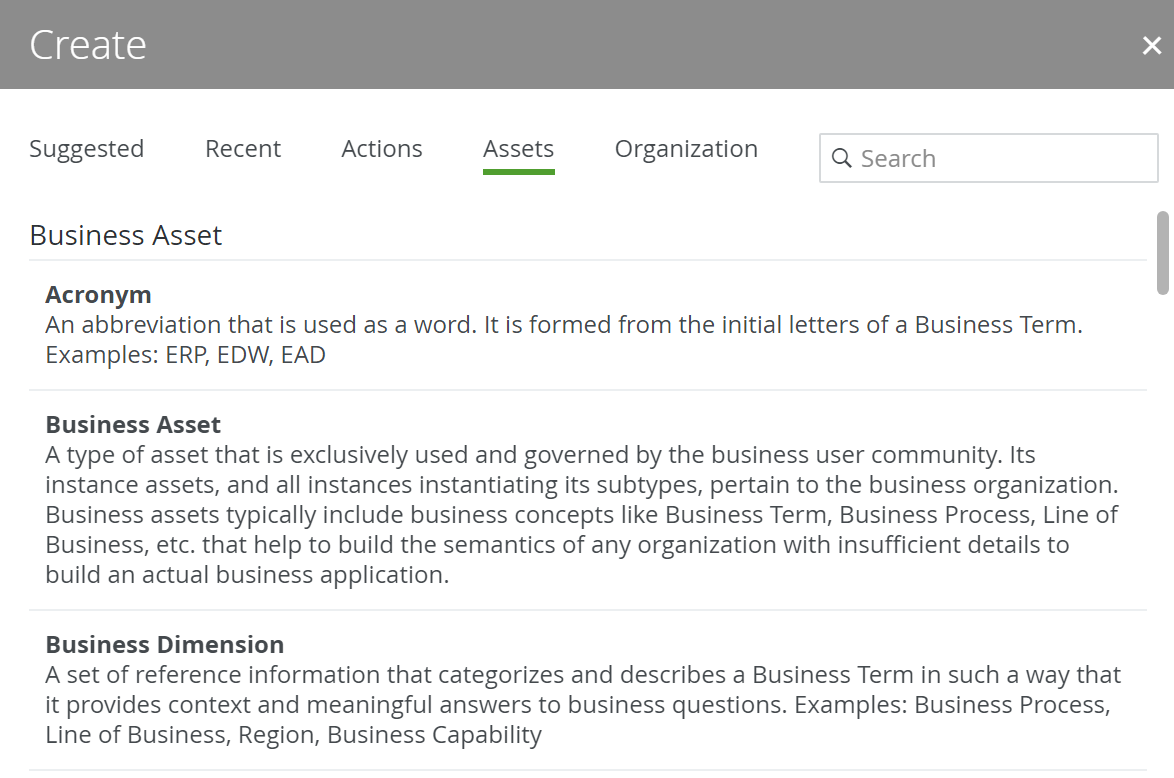
- Click System.
The Create Asset dialog box appears. - Enter the required information.
Field Description Type The asset type of the asset that you are creating, in this case System.
Domain The domain to which the new asset will belong. You can only create a System asset in any domain of a domain type that is assigned to a System asset type.
Name The name of the System asset. This has to match the exact name of the system that you register in the configuration file as collibraSystemName .
TipYou can create multiple
To do this, press Enter after typing a value and then type the next. - Click Create.
A message at the top-right of your screen confirms that one or more assets are created.
- Register a database as data source. You can register a database or an SQL directory as data source.
After registration, the assets of the following asset types are created in Data Catalog:- Schema
- Table
- Column
Tip The full name of your Schema asset must match the exact name of the schema in the data source that you register in the configuration file. - Create a Database asset:
Tip The full name of your Database asset must match the exact name of the database or project, in case of Google BigQuery, that you register in the configuration file.
- Open Catalog.
- In the main menu, click the
Create () button.
The Create dialog box appears. - Click the Assets tab.
- Click Database.
The Create Asset dialog box appears. - Enter the required information.
Field Description Type The asset type of the asset that you are creating, in this case Database.
Domain The domain to which the new asset will belong. You can only create a Database asset in any domain of a domain type that is assigned to a Database asset type.
Name The name of the Database asset. This has to match the exact name of the database that you register in the configuration file.
TipYou can create multiple
To do this, press Enter after typing a value and then type the next. - Click Create.
A message at the top-right of your screen confirms that one or more assets are created.
- Create a relation between the System asset and the Database asset using the "Technology Asset groups / is grouped by Technology Asset" relation type.
-
In the tab pane, click
Add Characteristic.
The Add a characteristic dialog box appears. - Click Relations.
- Search for and click groups Technology asset.
The Add groups Technology asset dialog box appears. - Enter the required information.
Option Description Assets The name of the .
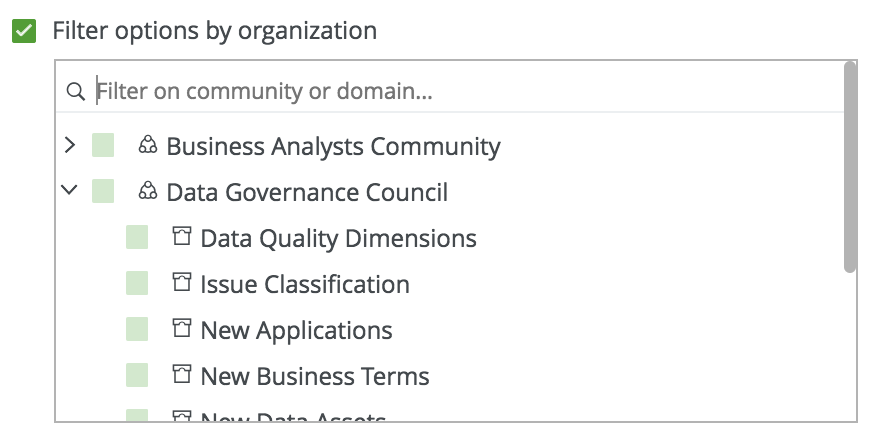
Filter suggested assets by organization
Option to filter the suggestions based on selected communities and domains.
If this option is selected, the organization tree appears. You can then filter and select domains and communities.
Start date Optionally enter the date on which the relation between the assets becomes applicable. Leave this field empty to create a permanent relation. End date Optionally enter the date on which the relation between the assets is no longer applicable. Leave this field empty to create a permanent relation. - Click Save.
-
In the tab pane, click
Add Characteristic.
- Create a relation between the Database asset and the Schema asset using the "Technology Asset has / belongs to Schema" relation type.
-
In the tab pane, click
Add Characteristic.
The Add a characteristic dialog box appears. - Click Relations.
- Search for and click has schema.
The Add has schema dialog box appears. - Enter the required information.
Option Description Assets The name of the .
Filter suggested assets by organization
Option to filter the suggestions based on selected communities and domains.
If this option is selected, the organization tree appears. You can then filter and select domains and communities.
Start date Optionally enter the date on which the relation between the assets becomes applicable. Leave this field empty to create a permanent relation. End date Optionally enter the date on which the relation between the assets is no longer applicable. Leave this field empty to create a permanent relation. - Click Save.
-
In the tab pane, click
Add Characteristic.
What's next?
If you haven't created a configuration file yet, you are now required to create it.
If you created the configuration file and prepared the physical data layer, you can run the lineage harvester to start the technical lineage process.
When the technical lineage process is finished and you have the required permissions, you can go to the asset page of a Table or Column asset from the data source that you added in the configuration file and visualize the technical lineage. At the same time, new relations of the type "Data Element targets / sources Data Element" between assets in Data Catalog are created.
The lineage harvester also uses scheduled jobs to automate the technical lineage process.