Edit a widget
You can edit the dashboard widgets to curate the information shown on the dashboard.
Prerequisites
- If you want to manage your own dashboard, you have a global role with the Manage your own Views, Dashboards, Search filters global permission, for example Sysadmin.
- If you want to manage another user's dashboard, you have a global role with the Manage shared Views, Dashboard and Search Filter global permission, for example Sysadmin.
Steps
Tip
The steps in this procedure are different for the classic and refreshed navigation.
-
In the main menu, click
 .
In the main menu, click
.
In the main menu, click Dashboard.
-
If required, switch to the relevant dashboard.If required, switch to the relevant dashboard.
-
In the dashboard toolbar, click
 → Edit widgets.In the dashboard toolbar, click
 → Edit widgets.
 - Edit the content of the widget, to meet your needs.
- Not every widget has the same tabs.
- The Widget tab is the same for each widget. Your configuration of the Widget tab defines how the widget is displayed on the dashboard.
- Click Save.
Note
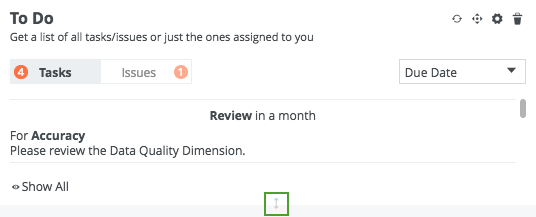
Tip You can vertically resize any dashboard widget, by clicking and dragging the gray, bi-directional arrow at the bottom of the widget.
For complete information on working with dashboards and widgets, see the Collibra Data Intelligence Cloud User Guide.