About the Data Classification dashboard
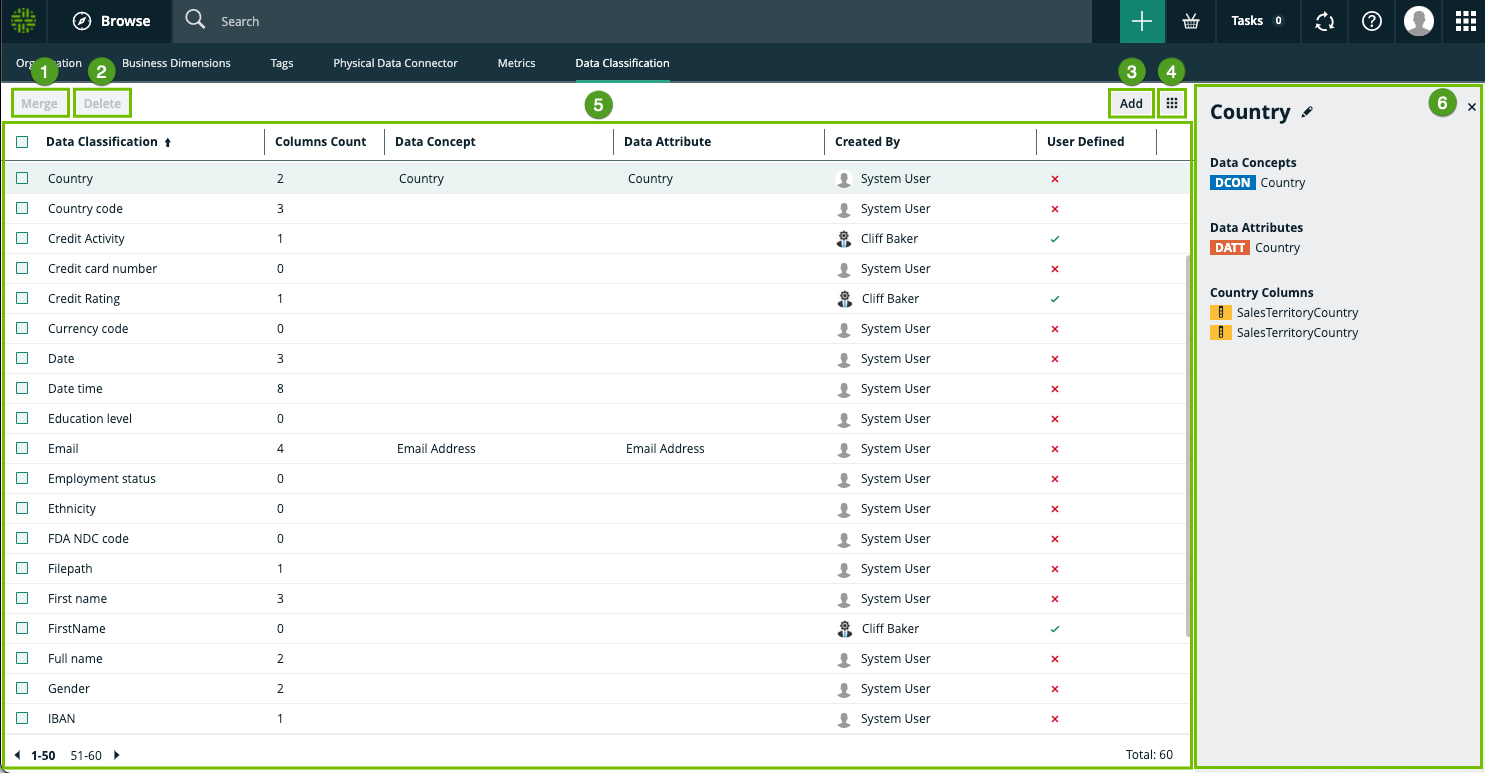
The Data Classification Dashboard shows the list of data classes in your Collibra environment and gives you more control and visibility on them. When you make changes via the Data Classification Dashboard, feedback is automatically sent to the Data Classification platform.
You access the dashboard via the Data Classification subpage in the Stewardship application.
|
No. |
Name |
Description |
|---|---|---|
|
|
Merge button |
A button to merge multiple data classes. |
|
|
Delete button |
A button to delete one or more data classes. |
|
|
Add button |
A button to manually add a new data class. |
|
|
Table menu ( |
The table menu contains buttons to manage the columns shown. |
|
|
Table with packaged and manually created data classes |
A table that shows all the data classes that exist in your environment. You can also view details about each data class. |
|
Data Classification
|
The data class name. You can manually add, merge, edit or remove the data classes |
|
|
Column Count
|
The number of columns classified as the associated data class. |
|
|
Data Concept
|
The name of the associated Data Concept assets. It connects the data class to your business asset model. |
|
|
Data Attribute
|
The name of the associated Data Attribute assets. It connects the data class to your logical data model. |
|
|
Created By
|
The name of the user who created the class. If the data class is a packaged data class, the user is the System User. |
|
|
Created On
|
The date the data class was created. |
|
|
Last Modified By
|
The name of the user who made the last change. |
|
|
Last Modified On
|
The date the data class was last changed. |
|
|
User Defined
|
Indicates if the data class was automatically or manually created. |
|

|
Side pane |
A side pane that gives you a clear overview of the data class information of the selected data class. |


 )
)