Configure the Text widget
You can configure the Text widget to post a free-text message on the dashboard.
Prerequisites
- If you want to manage your own dashboard, you have a global role with the Manage your own Views, Dashboards, Search filters global permission, for example Sysadmin.
- If you want to manage another user's dashboard, you have a global role with the Manage shared Views, Dashboard and Search Filter global permission, for example Sysadmin.
Steps
Tip
The steps in this procedure are different for the classic and refreshed navigation.
-
In the main menu, click
 .
In the main menu, click
.
In the main menu, click Dashboard.
-
If required, switch to the relevant dashboard.If required, switch to the relevant dashboard.
-
In the dashboard toolbar, click
 → Edit widgets.In the dashboard toolbar, click
 → Edit widgets.
 - If required, add a Text widget to a dashboard.
- In the widget, click
 .
.
- Type or cut and paste your text in the field and, optionally, format it using the rich text editor.
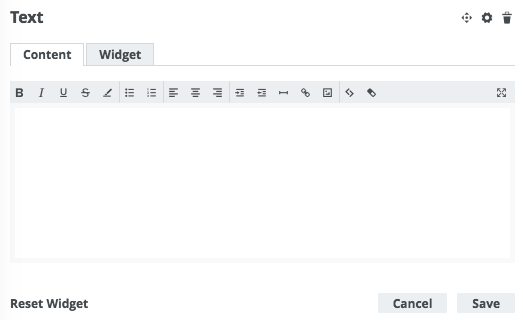
- Click Save.
Tip If you want to copy and paste text from other sources into a text field, we recommend that you click  , and then paste the text into the Show source code field. This will remove any unwanted formatting or tagging of the text. For detailed information, see the knowledge base article on Collibra Support Portal.
