Add a data quality capability
Note If you're using a Collibra Cloud site, go the Collibra Cloud site documentation to check if your data source is supported.
Pushdown processing mode uses the Data Quality Pushdown Processing capability, allowing you to run data quality jobs directly inside your database or data warehouse. This method processes data exactly where it lives, such as in Databricks or SAP HANA, helping you get faster results and avoid costs of moving data across systems. It also offers a simpler setup than Pullup mode, because you do not need to manage compute resources for an external engine like Apache Spark.
Overview
In Pushdown mode, your data warehouse handles all the work. When you run a job, Collibra submits it directly to your source system, where the data processes entirely within the data warehouse. Source data never leaves the environment in which it resides. The resulting data profile then displays on the Job Details page.
Pushdown processing provides several important benefits:
- Faster processing speeds: Avoid dependencies on external compute engines to improve processing times when running large jobs.
- Lower costs: Process data at its source to help reduce data transfer costs.
- Simpler management: Skip complex Spark configurations and use the auto-scaling capabilities of compatible data sources.
Prerequisites
- You have created and installed an Edge site.
- You have created a connection to a data source that is certified for data quality in your Edge or Collibra Cloud site.
- You have a global role that has the Manage connections and capabilities global permission, for example, Edge integration engineer.
Steps
- Open an Edge or Collibra Cloud site.
-
On the main toolbar, click
 →
→
 Settings.
The Settings page opens. -
In the tab pane, click Edge.
The Sites tab opens and shows a table with an overview of your sites. - In the table, click the name of an Edge or Collibra Cloud site with the status Healthy.
The Edge or Collibra Cloud site page opens.
-
On the main toolbar, click
- Verify that you are connected to a supported data source for data quality.
- If your Pushdown-compatible data source is not yet configured as a connection on your Edge or Collibra Cloud site, follow the steps on Create a JDBC connection for your data source.
- Ensure that your data source has the correct permissions to allow data quality queries to run effectively. Go to Data source-specific permissions to identify the required permissions for your data source.
- Click the Capabilities tab.
The Capabilities tab appears.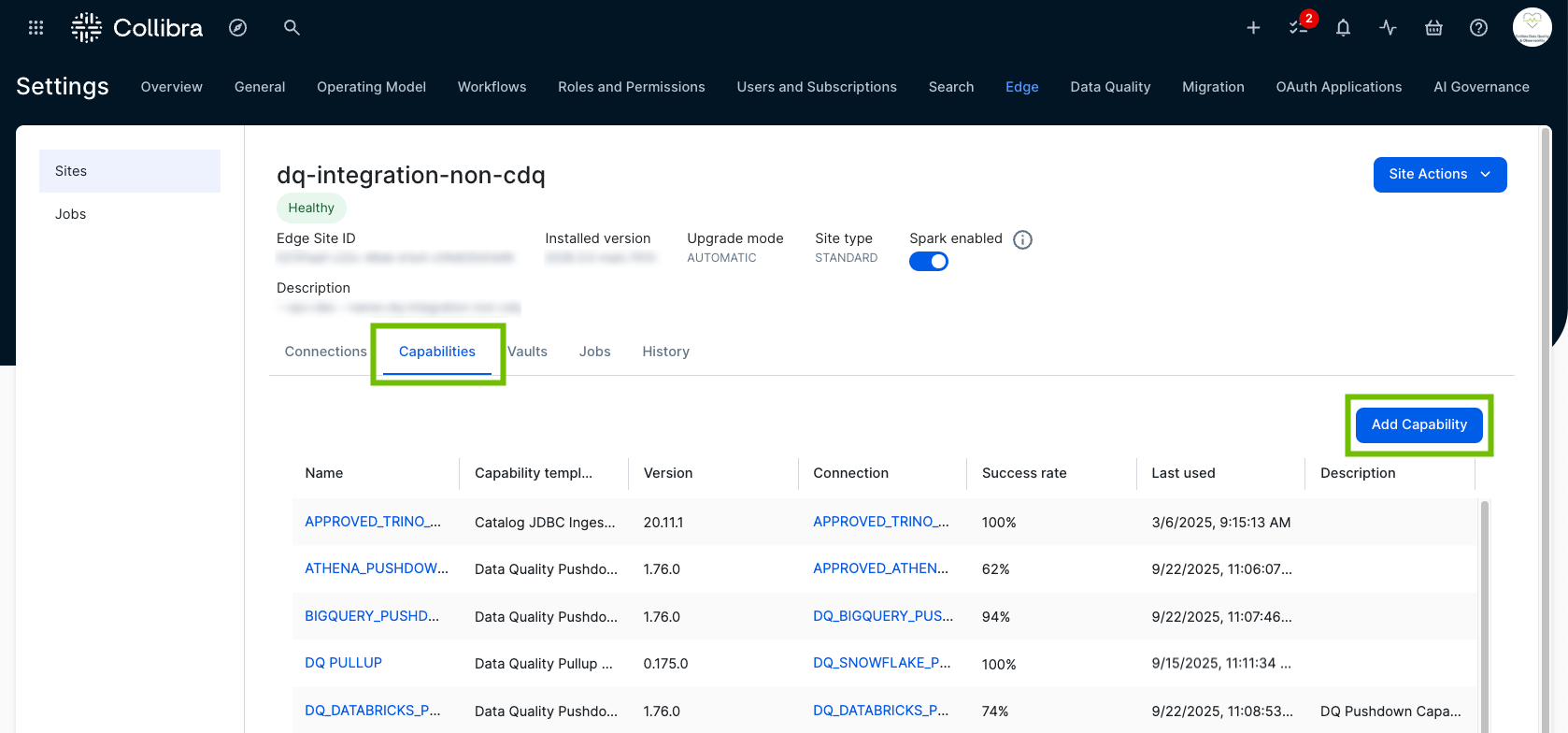
- Click Add Capability.
The Add Capability dialog box appears. - Select Data Quality Pushdown Processing.
- Enter the required information.
- Click Add.
The capability is added to the Edge or Collibra Cloud site.
The fields become read-only. - Repeat the steps in this section for any connection where you want to run data quality with Pushdown processing.
| Field | Description | Required |
|---|---|---|
|
Name |
The name of the capability. |
|
|
Description |
The description of the capability. |
|
| JDBC Connection |
The data quality connection to be used by the capability. Select a Pushdown-compatible option from the drop-down list. If your connection does not appear, you can create a new connection to a data source that is certified for data quality. |
|
| Request CPU (milliCPU) |
Overrides the default request CPU settings for the Data Quality Pushdown Processing capability container. The default value is 100 milliCPU. |
|
| Request Memory (MiB) |
Overrides the default request memory settings for the Data Quality Pushdown Processing capability container. The default value is 1024 MiB. |
|
| Limits CPU (milliCPU) |
Overrides the default limit CPU settings for the Data Quality Pushdown Processing capability container. Increasing the CPU limit can improve the processing speed of jobs if CPU usage is consistently exhausted. Important Adjust this value only when the default limit does not meet the processing requirements of your jobs. The default value is 2000 milliCPU. |
|
| Limits Memory (MiB) |
Overrides the default limit memory settings for the Data Quality Pushdown Processing capability container. Increasing the memory limit can resolve out-of-memory issues during job processing. Important Adjust this value only when the default limit does not meet the processing requirements of your jobs. The default value is 4096 MiB. |
|
| JVM Xms Memory (MiB) | Overrides the default -Xms memory settings for the Data Quality Pushdown Processing capability JVM. |
|
| JVM Xmx Memory (MiB) | Overrides the default -Xmx memory settings for the Data Quality Pushdown Processing capability JVM. |
|
| Additional JVM Arguments | Additional arguments for the Data Quality Pushdown Processing capability JVM. |
|
|
Debug |
An option to automatically send Edge infrastructure log files to Collibra Platform. By default, this option is set to false. Note We highly recommend to only send Edge infrastructure log files to Collibra Platform when you have issues with Edge. If you set it to true, it will automatically revert to false after 24h.
|
|
|
Log level |
An option to determine the verbosity level of Catalog connector log files. By default, this option is set to No logging. |
|
 Yes
Yes
 No
No
- Set global limits for Pushdown jobs.
- Review the Monitoring Overview options to begin working with your data.
- Add quick monitoring to schemas in your data source.
- Create a Data Quality Job.
Pullup processing mode uses the Data Quality Pullup Processing capability, allowing you to leverage Apache Spark's compute engine to run data quality jobs. You can scale Spark resources to handle large jobs while monitoring data quality across databases. This approach gives you the flexibility to process data where compute resources are limited, though it requires more configuration than Pushdown processing.
Overview
In Pullup mode, Apache Spark reads source data directly from your database or remote file system and processes it based on the job configuration parameters you define. The Spark engine handles all data processing operations, then displays the resulting profile data on the Job Details page.
Pullup processing provides key advantages, depending on your needs:
- Scalable compute resources: Adjust your Spark settings to allocate processing resources based on job complexity and data volume.
- Diverse system compatibility: Monitor data quality on systems that lack native processing capabilities.
Furthermore, because Spark comes bundled with Edge, you do not need to install Spark yourself.
However, Pullup mode requires more setup and tuning than Pushdown. You must configure Spark resource settings carefully to ensure optimal performance. Jobs running in Pullup mode may also generate egress costs depending on your infrastructure setup.
Choosing your deployment option
Your deployment environment determines which Kubernetes option works best for your Pullup processing needs. For example, bundled k3s is only available in non-production environments, so choose the managed Kubernetes option if you plan to run jobs in production environments.
Use bundled k3s if you:
- Work exclusively in non-production environments.
- Run basic jobs with limited data volume (1 job at a time processing less than 10 million cells, where cells equal columns multiplied by rows).
- Need a simple setup without complex infrastructure requirements.
Use managed Kubernetes if you:
- Operate large, complex production systems.
- Plan to run multiple concurrent jobs alongside Data Catalog ingestion.
- Run large jobs with greater than 10 million cells or 2 or more parallel jobs.
- Require enterprise-grade scalability and reliability.
Prerequisites
- You have created and installed an Edge site on a bundled k3s or managed Kubernetes.
- You have created a connection to a data source that is certified for data quality in your Edge or Collibra Cloud site.
- You have a global role that has the Manage connections and capabilities global permission, for example, Edge integration engineer.
Steps
- Open an Edge or Collibra Cloud site.
-
On the main toolbar, click
→
Settings.
The Settings page opens. -
In the tab pane, click Edge.
The Sites tab opens and shows a table with an overview of your sites. - In the table, click the name of an Edge or Collibra Cloud site with the status Healthy.
The Edge or Collibra Cloud site page opens.
-
On the main toolbar, click
- Verify that you are connected to a supported data source for data quality.
- If your Pullup-compatible data source is not yet configured as a connection on your Edge or Collibra Cloud site, follow the steps on Create a JDBC connection for your data source.
- Ensure that your data source has the correct permissions to allow data quality queries to run effectively. Go to Data source-specific permissions to identify the required permissions for your data source.
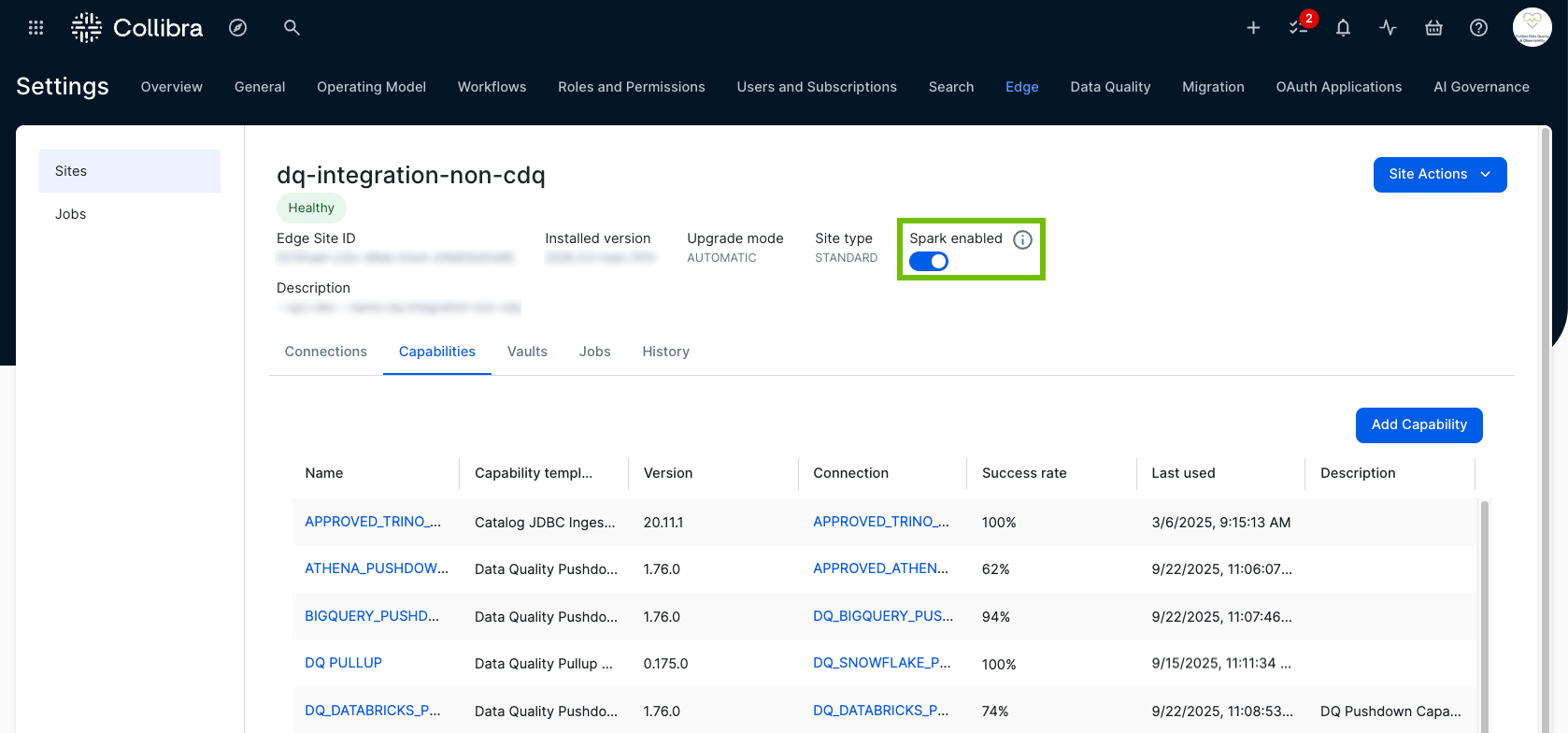
- If it is not already enabled, click the Spark enabled option to activate Apache Spark on your Edge site.
- Click the Capabilities tab.
The Capabilities tab appears. - Click Add Capability.
The Add Capability dialog box appears. - Select Data Quality Pullup Processing.
- Enter the required information.
- Click Add.
The capability is added to the Edge or Collibra Cloud site.
The fields become read-only. - Repeat the steps in this section for any connection where you want to run data quality with Pullup processing.
Note Apache Spark requires a scalable managed Kubernetes cluster. For more information about installing managed Kubernetes on your Edge site, go to Install an Edge site.
| Field | Description | Required |
|---|---|---|
|
Name |
The name of the capability. |
|
|
Description |
The description of the capability. |
|
| JDBC Connection |
The data quality connection to be used by the capability. Select a Pushdown-compatible option from the drop-down list. If your connection does not appear, you can create a new connection to a data source that is certified for data quality. |
|
| Request CPU (milliCPU) |
Overrides the default request CPU settings for the Data Quality Pushdown Processing capability container. The default value is 100 milliCPU. |
|
| Request Memory (MiB) |
Overrides the default request memory settings for the Data Quality Pushdown Processing capability container. The default value is 1024 MiB. |
|
| Limits CPU (milliCPU) |
Overrides the default limit CPU settings for the Data Quality Pushdown Processing capability container. Increasing the CPU limit can improve the processing speed of jobs if CPU usage is consistently exhausted. Important Adjust this value only when the default limit does not meet the processing requirements of your jobs. The default value is 2000 milliCPU. |
|
| Limits Memory (MiB) |
Overrides the default limit memory settings for the Data Quality Pushdown Processing capability container. Increasing the memory limit can resolve out-of-memory issues during job processing. Important Adjust this value only when the default limit does not meet the processing requirements of your jobs. The default value is 4096 MiB. |
|
| JVM Xms Memory (MiB) | Overrides the default -Xms memory settings for the Data Quality Pushdown Processing capability JVM. |
|
| JVM Xmx Memory (MiB) | Overrides the default -Xmx memory settings for the Data Quality Pushdown Processing capability JVM. |
|
| Additional JVM Arguments | Additional arguments for the Data Quality Pushdown Processing capability JVM. |
|
|
Debug |
An option to automatically send Edge infrastructure log files to Collibra Platform. By default, this option is set to false. Note We highly recommend to only send Edge infrastructure log files to Collibra Platform when you have issues with Edge. If you set it to true, it will automatically revert to false after 24h.
|
|
|
Log level |
An option to determine the verbosity level of Catalog connector log files. By default, this option is set to No logging. |
|
- Set global limits for Pullup jobs.
- Review the options in the Monitoring Overview to begin working with your data.
- Add quick monitoring to schemas in your data source.
- Create a Data Quality Job.