You can edit cells, wrap text, sort columns, navigate between table pages, and apply column filters in a table.
Edit cells
You can edit certain cells within a table.
- This action can't be undone.
- The Technical data type of a column can't be edited from a view. You can edit the value only from an asset page, if the Technical Data Type attribute has been added separately to the asset type layout.
- When editing a relation column cell, all relations in the cell are modified as a single operation. If you don't have view permission on any of the items involved, the entire edit is rejected. On an asset page, each relation is updated individually.
The following levels of granularity are provided for editing:
- Single cell within a column
- Specific cells within a column
- All visible cells within a column
Steps
- Open a view in the table display mode.Tip To edit multiple cells within a column, select the checkboxes in the respective rows. To edit all the visible cells within a column, you don't need to select any checkboxes.
- Double-click one of the cells. Alternatively, you can double-click
 in one of the cells.Tip If the cell contains an attribute other than True/False, a dialog box appears for you to specify a value.
 - Specify the value you want.
- Select the Apply to all selected rows or Apply to all visible rows checkbox.Tip If you don't want to apply your change, click X or Cancel.
- Click
 or Save.
The new value is shown in the cells.
Wrap text
Wrapping the text makes the text in the cells of a table span multiple lines, allowing you to read the complete text within the cells, without having to adjust the column width.
Steps
- Open a view in the table display mode.
- Click
 .
.
Sort columns
Sorting the contents of a table helps you visualize your content and find the data you want. You can sort on one or more columns.
- The availability of multi-column sorting and the maximum number of columns on which you can simultaneously sort depends on the Multi-column sort settings in Collibra Console.
- Multi-column sorting is not available in tile display mode. You can, however, sort on more than one column while in table display mode and then switch to tile display mode. The sort results will be accurately applied to the tiles. For more information, go to Work with tiles.
-
 (up arrow) in a column name indicates that the current sort order is ascending and
  (down arrow) indicates that the current sort order is descending.
 - Sorting large datasets by attributes or relations may impact performance. For optimal speed, we recommend applying filters to reduce the dataset size before sorting, or using the asset name as your primary sort criterion.
Steps
Single-column sorting
- Open a view in the table display mode.
The table is automatically sorted in ascending order of the Name column, as indicated by (up arrow).Tip To sort the table in descending order of the Name column, click the column name. - Click the name of the column on which you want to sort.
The up arrow appears next to the column name and the table is sorted in ascending order of the column.Tip To sort the table in descending order of the column, click the column name again.
Multi-column sorting
- Open a view in the table display mode.
The table is automatically sorted in ascending order of the Name column, as indicated by (up arrow).Tip To sort the table in descending order of the Name column, click the column name. - Click the name of any other column on which you want to sort.
The table is sorted in ascending order of the column, and 2 followed by the up arrow appears next to the column name, indicating that the column has the second priority in sorting. Additionally, 1 is shown on the Name column, indicating that the Name column has the first priority in sorting.Tip- To sort the table in descending order of the column, click the column name again.
- To remove the sorting from any column, keep clicking the column name until the up or down arrow disappears.
- By default, at least one of the columns is always sorted and you cannot remove the sorting from it.
-
To sort the data on more columns, perform the previous step.Tip The data in the table is first sorted by the column having the first priority (indicated by the number 1 on the column name). Within that sort result, the data is further sorted by the column having the second priority (indicated by the number 2 on the column name), and so on.
Navigate between table pages
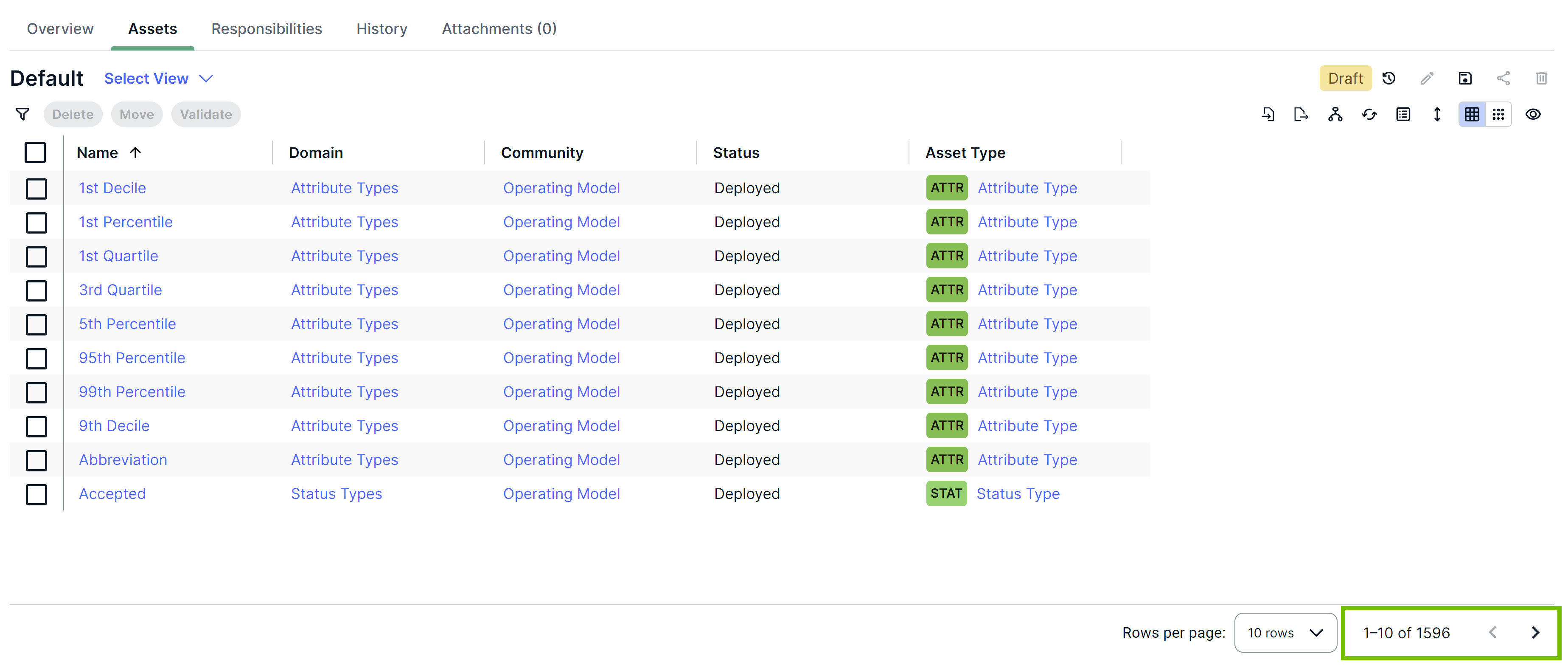
If a table contains more rows than are currently shown, the rows are split into pages and the page numbers are shown in the lower-right corner of the table. You can navigate between these pages.
Steps
- Open a view in the table display mode.
- To navigate to the next page, click
 .
. - To navigate to the previous page, click
 .
.
Apply column filters
You can use a column filter to see only those rows that contain a particular value in a column.
Steps
- Open a table.
- Hover your pointer over the heading of the column you want to filter, and then click
 .
.
A filter box appears. - Enter the column value based on which you want to filter the rows.
Only the rows containing the entered value in the column are shown.
Tip If you want to clear the column filter, hover your pointer over the column heading, click , and then click  .
.