The search box appears in the top navigation bar when you click  . You can use the search box to quickly find items without first navigating to the search page.
The search box allows you to find items containing words that begin with your search text (also known as search query or search term). For example, if you search for ca, the search results may include California, Lewis Carroll, or Meer-cat. For more information about search behavior, go to Understanding search behavior and relevance.

Quick search results
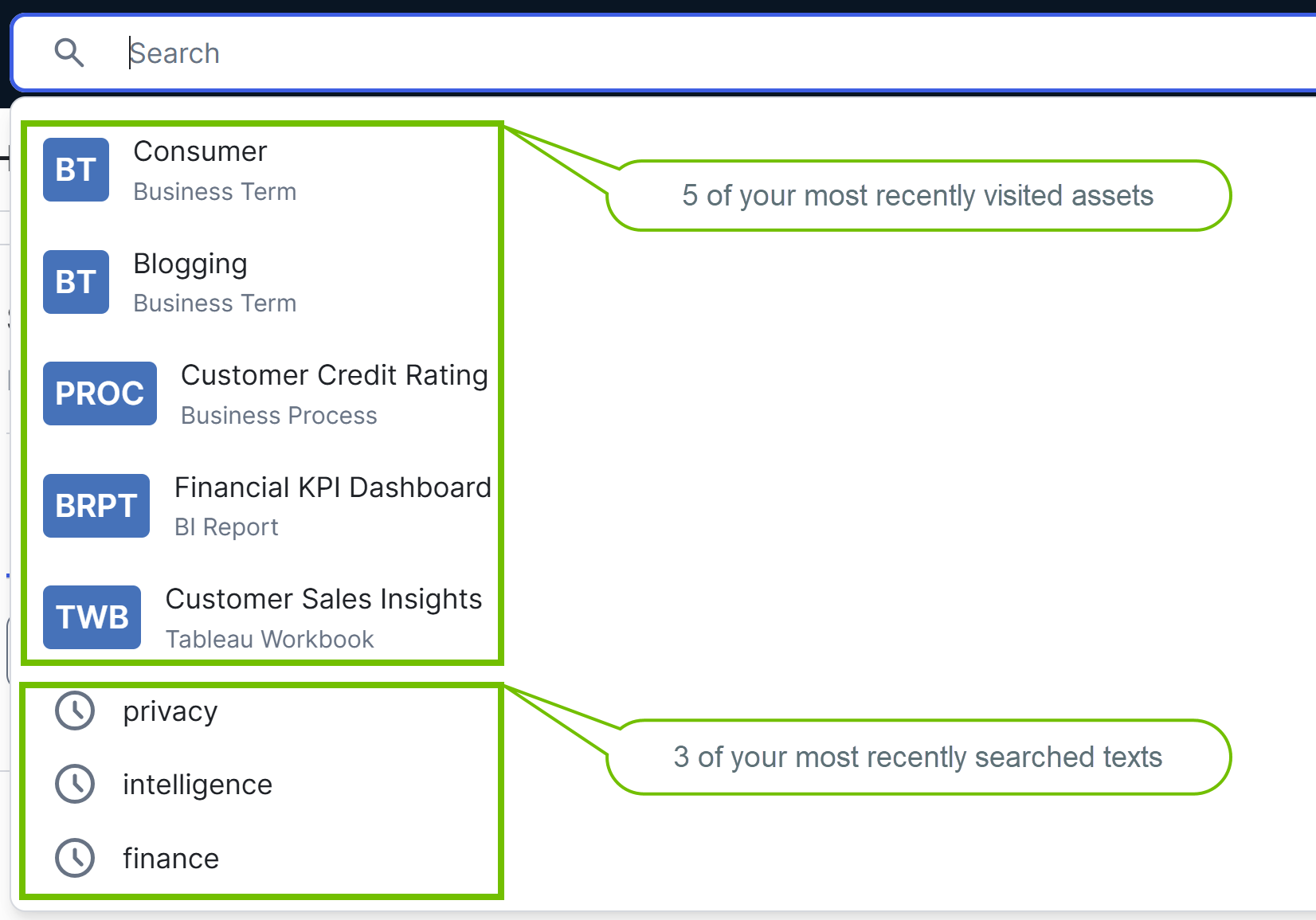
Quick search results are the suggested items that appear below the search box when you click inside the box or start entering something in the box.
Clicking inside the search box
| Type of quick search results | Description |
|---|---|
| Recently viewed assets | Up to 5 of your most recently viewed assets in the RECENTLY VIEWED section. Clicking a recently viewed asset opens the asset page. |
| Recently searched texts | Up to 3 of your most recently searched texts in the RECENT SEARCHES section. Recent searches are indicated by a clock icon. Clicking a recently searched text opens the search page, with the search text and your previously used filters applied. For example, if you recently searched for privacy and filtered the results by the New status, clicking privacy now opens the search page with both the search text (privacy) and the filter (New status) already applied. |
Entering a text in the search box
| Type of quick search results | Description |
|---|---|
| Recently viewed assets | Up to 5 of your most recently viewed assets that match your text in the RECENTLY VIEWED section. Clicking a recently viewed asset opens the asset page. |
| Top matching items | Up to 5 items that closely match your text in the RESULTS section. When compiling the top matching items, your text is searched in the Name, Description, and Definition fields (if available). The top matching items in a quick search might not always appear as the top matching items in a full search (that is, on the search page). Clicking a top matching item opens its corresponding page. |
| Recently searched texts | Up to 3 of your most recently searched texts that match your text in the RECENT SEARCHES section. Recent searches are indicated by a clock icon. Clicking a recently searched text opens the search page, with the search text and your previously used filters applied. For example, if you recently searched for privacy and filtered the results by the New status, clicking privacy now opens the search page with both the search text (privacy) and the filter (New status) already applied. |
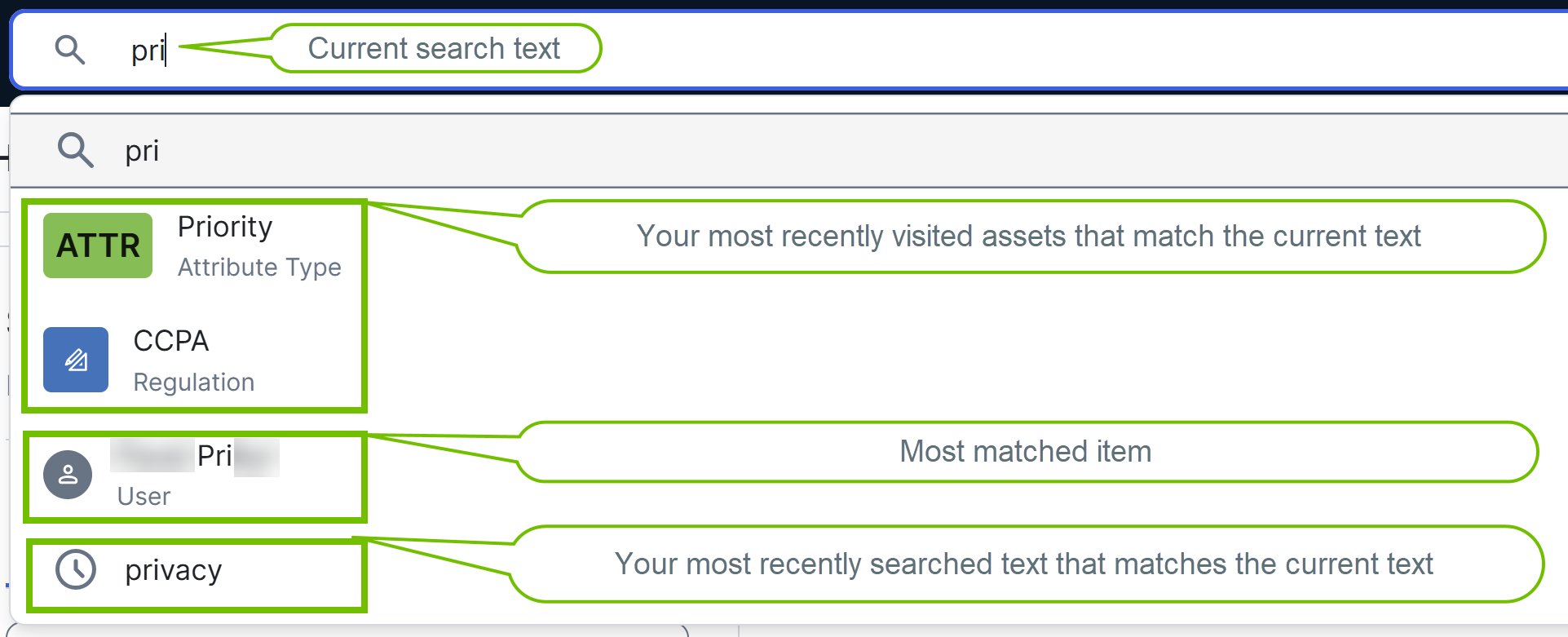
After entering a text in the search box
After you enter a text in the quick search box, to perform a full search, press Enter. This opens the search page with results that match your search text. If your search text doesn't match any existing content, results are shown for the closest matching text.
If you perform a search with a community or domain page open, the search results on the search page are automatically filtered by the current community or domain.