Resolving masking conflicts
Protect offers the following levels of column masking, ordered from most masked to least masked.
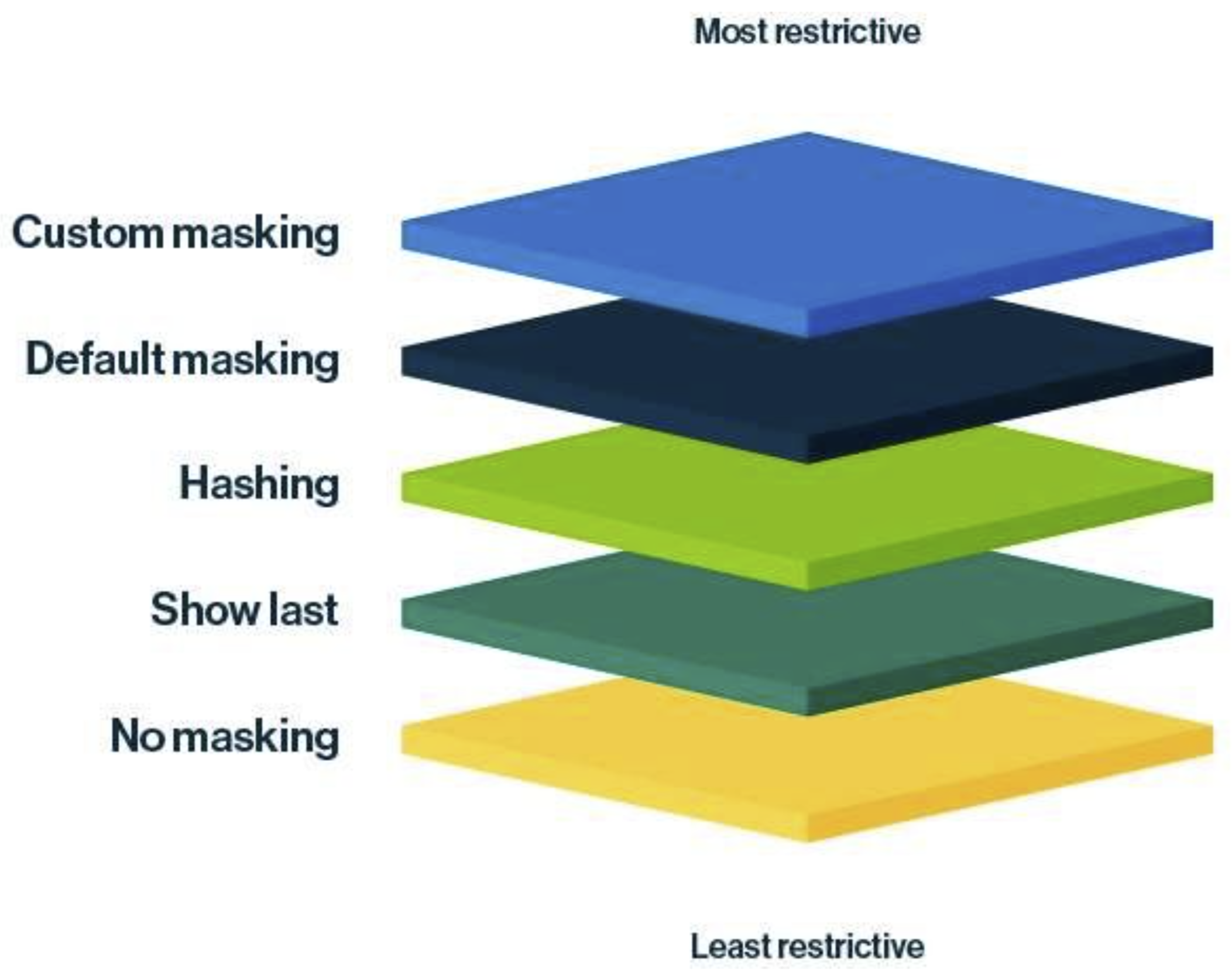
| Masking level | Restrictiveness scale | Description |
|---|---|---|
| Custom masking | Most restrictive masking | Shows the data as you define. For more information, go to Custom masking. |
| Default masking | Highly restrictive masking | Shows the data as 0 or *. |
| Hashing | Moderately restrictive masking | Shows the data as a set of random letters, numbers, and symbols. |
| Show last | Less restrictive masking | Shows the last few characters of the data. You can choose to show the last 1 through 20 characters of the data, with 4 being the most common choice. |
| No masking | Least restrictive masking | Shows the original data without any masking. |
A masking conflict occurs when you try to apply different levels of masking to the same column, for the same group—whether through a single rule, multiple rules, multiple standards, or a combination of a standard and a rule. When a conflict occurs, by default, the associated standards or rules fail during synchronization and you need to manually resolve the conflict. However, Protect can be configured to automatically resolve such conflicts via the Masking Conflict Resolution setting in Collibra Console. The following options are available for the setting:
- Manually (default): Conflicts need to be manually resolved.
- With Most Masked: Conflicts are automatically resolved by applying the most restrictive masking level to the affected column.
- With Least Masked: Conflicts are automatically resolved by applying the least restrictive masking level to the affected column.
Example
The following example describes how Protect handles masking conflicts with each of the above options. The example focuses on masking conflicts within a single rule. However, the described behavior also extends to masking conflicts between multiple rules, multiple standards, or a standard and a rule.
Scenario
This scenario considers a single rule that applies different masking levels to multiple Data Classifications that share the same column.
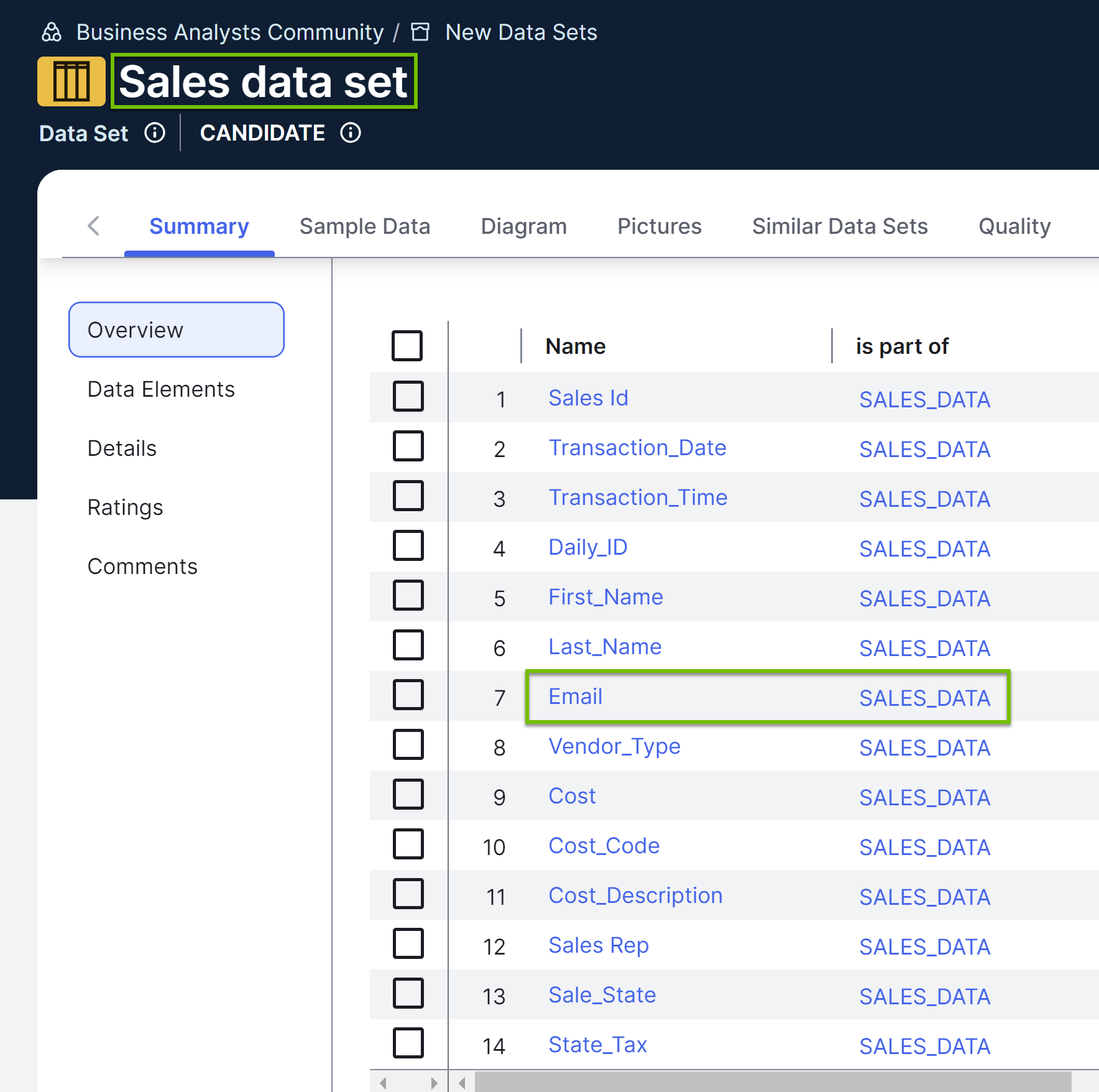
- The Sales data set asset contains the Email column, which is part of the SALES_DATA table.
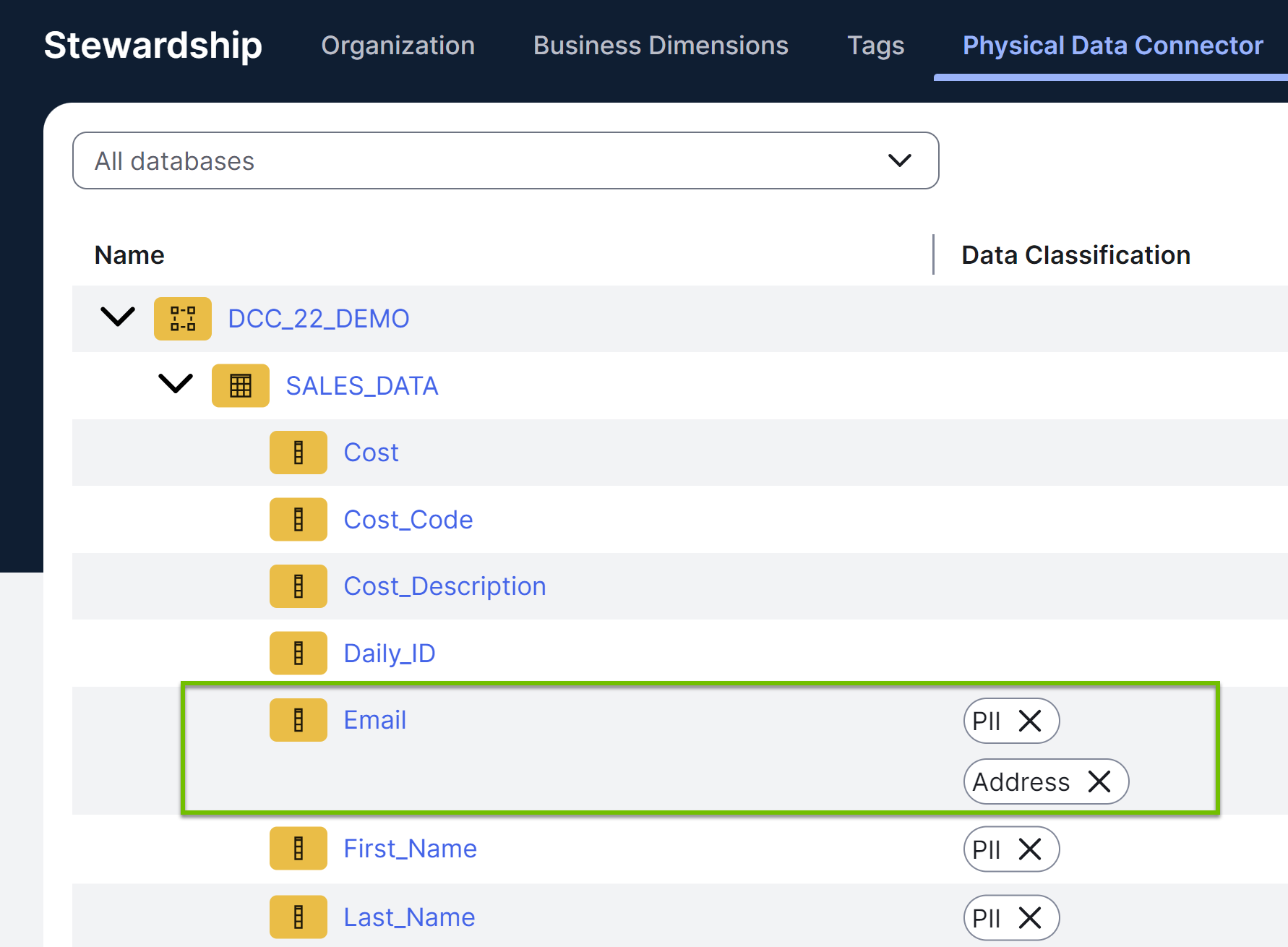
- In the SALES_DATA table, the Email column is classified as both Address and PII.
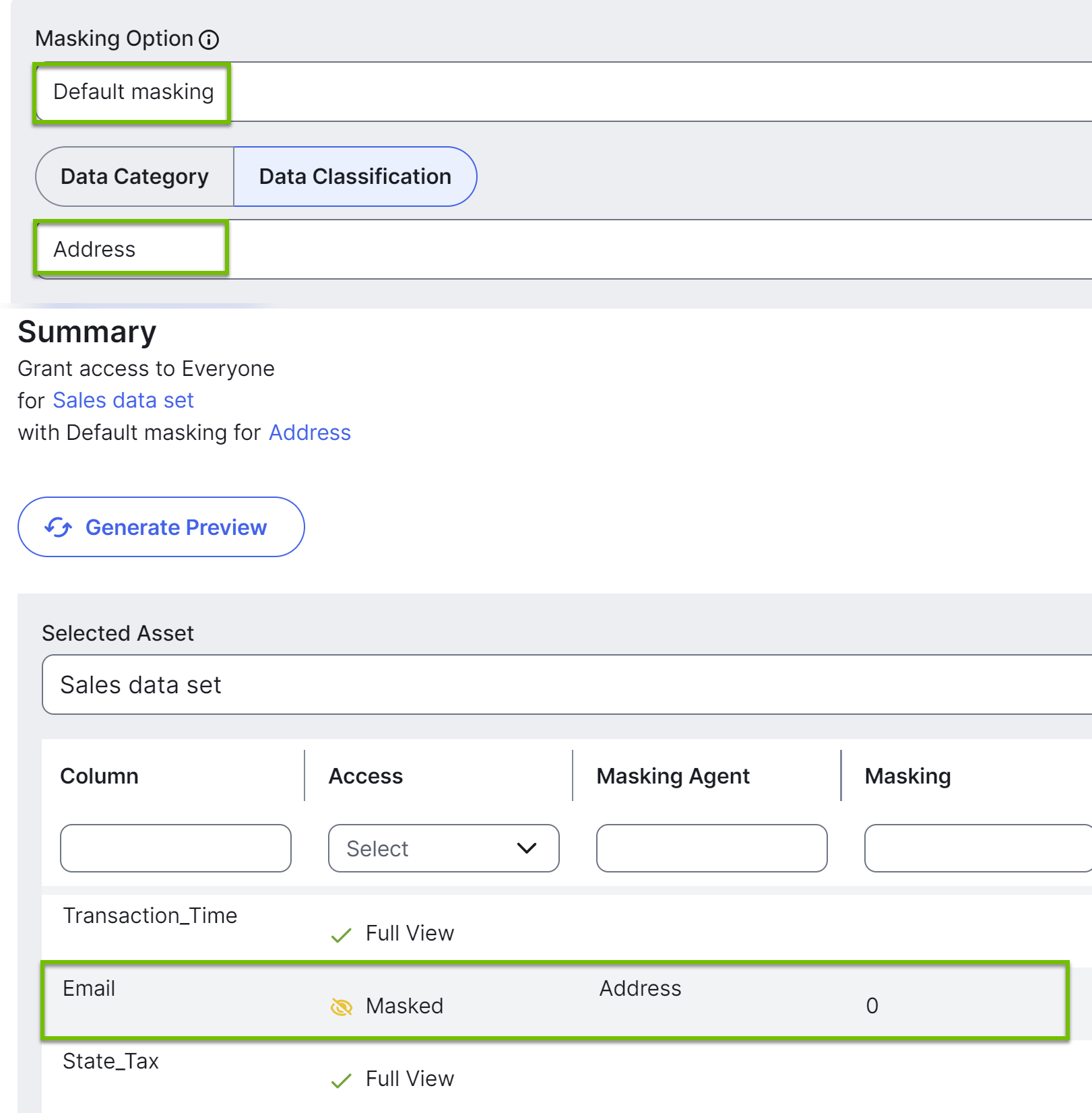
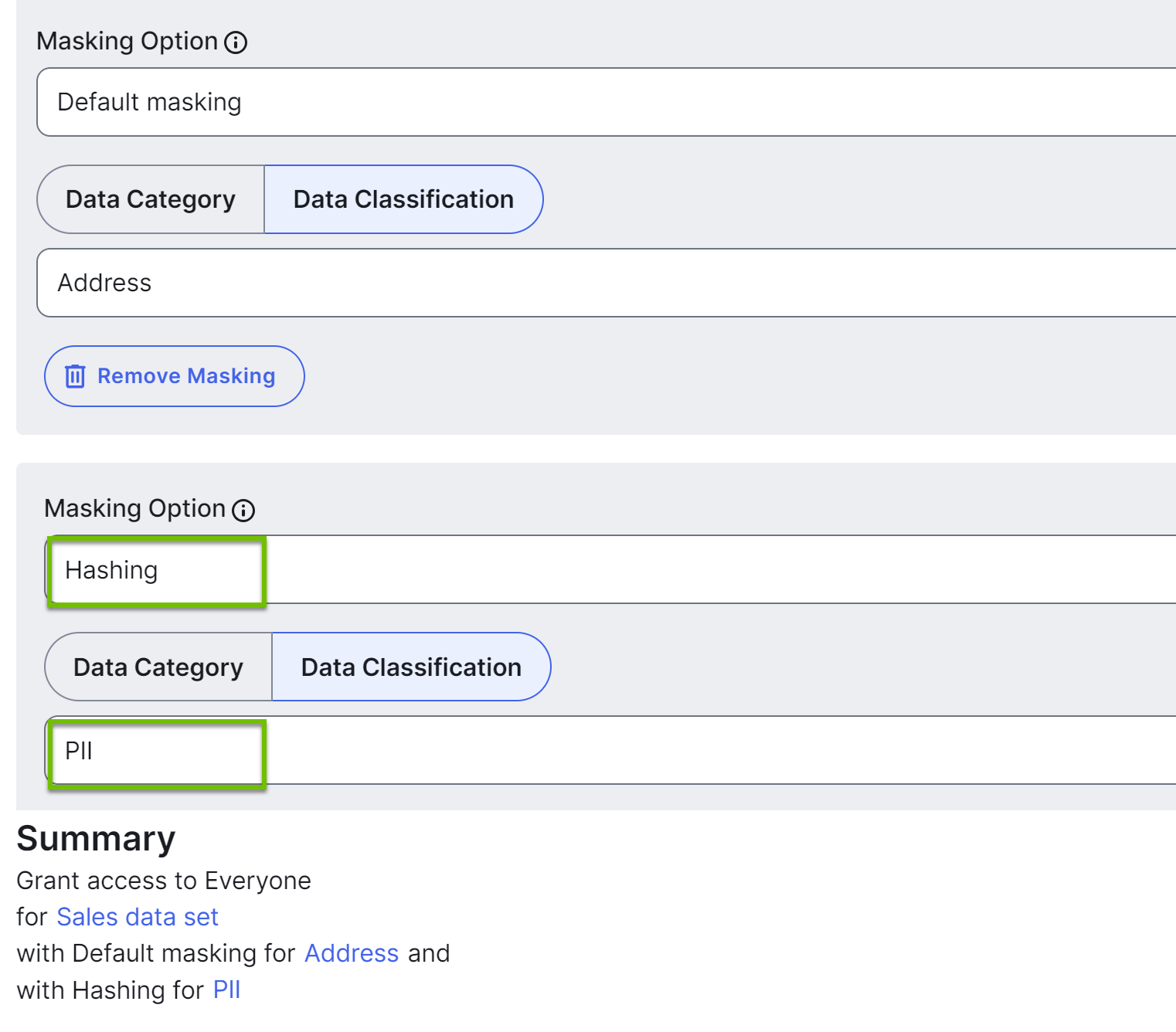
- The rule grants access to the Everyone group for the Sales data set asset.
- The rule masks columns that are classified as Address by default masking. This means that the data in the Email column, which is classified as Address in the SALES_DATA table, will be shown as 0 due to default masking.
- The rule masks columns that are classified as PII by hashing. This means that the data in the Email column, which is classified as PII in the SALES_DATA table, will be shown as a set of different letters, numbers, and symbols due to hashing.
Behavior
The behavior of the above rule is dependent on the Masking Conflict Resolution setting.
The rule will fail upon synchronization because of a masking conflict. The conflict occurs because the Email column in the SALES_DATA table is classified as both Address and PII, and Protect can't apply two different masking levels (Default masking and Hashing) to the same column (Email) and for the same group (Everyone).
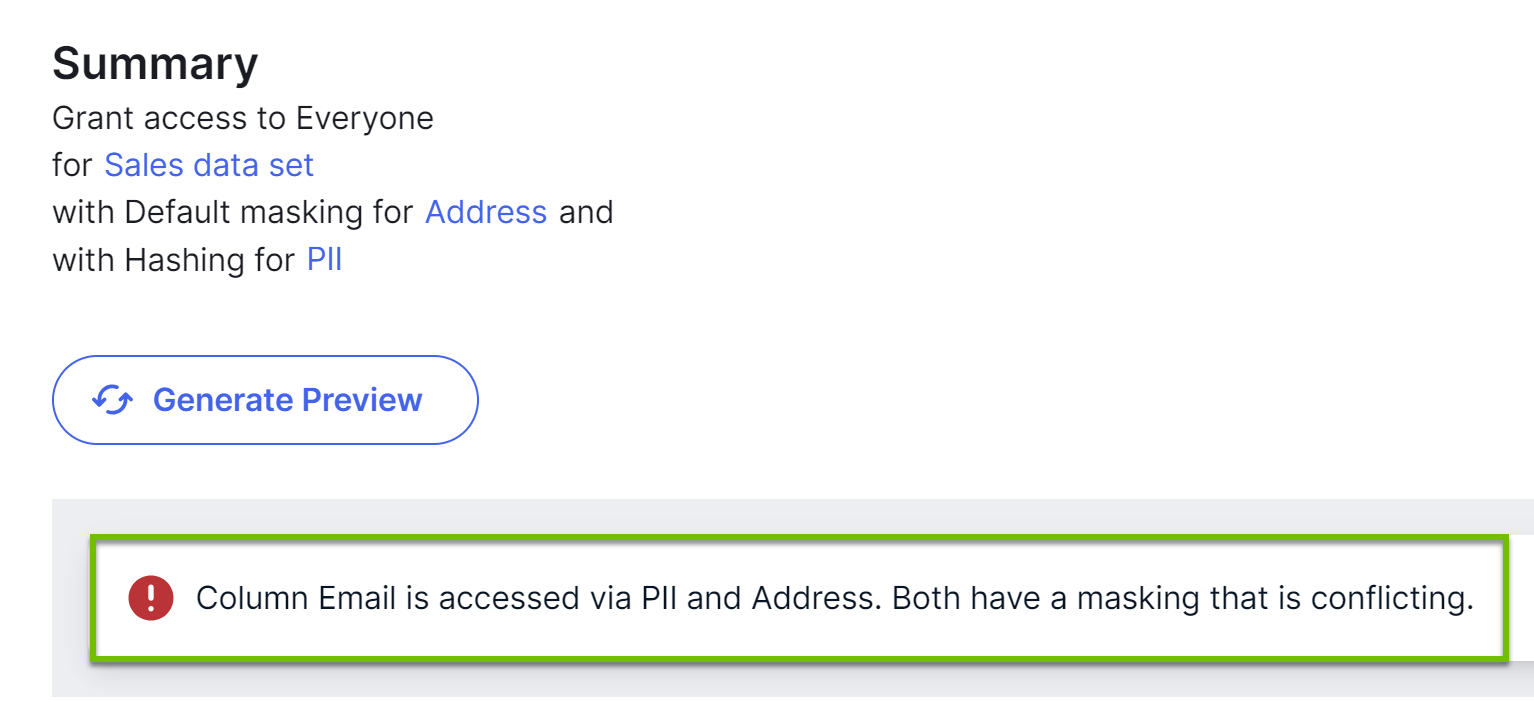
Tip To resolve the conflict, decide which masking level or Data Classification should take precedence, and then remove one of the two masking levels or Data Classifications. For more examples, go to Different masking levels applied to same column.
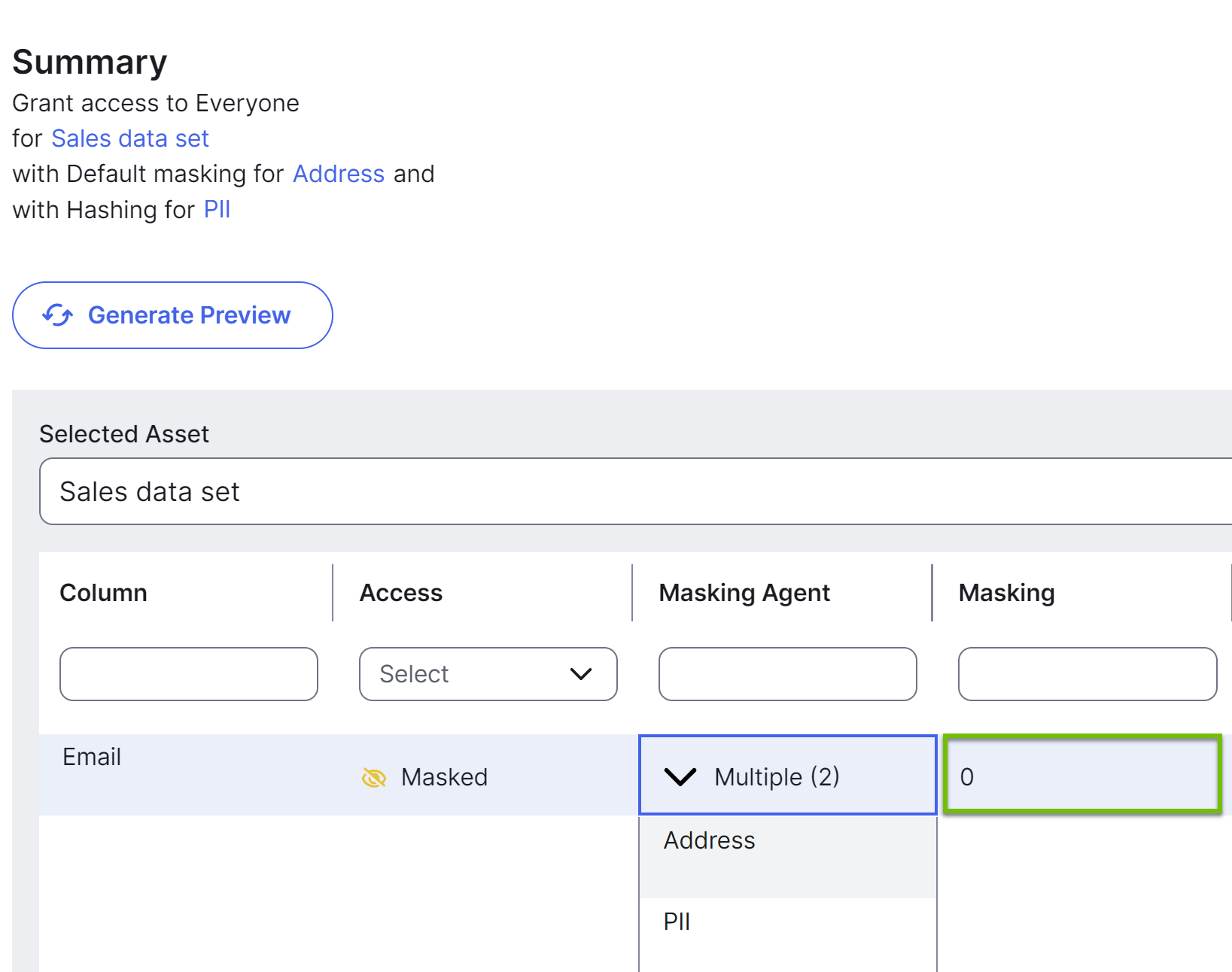
Protect automatically resolves the conflict by applying the most restrictive masking level of the two (Default masking) to the Email column.
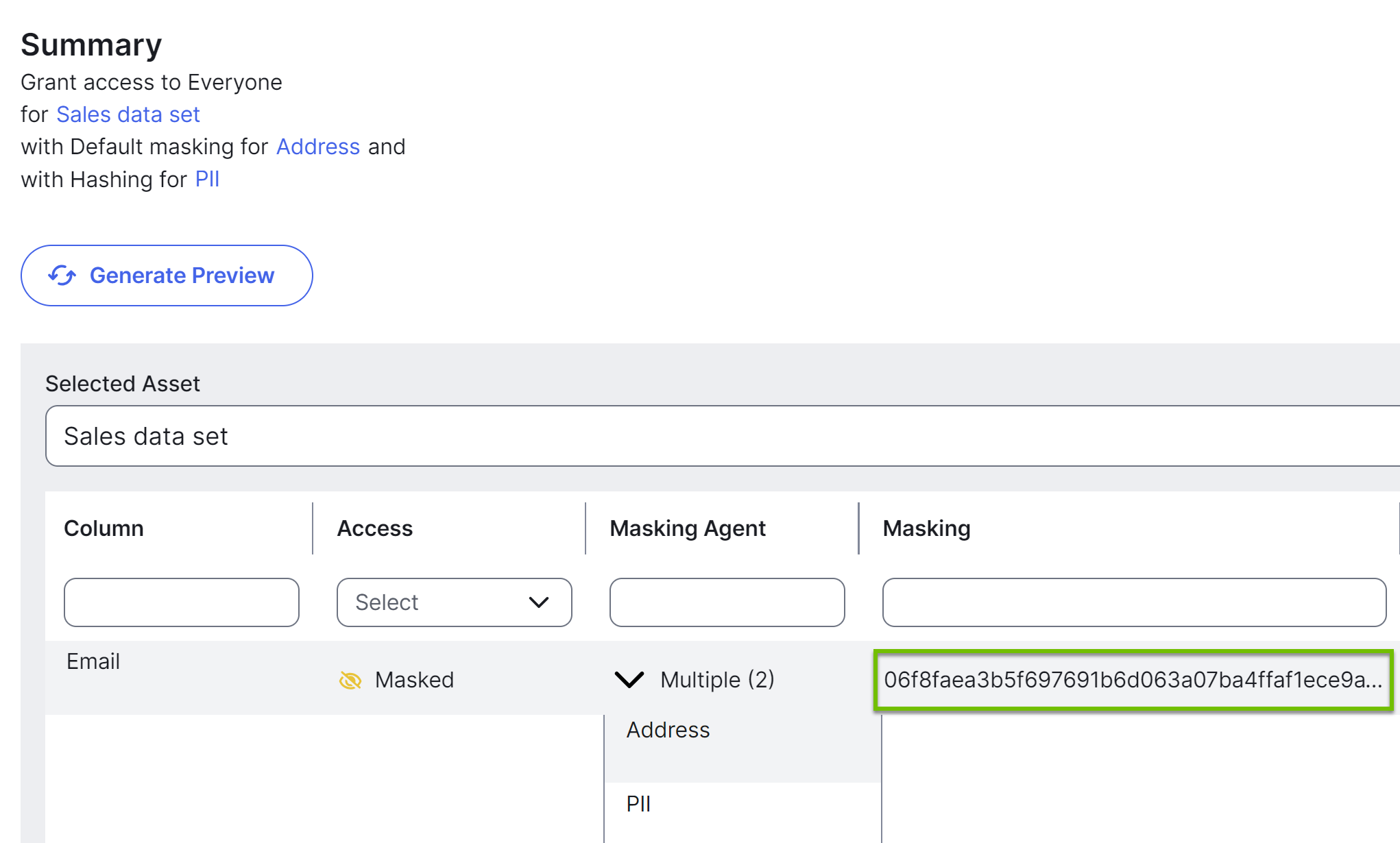
Protect automatically resolves the conflict by applying the least restrictive masking level of the two (Hashing) to the Email column.
Suppose that the Masking Conflict Resolution setting is With Least Masked, and that a rule that applies the most restrictive masking level to a column is already active. If you create a rule that applies the least restrictive masking level to the same column for the same group, then the least restrictive masking level will be applied to the column during the next sync. In summary:
- If the Masking Conflict Resolution setting is With Least Masked: A new, less restrictive masking rule will override an existing, more restrictive rule for the same column during the next sync.
- If the Masking Conflict Resolution setting is With Most Masked: A new, most restrictive masking rule will take precedence over an existing, less restrictive rule for the same column during the next sync.