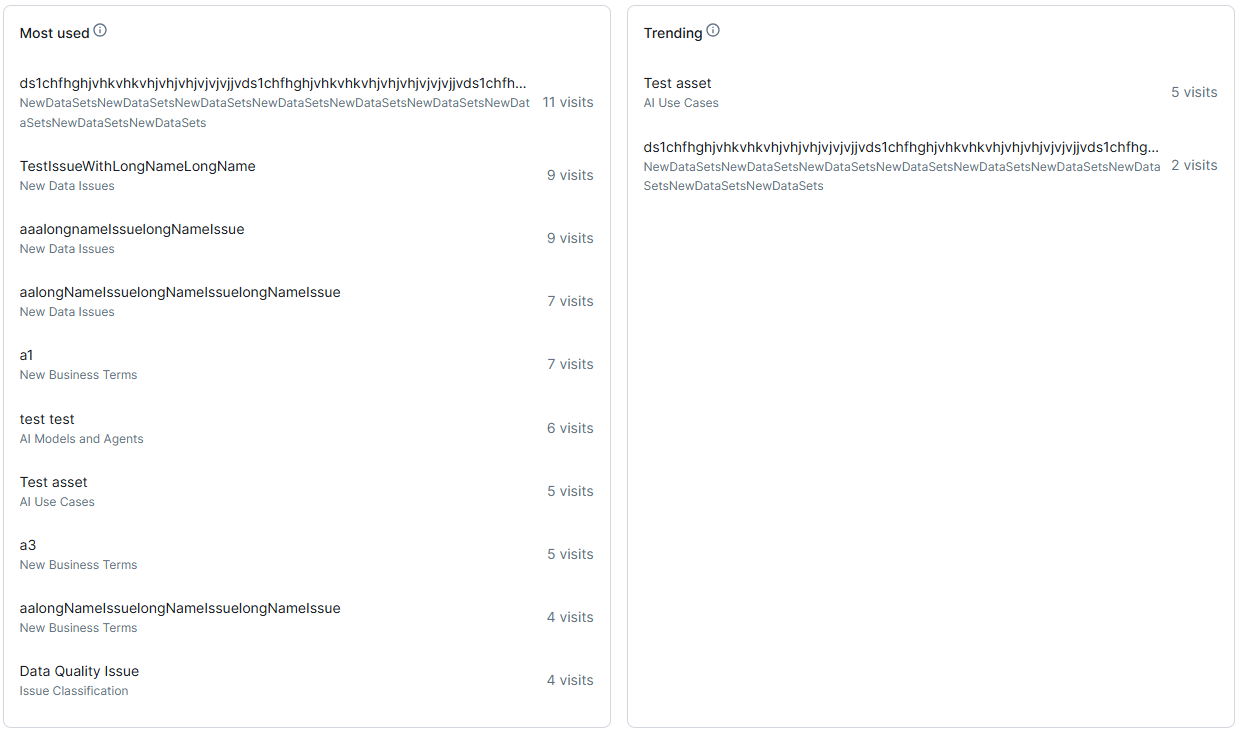
Manage Page Editor Most visited widgets
The Most visited widget shows the 10 assets that the signed-in user visited the most within the last week, month, or year.
Prerequisites
You have the required permissions to edit the product page or dashboard.
Steps
- Go to the page where you want to add a Most visited widget.
- Click Edit.
- Place the widget:
- If this is a new widget, under Widgets, drag and drop Most visited to the desired row on the page.
- If this is an existing widget, select the Most visited widget and drag and drop it to the new position on the page.
- Select the Most visited widget you want to configure.
- In the right-side Pages panel, update the widget details:
- In Title, enter the name of the widget.
- In Description, enter a description of the widget.
- Select the Show description in a tool tip checkbox to show the description in a tooltip. This helps consolidate space on your page.
- Select the time range of the data:
- Last week
- Last month
- Last year
- In Refresh level, select how often you want the counter data to be refreshed:
- No refresh: The data is not refreshed, and the information remains static from the time you publish the page.
- 5 minutes
- 10 minutes
- 25 minutes
- 50 minutes
- 100 minutes
- Optionally, select
 above the component to copy and paste the component.
 - Optionally, select
 above the component to delete the component.
 - Click Publish to publish your changes.
Example
You want to highlight consistently popular assets over the course of a year or trending assets within a shorter period.
You add 2 Most visited widgets to a row, one titled Most used, to show the most visited assets over a year, and another titled Trending, to show assets gaining traction over a week. You also set the Refresh level for both widgets to 100 minutes, so the data is consistently updated.