Automatic hyperlinking
Every asset can be the target of an automatic hyperlink. Automatic hyperlinking creates a hyperlink to an asset when its name appears in the text attributes of other assets. Only the first mention in each text attribute becomes a hyperlink. These hyperlinks are always kept up to date when you edit your data. Automatic hyperlinking is especially useful for linking to Business Term assets.
Automatic hyperlinking levels
You can enable or disable automatic hyperlinking globally, in Collibra Console, or locally, in your Collibra environment.
The global settings are available in Collibra Console, require you to have at least the ADMIN role, and allow you to control the feature at the following levels:
- Environment: Enable or disable automatic hyperlinking for your entire environment in Collibra Console. When you enable this feature for the first time, automatic hyperlinking is disabled by default for all domains.
- Asset type: Exclude a specific asset type from automatic hyperlinking to prevent all assets of that asset type from being automatically hyperlinked. This also improves performance.
With the global feature enabled, you can fine-tune where hyperlinks appear in Collibra. You must have a global role with at least the Resources > Manage all resources global permission or have responsibilities for individual resources that include the Update resource permission for domains or assets:
- Domain: Enable automatic hyperlinking for all assets in a domain.
- Asset: Exclude a specific asset from automatic hyperlinking in a domain where hyperlinking is enabled. This is useful when the asset name is a common word, such as "is", "a", "or", or "and" and avoids creating unnecessary links.
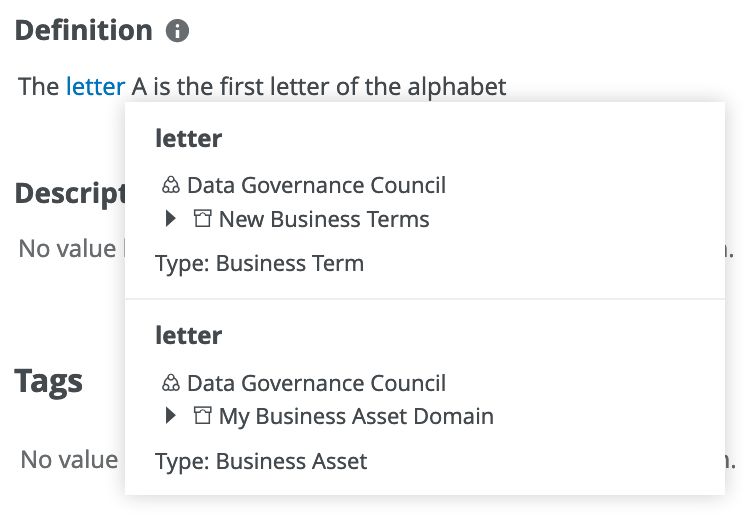
- If multiple assets with the same name exist and you click a hyperlink, they are shown in a dialog box. You can then select one of the assets to open its asset page.
- After importing data or after a backup is restored, Collibra triggers a rebuild of automatic hyperlinks.
- By default, automatic hyperlinking isn't case sensitive. For example, an asset named "Nato" is the target asset even if "NATO" is mentioned in a text attribute. Collibra Console administrators can configure case-sensitivity for automatic hyperlinking.
Enable automatic hyperlinking
With the global automatic hyperlinking feature enabled, you can enable automatic hyperlinking for the desired domains.
- Open the domain for which you want to enable automatic hyperlinking.
- Click
 → Auto hyperlinks.
The Automatic Hyperlinks dialog box appears. - Clear the Prevent Automatic Hyperlinks for assets in this domain checkbox.
- Click Save to save your changes and close the dialog box.
Automatic hyperlinking is enabled for all assets in the domain.
As a result of enabling automatic hyperlinks for a domain, hyperlinks to all assets in that domain are created. If the name of any asset in the domain is mentioned in the text attributes of other assets (whether previously or in the future), that mention is automatically converted into a hyperlink. Additionally, Collibra remembers the hyperlink settings for each domain even if you disable automatic hyperlinking globally.
Example Suppose that a domain named Acronyms contains an asset named GDPR. If automatic hyperlinking is enabled for the Acronyms domain, Collibra automatically creates a hyperlink for the first mention of GDPR in each text attribute of other assets. For example, if the text GDPR is mentioned in the definition of another asset named Project Overview, the text GDPR is now shown as a hyperlink. Clicking this hyperlink takes you to the GDPR asset in the Acronyms domain.
Disable automatic hyperlinking
With the global automatic hyperlinking feature enabled, you can disable automatic hyperlinking at both the domain level and the asset level:
- Open the domain or asset for which you want to disable automatic hyperlinking.
- Click → Auto hyperlinks.
The Automatic Hyperlinks dialog box appears. - Select the Prevent Automatic Hyperlinks... checkbox.
- Click Save to save your changes and close the dialog box.
Automatic hyperlinking is disabled for all assets in the domain or for the selected asset.
When disabled at the domain level, automatic hyperlinks to all assets in the domain are removed. When disabled at the asset level, only hyperlinks to that specific asset are removed.
Remove an automatic hyperlink
You can remove a specific automatic hyperlink that targets an asset without affecting other automatic hyperlinks that target the same asset. You must have a global role with at least the Resources > Manage all resources global permission or have responsibilities for the asset containing the link that include the Attribute > Update resource permission to perform this operation:
- Open the asset.
- Click the text attribute containing the hyperlink you want to remove.
The text editor opens. - Select the text you don't want hyperlinked.
- In the text editor menu, click
 Prevent auto hyperlinking.
 - Click
 Save to save your edits and close the text editor.
The hyperlink is removed from the text. However, if you add the same text again in the attribute, Collibra creates again an automatic hyperlink to the corresponding asset. Additionally, if hyperlinks are rebuilt, for example, after restoring a backup, the hyperlinks may reappear.