How to manually upgrade your Edge site
Edge administrators can manually upgrade your Edge site to review and control Edge site updates. You can either:
- Click Upgrade now on the Edge site page to upgrade to the latest version of Edge.
- Manually select an available version by following the steps in this topic.
Prerequisites
You
Steps
- Open a site.
-
On the main toolbar, click
 →
→
 Settings.
The Settings page opens. -
In the tab pane, click Edge.
The Sites tab opens and shows a table with an overview of your sites. - In the site overview, click the name of a site.
The site page appears.
-
On the main toolbar, click
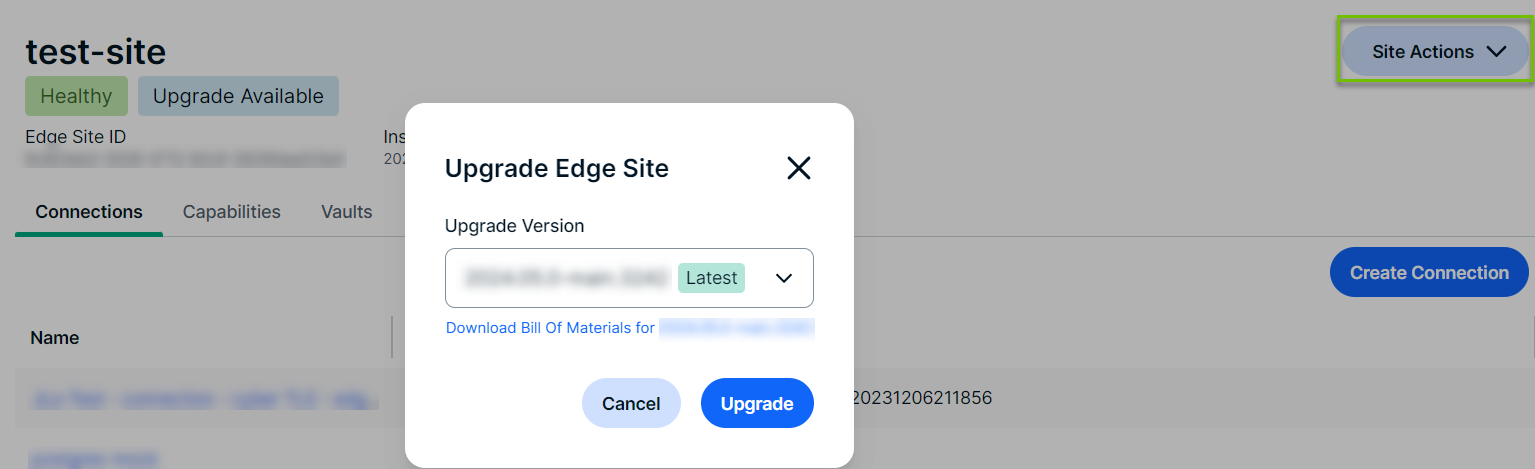
- In the top right corner, click Site Actions → Upgrade Site.
The Upgrade Edge site dialog box appears. - Open the drop-down list to review available Edge site versions.
- Select the version from the drop-down list you want to review or upgrade to.
- Optional: Click the hyperlink to download the Software Bill of Materials.
- Click Upgrade.
- Review the Compatibility between Edge sites and Collibra Data Intelligence Cloud to know when you need to reinstall your Edge site or upgrade to the latest Edge supported version Kubernetes.
- Optionally, set up a private docker registry to easily incorporate Edge into your existing security procedures and perform your own security scans before upgrading to a new version of your Edge site.