This section shows you how to set up the archive break records feature for Pushdown jobs.
To automatically write break records to a database or schema in your data source, you first need to configure your connection's output location and enable Archive Break Records from the Settings modal on the Explorer page.
Prerequisites
- You have a Pushdown connection.
- The service account user has write access to the database or schema to archive break records.
Important
Data sources may have different combinations of roles and permissions to allow the creation of break record tables and the ability to write records to them. Therefore, we recommend you review the connection requirements specific to your data source when you use Archive Break Records.
Specify the archive location for the connection
- Open Connection Management and edit your connection.
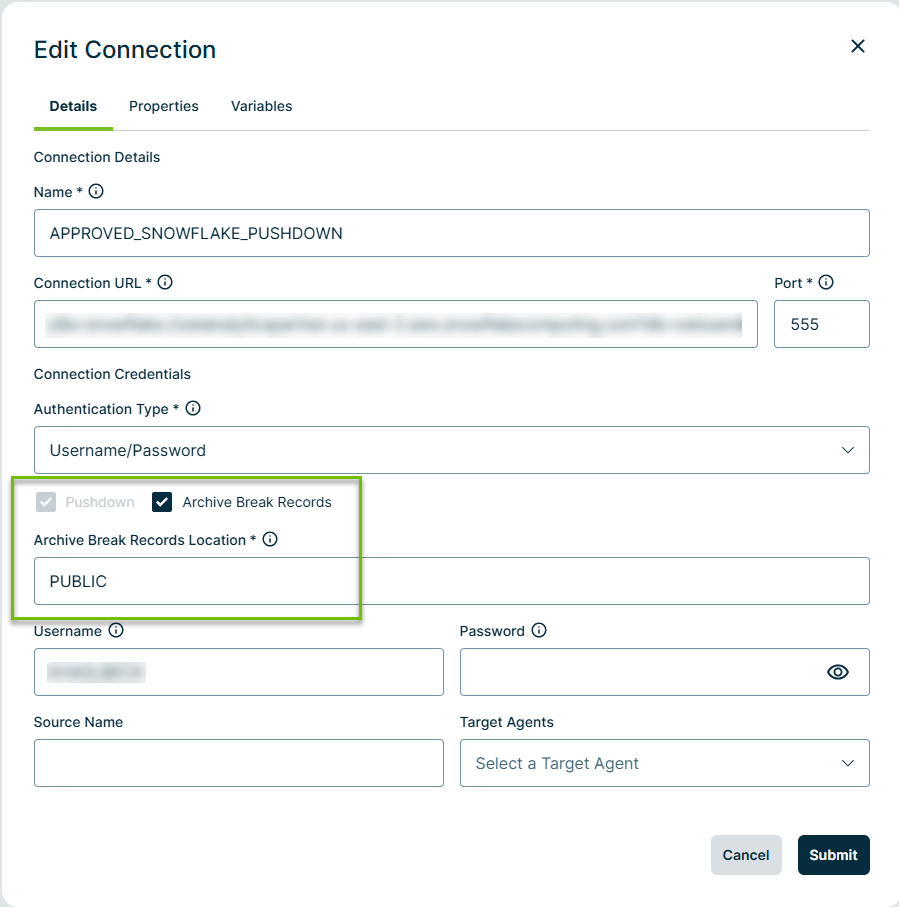
- In the Edit Connection dialog box, select Archive Break Records.
- Specify the schema to archive break records in the Archive Break Records Location field. Keep in mind the following tips for selecting the schema:
- If you enter an incorrect schema, Collibra DQ automatically uses the default output location, PUBLIC, instead.
- Because it is optional to specify a database, if you only specify the schema, the database defaults to your current database.
- You can enter database.schema when your schema resides outside of the current database. For example, db1.PUBLIC, db2.marketing, and db3.sales.
- After you select the archive location, Collibra DQ creates the following tables in the database to store the break records:
- COLLIBRA_DQ_BREAKS
- COLLIBRA_DQ_DUPLICATES
- COLLIBRA_DQ_OUTLIERS
- COLLIBRA_DQ_RULES
- COLLIBRA_DQ_SHAPES
Note Oracle Pushdown connections do not support this option.
Create the job
- From Explorer, connect to a Pushdown data source.
- Optionally, assign a Link ID to a column in the Select Columns step.
- In the lower left corner, click
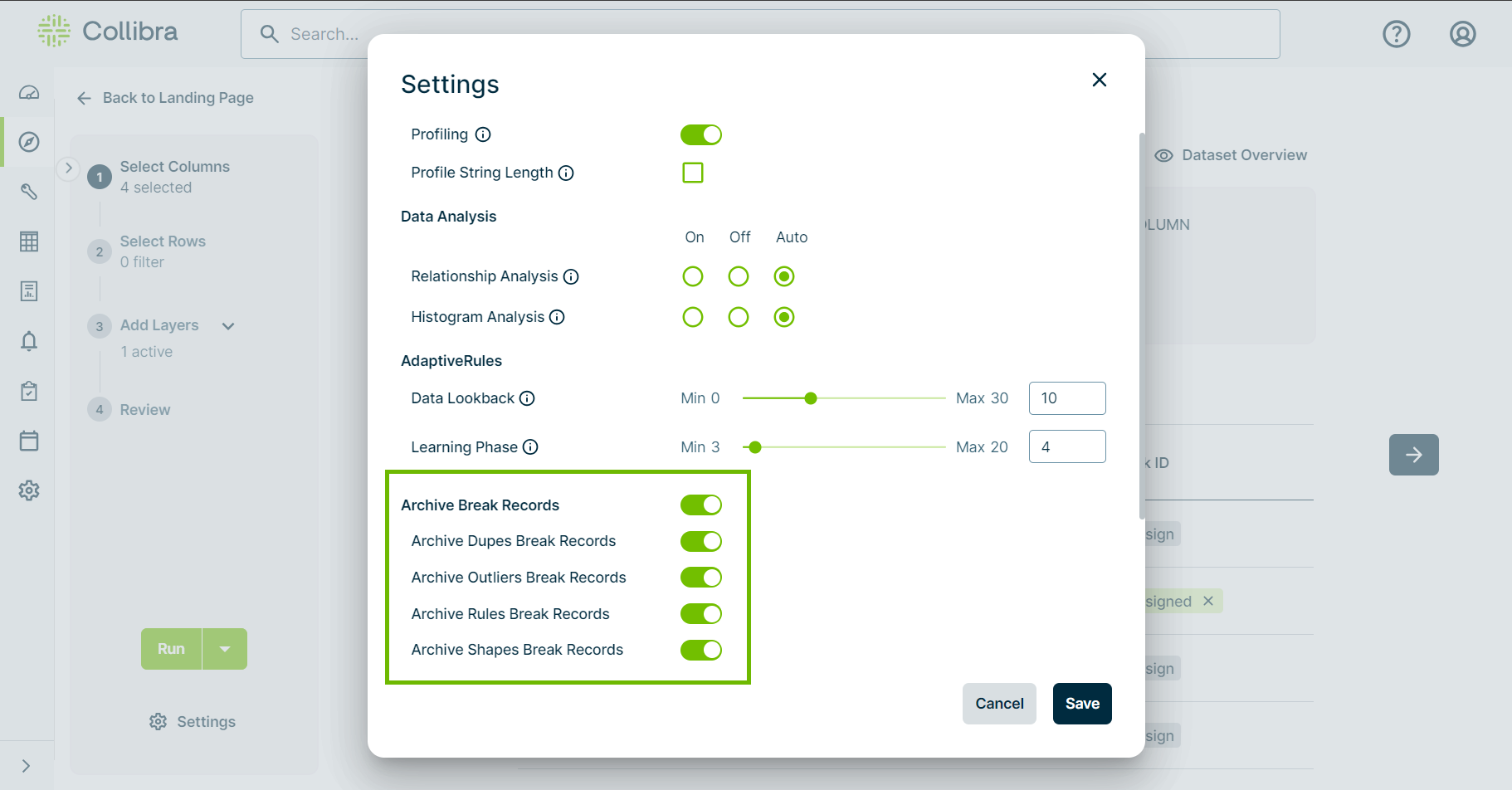
 Settings. The Settings dialog box appears.
- Select the Archive Break Records switch. The switches for the available archive options, such as Archive Rules Break Records, become selectable.
- Optionally, disable any of the archive options for which you do not want to send break records to the source system.
- Optionally, enter the name of alternative destination schema in the Source Output Schema field, to create tables for break records storage instead of the schema provided in the connection.
- Click Save.
- Set up and run your DQ job.
- When a record breaks, its metadata exports automatically to the data source.
Important If you specify a link ID, the column you assign as the link ID should not contain NULL values and its values should be unique, most commonly the primary key. Composite primary key is also supported.
Note By default, enabling Archive Break Records turns on any available archive option. The availability of these options depends on the data source.
Tip This can be either the database.schema or the schema and requires write access to the source output schema location.
Limitations
- Rule break record archival for complex rules, such as those with secondary datasets, is not supported. Rules that reference secondary datasets cannot share column names, because Collibra DQ cannot programmatically identify the table from which these columns come.
- A workaround is to avoid tables with these shared column names or alias on the columns.
Troubleshooting
If you receive an out-of-memory error during a job, such as java.lang.OutOfMemoryError: Java heap space, you may need to allocate more memory to the owl-web pod. Apply the following settings to the helm values.yaml file and restart the services.
global:
 web:
  resources:
   requests:
    memory: "500Mi"
    cpu: "100m"
   limits:
    memory: "4Gi"
    cpu: "2000m"