Important Sizing is only available in Pullup mode. If you are using Pushdown mode, proceed to the next available step.
As the sixth step in the Explorer workflow, Sizing provides an editable overview and estimation of the available resources in your Spark cluster required to efficiently execute your job. These resources include:
- Number of executors
- Number of executor cores
- Amount of executor memory
- Amount of driver memory
- Number of partitions
Together, these inputs allow you to scale resources to properly accommodate for the size of your job. From this step, you can also view details about your agent, the total number of cores and memory, and estimate how long your job will take to run.
Additionally, if you have the required sizing limit settings configured correctly in the Admin Console  Admin Limits, Collibra DQ automatically calculates and updates the sizing recommendations for optimal performance. Allocating enough resources to your job is a necessary step toward efficiently running jobs of all sizes, and the automatic estimator helps to simplify the calculations behind the resource estimation process.
Agent Details
The Agent Details field shows the name of the agent that will submit your job for processing when you run it. When you click the agent name, the Agent status dialog appears. From the Agent status dialog, you can:
- View the agent name.
- Viewthe base folder path where the agent is stored.
- View whether the agent is online or offline.
- Control which agent is selected when multiple agents are available.
- To change the agent, click your preferred option in the Selected column.
- Upon click, an
 icon displays the Agent overview of the various agent configuration details.
Job Size
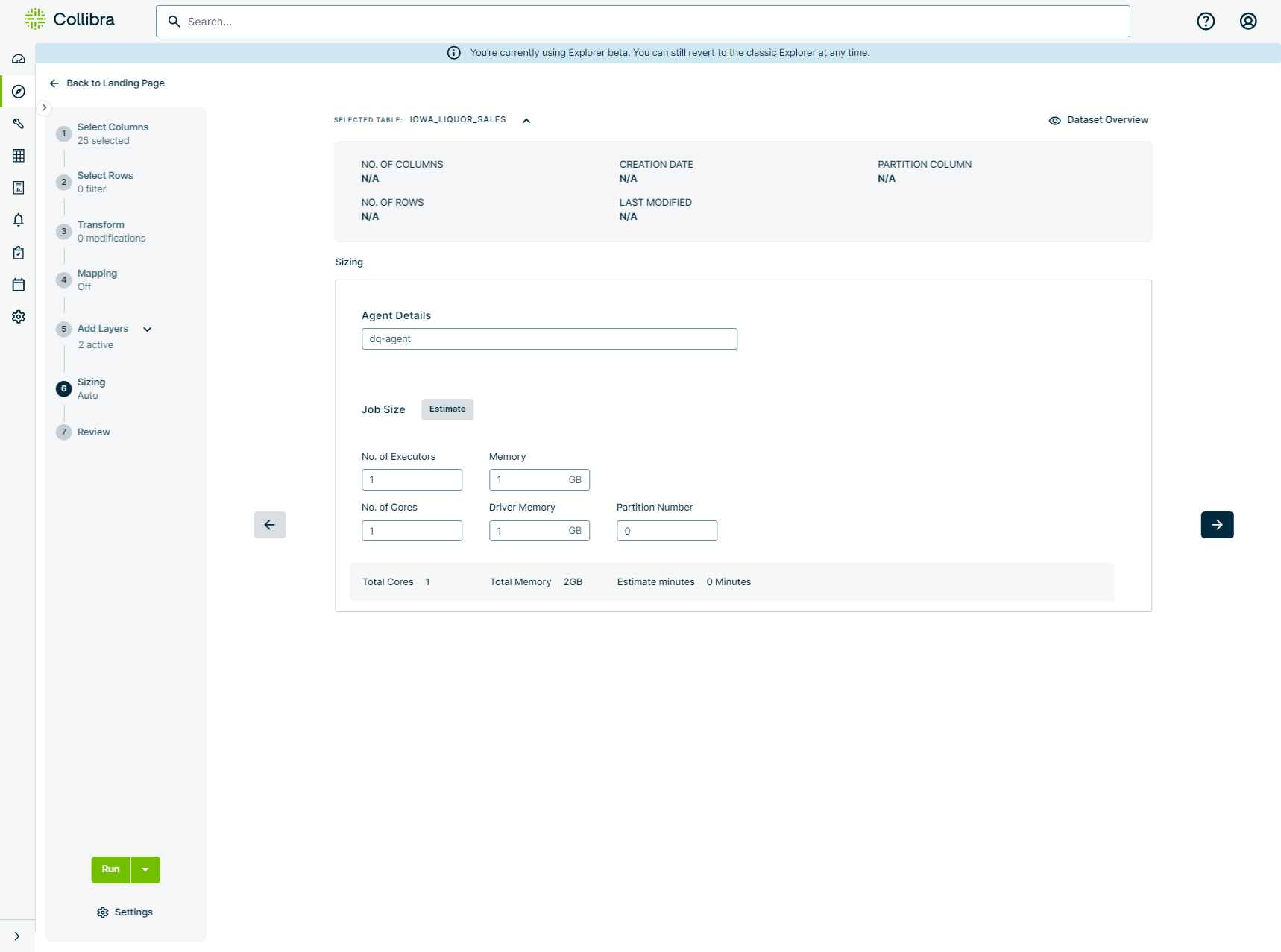
The following table shows the Spark resource configurations on the Sizing step before job size estimation, corresponding with the image above.
| Spark Resource | Description | Default Value |
|---|---|---|
| No. of Executors |
The total number of Spark workers available. |
1 |
| Memory |
The amount of memory allocated per Spark executor for Spark processing. |
1 GB |
| No. of Cores |
The number of cores per Spark executor. |
1 |
| Driver Memory |
Total memory allocated per Spark driver. |
1 GB |
| Partition Number |
Dictates how the data is distributed in-memory across your compute cluster (such as Spark) after it has been extracted. It tells the compute engine how many chunks (partitions) the data should be broken into while residing in memory. For example, a setting of 2 means the data is split into 2 tasks processed by your allocated executors and cores. You can manually calculate this number by dividing the physical size of your dataset by 128 megabytes. Tip Increase this value if you are processing massive datasets and want to maximize the utilization of your allocated CPU cores. A general rule of thumb for compute engines is to have 2-3 partitions per allocated CPU core to ensure tasks are distributed efficiently without overwhelming the nodes. |
0 |
Go to Using the job size estimator to learn how to properly configure Admin Limit settings to automatically estimate your job size.