About access controls
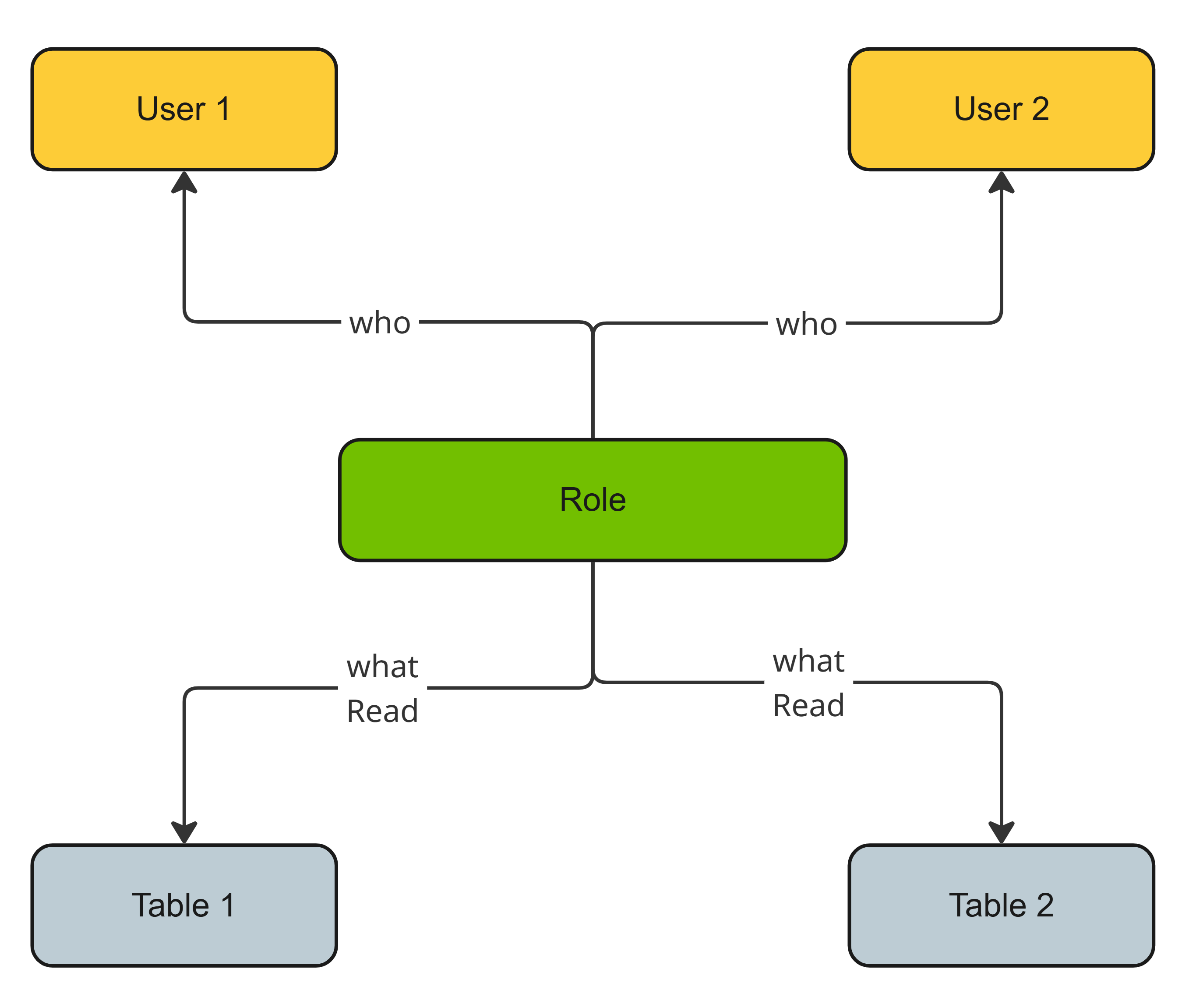
In Data Access, an access control defines who can see and interact with your data. It is an abstract representation of "who gets access to what". It has a What component to set the scope of data, and a Who component to grant additive privileges to users.
Types of access controls
Data Access has the following types of access controls.
| Access control type | Description | Use case |
|---|---|---|
| Role |
Grants access on data objects to the beneficiaries. Roles in Data Access are not the same as global or resource roles. |
Granting a Data Analyst the SELECT permission on the Sales table. |
| Column mask |
Masks the data in columns for everyone except the beneficiaries. The beneficiaries see unmasked data in the columns. |
Hiding PII data from everyone except HR Administrators. |
| Row filter |
Hides all rows of a table or view from everyone except the beneficiaries. The beneficiaries see rows that match filter criteria. |
Ensuring that United Kingdom employees see only sales records where Region is UK. |
Roles define the specific commands or queries, such as SELECT or INSERT, that a user is authorized to run against a data object. In contrast, column masks and row filters function as fine-grained access controls. For example, while a role grants broad access to interact with an entire table or view, column masks and row filters allow you to selectively hide, show, or mask specific data at the individual row or column level.
Column masks and row filters are available only for the data sources that support them.
What and Who components
An access control has the following main components, which are also referred to as the What and Who definitions:
- What: Defines the scope of data and the nature of the rule.
- Who: Grants additive privileges. In all access controls, being included in the Who component means more access.
How an access control works
The following table shows how roles, column masks, and row filters use the What and Who components to manage data visibility.
| Concept | Role | Column mask | Row filter |
|---|---|---|---|
| The What component |
Access granted on: Data objects (as well as other access controls) and the permissions that you apply to them. Answer to: What data objects are you granting access on? |
Masked columns and masking method: Columns and the masking method that you apply to them. Answer to: What columns are you masking? |
Filtered tables: Table or view. Answer to: What table or view are you filtering? |
| Default behavior |
Access is denied to the data objects for everyone unless you add them to the Who component or grant them access through another role. |
The data in the columns is masked for everyone unless you add them to the Who component. |
All rows are hidden from everyone unless you add them to the Who component. |
| The Who component |
Access granted to: Beneficiaries who can access the data objects with the specific permissions. Answer to: Who are you granting access to? |
Authorized identities: Beneficiaries who can see unmasked data in the columns. Answer to: Who can bypass the mask? |
Filter rules: Filter criteria that you apply to the table or view and the beneficiaries who can see the rows that match the criteria. Answer to: Who can see which rows? |
Analogy
To quickly understand how the different types of access controls work together, consider the following analogy.
- Table as a house
- Columns as the furniture in the house
- Rows as the rooms in the house
| Access control type | Description |
|---|---|
| Role → house key | A role is like your key to the house. Without it, you cannot enter the house. If the house has no covered furniture (column masks) or interior locks (row filters), this primary key is all you need to see all the furniture and walk into every room. |
| Column mask → covered furniture | When specific columns need protection, a column mask is applied, acting as a sheet over specific pieces of furniture. Once a column mask is applied, you can see that those pieces of furniture exist (columns), but you cannot see their details, such as the upholstery or the wood grain (masked data in the columns). Only the beneficiaries of the column mask can remove the sheet and see the details (unmasked data in the columns). However, if those beneficiaries do not have the key (role) to the house itself, the column mask becomes irrelevant. |
| Row filter → locked rooms | When specific rows need protection, a row filter is applied, acting as a set of locked rooms. Once a row filter is applied, all the rooms inside the house are locked, and you cannot see any rooms (0 rows returned). Only the beneficiaries of the row filter are given the keys to unlock and see only specific rooms (rows matching the filter criteria). However, if those beneficiaries do not have the key (role) to the house itself, the row filter becomes irrelevant. |
You cannot uncover furniture or unlock a room if you are not already inside the house. Your role must grant access before column masks and row filters become relevant. In contrast, if you do not apply a column mask or a row filter, the data remains unmasked and visible tor anyone who has the role.
Example
When you manage access, consider the multiple regulations and standards that dictate how access should be granted. You can use roles, column masks, and row filters to manage fine-grained access and ensure compliance.
Role
With a role, you can manage access on data objects, such as schemas and tables. Without a role, an identity cannot access the data at all.
Suppose that you use a role to grant your Sales Agent access on the CUSTOMER table. 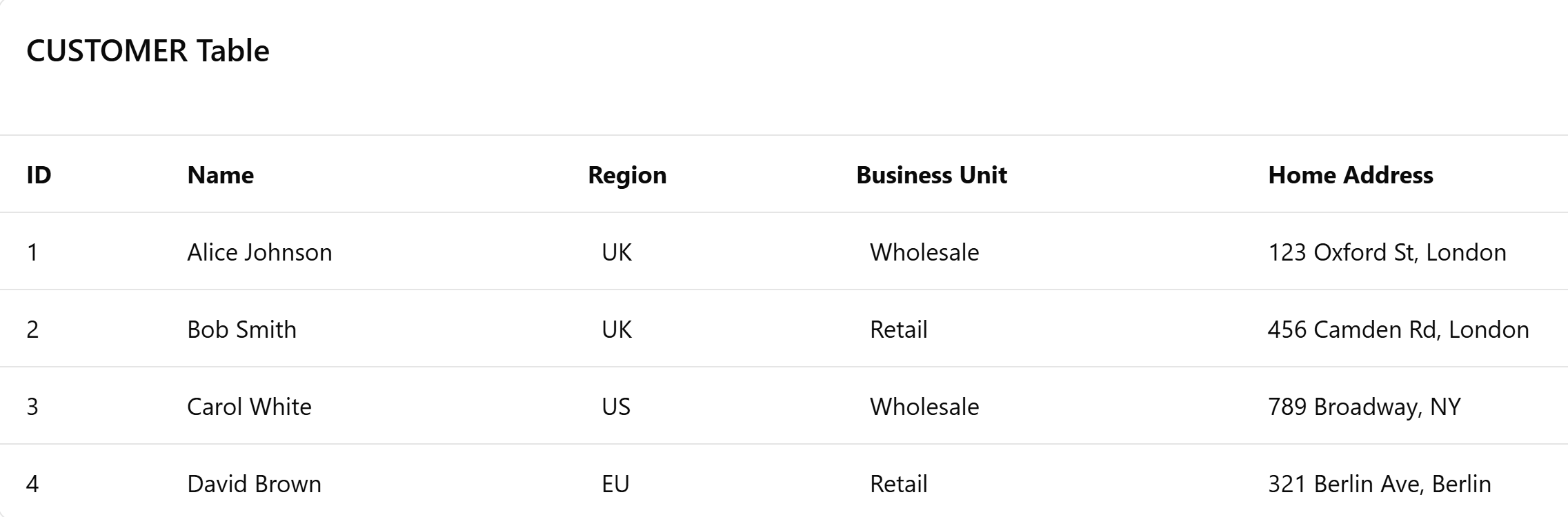
However, privacy regulations or security policies might dictate that the Sales Agent should not see all the data in the CUSTOMER table. This is where column masks and row filters help.
Column mask
With a column mask, you can manage which columns someone can see unmasked in the CUSTOMER table.
Suppose that the Sales Agent should not be able to see the home addresses of customers. In this case, you can use a column mask for the Home Address column in the CUSTOMER table so that the data in that column is masked for everyone, including for the Sales Agent. However, your Delivery Agent needs to be able to see the home addresses to deliver goods to customers. To solve this, you can add the Delivery Agent as the beneficiary of the column mask. This grants the Delivery Agent a global exception, which means that they can see unmasked data in the Home Address column.
Row filter
With a row filter, you can manage which rows someone can see in the CUSTOMER table. This is typically used to restrict access per geographic region or business unit.
Suppose that the CUSTOMER table contains records for multiple geographic regions. In this case, you can use a row filter for the CUSTOMER table so that all the rows in that table are hidden from everyone, including from the Sales Agent. However, if the Sales Agent works in the United Kingdom (UK), they need to be able to see the rows for UK-based customers. To solve this, you can define a specific filter rule (such as Region = UK) in the row filter, and add the Sales Agent as a beneficiary to the rule. As a result, the Sales Agent can see only the rows of UK-based customers, while the data for customers based in other regions remains hidden.
Similarly, if the Sales Agent works in the wholesale business unit, you can define another filter rule (such as Business Unit = Wholesale) in the same row filter, and add the Sales Agent as a beneficiary to that rule. This allows the Sales Agent to also see the rows of the customers for that business unit.
Immediate versus conditional access
When you authorize identities or groups in an access control, you can choose whether they get immediate access, or if they must request access when they need it.
Regardless of whether you provide access immediately or conditionally, you can set a specific expiration time frame called the end date. By default, the end date is set to Unlimited. If you set a specific end date, it indicates the exact moment when the user's access is revoked.
Suppose that you grant Nina, a Data Analyst, immediate access with the end date set to May 15, 2026. In this case, she can access the data continuously until May 15th.
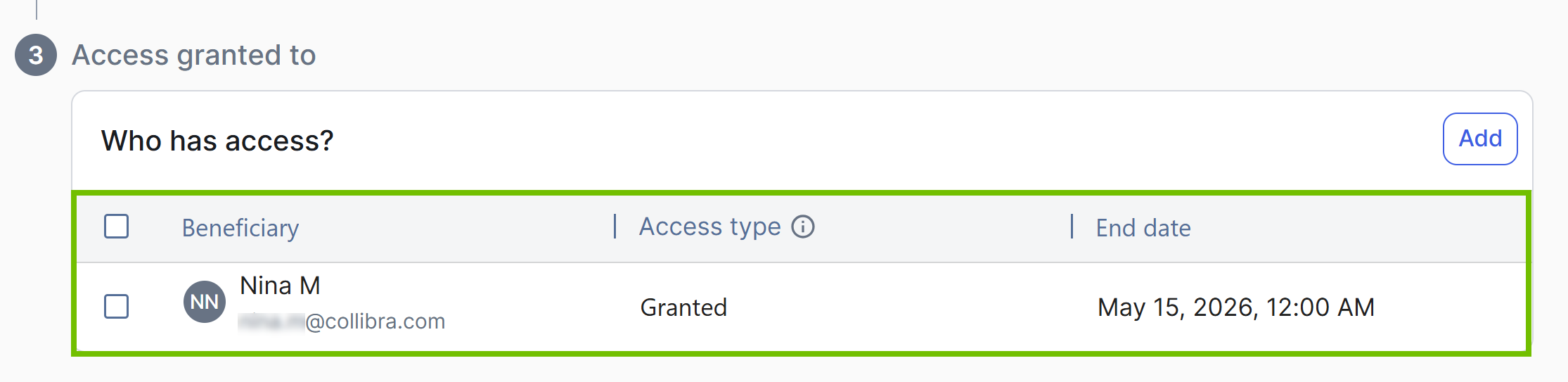
If, however, you grant Nina an on-request access with a duration of 1 hour and an end date of May 15th, she does not get immediate access. Instead, she must actively request access when she needs it. Each request grants her a strict 1-hour window to access the data. If she needs more time later, she must submit a new request. She can request these 1-hour windows as many times as she needs today, but starting May 15th, she is locked out and can no longer request access.