In Collibra 2024.02, we've launched a new user interface (UI) in beta for Collibra Data Intelligence Cloud! You can learn more about this latest UI in the UI overview.
Use the following options to see the documentation in the latest UI or in the previous, classic UI:
As a regular user, you can edit contact information of your own user account on your profile page. As an administrator, you can also edit other users' contact information.
Note You can also add new contact information.
Prerequisites
If you want to edit the contact information of another user, you have a global role with the User Administration or the System Administration global permission, for example Sysadmin.
Edit contact information from a profile page
- Click an avatar.
The profile page appears. - Click Edit Profile.
The Edit Profile dialog box appears. - In the Contact tab page, do one of the following:
- Update any existing fields.
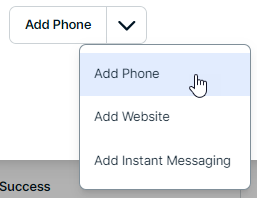
- Select the type of contact information you want to add from the Add Phone button, and click the button.
Note If you edit the email address, a notification email is sent to the old email address.
- Do one of the following:
-
In the Contact section, click
 .
.
Do this to edit the existing fields. - In the Contact section, click Add.
Do this to add a new field, or edit the existing fields.
Note If you edit the email address, a notification email is sent to the old email address.
-
In the Contact section, click
- Edit the contact information.
- Click Save.
- Click Save all.
Edit contact information from the user table
-
On the main toolbar, click
 , and then click
 Settings.
The Collibra settings page opens. - Click Users and groups.
The Users tab showing the user and group settings appears. - Do one of the following:
- Double-click a cell in the E-mail column.
- Hover your mouse over a cell in the E-mail column and click .
Note If you edit the email address, a notification email is sent to the old email address.
- Click in the field and type the new email address.
- Click
 .
.