If you want to upgrade Collibra Platform to 2026.04, you can restore the backup from a previous version on a newly installed 2026.04 environment.
- If you restore a backup, you will lose all current Collibra data.
- Your backup must be from a 5.2 environment or newer.
- Backups from versions older than 5.5.x do no include certificates. You have to reinstall any necessary certificates, for example for secure communication with the Jobserver.
- If you restore a backup that does not include history and was made from a version older than 5.7.x, the data quality metrics will not work correctly. To solve this issue, after you restore the backup in your latest environment, upgrade the data, create a new backup and restore the new backup in the same environment.
Steps
- Open Collibra Console with a user profile that has at least the ADMIN role.
Collibra Console opens with the Infrastructure page.
- Click the name of an environment to show its details.
- Click More → Restore from backup.
-
Fill in the Restore from backup form:
Option Description Environment Select the environment where you want to apply the export file. Backup Select the export file you want to apply. Include You can apply an export file fully or partially. Note If the file is a partial export, you cannot select the excluded options.
Data The core database data of the Collibra environment. This encompasses all data related to communities, domains, assets, users, operating model, and similar objects. History Data activity and snapshot-related information. Configuration The Data Governance Center service configuration options. Warning Do not select this option if you restore a console export file from another environment, as it will overwrite the configuration of your current environment. This can prevent your environment from starting up again.
Customizations Customization files such as custom modules, styling, page definitions, and email templates.
This includes files that are located in the Collibra user home directory and files that are used to customize the Collibra environment (/opt/collibra_data/console/config), such as the ones in:
- email-templates
- groovy-lib
- images
- page-definitions
- security
- styling
- translations
- modules (if available)
- From the Environment drop-down menu, select the environment on which you want to restore a backup.
- From the Backup drop-down menu, select the backup that you want to restore.
- Select the options that you want to restore.
- Click Restore backup.
The backup is restored and the upgrade of the repository is automatically started.
If you look in the upgrade logs (upgrade-task.log), you will see one of the following lines near the end:
INFO - COMPLETED Upgrade the database version to [5.2]INFO - *** Results of upgrade from version 5.1 to version 5.2 ***
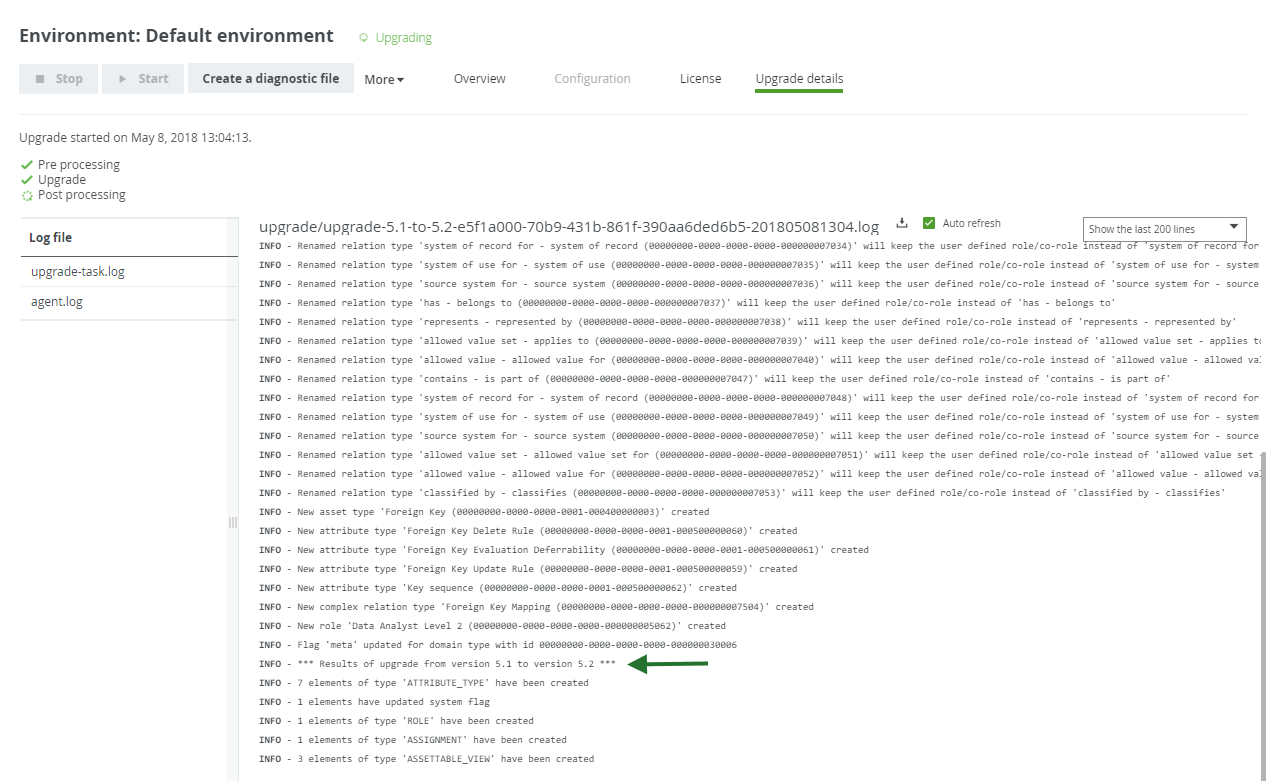
This means that the repository has upgraded to 5.2 at this point. The upgrade to a later version, for example 5.9.2, is performed during the start of the DGC service and is therefore not logged in this log file, but in dgc.log, which you can find in the diagnostic file.