Overview and diagram view
Synchronizing means refreshing the assets that are currently in Data Catalog as a result of a previous ingestion or synchronization job. After synchronizing Tableau, the assets in Data Catalog accurately reflect the metadata as it exists at the time of synchronization.
- The assets have the same names as their counterparts in Tableau. An exception applies in technical lineage, where duplicate nodes are displayed with the Tableau internal ID appended to the name, for example
Sales Report (a1b2c3d4-...). This occurs when multiple objects share the same name under the same parent, such as workbooks in Personal Spaces. For more information, go to Tableau ingestion considerations. - Some asset types are only created if the Tableau user has specific permissions.
- Relations that were created between Tableau assets and other assets via a relation type in the Tableau operating model, are deleted upon synchronization. The same is true of any attribute types in the operating model that you add to Tableau assets. To ensure that the characteristics you add to Tableau assets are not deleted upon synchronization, be sure to use characteristics that are not part of the Tableau operating model.
The following image shows the relations between Tableau asset types.

You can easily recreate this diagram view in your Collibra environment. See Create a Tableau operating model diagram view.
Harvested metadata per asset type
This table shows the harvested Tableau metadata for each Tableau asset type.
- In Tableau, data objects descriptions can be inherited from other data objects. Any such inherited descriptions are not harvested.
-
In Tableau, worksheets and dashboards can be hidden, restricting visibility to admins only. During Tableau synchronization, hidden worksheets and dashboards are retrieved through the Tableau APIs. However, the path to these data objects within Tableau is not provided. As a result:
- The "URL" attribute on the asset pages of Tableau Dashboard and Tableau Worksheet assets is empty.
- The "Visible on server" attribute is set to "false".
Important Although this section focuses on hidden worksheets and dashboards, the exact same behavior is observed if the worksheets are deleted in Tableau. On the other hand, if a dashboard or story is deleted in Tableau, all contained worksheets are completely deleted in Tableau, and the status of the corresponding assets in Collibra changes to "Missing from source".
|
Asset type |
Synchronized metadata |
Public ID |
|---|---|---|
|
Tableau Server Public ID: TableauServer |
Description |
Description |
| Server hosts / is hosted in Business Dimension | ServerHostsBusinessDimension | |
| URL: The link to the data in Tableau | Url | |
|
Tableau Site Public ID: TableauSite |
Description | Description |
|
BI Folder assembles / Is assembled in BI Folder |
BIFolderAssemblesBIFolder | |
| Server hosts / is hosted in Business Dimension | ServerHostsBusinessDimension | |
| URL: The link to the data in Tableau | Url | |
|
Tableau Project Public ID: TableauProject |
Description |
Description |
|
Owner in Source The only harvested metadata are email addresses. To harvest this metadata, you need to enable the Metadata API by setting the For additional rules and limitations, see Additional information, further down in this topic. |
OwnerInSource | |
|
BI Folder assembles / is assembled in BI Folder |
BIFolderAssemblesBIFolder | |
| Business Dimension groups / is grouped into Report | BusinessDimensionGroupsReport | |
|
BI Folder contains / contained in Data Asset |
BIFolderContainsDataAsset | |
|
Tableau Workbook Public ID: TableauWorkbook |
Description |
Description |
| Document creation date | DocumentCreationDate | |
| Document modification date | DocumentModificationDate | |
| Document size | DocumentSize | |
|
Owner in Source The only harvested metadata are email addresses. To harvest this metadata, you need to enable the Metadata API by setting the For additional rules and limitations, see Additional information, further down in this topic. |
OwnerInSource | |
| URL: The link to the data in Tableau | Url | |
|
This is the amount of times the workbook was viewed in Tableau. |
VisitsCount | |
| Report groups / is grouped into Report | ReportGroupsReport | |
| Tableau Workbook contains / contained in Tableau Data Model | TableauWorkbookContainsTableauDataModel | |
| Business Dimension groups / is grouped into Report | BusinessDimensionGroupsReport | |
|
Tableau Dashboard Public ID: TableauDashboard Assets of this type are only created if the Tableau user has the Download/Save As permission on the workbook. |
||
| Document creation date | DocumentCreationDate | |
|
Document modification date |
DocumentModificationDate | |
|
Owner in Source The only harvested metadata are email addresses. To harvest this metadata, you need to enable the Metadata API by setting the For additional rules and limitations, see Additional information, further down in this topic. |
OwnerInSource |
|
|
Report image: The image of the report.
Images are downloaded and attached to the assets in Data Catalog. You can configure the maximum file size and content types of the Tableau images in the Collibra service settings.
|
ReportImage | |
| URL: The link to the data in Tableau | Url | |
| Visible on server | VisibleOnServer | |
|
This is the amount of times the dashboard was viewed in Tableau. |
VisitsCount | |
| Report groups / is grouped into Report | ReportGroupsReport | |
| Report uses / used in Data Attribute | ReportUsesDataAttribute | |
| Report uses / used in Report | ReportUsesReport | |
|
Tableau Worksheet Public ID: TableauWorksheet Assets of this type are only created if the Tableau user has the Download/Save As permission on the workbook. |
||
| Document creation date | DocumentCreationDate | |
|
Document modification date |
DocumentModificationDate | |
|
Report image: The image of the report.
Images are downloaded and attached to the assets in Data Catalog. You can configure the maximum file size and content types of the Tableau images in the Collibra service settings.
|
ReportImage | |
| URL: The link to the data in Tableau | Url | |
| Visible on server | VisibleOnServer | |
|
This is the amount of times the worksheet was viewed in Tableau. |
VisitsCount | |
| Report groups / is grouped into Report | ReportGroupsReport | |
|
Report uses / used in Data Attribute |
ReportUsesDataAttribute | |
| Report uses / used in Report | ReportUsesReport | |
|
Tableau Data Attribute Public ID: TableauDataAttribute Assets of this type are only created if the Tableau user has the Download/Save As permission on the data source. |
Description |
Description |
|
Calculation Rule |
CalculationRule | |
| Data Type: The data type of a data asset, as it is declared by the data source. | DataType | |
| Role in Report | RoleInReport | |
| BI Data Model contains / is part of BI Data Attribute | BIDataModelContainsBIDataAttribute | |
| Data Element targets / sources Data Element | DataElementTargetsDataElement | |
|
Report uses / used in Data Attribute |
ReportUsesDataAttribute | |
|
Tableau Data Model Public ID: TableauDataModel Assets of this type are only created if the Tableau user has the Download/Save As permission on the data source. |
Description |
Description |
|
Certified Note Certification is only possible for published Tableau data sources. |
Certified | |
|
Document creation date |
DocumentCreationDate | |
|
Document modification date |
DocumentModificationDate | |
|
Original Name: The name of the data source in Tableau |
OriginalName | |
|
Owner in Source The only harvested metadata are email addresses. To harvest this metadata, you need to enable the Metadata API by setting the For additional rules and limitations, see Additional information, further down in this topic. |
OwnerInSource | |
| BI Data Model contains / is part of BI Data Attribute | BIDataModelContainsBIDataAttribute | |
| Data Asset contained in / contains BI Folder | BIFolderContainsDataAsset | |
| Tableau Workbook contains / contained in Tableau Data Model | TableauWorkbookContainsTableauDataModel |
Additional information
For the Owner in source attribute, the following rules apply:
- If the system creates a
- If the user who created a
Note The Owner is source metadata (email address) is only returned if the user is the owner of the data inside the project. If the user is the owner of the project, but not the data in the project, the metadata is not returned. This is a known issue that is specific to the Tableau Metadata API.
Example of ingested Tableau metadata
The following image shows an example structure after synchronizing Tableau.
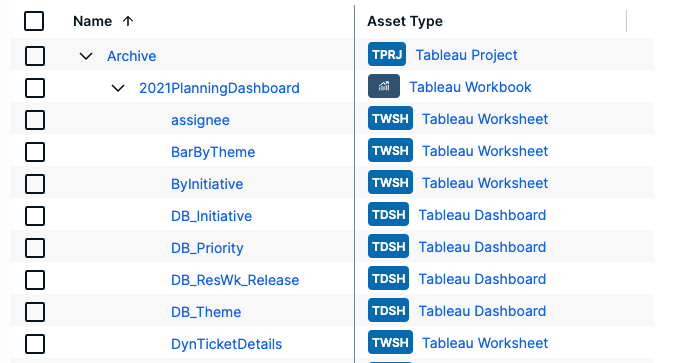
Recommended hierarchy within a domain
You can enable hierarchies for the domain (or domains) in which your Tableau assets were ingested. Doing so makes it easier to understand the relation between your Tableau assets, when viewing the assets on the domain page.
Follow these steps to enable and configure the recommended hierarchy.
Steps
- Open the domain page of the relevant BI Catalog domain.
- On the content toolbar, click
 .
.
The Configure Hierarchy dialog box appears. - Select Enable Hierarchy.
- Select Multipath.
- Start typing and select each of the following relation types:
- Server hosts Business Dimension
- BI Folder assembles BI Folder
- Business Dimension groups Report
- Report groups Report
- Report uses Report
- Report uses Data Attribute
- BI Folder contains Data Asset
- BI Data Model contains BI Data Attribute
- Tableau Workbook contains Tableau Data Model
- Click Apply.
- In an asset view, if any asset is deleted, for example via synchronization or manual deletion, the view is recreated and the hierarchy is lost. In this case, you can again enable and configure the recommended hierarchy.
- When viewing the hierarchy for a community or domain, if the parent of a node that is in the community or domain belongs to a different community or domain, that node is not shown in the hierarchy.
Create a Tableau operating model diagram view
You can create a Tableau-specific diagram view, to visualize the operating model. The following procedure provides instruction on how to quickly create a new diagram view by copying and pasting the JSON code in the diagram view text editor.
Steps
- Open the asset page.
- Click the
Diagram tab.
The diagram is shown in the default diagram view. - Click
 to add a new view.
 - Select the Text option below the diagram view name.
The diagram view text editor is shown. - Copy the code from the Show JSON code section below and paste it in the diagram view text editor.
- Click Save.
- Edit the name and description of the diagram view as needed.
{
    "nodes": [
        {
            "id": "Tableau Workbook",
            "type": {
                "id": "00000000-0000-0000-0000-110000000002"
            },
            "layoutRegion": "context"
        },
        {
            "id": "Tableau Dashboard",
            "type": {
                "id": "00000000-0000-0000-0001-110000000301"
            },
            "layoutRegion": "context"
        },
        {
            "id": "Tableau Worksheet",
            "type": {
                "id": "00000000-0000-0000-0001-110000000300"
            },
            "layoutRegion": "context"
        },
        {
            "id": "Tableau Data Model",
            "type": {
                "id": "00000000-0000-0000-0000-110000000008"
            },
            "layoutRegion": "context",
            "editorSettings": {
                "nodePropsExpanded": false
            }
        },
        {
            "id": "Tableau Project",
            "type": {
                "id": "00000000-0000-0000-0000-110000000001"
            },
            "layoutRegion": "context"
        },
        {
            "id": "Tableau Site",
            "type": {
                "id": "00000000-0000-0000-0000-110000000000"
            },
            "layoutRegion": "context"
        },
        {
            "id": "Tableau Server",
            "type": {
                "id": "00000000-0000-0000-0000-110000000005"
            },
            "layoutRegion": "context"
        },
        {
            "id": "Tableau Data Attribute",
            "type": {
                "id": "00000000-0000-0000-0000-110000000010"
            },
            "layoutRegion": "context"
        },
        {
            "id": "Column",
            "type": {
                "id": "00000000-0000-0000-0000-000000031008"
            },
            "layoutRegion": "context"
        },
        {
            "id": "Table",
            "type": {
                "id": "00000000-0000-0000-0000-000000031007"
            },
            "layoutRegion": "context"
        },
        {
            "id": "Schema",
            "type": {
                "id": "00000000-0000-0000-0001-000400000002"
            },
            "layoutRegion": "context"
        },
        {
            "id": "Database",
            "type": {
                "id": "00000000-0000-0000-0000-000000031006"
            },
            "layoutRegion": "context"
        }
    ],
    "edges": [
        {
            "from": "Tableau Project",
            "to": "Tableau Workbook",
            "label": "",
            "style": "arrow",
            "type": {
                "id": "00000000-0000-0000-0000-120000000002"
            },
            "roleDirection": true
        },
        {
            "from": "Tableau Site",
            "to": "Tableau Project",
            "label": "",
            "style": "arrow",
            "type": {
                "id": "00000000-0000-0000-0000-120000000001"
            },
            "roleDirection": true
        },
        {
            "from": "Tableau Server",
            "to": "Tableau Site",
            "label": "",
            "style": "arrow",
            "type": {
                "id": "00000000-0000-0000-0000-120000000000"
            },
            "roleDirection": true
        },
        {
            "from": "Tableau Data Model",
            "to": "Tableau Data Attribute",
            "label": "",
            "style": "arrow",
            "type": {
                "id": "00000000-0000-0000-0000-000000007196"
            },
            "roleDirection": true
        },
        {
            "from": "Tableau Data Attribute",
            "to": "Tableau Data Attribute",
            "label": "",
            "style": "arrow",
            "type": {
                "id": "00000000-0000-0000-0000-000000007069"
            },
            "roleDirection": false
        },
        {
            "from": "Tableau Workbook",
            "to": "Tableau Data Model",
            "label": "",
            "style": "arrow",
            "type": {
                "id": "00000000-0000-0000-0000-120000000020"
            },
            "roleDirection": true
        },
        {
            "from": "Tableau Project",
            "to": "Tableau Data Model",
            "label": "",
            "style": "arrow",
            "type": {
                "id": "00000000-0000-0000-0000-120000000014"
            },
            "roleDirection": true
        },
        {
            "from": "Column",
            "to": "Column",
            "label": "",
            "style": "boxing",
            "type": {
                "id": "00000000-0000-0000-0000-000000007069"
            },
            "roleDirection": false
        },
        {
            "from": "Column",
            "to": "Table",
            "label": "",
            "style": "boxed",
            "type": {
                "id": "00000000-0000-0000-0000-000000007042"
            },
            "roleDirection": true
        },
        {
            "from": "Table",
            "to": "Schema",
            "label": "",
            "style": "boxed",
            "type": {
                "id": "00000000-0000-0000-0000-000000007043"
            },
            "roleDirection": false
        },
        {
            "from": "Schema",
            "to": "Database",
            "label": "",
            "style": "boxed",
            "type": {
                "id": "00000000-0000-0000-0000-000000007024"
            },
            "roleDirection": false
        },
        {
            "from": "Tableau Data Attribute",
            "to": "Tableau Worksheet",
            "label": "",
            "style": "arrow",
            "type": {
                "id": "00000000-0000-0000-0000-120000000021"
            },
            "roleDirection": false
        },
        {
            "from": "Tableau Workbook",
            "to": "Tableau Worksheet",
            "label": "",
            "style": "arrow",
            "type": {
                "id": "00000000-0000-0000-0000-120000000004"
            },
            "roleDirection": true
        },
        {
            "from": "Tableau Workbook",
            "to": "Tableau Dashboard",
            "label": "",
            "style": "arrow",
            "type": {
                "id": "00000000-0000-0000-0000-120000000004"
            },
            "roleDirection": true
        },
        {
            "from": "Tableau Worksheet",
            "to": "Tableau Dashboard",
            "label": "",
            "style": "arrow",
            "type": {
                "id": "00000000-0000-0000-0000-120000000007"
            },
            "roleDirection": false
        },
        {
            "from": "Tableau Data Attribute",
            "to": "Column",
            "label": "",
            "style": "arrow",
            "type": {
                "id": "00000000-0000-0000-0000-000000007069"
            },
            "roleDirection": false
        },
        {
            "from": "Tableau Project",
            "to": "Tableau Project",
            "label": "",
            "style": "boxed",
            "type": {
                "id": "00000000-0000-0000-0000-120000000001"
            },
            "roleDirection": true
        },
        {
            "from": "Tableau Dashboard",
            "to": "Tableau Data Attribute",
            "label": "",
            "style": "arrow",
            "type": {
                "id": "00000000-0000-0000-0000-120000000012"
            },
            "roleDirection": true
        }
    ],
    "showOverview": false,
    "enableFilters": true,
    "showLabels": true,
    "showFields": true,
    "showLegend": true,
    "showPreview": true,
    "visitStrategy": "directed",
    "layout": "HierarchyTopBottom",
    "maxNodeLabelLength": 50,
    "maxEdgeLabelLength": 30,
    "layoutOptions": {
        "compactGroups": false,
        "componentArrangementPolicy": "topmost",
        "edgeBends": true,
        "edgeBundling": true,
        "edgeToEdgeDistance": 5,
        "minimumLayerDistance": "auto",
        "nodeToEdgeDistance": 5,
        "orthogonalRouting": true,
        "preciseNodeHeightCalculation": true,
        "recursiveGroupLayering": true,
        "separateLayers": true,
        "webWorkers": true,
        "nodePlacer": {
            "barycenterMode": true,
            "breakLongSegments": true,
            "groupCompactionStrategy": "none",
            "nodeCompaction": false,
            "straightenEdges": true
        }
    }
}