For Collibra Data Lineage to connect to and retrieve metadata from Google Dataplex, create a GCP connection.
Do you use a vault?
|
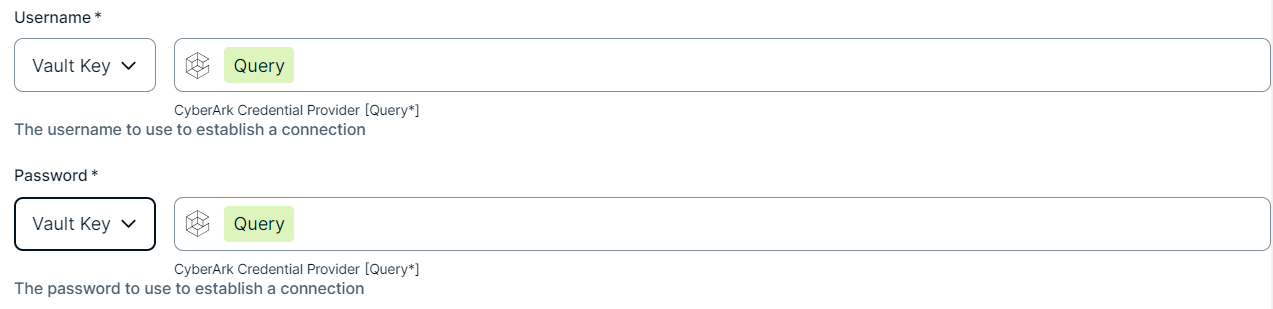
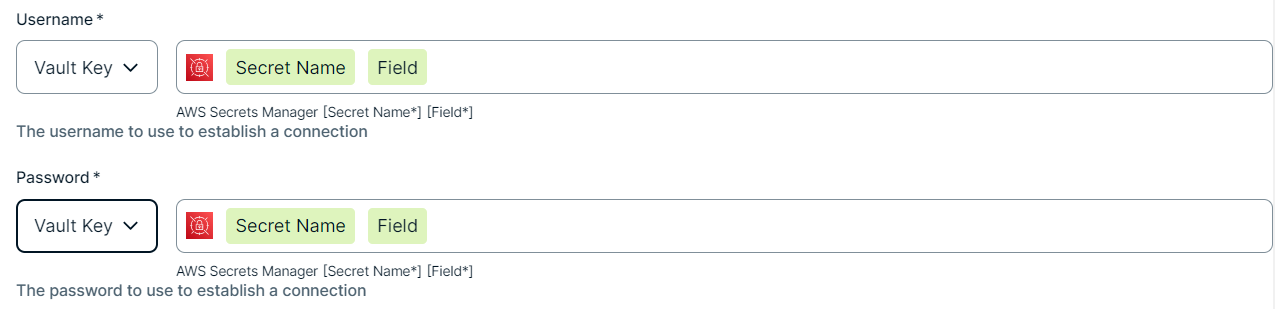
You can use a vault to add your data source information to your Edge site connection. Check the connection property table below to see which information is available for your vault. Vaults are not available for Collibra Cloud site sites. |

No vault

AWS Secrets Manager

Azure Key Vault

CyberArk Vault
Google Secret Manager

HashiCorp Vault
|
|
|
|
||
|
How to use your vault...
To use your vault, do the following:
To use your vault, do the following:
To use your vault, do the following:
To use your vault, do the following:
To use your vault, do the following:
|
||



Prerequisites
- You have added a vault to your Edge site.Note Vaults are not supported on Collibra Cloud sites.
- If your data source connection requires a file from your vault, the file must be encoded into Base64 and stored as a regular secret in your vault.
Steps
- Open a site.
-
On the main toolbar, click
 →
→
 Settings.
The Settings page opens. -
In the tab pane, click Edge.
The Sites tab opens and shows a table with an overview of your sites. - In the table, click the name of the site whose status is Healthy.
The site page opens.
-
On the main toolbar, click
- In the Connections section, click Create connection.
The Create connection page appears. - Select the GCP connection to connect to Google Cloud Platform.
- Enter the required information.
Field Description Required Name The name of the Edge or Collibra Cloud site connection for Google Cloud Platform.
 Yes
YesDescription The description of the connection.
 No
No
Vault The vault where you store your data source values. No
Connection type The authentication method for your GCP connection. Select one of the following options: - Service account
- Use a Google service account for authentication.
- Workload Identity Federation (WIF)
- Use Workload Identity Federation to authenticate without a service account key.
- Workload Identity Federation (WIF) using GKE
- Use Workload Identity Federation in Google Kubernetes Engine (GKE) to authenticate.
Important- When using a cloud provider for WIF, such as AWS or GCP, your Edge site must be deployed on the same cloud provider. For example, if the Edge site is installed on GCP, you cannot use AWS as the WIF provider.
- Automatic token generation for WIF is supported if your Edge site is installed on AWS using K3s or GCP using GKE. If your Edge site is installed using K3s on any cloud provider other than AWS, automatic token generation is not supported.
- If you select
Workload Identity Federation (WIF) using GKE, the following rules apply:- Only select this connection type if you have created a separate edge site on a GKE cluster in Google Cloud.
- The Project IDs field is required when configuring synchronization.
- Proxies are not supported.
- Column-level lineage is not supported.
Yes
Service Account / Workload Identity Federation (WIF) Enter one of the following values: - For the Service Account authentication method, add the full content of the service account key JSON file.
Example
{
"type": "service_account",
"project_id": "PROJECT_ID",
"private_key_id": "KEY_ID",
"private_key": "-----BEGIN PRIVATE KEY-----\nPRIVATE_KEY\n-----END PRIVATE KEY-----\n",
"client_email": "SERVICE_ACCOUNT_EMAIL",
"client_id": "CLIENT_ID",
"auth_uri": "https://accounts.google.com/o/oauth2/auth",
"token_uri": "https://accounts.google.com/o/oauth2/token",
"auth_provider_x509_cert_url": "https://www.googleapis.com/oauth2/v1/certs",
"client_x509_cert_url": "https://www.googleapis.com/robot/v1/metadata/x509/SERVICE_ACCOUNT_EMAIL"}
Ensure the service account has the required permissions, as defined in the prerequisites.
For more information about service account keys, go to the Google documentation. - For the Workload Identity Federation (WIF) authentication method, enter the token URL or the token if you're using WIF with a file-based credential source.
- For the Workload Identity Federation (WIF) using GKE authentication method, you can ignore this field.
Yes
if you selected the Service AccountorWorkload Identity Federation (WIF)authentication methodProperty If your connection to GCP requires any additional parameters, click Add Property.
No
- Click Create.
The connection is added to the Edge or Collibra Cloud site.
Add the Technical Lineage for Google Dataplex capability to your Edge or Collibra Cloud site.