To view the configuration of the Assessments Approval workflow, go to Settings > Workflows > Definitions > Assessments Approval.
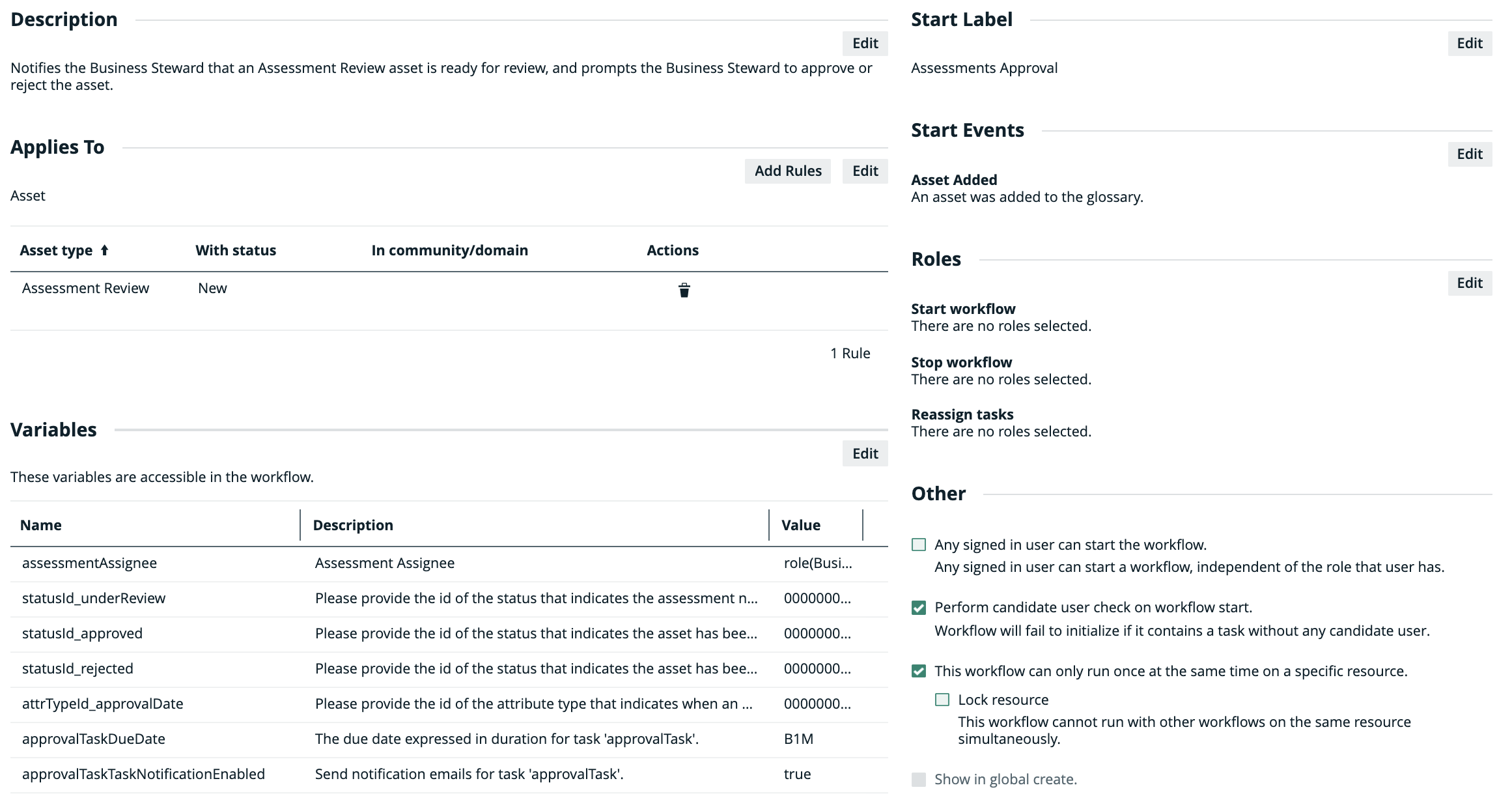
Applies to
This workflow applies to the following asset types.
| Asset type | Restriction | Remark |
|---|---|---|
| Assessment Review | None | None |
Note When you select a parent asset type, it includes all of its children. For example, if you select Business Asset, the workflow also applies to Business Term because it is a type of Business Asset.
Variables
You can edit the configuration variables by using the Edit button in the Variables section of the workflow definition page.
| Variable | Description | Default value |
|---|---|---|
|
businessStewardRoleId |
The resource role to which the task is assigned when the workflow is triggered. Warning For the workflow to work, the resource role specified here must be present as a responsibility in the domain specified when submitting an assessment. |
00000000-0000-0000-0000-000000005016 |
| statusId_underReview | The UUID of the status that indicates the assessment needs to be reviewed before approval. | 00000000-0000-0000-0000-000000005020 |
| statusId_approved | The UUID of the status that indicates the asset has been approved. | 00000000-0000-0000-0000-000000005025 |
| statusId_rejected | The UUID of the status that indicates the asset has been rejected. | 00000000-0000-0000-0000-000000005010 |
| attrTypeId_approvalDate | The UUID of the attribute type that indicates when an assessment review was approved. | 00000000-0000-0000-0000-000000000272 |
| approvalTaskDueDate | The due date expressed in duration for task "approvalTask". | B1M |
| approvalTaskTaskNotificationEnabled | Send notification emails for task "approvalTask". | True |
| approvalTaskEscalationDuration | The escalation time duration for task "approvalTask". | B1M |
| approvalTaskEscalationType | The escalation type for task "approvalTask". |
Start label
The
The default value is Assessments Approval. Click Edit to edit the label.
Start event
A
By default, this workflow is configured to start when an asset is added. Specifically, the workflow starts when an assessment is submitted and the Assessment Review asset is created in your Collibra environment.
You can configure workflows to start automatically when a user starts or retakes an assessment by using the Assessment Started start event. This enables use cases such as automatically assigning specific user groups to an assessment or restoring the original assignees when a user retakes it.
Roles
The roles define the permissions to manage the workflow. For example, if a certain task must be urgently executed but the responsible person is on sick leave, a user with the defined role can reassign that task to somebody else.
| Action | Roles |
|---|---|
| Start workflow |
There are no roles selected. |
| Stop workflow |
There are no roles selected. |
| Reassign tasks |
There are no roles selected. |
Other
The settings in this section define global restrictions that apply to the workflow such as:
- Accessibility to guest or logged in users.
- Checking that the roles required by the workflow are not empty.
- Preventing the same worflow or other workflows from running on the same resource.
- Making the workflow available to be added to a dashboard.
| Setting | Enabled |
|---|---|
| Any guest user can start the workflow. | No |
| Any signed-in user can start the workflow. | No |
| Perform candidate user check on workflow start. | Yes |
| This workflow can run only once at the same time on a specific resource. | Yes |
| Lock resource. | No |
| Show in the global Create dialog box. | No |