After you have prepared your Edge or Collibra Cloud site, you can configure and start the synchronization. To use the unified SAP Datasphere Catalog integration, you need:
- Collibra Platform 2025.02 or newer.
- Edge 2025.02.7 or newer.
- To also ingest SAP Data Products, you need Edge 2026.3.98 or newer.
Synchronizing SAP Datasphere Catalog is the process of integrating metadata from the systems connected to SAP Datasphere Catalog and making the metadata available in Collibra. You can either synchronize manually or automate the process by adding a synchronization schedule.
Before you synchronize, you have to configure the integration settings to specify the metadata that you want to integrate. Separate tabs on the Integration configuration page in Catalog allow you to include metadata from the following data sources:
- SAP Datasphere
- SAP Analytics Cloud
- SAP Business Glossary
- SAP Data Products
Prerequisites
In your Collibra environment:
- You have created a connection to SAP Datasphere Catalog in your Edge or Collibra Cloud site.
- You have added the SAP Datasphere Catalog capability for the connection.
- For metadata synchronization, you know in which System asset you want to add the SAP Datasphere Catalog assets.
- The Edge user must have the following permissions:
- The Edge site global role. Ensure that the Edge site global role has the Manage all resources global permission.
-
A resource role (for example, Owner) that has the following resource permissions, for the community or domain in which the assets are ingested:
- Asset > Add
- Asset > Attribute > Add
- Asset > Attribute > Remove
- Asset > Attribute > Update
- Asset > Remove
- Asset > Update
- Asset > Update Status
- Domain > Add
- You have a resource role with the Configure external system resource permission, for example, Owner.
- You have a global role with the Catalog global permission, for example, Catalog Author.
- You have a global role with the View Edge connections and capabilities global permission, for example, Edge integration engineer.
- The Data Product Port asset type doesn't have the Missing from Source status by default. If an SAP Data Products synchronization tries to assign this status to a port no longer in the source, it reports Completed with error. This error recurs on every synchronization until you resolve it. To avoid this, do one of the following:
- Manually add the Missing from Source status to the Data Product Port asset type.
- In Collibra Console, set Status validation to False (default). This setting is in the Knowledge Graph Validation group of the Data Governance Center service configuration.
Steps
-
On the main toolbar, click
 →
→
 Catalog.
The Catalog homepage opens. - Click Integrations.
The Integrations page opens. - Click the Integration configuration tab.
- In the Integration column, click the link for your SAP Datasphere Catalog integration.
The integration settings page opens. - In the Synchronization configuration section, click Add configuration.
- Select a data source to configure the relevant integration settings:
- Click Save.
- Click Synchronize.
A notification indicates the synchronization has started.
-
On the main toolbar, click
→
Catalog.
The Catalog homepage opens. - Click Integrations.
The Integrations page opens. - Click the Integration configuration tab.
- In the Integration column, click the link for your SAP Datasphere Catalog integration.
The integration settings page opens. - In the Synchronization configuration section, click Add configuration.
- Select a data source to configure the relevant integration settings:
- Click Save.
- In the Synchronization Schedule section, click Add Schedule.
- Enter the information.
Field Description Repeat The interval when you want to synchronize automatically. The possible values are: Daily, Weekly, Monthly, and Cron expression. CronThe Quartz Cron expression that determines when the synchronization takes place.
This field is only visible if you select
Cron expressionin the Repeat field.EveryThe day on which you want to synchronize, for example, Sunday.
This field is only visible if you select
Weeklyin the Repeat field.Every firstThe day of the month on which you want to synchronize, for example, Tuesday.
This field is only visible if you select
Monthlyin the Repeat field.At
The time at which you want to synchronize automatically, for example, 14:00.
- You can only schedule on the hour. For example, you can add a synchronization schedule at 8:00, but not at 8:45.
- This field is only visible if you select
Daily,Weekly, orMonthlyin the Repeat field.
Time zone The time zone for the schedule. - Click Save
Integration settings
Each data source has its own configuration settings. Find the settings for the data source you selected in the synchronization steps below.
SAP Datasphere
| Field | Action | Required? |
|---|---|---|
| Updated: <timestamp> (Optional) |
Click Updated: <timestamp> next to SAP Datasphere, where A scheduled refresh job is also automatically created when you complete the capability configuration. The scheduled refresh job appears on the Jobs dashboard of your Edge site with the same name as your metadata capability. Unlike the metadata synchronization job, it appears only on the Jobs dashboard and not in the Activities list. If two jobs with the same name appear on the Jobs dashboard, one is the scheduled refresh job and the other is the metadata synchronization job. By default, the scheduled refresh job runs daily at 23:00 server time. |
|
| SAP Datasphere System Name |
Select the SAP Datasphere system name from the dropdown list.
To add another SAP Datasphere system to the integration, click + Add Item. How to find the system name in SAP
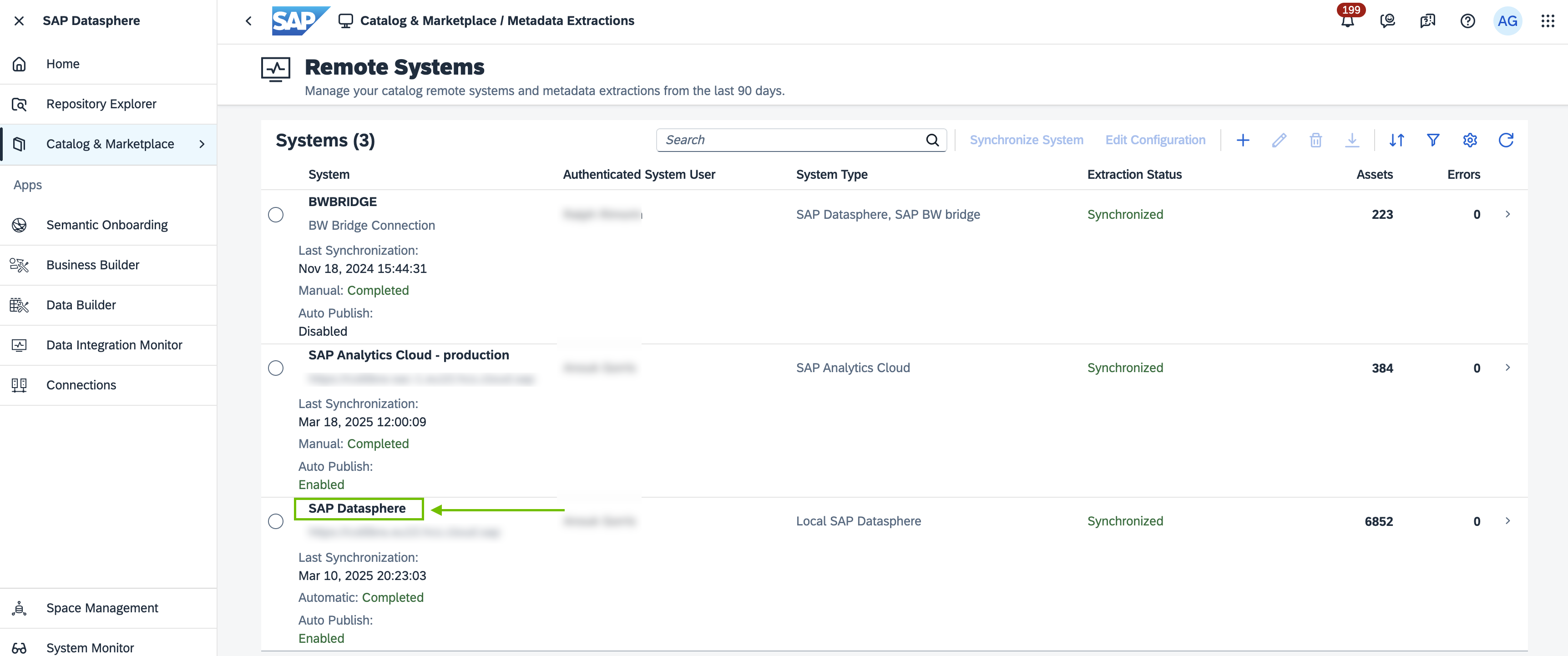
In SAP, on the SAP Datasphere homepage, click the Catalog & Marketplace tab and then click Metadata Extractions. In the following example image, let's say you want the highlighted system. The name you need to specify is
|
|
| Default Domain |
Specify the Collibra domain in which you want to integrate your tenant and space assets. Collibra will create a new domain per SAP space in the same community as the domain you specify. Important Ensure that the domain you specify is not used for another SAP Datasphere synchronization. Any single Collibra domain can be the target domain of only one synchronization. |
|
| SAP Datasphere Space IDs |
Use this filter to ingest assets only from one or more specified SAP Datasphere spaces. If you don’t specify any IDs:
|
|
|
Space ID
|
Select the space ID from which you want to ingest assets. To select more than one space, click + Add Space ID. You can find the space IDs in the Space Management tab in SAP. |
|
| Enable Data Quality synchronization |
Optionally, enable data quality scores from the SAP HANA JDBC driver for your SAP Datasphere Catalog assets.
The additional configuration creates a second hierarchy for remote Table, Database View, and Column assets, pairing them through this hierarchy and enabling data quality scores when the SAP HANA JDBC driver is used to run the data quality capability. |
|
 No
No
 Yes
Yes
SAP Analytics Cloud
| Field | Action | Required? |
|---|---|---|
| Updated: <timestamp> (Optional) |
Click Updated: <timestamp> next to SAP Analytics Cloud, where A scheduled refresh job is also automatically created when you complete the capability configuration. The scheduled refresh job appears on the Jobs dashboard of your Edge site with the same name as your metadata capability. Unlike the metadata synchronization job, it appears only on the Jobs dashboard and not in the Activities list. If two jobs with the same name appear on the Jobs dashboard, one is the scheduled refresh job and the other is the metadata synchronization job. By default, the scheduled refresh job runs daily at 23:00 server time. |
|
| SAP Analytics Cloud System Name |
Select the SAP Analytics Cloud system name.
To add another SAP Analytics Cloud system to the integration, click + Add Item. How to find the system name in SAP
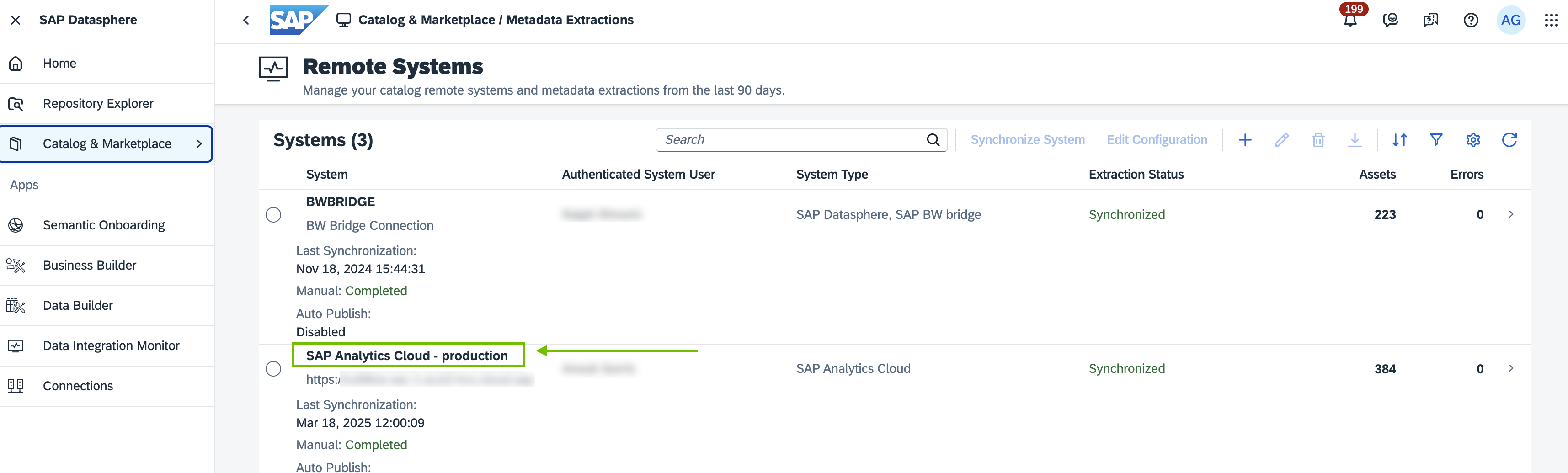
In SAP, on the SAP Datasphere homepage, click the Catalog & Marketplace tab and then click Metadata Extractions. In the following example image, let's say you want the highlighted system. The name you need to specify is
|
|
| SAP Analytics Cloud URL |
Specify the SAP Analytics Cloud system URL. Note The URL that you specify is used to create a direct link between Collibra and SAP Analytics Cloud. Collibra cannot verify that the URL you have specified is correct. If it is incorrect, the links to SAP Analytics Cloud, as included on SAC Story and SAC Data Model asset pages in Collibra, will be broken. How to find the system URL in SAP
|
|
| Default Domain |
Select a default domain. This is the domain in which assets are ingested if you don't configure one or more domain mappings, as described below. Important Ensure that the domain you specify is not used for another SAP Datasphere synchronization. Any single Collibra domain can be the target domain of only one synchronization. |
|
| Domain include mappings |
Use mappings to ingest assets from specified containers and folders into specified Collibra domains. To add more than one mapping, click + Add Domain include mapping. Tip For ideas on how to effectively configure mappings, see example mappings and results below. |
|
|
Path
|
Select the path to the SAP Analytics Cloud container or folder to be integrated.
The dropdown list lets you select nested folders directly using the How to identify the path in SAP
|
|
|
Domain
|
Select the domain in Collibra in which you want to ingest the metadata. Important Ensure that the domain you specify is not used for another SAP Datasphere synchronization. Any single Collibra domain can be the target domain of only one synchronization. |
|


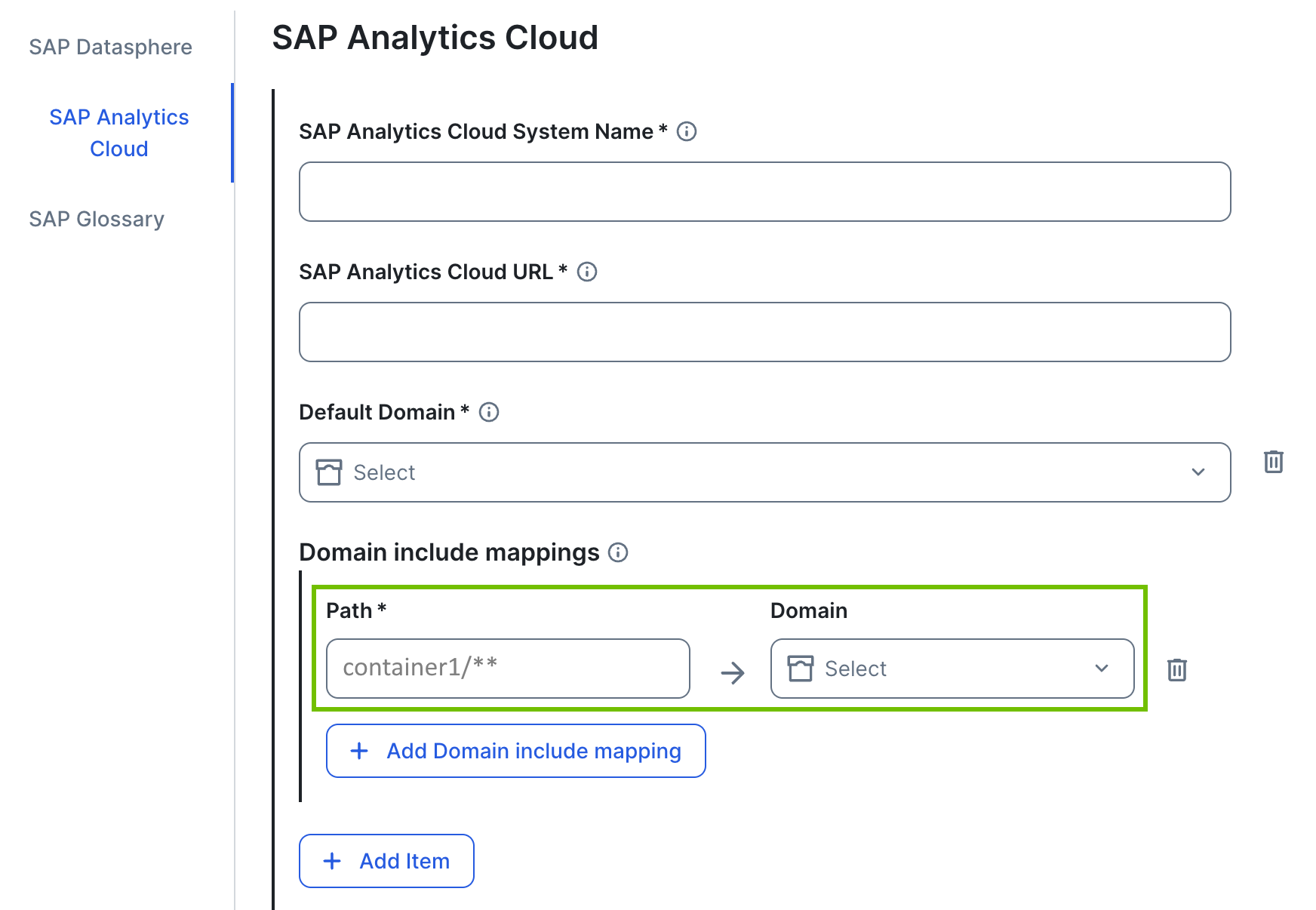
Domain include mappings are essentially filters that allow you to specify the SAP Analytics Cloud containers and folders from which you want to ingest assets. You use the Path field to specify the path to the relevant containers (folders and workspaces), and the Domain dropdown list to select the domain in Collibra in which you want to ingest the assets.
Important considerations:
- The System asset is always ingested in the default domain.
- If you filter on a workspace, do not include "WORKSPACE" as part of the folder path. If you do, synchronization will fail.
- Use the path
<container name>/**to ingest everything in the container.
Examples
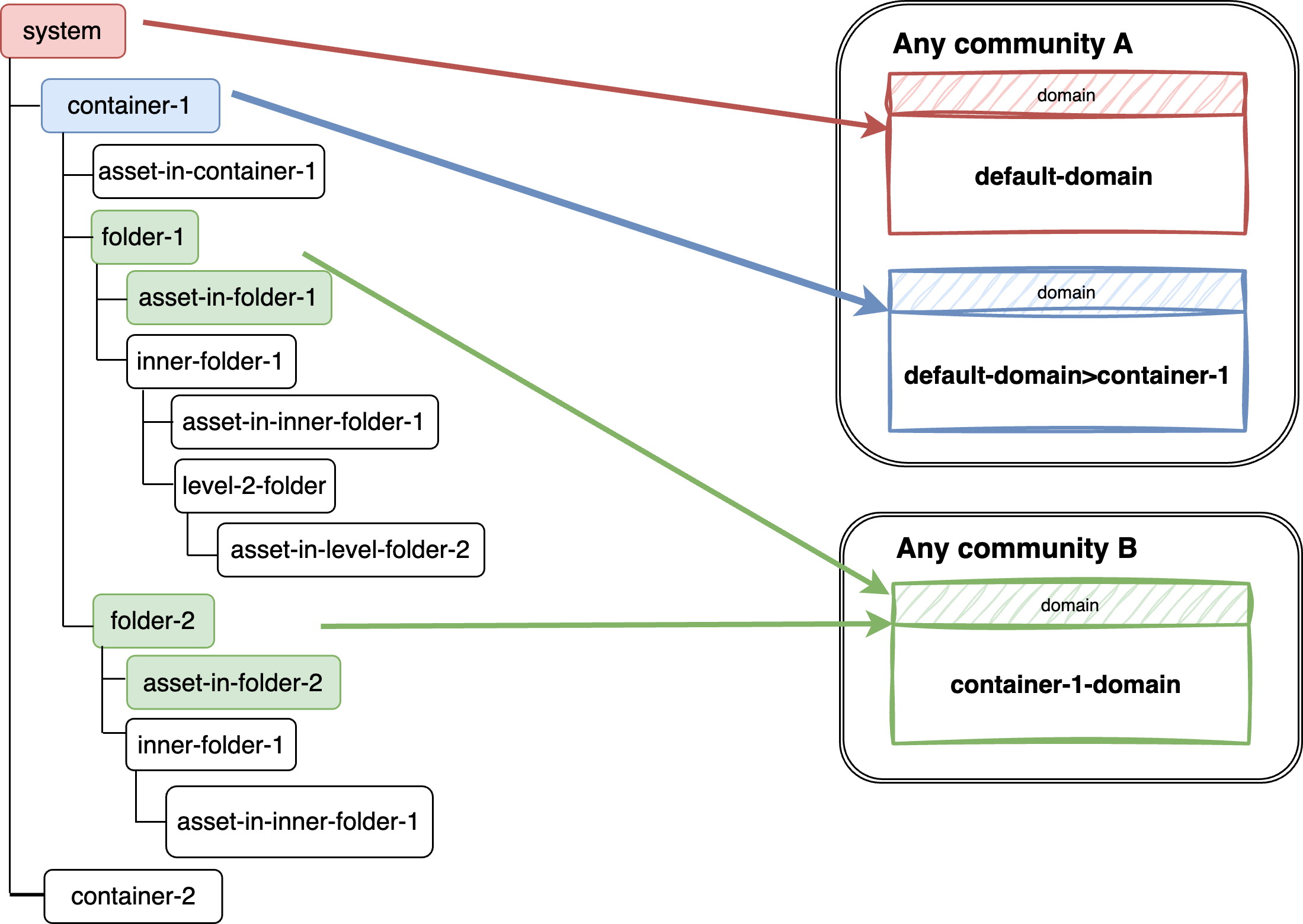
The following filter paths and results refer to the example data structure shown above.

Ingestion results


Ingestion results
Collibra automatically creates a domain for the folder that is one level above, in this case "container-1". That domain is created in the same community as the default domain.

Ingestion results
Collibra automatically creates a domain for the folder that is one level up, in this case "container-1". That domain is created in the same community as the default domain.

Important The following mappings are invalid because they intersect; specifically, "inner-folder-1" matches both mappings. Ensure that you don't configure intersecting mappings, as the results can vary depending on the order of processing.
- First mapping: Container and everything two hierarchical levels down.
- Second mapping: Everything in a specified subfolder.

Ingestion results

Important The following path is invalid. The backslash symbol (/) must be followed by a folder name or an asterisk (*). If the path is invalid, the SAP tenant is still ingested but none of the SAP Analytics Cloud metadata is.

Ingestion results

SAP Business Glossary
| Field | Action | Required? |
|---|---|---|
| Updated: <timestamp> (Optional) |
Click Updated: <timestamp> next to SAP Glossary, where A scheduled refresh job is also automatically created when you complete the capability configuration. The scheduled refresh job appears on the Jobs dashboard of your Edge site with the same name as your metadata capability. Unlike the metadata synchronization job, it appears only on the Jobs dashboard and not in the Activities list. If two jobs with the same name appear on the Jobs dashboard, one is the scheduled refresh job and the other is the metadata synchronization job. By default, the scheduled refresh job runs daily at 23:00 server time. |
|
| Default Domain |
Select a default domain. This is the domain in which glossary terms are ingested if you don't configure one or more glossary mappings. If you don't configure one or more glossary mappings, all terms from all glossaries are ingested in this domain. Important Ensure that the domain you specify is not used for another SAP Datasphere synchronization. Any single Collibra domain can be the target domain of only one synchronization. The + Add Item button is currently not relevant. |
|
| Glossary Mappings |
Use mappings to ingest terms from specified glossaries into specified Collibra domains. To add more than one mapping, click + Add. |
|
|
Glossary
|
Select the name of the glossary from which to ingest terms.
|
|
|
Domain
|
Specify the Collibra domain in which you want to integrate the glossary terms. Important Ensure that the domain you specify is not used for another SAP Datasphere synchronization. Any single Collibra domain can be the target domain of only one synchronization. |
|
SAP Data Products
| Field | Action | Required |
|---|---|---|
| Ingest Data Products |
Optionally, enable the ingestion of SAP Data Products.
To ingest SAP Data Products, you must also configure the SAP Datasphere tab. The tabs can be configured in any order, but both must be completed before you run the synchronization. Otherwise, the capability fails. |
|
| Default Domain |
Select a default domain. This is the domain in which SAP Data Products are ingested. |
|
| Activation keys |
Provide an activation key for each SAP Data Provider whose data products you want to ingest. Add one key per Data Provider. For information on how to generate an activation key, go to the SAP Datasphere documentation.
|
|
The synchronization job integrates the metadata.
After the synchronization:
- You can view a summary of the results from the Activities list.
- For metadata synchronization, the resulting assets get a relation to the System asset that you selected.
- For information on the integrated data, go to Integrated SAP Datasphere data.