After you install an Edge site or are granted a Collibra Cloud site, you can create a connection to the Azure platform.
Do you use a vault?
|
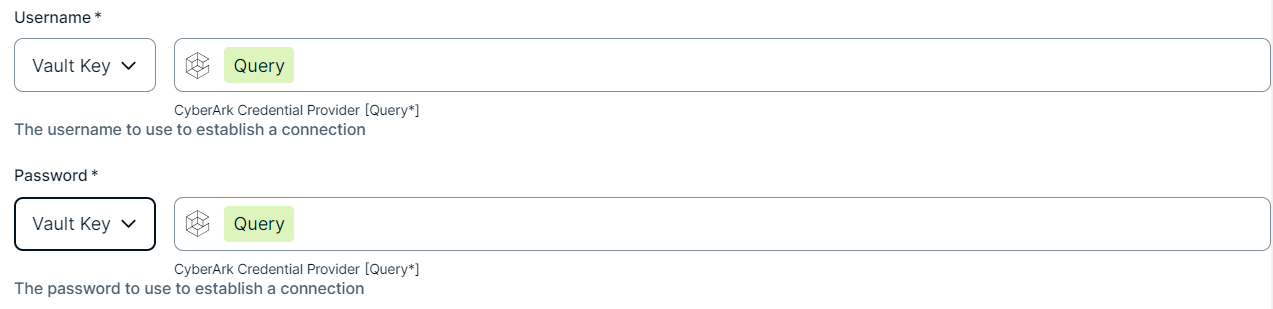
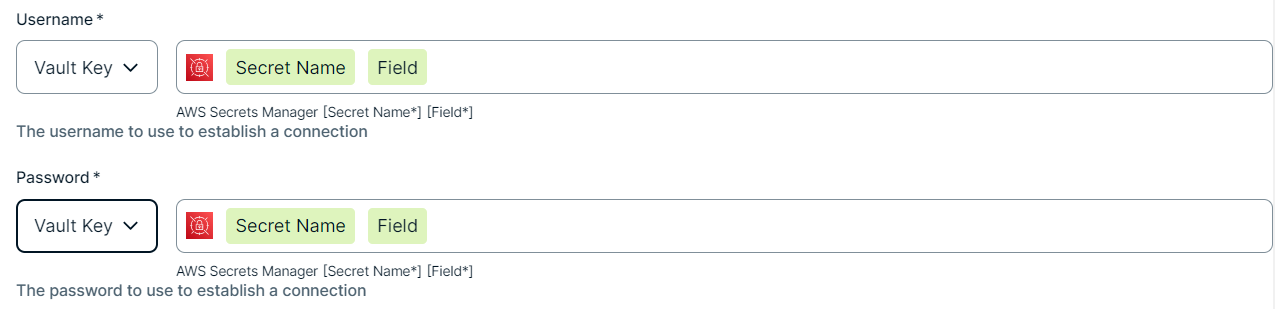
You can use a vault to add your data source information to your Edge site connection. Check the connection property table below to see which information is available for your vault. Vaults are not available for Collibra Cloud sites. |

No vault

AWS Secrets Manager

Azure Key Vault

CyberArk Vault

Google Secret Manager

HashiCorp Vault
|
|
|
|
||
|
How to use your vault...
To use your vault, do the following:
To use your vault, do the following:
To use your vault, do the following:
To use your vault, do the following:
To use your vault, do the following:
|
||



Prerequisites
In your Collibra environment
-
You Note
If you have defined an outbound (forward) proxy on your Edge site, the integration will take that configuration into account when connecting to the AI platform. The following proxies are supported, using either a HTTP or HTTPS proxy URL:
- Pass through (No authentication)
- Pass through (Basic authentication)
- No proxy for noProxy hosts defined by Edge
- Man-in-the-middle (MITM)
- You have added a vault to your Edge site.
- You have a global role that has the Manage connections and capabilities global permission, for example, Edge integration engineer.
- To integrate Microsoft Copilot Studio assets, you need Collibra version 2026.09 or newer.
In your Azure AI environment
To integrate Azure AI Foundry assets, ensure the following
- You registered your Azure application.
- You created a secret for your Azure application.
- You created a custom role with the following Azure AI Foundry permissions:
Microsoft.MachineLearningServices/workspaces/serverlessEndpoints/readMicrosoft.MachineLearningServices/workspaces/onlineEndpoints/readMicrosoft.MachineLearningServices/workspaces/onlineEndpoints/deployments/readMicrosoft.MachineLearningServices/workspaces/readMicrosoft.MachineLearningServices/workspaces/connections/readMicrosoft.MachineLearningServices/workspaces/*/readMicrosoft.Insights/Metrics/ReadMicrosoft.Insights/Logs/ReadMicrosoft.CognitiveServices/accounts/deployments/readMicrosoft.CognitiveServices/accounts/models/readMicrosoft.CognitiveServices/accounts/OpenAI/assistants/readMicrosoft.CognitiveServices/accounts/OpenAI/assistants/files/readMicrosoft.CognitiveServices/accounts/OpenAI/assistants/vector_stores/readMicrosoft.CognitiveServices/accounts/OpenAI/assistants/vector_stores/files/readMicrosoft.CognitiveServices/accounts/OpenAI/files/readMicrosoft.CognitiveServices/accounts/OpenAI/fine-tunes/readMicrosoft.CognitiveServices/accounts/OpenAI/1p-jobs/readMicrosoft.CognitiveServices/accounts/OpenAI/*/read
- You assigned your custom role to your Azure application.
- You have an Azure AI User role in your Azure application.
In your Dataverse environment
To integrate Microsoft Copilot Studio agents, the Azure AI Foundry integration connects to your Dataverse environments with a service principal. This is a registered application in Microsoft Entra ID that has read-only access to each Dataverse environment from which you want to integrate assets. Only Dataverse environments in the Microsoft public (commercial) cloud are supported. Sovereign clouds such as US government (GCC High and DoD) and China aren't supported.
If you already have an Azure connection configured for Azure AI Foundry, you can reuse the same app. Ensure that it has the Dataverse permissions in addition to its existing Azure permissions.
- Register an app in Microsoft Entra ID and create a client secret. Enter its tenant ID, client ID and client secret in the Azure connection. For more information, go to the Microsoft documentation.
- Create a read-only security role in each Dataverse environment from which you want to integrate Microsoft Copilot Studio agents. Grant it the Read privilege on the Bot and Botcomponent tables at the Organization level. Use the Organization level for Read, a lower level hides agents that the app doesn't own. For more information, go to the Microsoft documentation.
- Add the app as an application user in each environment and assign it the read-only security role you created in step 2. For more information, go to the Microsoft documentation on managing application users and assigning security roles.
Steps
- Open a site.
-
On the main toolbar, click
 →
→
 Settings.
The Settings page opens. -
In the tab pane, click Edge.
The Sites tab opens and shows a table with an overview of your sites. - In the table, click the name of the site whose status is Healthy.
The site page opens.
-
On the main toolbar, click
- In the Connections section, click Create connection.
The Create connection page appears. - Select the Azure connection to connect to Azure.
- Enter the required information.
Field Description Required Available for vaults? Name The name of the Edge or Collibra Cloud site connection for Azure.
 Yes
Yes No
No
Description The description of the connection.
No
No
Vault The vault where you store your data source values. No
No
Service Principal ID The Application account ID to connect to the Azure.
For information on the Azure Service Principal user and the Application ID, go to the Azure documentation. Yes YesService Principal Secret The application secret for the Service Principal.
For information on the application secret value, go to the Azure documentation. Yes YesTenant ID The Tenant ID of your Azure Active Directory.
For information on the Directory (tenant) ID, go to the Azure documentation. Yes Yes - Click Create.
The connection is added to the Edge or Collibra Cloud site.
You can now add the Azure AI Foundry capability to an Edge or Collibra Cloud site.