The ADLS synchronization relies on UUIDs. After you have synchronized the data, the integration of the Azure Data Lake Storage file system is completed, and the resulting assets are available in the domain that was specified in the crawler.
The status of assets depends on the selected value in the Default Asset Status field in the capability.
- If No Status is selected, newly created assets receive the first status listed in your Operating Model statuses, and existing assets keep their assigned status.
- If Implemented is selected, all assets receive the "Implemented" status.
Warning Do not move the assets to another domain. Doing so may lead to errors during future synchronizations.
If a temporary communication issue results in a partial synchronization, the status of the assets that were not synchronized becomes Missing from source. If the assets are identified in the source system during the next fully successful synchronization, the status behavior depends on the nature of the failure:
- If synchronization of the asset was interrupted during processing, the previous status is restored.
- If synchronization of the asset did not start, the status is reset to the first default status configured in the asset's lifecycle.
Synchronization results
By default, the assets are shown in a plain list, but you can enable a multi-path hierarchy to show it in a tree structure. The resulting assets depend on whether you use Microsoft Purview.
Synchronization results without tables and columns
For the best result, use the following relations when you define a multi-path hierarchy:
- File Storage contains Storage Container
- Storage Container contains Storage Container
- Directory contains Directory
- Storage Container contains File
Synchronization results with tables and columns
For the best result, use the following relations when you define a multi-path hierarchy:
- File Storage contains Storage Container
- Storage Container contains Storage Container
- Directory contains Directory
- Storage Container contains File
- File contains Table
- Table contains Column
Synchronized metadata per asset type
This table shows the metadata for each ADLS asset type.
- When you use the Purview resource sets (in preview) synchronization source, all assets such as Storage Account, Container, Directory, File, Table, and Column are constructed from Microsoft Purview resource-set entities. The Directory chain is rebuilt from path components, and the File asset represents the resource-set pattern path rather than a single physical file.
- If you selected Ingest Delta Lake Metadata in the capability settings and a folder contains a
_delta_logsubdirectory, the integration replaces the folder's files with a Table asset and its Column assets.- Partition subdirectories stay visible and are crawled as usual. The
_delta_logsubdirectory is removed once its schema is extracted, it only stays if extraction fails. - The Description attribute distinguishes the source: Delta-sourced assets mention the Delta Lake transaction log while Purview-sourced ones mention Microsoft Purview.
- Partition subdirectories stay visible and are crawled as usual. The
|
Asset type |
Synchronized metadata |
Public ID |
|---|---|---|
| ADLS Storage Account | File Storage contains / is part of Storage Container | FileStorageContainsFileContainer |
| ADLS Container |
Location |
Location |
| Storage Container contains / is part of Storage Container | FileContainerContainsFileContainer | |
| Directory | Storage Container contains / is part of Storage Container | FileContainerContainsFileContainer |
| Directory contains / is part of directory | DirectoryContainsDirectory | |
| File | File Type | FileType |
| Size | Size | |
| Storage Container contains / contained in File | FileContainerContainsFile | |
| Table |
Description |
Description |
| File contains / is part of Table | FileContainsTable | |
| Column |
Description |
Description |
| Column Position | ColumnPosition | |
|
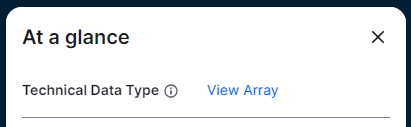
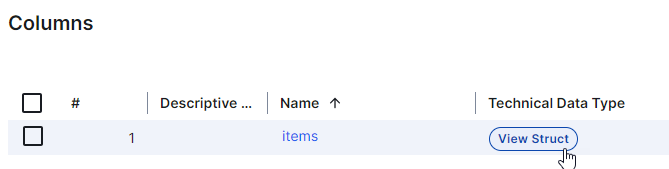
Technical Data Type Tip
You see the technical data type in the Technical Data Type field in the At a glance sidebar of the Column asset. If the At a glance sidebar is hidden, click |
TechnicalDataType | |
| Column is part of / contains Table | ColumnIsPartOfTable |
 . For columns that have a structured technical data type, Array or Struct, click the hyperlink to see the structure of the data in a dialog box. In other locations, for example in Table assets, click the