When configuring Collibra Browser Extension, you can add domains of BI tools or web applications such as Power BI, SAP Analytics Cloud, and Tableau. The Browser Extension then automatically detects the pages you visit in these applications to retrieve the corresponding assets from the connected Collibra environment. The Collibra icon appears as an overlay on the page. Clicking the overlay shows the Collibra asset that corresponds to the data on the page.
Supported assets for auto-matching
Collibra Browser Extension supports auto-matching for the following Collibra assets:
- Power BI: Dashboards, reports, and workbooks
- SAP Analytics Cloud: Models and stories
- Tableau: Dashboards
Examples
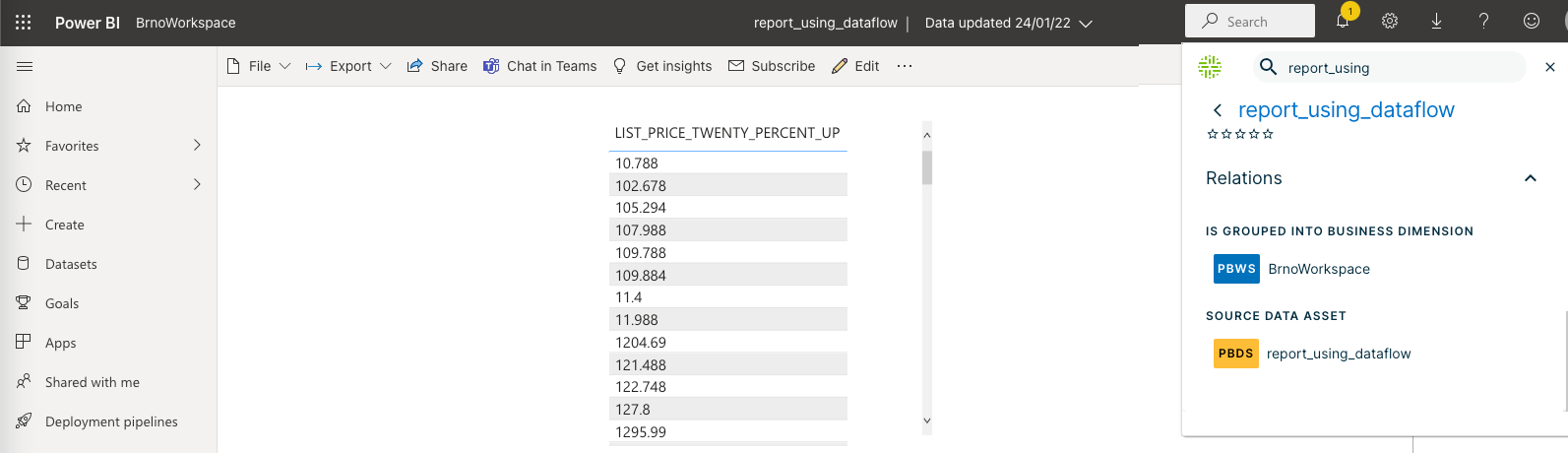
- When viewing a report in Power BI, clicking the Collibra Browser Extension overlay shows information about the equivalent Power BI Report asset from Collibra.
- When viewing a story in SAP Analytics Cloud, clicking the Collibra Browser Extension overlay shows information about the equivalent SAC Story asset from Collibra.

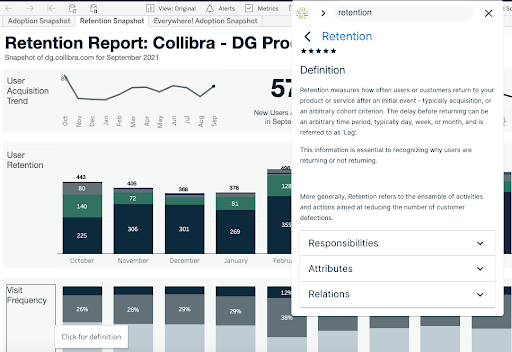
- When viewing a dashboard in Tableau, clicking the Collibra Browser Extension overlay shows information about the equivalent Tableau Dashboard asset from Collibra, including responsibilities, report attributes, and related assets.
For auto-matching to work on an application, the corresponding web domain should be first added as part of the configuration. For example, if you want auto-matching to work on a Tableau dashboard, ensure that you have selected Tableau in the drop-down list box and entered the required Tableau URL.
Auto-matching on a Power BI dashboard
When you work on a Power BI dashboard, the Browser Extension extracts the title shown on the browser tab and the universally unique identifier (UUID) of the dashboard from the page address (URL).

The Browser Extension then searches the Power BI Dashboard asset in Collibra to identify a URL attribute that contains the UUID from the Power BI URL. If no match is found, the Browser Extension searches for an asset whose name is the same as the name found in the browser tab title of the Power BI dashboard.
Tip If auto-matching fails, the Browser Extension searches for the name of the dashboard with the Power BI Dashboard asset type as a filter.
Auto-matching on an SAP Analytics Cloud model or story
When you work on an SAP Analytics Cloud model or story, the Browser Extension uses the page URL to identify the corresponding asset in Collibra. Due to variations in SAP Analytics Cloud URLs for a single object, the Browser Extension uses the following regular expressions for auto-matching.
^<SAP instance URL>\/sap\/fpa\/ui\/(tenants\/[^\/].+\/)?app\.html[^#]*#\/?((story\d?&\/s\d?\/)|(modeler&\/m\/model\/))([^\/]+)(\/.*)?
^<SAP instance URL>\/sap\/fpa\/ui\/(tenants\/[^\/].+\/)?app\.html#.*;view_id=story\d?;resource_id=([^;]+);.*
If a URL matches one of these regular expressions, the Browser Extension extracts the asset ID or asset unique name from the URL. Then, the Browser Extension builds a version of the URL that is ingested into Collibra to search for the corresponding asset using the URL.
For models, the Browser Extension builds a URL in the following format: <SAP instance URL>/sap/fpa/ui/app.html#/modeler&/m/model/<asset unique name>
For stories, the Browser Extension builds a URL in the following format: <SAP instance URL>/sap/fpa/ui/app.html#/story2&/s2/<asset ID>/?mode=view
Auto-matching on a Tableau dashboard
When you work on a Tableau dashboard, first, the Browser Extension searches for the following pattern in the page URL to determine if the current page is a dashboard.
<tableau url>/#/site/<path or uuid>/views/<path or uuid>
- The content within the angle brackets (<>) may match any string.
- /site refers to the workbook or site name and is optional for auto-matching.
- path or uuid isn't used for auto-matching.
The following image shows a Tableau page URL that meets the required pattern.

Next, the Browser Extension compares the page URL of the Tableau dashboard with the URL attribute of Tableau Dashboard assets in the connected Collibra environment for a match. If this method returns no results, the Browser Extension extracts the following information from the breadcrumb on the current page:
- Tableau project
- Tableau workbook
- Tableau dashboard or report
If the page URL meets the required pattern and if the Browser Extension can extract the required information from the breadcrumb, the Browser Extension automatically identifies the dashboard in the connected Collibra environment.
Tip If auto-matching fails, the Browser Extension searches for the name of the dashboard with the Tableau Dashboard asset type as a filter.