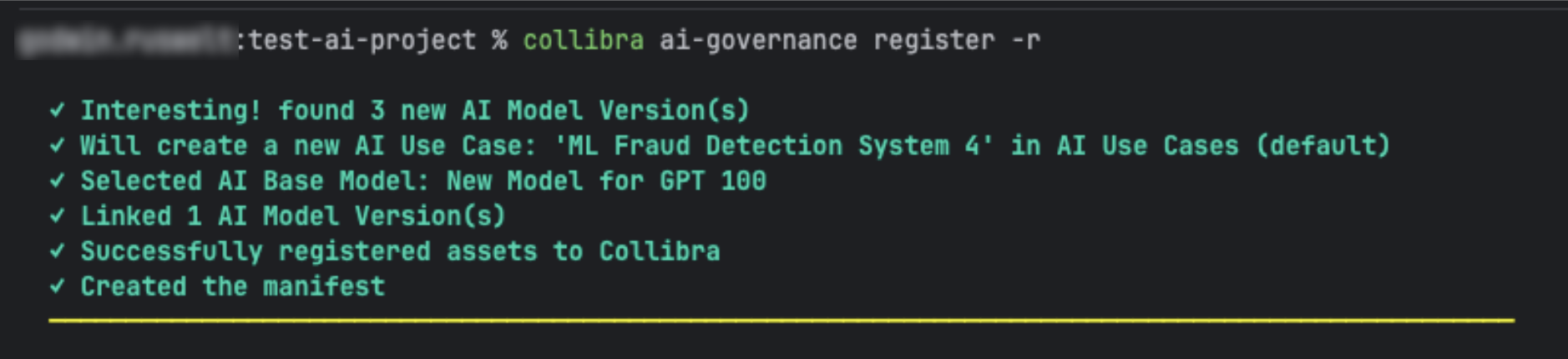
Use the Collibra CLI to register AI model versions directly from your terminal.
- AI framework and library detection
- The CLI scans your local Python projects, including all subdirectories, to identify AI models. It automatically detects common AI frameworks (for example TensorFlow, PyTorch, and scikit-learn) and libraries (for example pandas and numpy).
- Automated manifest management
- A
collibra.yamlmanifest file is automatically created the first time you successfully complete the registration process. It is updated during each subsequent registration to ensure your local project remains synchronized with Collibra. The manifest serves as a persistent record of which AI models have been registered, storing metadata such as AI use case IDs and base model associations, to prevent redundant registrations in future scans. - On-demand help
- The CLI has a
--helpflag to retrieve built-in reference documentation. Run./collibra --helpto view a list of all available commands and flags. - Streamlined registration flow
- You initiate the entire governance workflow with a single command. This process scans your source code for AI model patterns and loads existing YAML manifest files to filter out any models that have already been registered or rejected. The CLI then guides you through the model version registration process, where you can also register new AI Use Cases and Base Models or link your versions to existing assets.
Requirements and permissions
- You have installed and set up the CLI.
- You have a global role with the Product Rights > AI Governance global permission.
- You have a resource role that has the following resource permissions on the target domain for any new assets you create during the process:
- Asset > Add
- Asset > Remove
- Asset > Attribute > Add
Tip- For any AI Use Case assets you create during the process, you need to assign one of these resource roles on the specified target domain, which has to be of the type Business Asset Domain. AI Command Center comes with an out-of-the-box "AI Use Cases" domain for this purpose.
- For any AI Base Model assets you create during the process, you need to assign one of these resource roles on the specified target domain, which has to be of the type Technology Asset Domain. AI Command Center comes with an out-of-the-box "AI Models and Agents" domain for this purpose.
Register an AI model version to your Collibra environment
- Open your terminal or command prompt.
- The Collibra CLI operates relative to your current working directory. Therefore, run the following command to navigate to the root of your Python project:
cd /path/to/your/ml-project - Run the command:
collibra ai-gov register
The CLI guides you through registering AI model versions and linking them to a new or existing (in Collibra) AI base model and AI use case.
Let's go through the registration process
In addition to registering your AI model versions in Collibra, the process enables you to register an AI use case and an AI base model, or link to an existing AI base model. Let's go through the typical process.
Step 1: Detecting AI model versions
When you run the command: collibra ai-gov register, the CLI scans the current or specified directory and all subdirectories for AI frameworks and libraries, and loads the collibra.yaml manifest file if one exists. A manifest file is automatically created the first time you successfully complete the registration process. It is updated during each subsequent registration.

- If no new AI models are detected, you can run
collibra ai-gov register --rescanto scan for any previously rejected models. - If AI model versions are detected, but they already exist in the manifest (meaning no new models), the process terminates.

- If new AI model versions are detected, the CLI attempts to retrieve linked AI use case information from the manifest.
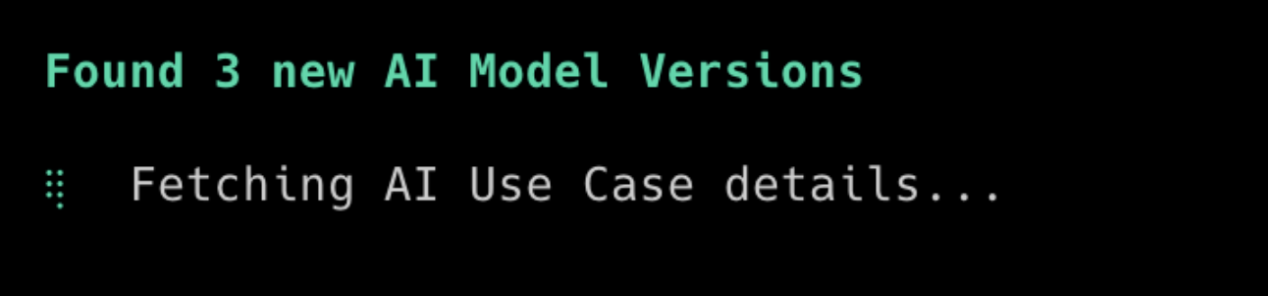
Step 2: Fetching an AI use case
-
If an AI Use Case asset ID already exists in the manifest, the CLI fetches the details directly via API.

This only occurs if the manifest already contains an existing AI use case. An API call is executed to fetch the AI Use Case asset (and related AI Base Model asset) by ID, from the manifest.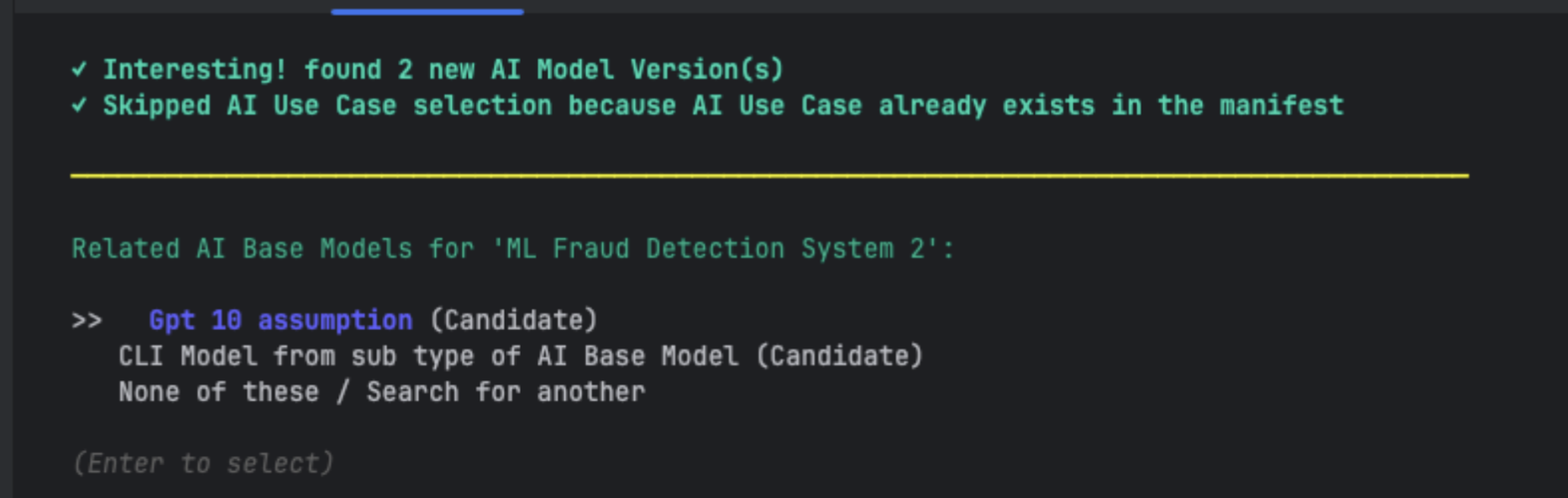
-
If an AI Use Case asset ID does not already exists in the manifest, you can search for an AI Use Case asset in Collibra or choose to create a new one. The following example image shows the search.
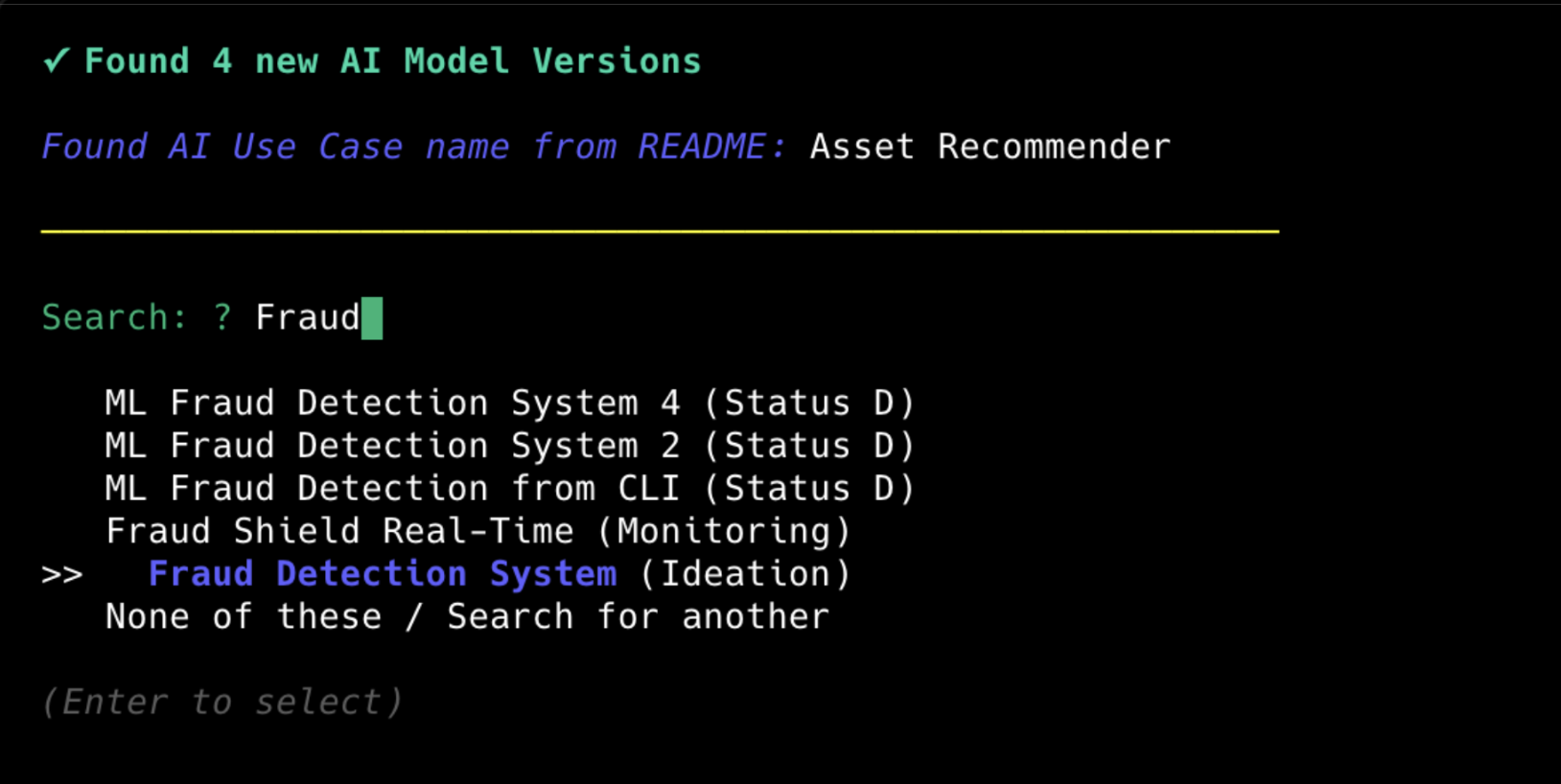
If you chose to create a new AI Use Case asset, you need to select a domain for the asset.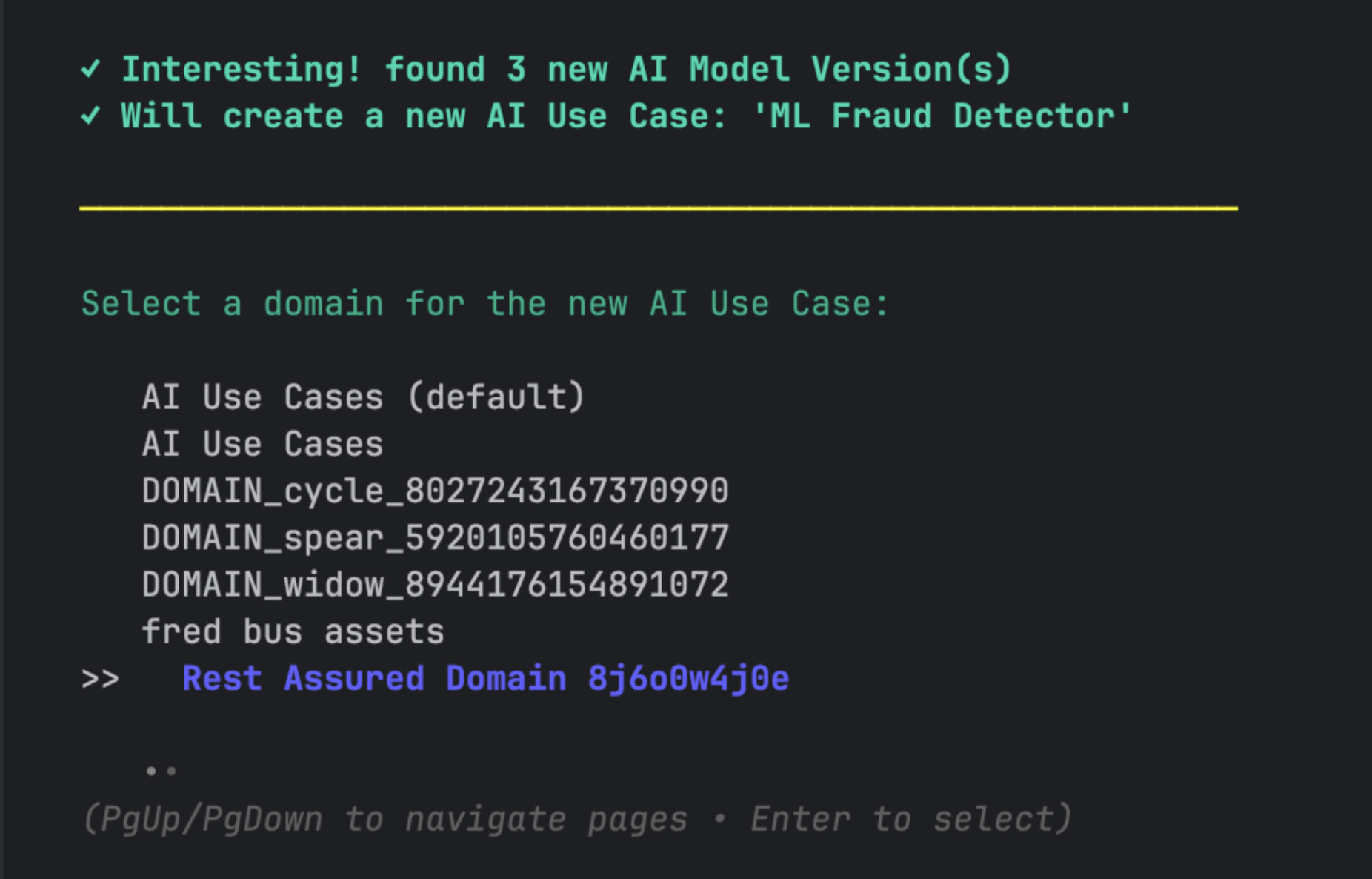
If the list of domains cannot be fetched, you can select the default domain: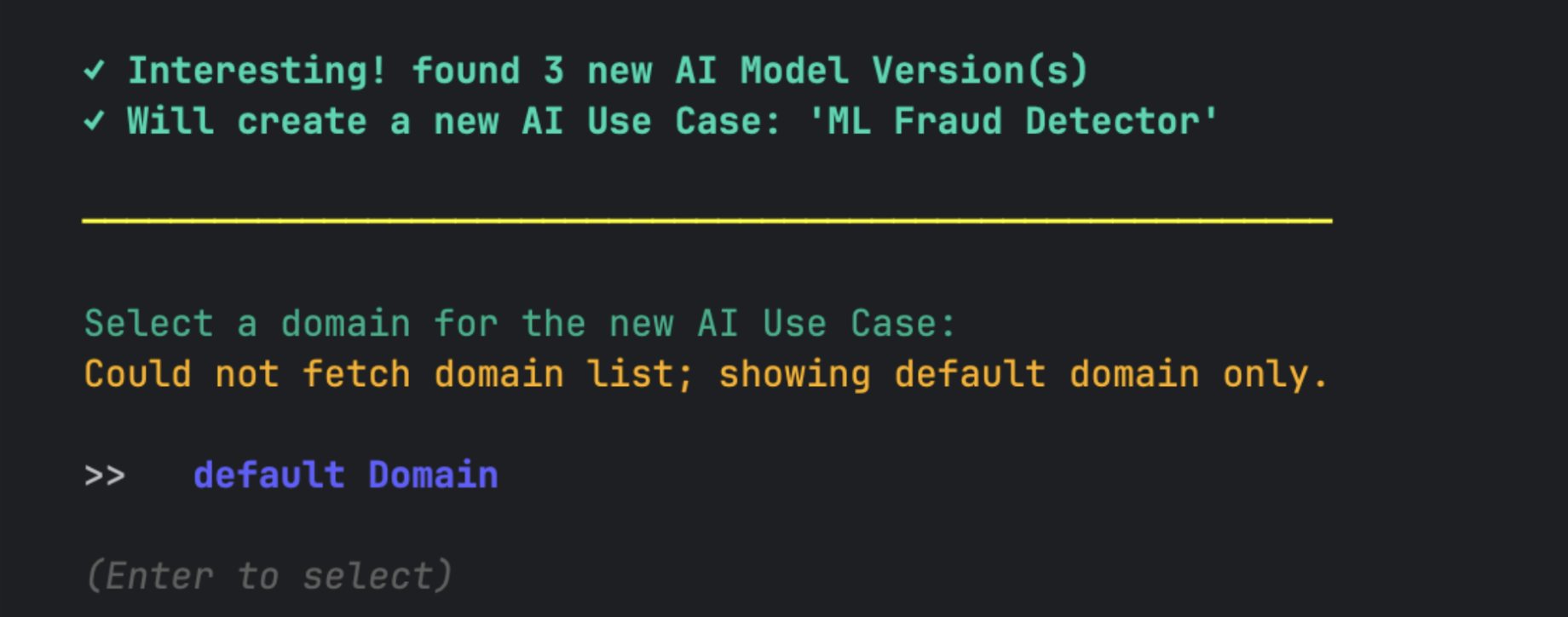
After selecting a domain, the CLI shows a confirmation status like the following example.
Step 3: Fetching an AI base model
-
Search for an AI Base Model asset in Collibra.
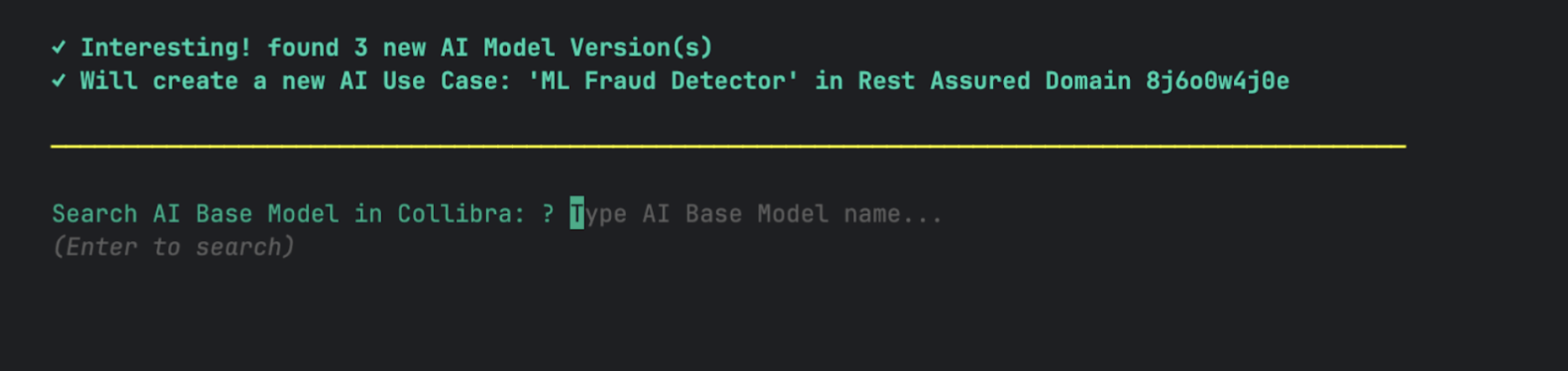
Select one from a pre-populated list of AI Base Model assets.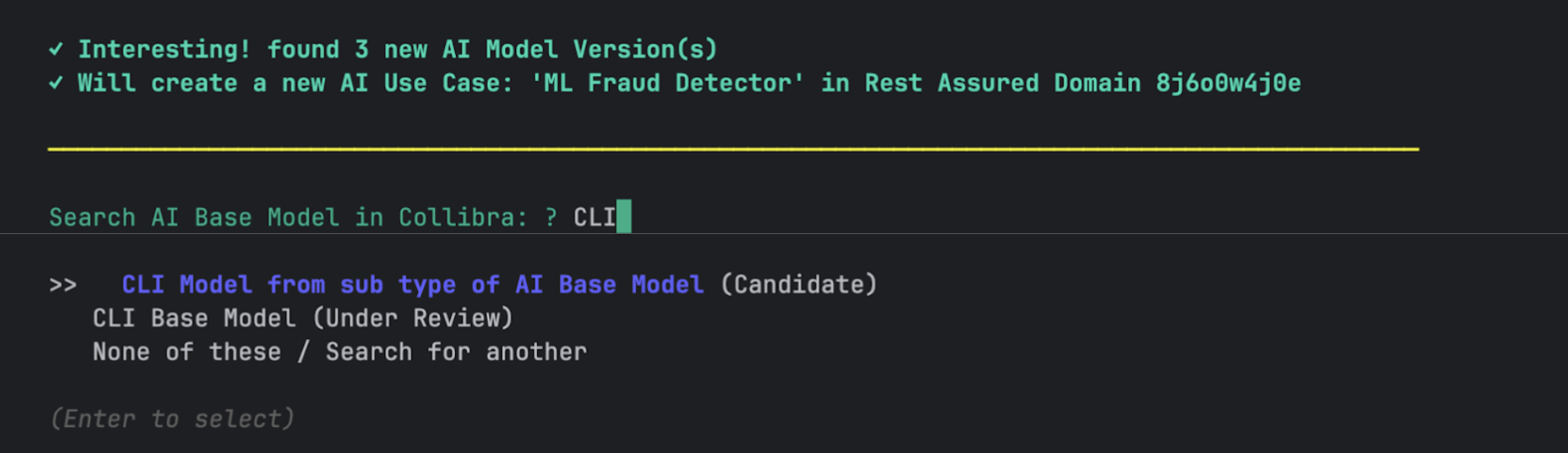
-
Or, if none of the found AI Base Model assets are what you need, you can continue searching.
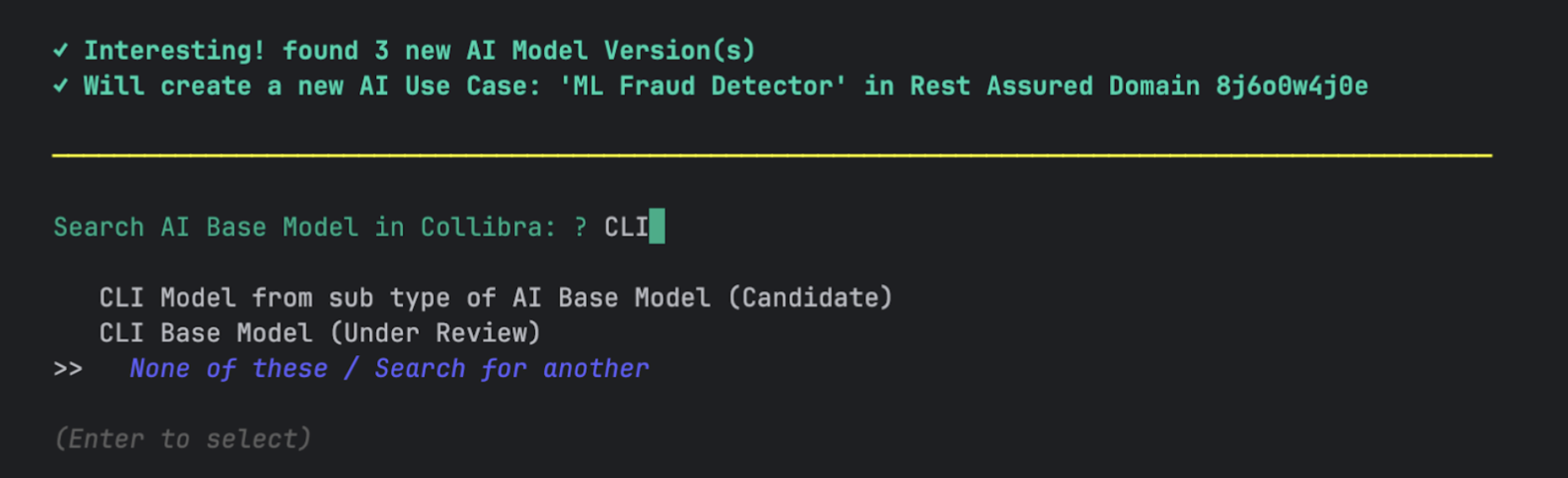
If the search doesn't yield helpful results, you can create a new AI Base Model asset.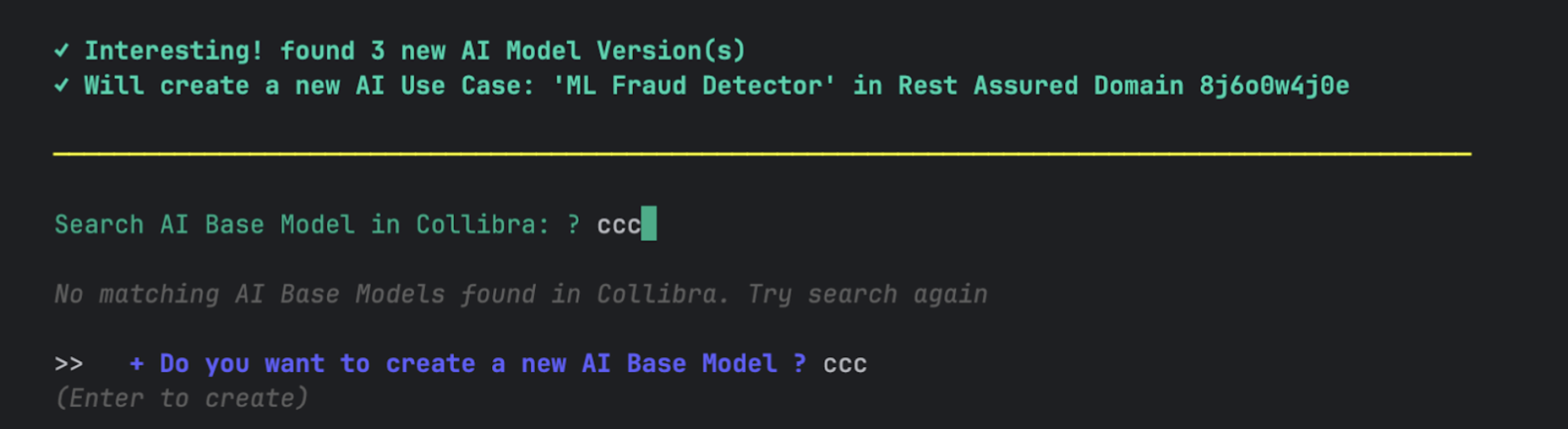
The CLI confirms that a new AI Base Model asset will be created:
Select a domain for the new AI Base Model asset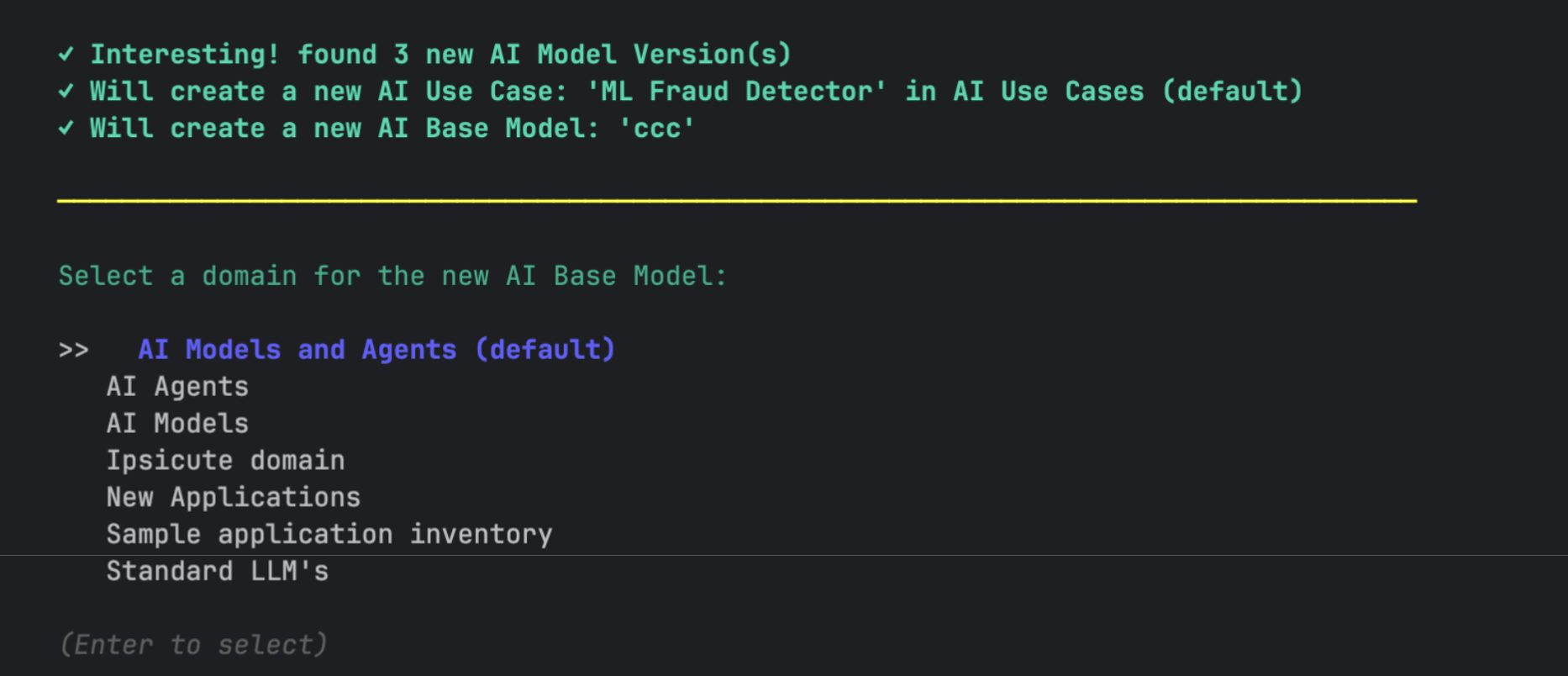
If domains can't be found, choose the default domain.
Step 4: Fetching an AI model version
Select one or more AI Model Version assets to link to your selected AI Base Model asset.
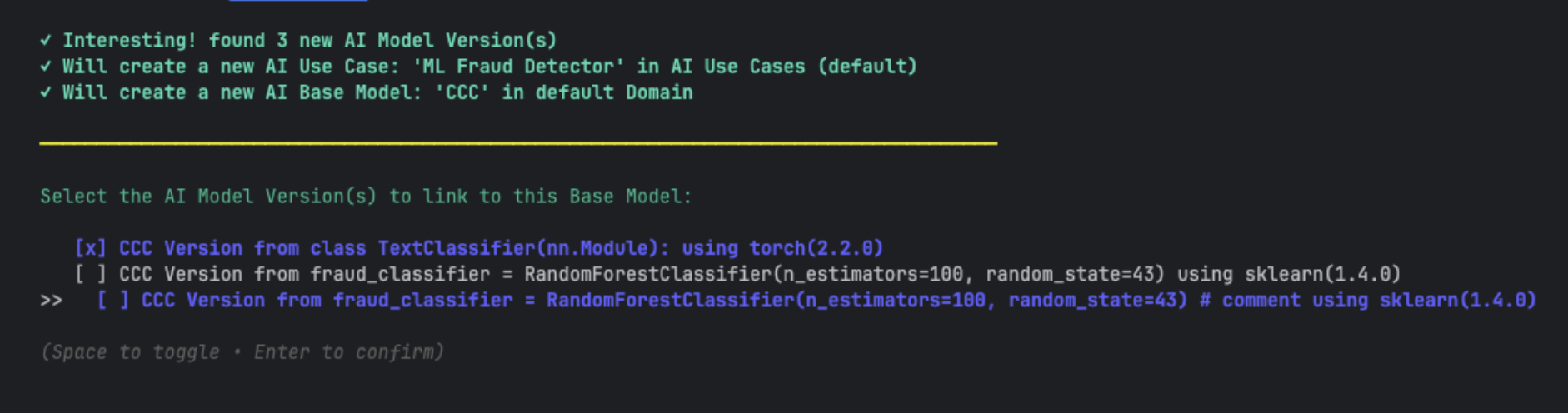
A final review screen shows the proposed registration.
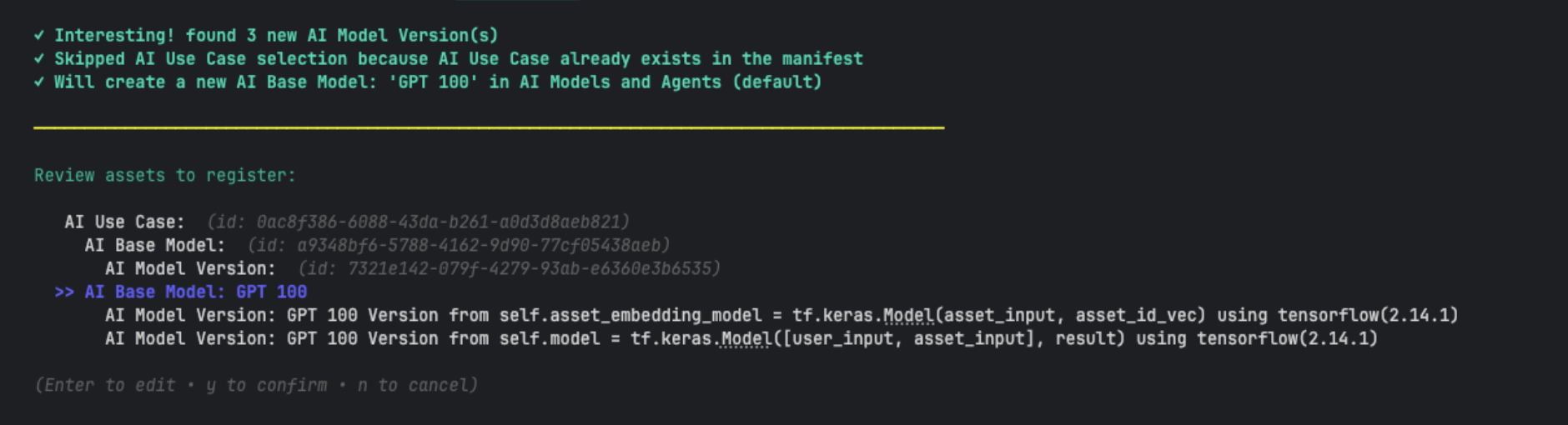
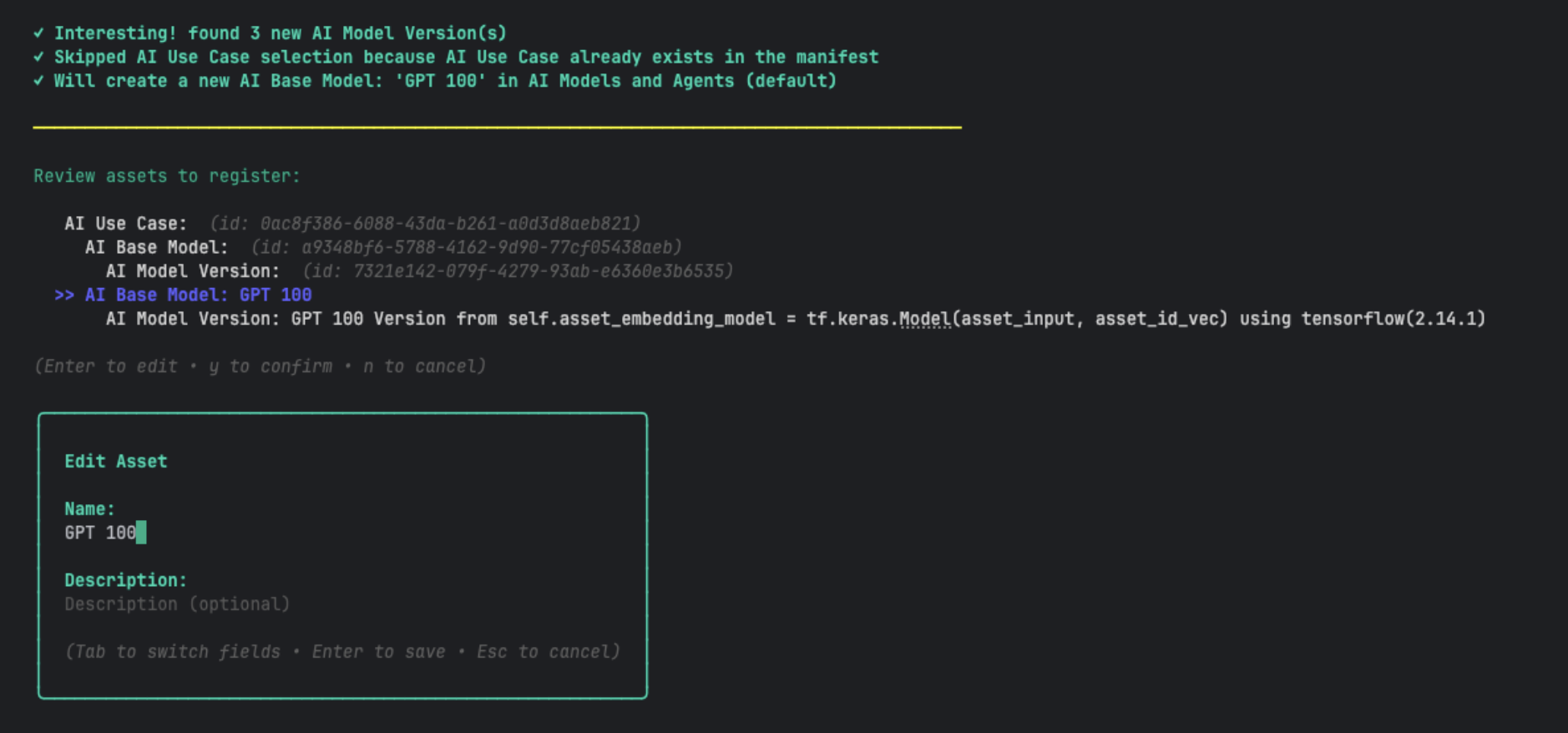
If you want to edit the names and descriptions of the new assets before finalizing the registration, arrow down and press Enter on the asset you want to edit.
Step 5: Finalize
When you enter y to confirm the registration, the CLI imports the assets to Collibra.

If this was a first-time registration, the CLI generates a new collibra.yaml manifest file. If it's not a first-time registration, the CLI updates the existing manifest file.
A successful registration summary is shown.