Appendix F - Getting the correct SAP GUI Libraries Installed
Details of the SAP GUI Libraries that are required to connect to SAP via SAP RFC Calls
In order to extract SAP metadata, ERP/CRM Integrator makes repeated RFCs (Remote Function Calls) to a Silwood-supplied Function Module on the SAP system.
On each call the Function Module extracts metadata into a file and returns it to ERP/CRM Integrator using an SAP GUI connection. ERP/CRM Integrator reads the metadata from the file, processes it and loads it into a repository. To achieve this, SAP GUI and a set of SAP RFC DLLs (Dynamic Link Libraries) need to be installed on the ERP/CRM Integrator machine.
Possible Issues
The following error may occur when attempting to perform the connection to SAP:
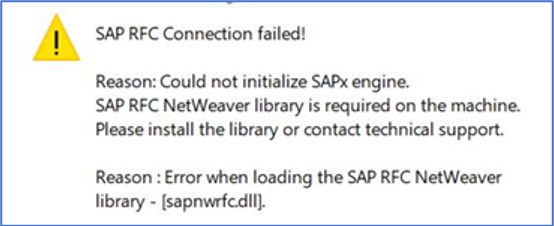
This error message can occur if SAP GUI is not installed on the same PC as ERP/CRM Integrator; or if it is installed, it is not being found by ERP/CRM Integrator or is not starting.
Potential Next Problem – File sapnwrfc.dll Still Cannot Be Found
If the ERP/CRM Integrator 64-bit version is being used, then this problem may be due to a mismatch between the ERP/CRM Integrator bit-size and the installed sapnwrfc.dll bit-size which prevents ERP/CRM Integrator finding the sapnwrfc.dll file.
The easiest way to tell whether ERP/CRM Integrator is 32-bit or 64-bit is by checking its installation folder:
If Safyr.exe is in c:\Program Files (x86)\Silwood\Safyr 7 it is 32-bit.
If Safyr.exe is in c:\Program Files\Silwood\Safyr 7 (x64) it is 64-bit.
Some additional installation steps will be required for the 64-bit version. The 64-bit versions of the SAP GUI DLLs required are currently not included in SAP GUI so they need to be obtained separately from SAP and installed manually.
The required 64-bit SAP RFC NetWeaver DLLs needed are:
- sapnwrfc.dll
- icudt50.dll
- icuin50.dll
- icuuc50.dll
- libicudecnumber.dll
- libsapucum.dll
The examples above are for the 7.50 DLL versions - the embedded numbers may differ for other versions. The DLLs above can be found in the SAP package named nwrfc750P_5-70002755.zip on the SAP Marketplace / Support Launchpad site. Try searching on there for downloads with the keywords "SAP NW RFC SDK" to find the current version if different. Be sure to select the correct bit-size (Windows 64-bit if using ERP/CRM Integrator 64-bit). When extracting the files from the downloaded package, the required DLLs should be in its lib subfolder.
If the correct bit-size DLLs are already installed but ERP/CRM Integrator still has a problem finding them, put the DLLs into the Safyr execution folder (normally the installation folder c:\Program Files\Silwood\Safyr 7 (x64) for 64-bit Safyr 7 or c:\Program Files (x86)\Silwood\Safyr 7 for 32-bit Safyr).
Note SAP GUI 7.7 now has the 64-bit dlls available as part of the setup. If SAP GUI 7.70 or higher is to be used with ERP/CRM Integrator, it is important to select the ‘64-Bit RFC Controls’ option when installing it to get compatible 64-bit DLLs.