Extracting metadata from Microsoft Dynamics AX 2012
Start the extraction process by selecting the ‘ERP Extract’ option from the ERP/CRM Integrator File menu, or the ‘Extract from ERP’ tile from the Navigation Screen. This will start the Dynamics AX Extraction Wizard. Click the ‘Next’ button on the first ‘Extraction Wizard’ form to display the ‘Source System Connection’ form.
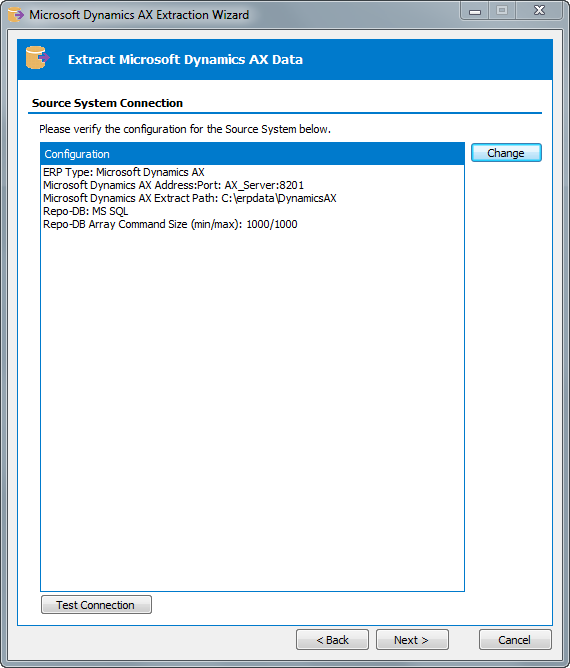
This form shows a summary of the connection parameters, previously supplied when completing the Repository Wizard. You can:
- Click the ‘Change’ button to further amend the connection parameters
- Click the ‘Test Connection’ button to verify the connection through to the Application.
Now click the ‘Next’ button to proceed to the next stage.
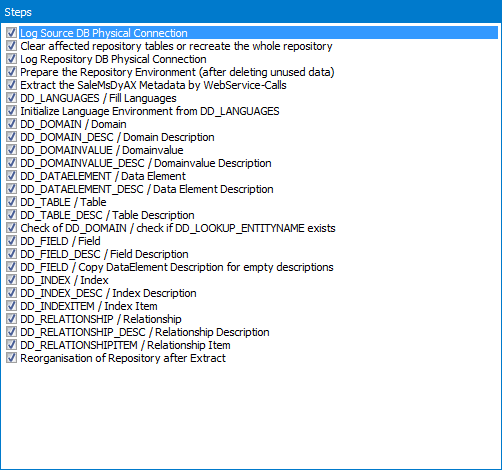
This form lists each of the stages involved in extracting metadata from a Dynamics AX system. The 28 steps are checked ‘On’ and we recommend that you leave this selection and then click the ‘Next’ button to proceed to the next stage.
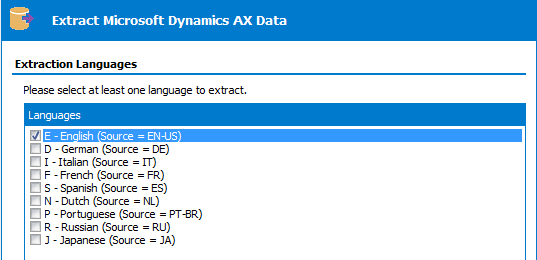
The extraction of metadata from Dynamics will normally be in English. Click the ‘Next’ button to proceed to the next stage of the Extraction Wizard.
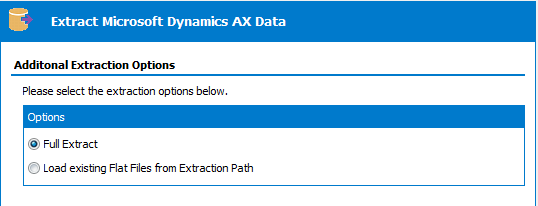
The extraction of metadata from Dynamics not only populates the ERP/CRM Integrator repository, but also creates a series of text files. These text files can be used to rerun the extraction, or to allow population of a different ERP/CRM Integrator instance based upon these files.
The normal selection for this would therefore be ‘Full Extract’.
Click the ‘Next button to move to the next extract step.
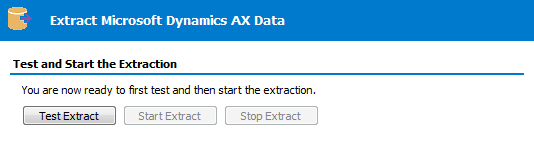
This form is the last stage of the Extraction Wizard process.
Clicking the ‘Test Extract’ button causes ERP/CRM Integrator to run a series of queries to ensure that all the objects requested for extraction are available.
Assuming the ‘Test Extract’ was successful, click the ‘Start Extract’ button to begin the full extraction process.
A series of status messages will allow you to monitor the extraction process. Once the extraction has completed, you will be ready to browse the extracted metadata. An overview of the ERP/CRM Integrator features for achieving this is provided in the next chapter.