Connecting to Dynamics AX 2012
If you have chosen to connect to a Dynamics AX 2012 system, then it will be necessary to configure a connection to the Dynamics AX system where the required metadata is stored. ERP/CRM Integrator extracts the metadata from a Dynamics using the Dynamics AX Metadata Service API.
In order to connect to the AX Server, the Windows user for the workstation where ERP/CRM Integrator is installed needs to be known to the AX Server Active Directory, and .NET framework 4.0 or higher needs to installed on the workstation.
Choosing the Dynamics AX database type
Now navigate to Step 4 of the Repository Wizard. This is where you record the Database type being used by the Dynamics system. This is always SQL Server.
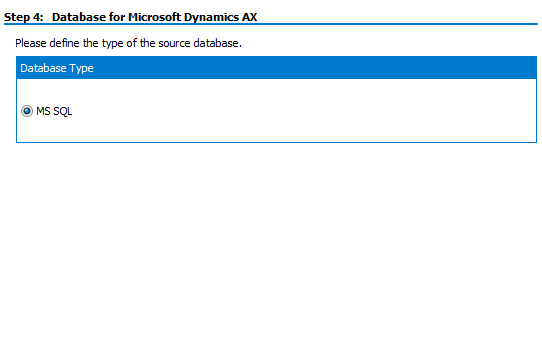
Click the ‘Next’ button.
Entering the Dynamics AX connection settings
Step 5 of the Repository Wizard records the information required for ERP/CRM Integrator to connect to the Dynamics system.
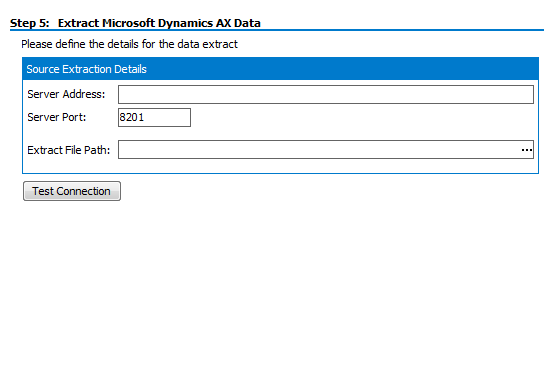
- Enter the Server Address and Server Port number.
- Enter a path for the location of the extracted text files. In addition to populating the ERP/CRM Integrator repository with the extracted Dynamics metadata, each set of ‘objects’ (tables, columns, relationships…) is written to a text file in this folder. It would not normally be necessary to use these files.
Click the ‘Test Connection’ button to have ERP/CRM Integrator check that the Dynamics system can be accessed using the supplied information.
Click the ‘Save’ button to save all the settings entered during the Repository Wizard session.
Now turn to ‘Opening a ERP/CRM Integrator Repository’ below.