
You can create a JDBC connection from an Edge site to a data source that is available for Data Quality & Observability.
You also can reuse an existing JDBC connection from an Edge site to a data source supported for Data Quality & Observability, depending on how you want to manage security and permissions for your connections. If you do this, ensure that your data source meets the permission requirements of your data quality Edge capability.
Available JDBC drivers
|
Data Quality & Observability supports a variety of different data sources. Currently, you see the information for: |
|

No vault

AWS Secrets Manager

Azure Key Vault

CyberArk Vault

Google Secret Manager

HashiCorp Vault
|
|
|
Prerequisites
- You have a global role with the Product Rights > System administration global permission.
- You have a global role that has the Manage connections and capabilities global permission.
- You created and installed an Edge site.
- You have added a vault to your Edge site.
- If your data source connection requires a file from your vault, the file must be encoded into Base64 and stored as a regular secret in your vault.
- Ensure that you meet the data quality capability permission requirements for your data source. For more information, refer to the minimum user permissions section below or go to Data source-specific permissions.
Steps
- Open a site.
-
On the main toolbar, click
 →
→
 Settings.
The Settings page opens. -
In the tab pane, click Edge.
The Sites tab opens and shows a table with an overview of your sites. - In the site overview, click the name of a site.
The site page appears.
-
On the main toolbar, click
- In the JDBC Connections section, click Create Connection.
The Create Connection dialog box appears. - Click the Username/Password JDBC connection connection type.Important
- Click Generic JDBC Connection if you're connecting to Google Bigquery.
- Click Generic JDBC Connection if you’re using one of the following authentication methods: Kerberos Cache, Kerberos Keytab, OAuth access token, or OAuth refresh token.
- Enter the required information.
Field
Description
Connection settings This section contains the settings to connect to your data source.
NameThe name of the JDBC connection.
Note We recommend not to use the special character > in the JDBC connection name. This character is part of the full name of assets created via Edge. If you use this character, features such as sampling or classification can be impacted.
DescriptionThe description of the JDBC connection. This field is also visible when you register content.
VaultThe vault whose secrets you want to use to fill out fields.
This field is only available if one or more vaults have been configured for your Edge site.
Connection parameters This section contains general settings to connect to your data source.
Driver class nameThe driver class name of the connection.
In the case of , enter this:
Driver jarThe JAR file contains the JDBC driver.
Click Upload to upload a JAR file.
Additional classpath filesAny additional classpath files that you want to upload. Use this field if you want to upload more than one driver file.
Connection stringThe JDBC connection string.
In the case of , enter this:
How to use your vault...To use your vault, do the following:- In the Value Type field, select Vault Key.
- Enter the query value to identify the secret in your vault.Example
 Note The Query must be a string containing the properties required to identify the secret. Each property must be separated by a semicolon (;). For example: Safe=<SafeName>;Folder=<FolderName>;Object=<ObjectName>
If a property is a folder with sub-folders, use a backslash (\) to define the folder path. For example: Folder=Root\Top Secrets\More Secrets
For more information about query formats and supported properties, go to the CyberArk Credential Provider documentation.
To use your vault, do the following:- In the Value Type field, select Vault Key.
- Enter the required information:
- Secret Engine Type
- Select one of the following:
- Key Value
- Database
- Engine Path
- The engine path to your vault where the value is stored.
- Secret Path
- The secret path to your vault where the value is stored.
- Field
- If your Secret Engine Type is Key Value, enter the name of the field to your vault where the value is stored.
- Role
- If your Secret Engine Type is Database, enter the role specified in the Database engine.
Example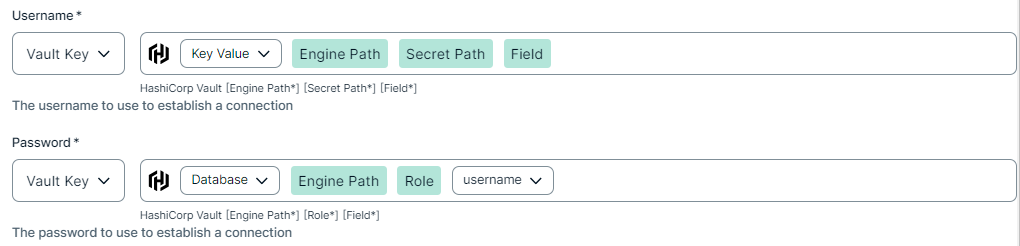
To use your vault, do the following:- In the Value Type field, select Vault Key.
- Enter the required information:
- Vault Name
- The name of your Azure Key Vault in your Azure Key Vault service where the value is stored.
- Secret Name
- The name of the secret in your vault where the value is stored.
Example
To use your vault, do the following:- In the Value Type field, select Vault Key.
- Enter the required information:
- Secret Name
- The name of the secret in your vault where the value is stored.
- Field
- If the secret stored in your AWS Secrets Manager is a JSON value, for example
{"pass1": "my-password", "pass2": "my-password2"}, then you need to specify the Field to point to the exact JSON value that should be used. For example,Secret Name: edge-db-customer; Field: pass.Note If the secret stored in your AWS Secrets Manager is a plain string value, for examplemy-password, then you do not need to specify the Field.
Example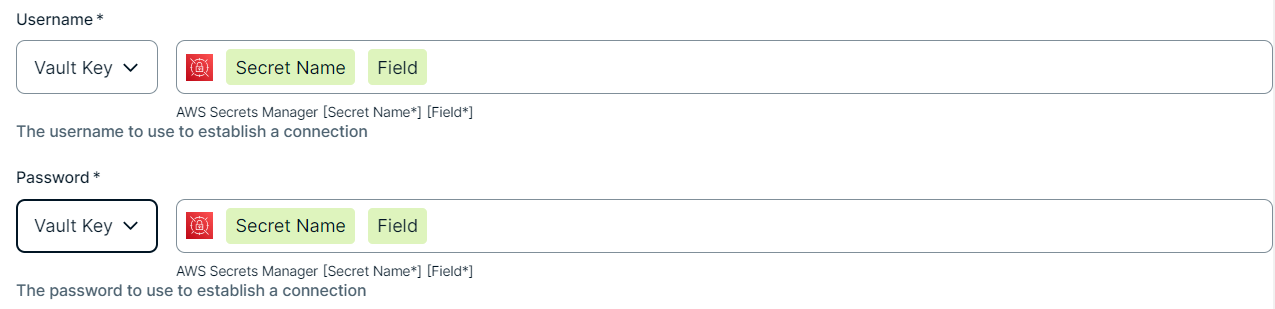
To use your vault, do the following:- In the Value Type field, select Vault Key.
- Enter the name of the secret in your vault where the value is stored.
Example

Warning Some connection properties can be added to the URL as name-value pairs separated by semicolons. However, most properties in the URL are ignored. Therefore, we recommend you not to use this mechanism unless we explicitly ask you to. We recommend you to specify all connection properties in the Connection properties section.
Property
This section contains the connection properties.
How to use your vault...To use your vault, do the following:- In the Value Type field, select Vault Key.
- Enter the query value to identify the secret in your vault.ExampleNote The Query must be a string containing the properties required to identify the secret. Each property must be separated by a semicolon (;). For example: Safe=<SafeName>;Folder=<FolderName>;Object=<ObjectName>
If a property is a folder with sub-folders, use a backslash (\) to define the folder path. For example: Folder=Root\Top Secrets\More Secrets
For more information about query formats and supported properties, go to the CyberArk Credential Provider documentation.
To use your vault, do the following:- In the Value Type field, select Vault Key.
- Enter the required information:
- Secret Engine Type
- Select one of the following:
- Key Value
- Database
- Engine Path
- The engine path to your vault where the value is stored.
- Secret Path
- The secret path to your vault where the value is stored.
- Field
- If your Secret Engine Type is Key Value, enter the name of the field to your vault where the value is stored.
- Role
- If your Secret Engine Type is Database, enter the role specified in the Database engine.
Example
To use your vault, do the following:- In the Value Type field, select Vault Key.
- Enter the required information:
- Vault Name
- The name of your Azure Key Vault in your Azure Key Vault service where the value is stored.
- Secret Name
- The name of the secret in your vault where the value is stored.
Example
To use your vault, do the following:- In the Value Type field, select Vault Key.
- Enter the required information:
- Secret Name
- The name of the secret in your vault where the value is stored.
- Field
- If the secret stored in your AWS Secrets Manager is a JSON value, for example
{"pass1": "my-password", "pass2": "my-password2"}, then you need to specify the Field to point to the exact JSON value that should be used. For example,Secret Name: edge-db-customer; Field: pass.Note If the secret stored in your AWS Secrets Manager is a plain string value, for examplemy-password, then you do not need to specify the Field.
Example
To use your vault, do the following:- In the Value Type field, select Vault Key.
- Enter the name of the secret in your vault where the value is stored.
Example
- Click Create.
You can now add a data quality capability to your data source.