In table display mode, each row in the table represents an asset. You can filter a table by or by using About asset filters.
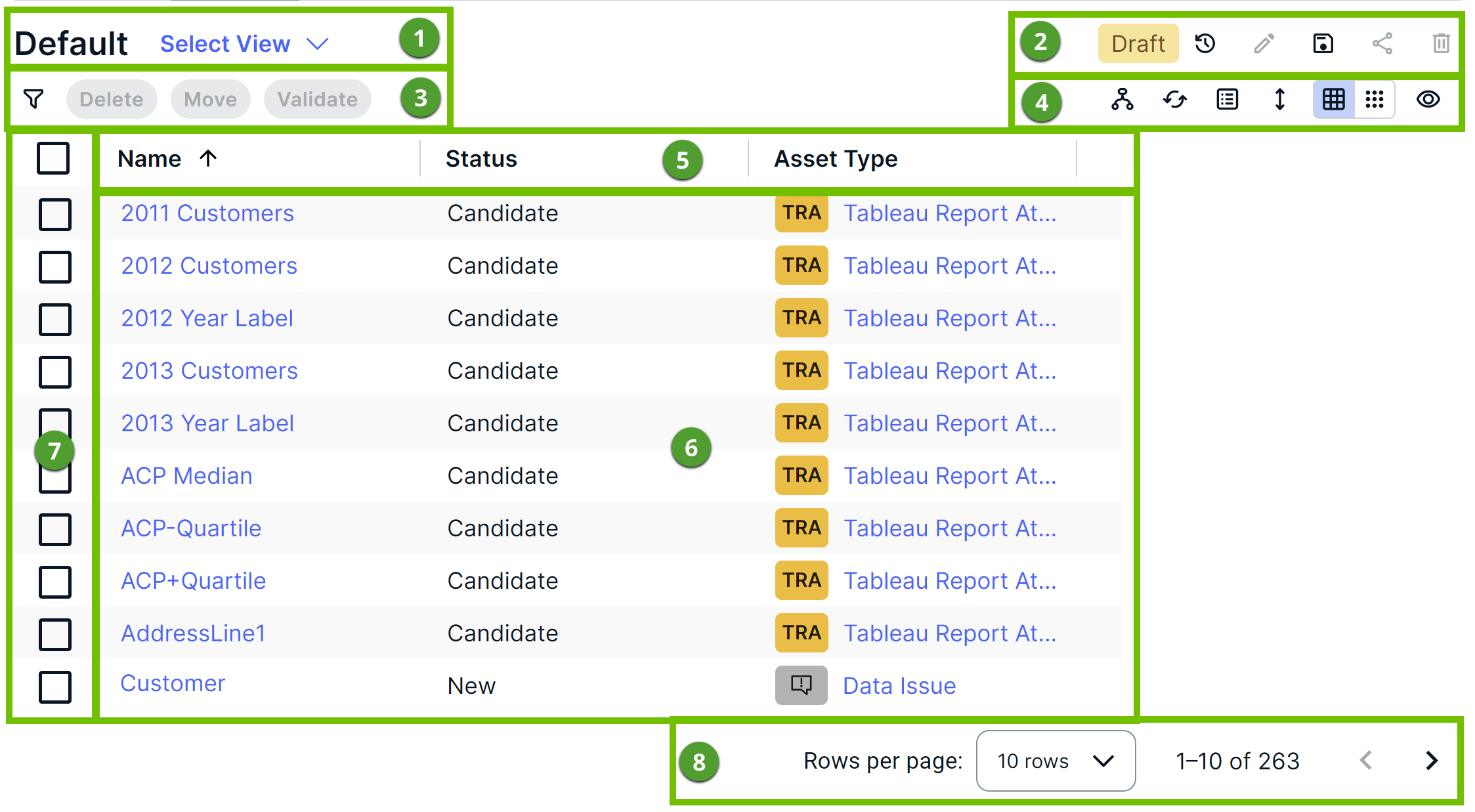
The following table describes the various elements shown in a CPSH table.
| No. | Description |
|---|---|
| 1 | Name and description (if available) of the current view, and an option to select another view. |
| 2 |
Tip The text Draft indicates that you have edited the view.
|
| 3 |
The following buttons are enabled only when you select the checkboxes next to the rows:
Tip You may see additional buttons that start a workflow for the selected assets. Only the workflows that are applicable to the selected assets are available.
|
| 4 |
Tip If you enable the hierarchy, a selection of assets is shown in a tree structure based on their relation type.
If you select only one relation type, CPSH builds the hierarchy as deeply as possible, traversing occurrences of that single relation type as often as it can.
|
| 5 |
Asset fields shown as column headings. Tip
|
| 6 |
Asset field values. Tip You can edit the value in a cell by double-clicking the cell. You can also apply your change to either the selected assets (if any) or all the assets visible in the table. This action cannot be undone. |
| 7 |
Checkboxes for selecting the assets. Tip You can select all the visible assets in the table by selecting the checkbox next to the column headings. |
| 8 |
|
 discards the draft and replaces it with the last published version of the view.
 edits the name and description of the view.
 shares the view.
 deletes the view.
 opens the

 enables or disables
  refreshes the table.
 shows the full text (wraps) or trims the text in all the cells of the table.
 shows a preview of the asset whose cell (not the checkbox) you clicked.
- On the content toolbar, click
 → Change Display Mode → Tiles.
 - Click
 .
.