How to add Collibra API support to Eclipse IDE
- Download the Collibra Java API library version 2:
- Go to the Collibra Community Downloads page.
- Select your Collibra Platform Self-Hosted version.
- Download the dgc-core-<version>-apiv2.jar file.
- In Eclipse, create a new folder inside your project:
- In the Flowable Explorer tab, right-click your project name.
- Select New → Folder.
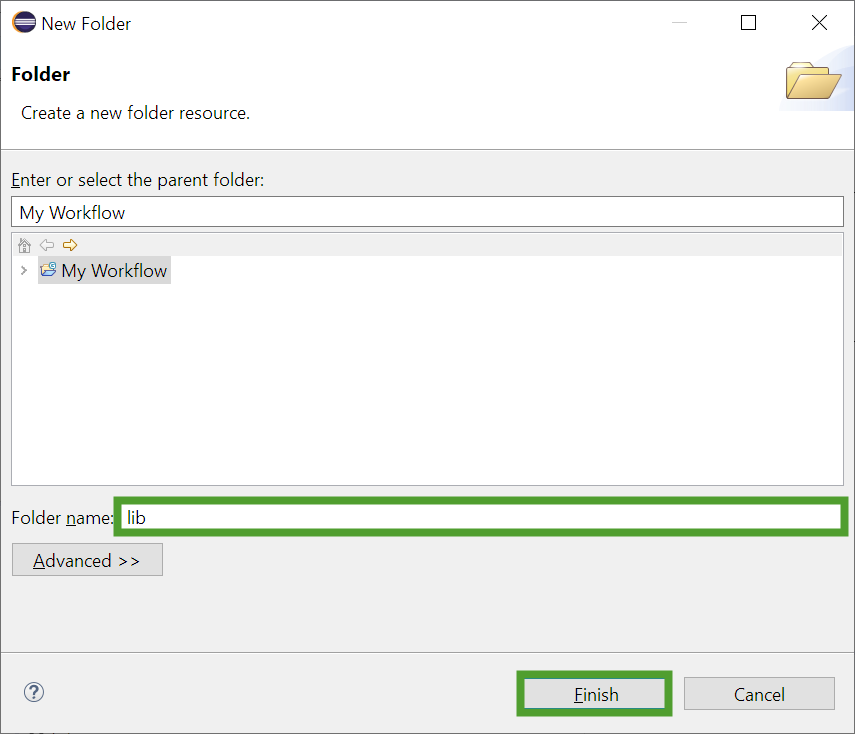
- In the New Folder window, enter a name for the folder and click Finish. We are using lib in this example.
- Move the downloaded JAR file to the new folder.
Note Refresh the folder if you can't see the file you just added.
- In the Flowable Explorer tab, right-click your project name and select Properties → Java Build Path → Libraries.
- In the Libraries tab of the Java Build Path section, click Add JARs....

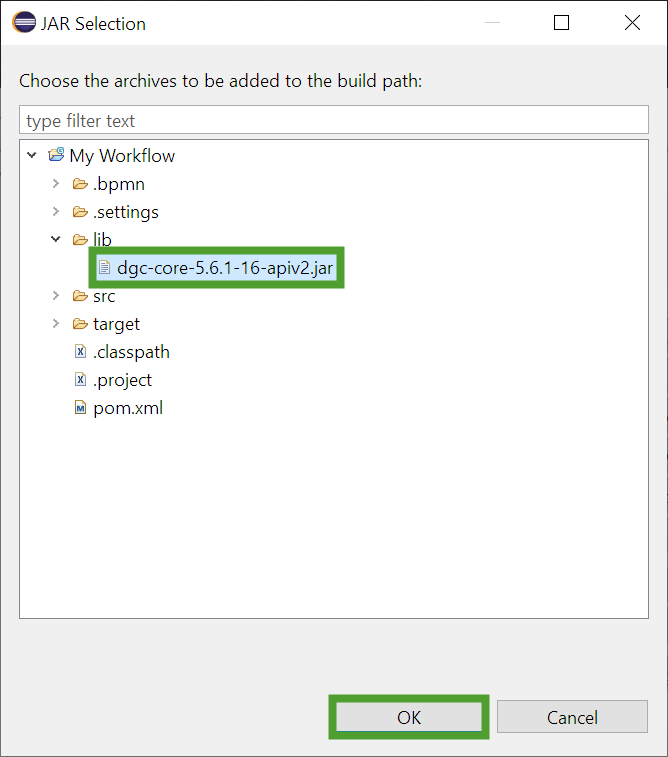
- In the JAR Selection window, select the Java API library version 2 JAR file and click OK.
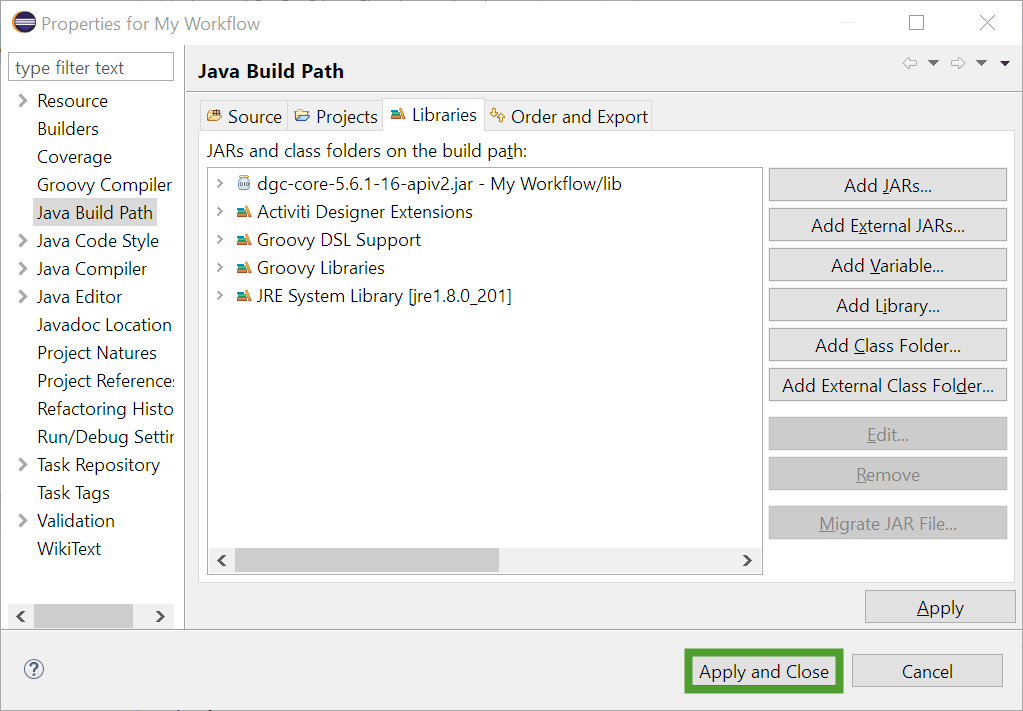
- In the Properties window, click Apply and Close.