This section describes the installation of Collibra Platform Self-Hosted.
Note Air-gapped Edge users must install with Federal Information Processing Standards (FIPS) enabled. (See the Linux root user FIPS-enabled and Linux standard user FIPS-enabled tabs below.)
There is no graphical user interface for the installer. The full installation procedure is executed via the command line.
For each question, the default selection is always suggested between square brackets. Press Enter to accept the default selection. If there is a Yes or No question, the upper-case character is the default selection, for example, in [Y/n] the default selection is Yes.
Note Verify the infrastructure is set to run in FIPS mode. Before proceeding to the directory selection, confirm that the underlying infrastructure has FIPS mode enabled at the OS level. If the OS is not in FIPS mode, the installer will fail to initialize the necessary security modules.
- Run the installer:
Linux as user with sudo rights:sudo ./dgc-linux-2026.xx.xx.sh -- --fips.
Linux as root user:./dgc-linux-2026.xx.xx.sh -- --fips. - Enter the Installation directory and press Enter.
The default location on Linux is /opt/collibra. - Enter the Data directory and press Enter.
The default location on Linux is /opt/collibra_data. - Press Enter to each of the presented components that you want to install.
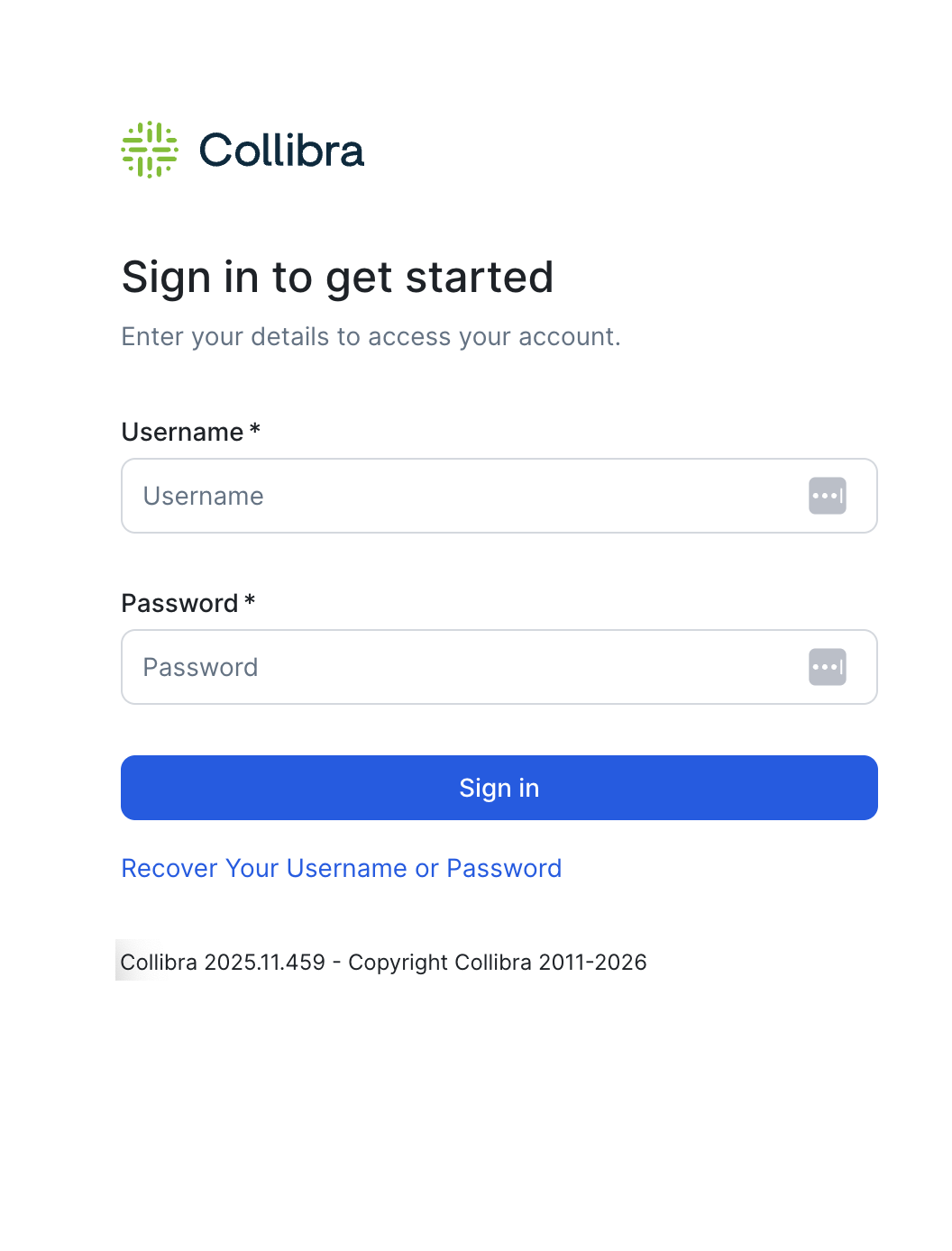
If you don't want to install a specific component, press n followed by Enter.Note We recommend that you haveAlso make sure that you use the same installer version on all nodes. You can find the installer version of your environment at the bottom of the sign-in window of Collibra Console, for example 2026.06.0
- Press Enter to confirm your selection.
- If you have selected Repository, Jobserver and/or Collibra Console, enter the location where the most stable version of PostgreSQL 17 is installed. (See Prepare the servers for installation for more information.)
- You will be asked to provide a path to the certificate file along with its password, which is required by the Agent that is being installed. This certificate must be provided when Collibra Console is not selected.
- Enter the necessary configuration for each of the selected services.
After the last configuration, the installation of the services automatically starts.
Tip The default 17 path on
Note Verify the infrastructure is set to run in FIPS mode. Before proceeding to the directory selection, confirm that the underlying infrastructure has FIPS mode enabled at the OS level. If the OS is not in FIPS mode, the installer will fail to initialize the necessary security modules.
- Run the installer:
./dgc-linux-2026.xx.xx.sh -- --fips. - Enter the Installation directory and press Enter.
The default location on Linux as standard user is ~/collibra. - Enter the Data directory and press Enter.
The default location on Linux as standard user is ~/collibra_data. - Press Enter to each of the presented components that you want to install.
If you don't want to install a specific component, press n followed by Enter.Note We recommend that you haveAlso make sure that you use the same installer version on all nodes. You can find the installer version of your environment at the bottom of the sign-in window of Collibra Console, for example 2026.06.0
- Press Enter to confirm your selection.
- If you have selected Repository, Jobserver and/or Collibra Console, enter the location where the most stable version of PostgreSQL 17 is installed. (See Prepare the servers for installation for more information.)
Tip The default PostgreSQL 17 path on
- You will be asked to provide a path to the certificate file along with its password, which is required by the Agent that is being installed. This certificate must be provided when Collibra Console is not selected.
- Enter the necessary configuration for each of the selected services.
After the last configuration, the installation of the services automatically starts.
- Run the installer:
Linux as user with sudo rights:sudo ./dgc-linux-2026.xx.xx.sh.
Linux as root user:./dgc-linux-2026.xx.xx.sh. - Enter the Installation directory and press Enter.
The default location on Linux is /opt/collibra. - Enter the Data directory and press Enter.
The default location on Linux is /opt/collibra_data. - Press Enter to each of the presented components that you want to install.
If you don't want to install a specific component, press n followed by Enter.Note We recommend that you haveAlso make sure that you use the same installer version on all nodes. You can find the installer version of your environment at the bottom of the sign-in window of Collibra Console, for example 2026.06.0
- Press Enter to confirm your selection.
- If you have selected Repository, Jobserver and/or Collibra Console, enter the location where PostgreSQL 17 is installed.
- Press Enter to each of the presented components that you want to install.
If you don't want to install a specific component, press n followed by Enter.Note We recommend that you haveAlso make sure that you use the same installer version on all nodes. You can find the installer version of your environment at the bottom of the sign-in window of Collibra Console, for example 2026.06.0
- Press Enter to confirm your selection.
- If you have selected Repository, Jobserver and/or Collibra Console, enter the location where the most stable version of PostgreSQL 17 is installed.
- You will be asked to provide a path to the certificate file along with its password, which is required by the Agent that is being installed. This certificate must be provided when Collibra Console is not selected.
- Enter the necessary configuration for each of the selected services.
After the last configuration, the installation of the services automatically starts.
Tip The default postgreSQL17 path on
- Run the installer:
./dgc-linux-2026.xx.xx.sh. - Enter the Installation directory and press Enter.
The default location on Linux as standard user is ~/collibra. - Enter the Data directory and press Enter.
The default location on Linux as standard user is ~/collibra_data. - Press Enter to each of the presented components that you want to install.
If you don't want to install a specific component, press n followed by Enter.Note We recommend that you haveAlso make sure that you use the same installer version on all nodes. You can find the installer version of your environment at the bottom of the sign-in window of Collibra Console, for example 2026.06.0
- Press Enter to confirm your selection.
- If you have selected Repository, Jobserver and/or Collibra Console, enter the location where the most stable version of PostgreSQL 17 is installed.
Tip The default postgreSQL17 path on
- You will be asked to provide a path to the certificate file along with its password, which is required by the Agent that is being installed. This certificate must be provided when Collibra Console is not selected.
- Enter the necessary configuration for each of the selected services.
After the last configuration, the installation of the services automatically starts.
- Start the installer:
- Enter the Installation directory and press Enter.
The default location on Windows is C:\collibra - Enter the Data directory and press Enter.
The default location on Windows is C:\collibra_data - Press Enter to each of the presented components that you want to install.
If you don't want to install a specific component, press n followed by Enter.Note We recommend that you haveAlso make sure that you use the same installer version on all nodes. You can find the installer version of your environment at the bottom of the sign-in window of Collibra Console, for example 2026.06.0
- Press Enter to confirm your selection.
- You will be asked to provide a path to the certificate file along with its password, which is required by the Agent that is being installed. This certificate must be provided when Collibra Console is not selected.
- Enter the necessary configuration for each of the selected services.
After the last configuration, the installation of the services automatically starts.
Important The path of the installer file cannot contain spaces.
Below you find the configuration parameters for each of the services.
|
Setting |
Description |
|---|---|
| DGC port |
The TCP port to access your Collibra DGC environment via your web browser. |
| DGC Shutdown port |
The TCP port to stop the DGC service. |
| DGC minimum memory |
The minimum amount of memory in megabytes for the DGC service. This must be at least 1024 MB and no greater than 32 768 MB (32 GB). |
| DGC maximum memory | The maximum amount of memory in megabytes that can be assigned to the DGC service.
This must be at least 2048 MB and no greater than 32 768 MB (32 GB). |
- 12 character limit
- one lowercase letter
- one uppercase letter
- one numeric character
- one non-alphanumeric character
- cannot contain the username
|
Setting |
Description |
|---|---|
| Repository port |
The TCP port to access the repository service. It is only used by the DGC service and the Collibra agent. If you run multiple environments on one node, all ports must be unique for each environment. |
| Repository admin password (*) |
The password that is used by the agent to access the Repository service. Note When FIPS mode is enabled, passwords must comply with FIPS-validated cryptographic standards. (See the password requirements at the top of the page.) |
|
Confirm repository admin password |
The password as entered in the Repository admin password field. |
| Repository dgc password (*) |
The password that is used by the DGC service to access the repository. Note When FIPS mode is enabled, passwords must comply with FIPS-validated cryptographic standards. (See the password requirements at the top of the page.) |
|
Confirm repository dgc password |
The password as entered in the Repository dgc password field. |
| Repository memory |
The amount of memory for the Repository service in megabytes. This must be at least 512 MB and no greater than 16 384 MB (16 GB). |
|
Setting |
Description |
|---|---|
| Jobserver port |
The TCP port to access the Jobserver service. |
| Jobserver database port |
The TCP port to access the Jobserver database. |
|
Jobserver monitoring port |
The TCP port that is used by the monitoring service to monitor the Jobserver service. |
|
Jobserver Spark monitoring port |
The TCP port that is used by the monitoring service to monitor the Jobserver Spark service. |
|
Setting |
Description |
|---|---|
| Search http port |
The TCP port to access the Search service via REST API. |
| Search transport port |
The TCP port for the communication between the DGC and the Search service. |
| Search memory | The amount of memory in megabytes that is assigned to the Search service. The default value is 1024. |
|
Setting |
Description |
|---|---|
| Agent port |
The TCP port that is used by Collibra Console to manage the services of an environment. If you run multiple agents on one node, this port must be unique for each agent. |
| Node address |
The hostname of the node on which the Agent service is running. You cannot use a loopback address if you want to use the node in a multinode environment. |
| Console certificate path |
The path to an encrypted certificate file for Collibra Console. The installer adds this certificate to the Agent's trusted key store, so the Agent accepts calls only from the holder of the certificate. When the Console component is selected: This setting is optional, but an encryption certificate is always required. There are two ways to provide a certificate. Option 1: Allow the installer to generate If you leave it blank, the installer generates a certificate and places it in The password for the generated certificate is stored as a Base64-encoded value in Note To install other nodes that connect to this Console, use the generated certificate and its password when running the installer on those nodes. Option 2: Provide your own certificate Enter the path to the encrypted certificate file that you generated and signed. To install other nodes that connect to this Console, you must use the same certificate and its password when running the installer on those nodes. The certificate must meet the following requirements:
When the Console component is not selected: This setting is required. Copy the certificate that was used when installing Console (Collibra-generated or provide your own) and place it in a location accessible to the installer. Enter the path to the certificate copied from the Console that manages this Agent. If you enter a value for this setting, you must also enter a value for certificate password. |
| Console certificate password |
The password for the certificate at console certificate path. When the Console component is selected: This setting is optional. If you leave it blank, the installer generates a password and stores it as a Base64-encoded value in Note To install other nodes that connect to this Console, use the generated certificate and its password when running the installer on those nodes. When the Console component is not selected: This setting is required. Enter the password for the certificate you provided in console certificate path. If you enter a value for this setting, you must also enter a value for console certificate path. |
|
Setting |
Description |
|---|---|
| Console port |
The TCP port to access your Collibra Console via your web browser. |
|
Console database port |
The TCP port to access the Collibra Console database. This is the database where the data and configuration of Collibra Console is stored. |
| Console certificate path |
The path to an encrypted certificate file for Collibra Console. The installer adds this certificate to the Agent's trusted key store, so the Agent accepts calls only from the holder of the certificate. When the Console component is selected: This setting is optional, but an encryption certificate is always required. There are two ways to provide a certificate. Option 1: Allow the installer to generate If you leave it blank, the installer generates a certificate and places it in The password for the generated certificate is stored as a Base64-encoded value in Note To install other nodes that connect to this Console, use the generated certificate and its password when running the installer on those nodes. Option 2: Provide your own certificate Enter the path to the encrypted certificate file that you generated and signed. To install other nodes that connect to this Console, you must use the same certificate and its password when running the installer on those nodes. The certificate must meet the following requirements:
When the Console component is not selected: This setting is required. Copy the certificate that was used when installing Console (Collibra-generated or provide your own) and place it in a location accessible to the installer. Enter the path to the certificate copied from the Console that manages this Agent. If you enter a value for this setting, you must also enter a value for certificate password. |
| Console certificate password |
The password for the certificate at console certificate path. When the Console component is selected: This setting is optional. If you leave it blank, the installer generates a password and stores it as a Base64-encoded value in Note To install other nodes that connect to this Console, use the generated certificate and its password when running the installer on those nodes. When the Console component is not selected: This setting is required. Enter the password for the certificate you provided in console certificate path. If you enter a value for this setting, you must also enter a value for console certificate path. |
Create an environment.