For Collibra Data Lineage to ingest metadata and generate technical lineage from files stored in Amazon S3, you need to create an AWS connection on an Edge site.
Do you use a vault?
|
You can use a vault to add your data source information to your Edge site connection. Check the connection property table below to see which information is available for your vault. Vaults are not available for Collibra Cloud sites. |

No vault

AWS Secrets Manager

Azure Key Vault

CyberArk Vault

Google Secret Manager

HashiCorp Vault
|
|
|
|
||
|
How to use your vault...
To use your vault, do the following:
To use your vault, do the following:
To use your vault, do the following:
To use your vault, do the following:
To use your vault, do the following:
|
||
Before you begin
- You created and installed an Edge site.
- You have added a vault to your Edge site.
- If your data source connection requires a file from your vault, the file must be encoded into Base64 and stored as a regular secret in your vault.
- If you want to use EC2 authentication for the AWS connection, configure the EC2 instance hosting your Edge site with the required IAM permissions to read source files from Amazon S3.
Required permissions
- You have a global role with the Product Rights > System administration global permission.
- You have a global role that has the Manage connections and capabilities global permission, for example, Edge integration engineer.
Steps
- Open a site.
-
On the main toolbar, click
 →
→
 Settings.
The Settings page opens. -
In the tab pane, click Edge.
The Sites tab opens and shows a table with an overview of your sites. - In the table, click the name of the site whose status is Healthy.
The site page opens.
-
On the main toolbar, click
- In the Connections section, click Create connection.
The Create connection page appears. - Select the AWS connection to connect to Amazon S3.
- Enter the required information.
Field Description Required Name The name of the Edge site AWS connection.
 Yes
YesDescription The description of the connection.
 No
No
Vault The vault where you store your data source values. No
Authentication type The type of authentication you use. Select one of the following values:
- IAM
- Use the AWS Identity and Access Management (IAM) authentication method.
- EC2
Use this authentication method if your Edge site runs on an AWS EC2 instance with an attached IAM role. This allows Collibra Data Lineage to authenticate securely by using the instance profile, without requiring access keys.
Both authentication types require you to configure S3 permissions before creating the AWS connection.
Yes
Access Key ID The access key ID of the programmatic AWS user.
How to use your vault...To use your vault, do the following:- In the Value Type field, select Vault Key.
- Enter the query value to identify the secret in your vault.Example
 Note The Query must be a string containing the properties required to identify the secret. Each property must be separated by a semicolon (;). For example: Safe=<SafeName>;Folder=<FolderName>;Object=<ObjectName>
If a property is a folder with sub-folders, use a backslash (\) to define the folder path. For example: Folder=Root\Top Secrets\More Secrets
For more information about query formats and supported properties, go to the CyberArk Credential Provider documentation.
To use your vault, do the following:- In the Value Type field, select Vault Key.
- Enter the required information:
- Secret Engine Type
- Select one of the following:
- Key Value
- Database
- Engine Path
- The engine path to your vault where the value is stored.
- Secret Path
- The secret path to your vault where the value is stored.
- Field
- If your Secret Engine Type is Key Value, enter the name of the field to your vault where the value is stored.
- Role
- If your Secret Engine Type is Database, enter the role specified in the Database engine.
Example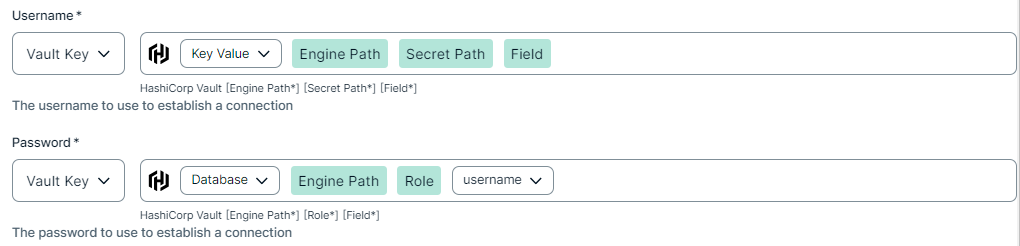
To use your vault, do the following:- In the Value Type field, select Vault Key.
- Enter the required information:
- Vault Name
- The name of your Azure Key Vault in your Azure Key Vault service where the value is stored.
- Secret Name
- The name of the secret in your vault where the value is stored.
Example
To use your vault, do the following:- In the Value Type field, select Vault Key.
- Enter the required information:
- Secret Name
- The name of the secret in your vault where the value is stored.
- Field
- If the secret stored in your AWS Secrets Manager is a JSON value, for example
{"pass1": "my-password", "pass2": "my-password2"}, then you need to specify the Field to point to the exact JSON value that should be used. For example,Secret Name: edge-db-customer; Field: pass.Note If the secret stored in your AWS Secrets Manager is a plain string value, for examplemy-password, then you do not need to specify the Field.
Example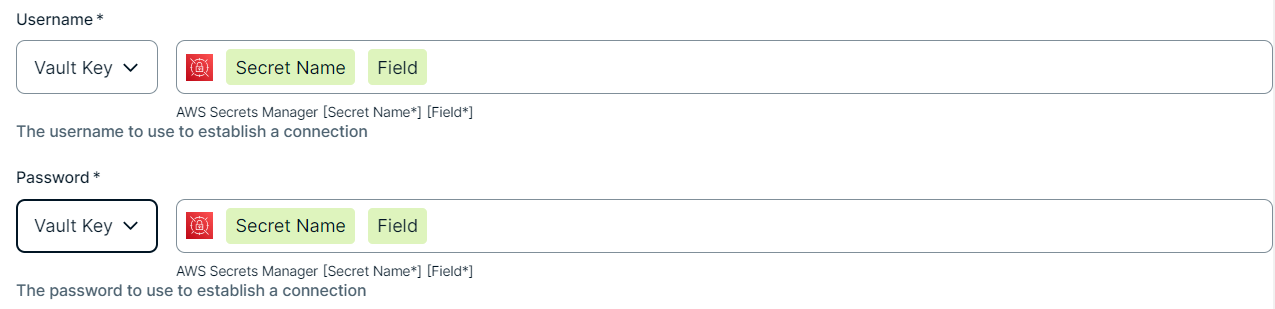
To use your vault, do the following:- In the Value Type field, select Vault Key.
- Enter the name of the secret in your vault where the value is stored.
Example

Yes Secret Access Key The secret access key of the programmatic AWS user.
How to use your vault...To use your vault, do the following:- In the Value Type field, select Vault Key.
- Enter the query value to identify the secret in your vault.ExampleNote The Query must be a string containing the properties required to identify the secret. Each property must be separated by a semicolon (;). For example: Safe=<SafeName>;Folder=<FolderName>;Object=<ObjectName>
If a property is a folder with sub-folders, use a backslash (\) to define the folder path. For example: Folder=Root\Top Secrets\More Secrets
For more information about query formats and supported properties, go to the CyberArk Credential Provider documentation.
To use your vault, do the following:- In the Value Type field, select Vault Key.
- Enter the required information:
- Secret Engine Type
- Select one of the following:
- Key Value
- Database
- Engine Path
- The engine path to your vault where the value is stored.
- Secret Path
- The secret path to your vault where the value is stored.
- Field
- If your Secret Engine Type is Key Value, enter the name of the field to your vault where the value is stored.
- Role
- If your Secret Engine Type is Database, enter the role specified in the Database engine.
Example
To use your vault, do the following:- In the Value Type field, select Vault Key.
- Enter the required information:
- Vault Name
- The name of your Azure Key Vault in your Azure Key Vault service where the value is stored.
- Secret Name
- The name of the secret in your vault where the value is stored.
Example
To use your vault, do the following:- In the Value Type field, select Vault Key.
- Enter the required information:
- Secret Name
- The name of the secret in your vault where the value is stored.
- Field
- If the secret stored in your AWS Secrets Manager is a JSON value, for example
{"pass1": "my-password", "pass2": "my-password2"}, then you need to specify the Field to point to the exact JSON value that should be used. For example,Secret Name: edge-db-customer; Field: pass.Note If the secret stored in your AWS Secrets Manager is a plain string value, for examplemy-password, then you do not need to specify the Field.
Example
To use your vault, do the following:- In the Value Type field, select Vault Key.
- Enter the name of the secret in your vault where the value is stored.
Example
Yes - Click Create.
The connection is added to the Edge site.
The fields become read-only.
Add the Technical Lineage for SqlDirectory (Cloud) capability for Cloud Storage connections.