To ensure successful metadata ingestion and lineage generation, complete the following preflight checks.
In your Databricks Unity Catalog environment
As a Databricks Unity Catalog user, ensure that you have the following privileges and permissions:
- The CAN ATTACH TO and CAN RESTART permissions for your compute resource.
You can create a dedicated compute resource for generating technical lineage, or use an existing compute resource with Unity Catalog support. For details, go to Compute permissions in Databricks documentation.
To prevent clusters from running for the entire synchronization duration, you can also configure the Terminate after ... minutes of inactivity setting in Databricks. The setting ensures that clusters automatically stop after a period of inactivity. For more information, go to the Databricks documentation. -
The following permissions on the system tables or a custom catalog as a workaround if you prefer not to grant permissions to the system tables:
- Option 1: Enable system tables with proper permissions
- Enable the lineage system tables. To include source code in the technical lineage viewer, enable the
system.query.historysystem table.Important- Enable the
system.query.historytable before adding permissions to the system table. - SQL source code is captured and becomes accessible only after the
system.query.historytable is enabled.
- Enable the
- Ensure that the personal access token, OAuth client, or Entra ID principal used for the Databricks connection has the following minimum permissions:
- USE CATALOG on the
systemcatalog. - USE SCHEMA on the
system.accessandsystem.queryschemas. - SELECT on the
system.access.column_lineagetable. - SELECT on the
system.access.table_lineagetable. This permission is required only for Collibra Data Lineage to ingest lineage that exists only in thesystem.access.table_lineagetable. Ensure that you select the Also ingest lineage from table_lineage option in your capability to enable this functionality. - SELECT on the
system.query.historytable to ingest SQL source code.
- USE CATALOG on the
- How to verify whether you have the right accesses in Databricks?
If you do not have the right accesses, the Could not get column lineage data error occurs when you synchronize the Technical Lineage for Databricks Unity Catalog capability. Contact Databricks support if you encounter issues on getting access to the system tables. Complete the following steps to verify:
- Log into Databricks with the credentials that you use to create a Databricks connection on Edge.
- Run the following SQL query against your
system.accesscatalog and schema in Unity Catalog:SELECT count(*) FROM column_lineage
- Enable the lineage system tables. To include source code in the technical lineage viewer, enable the
- Option 2: Create a custom catalog with proper permissions
- Create a catalog and grant the following privileges: BROWSE, EXECUTE, READ VOLUME, SELECT, USE CATALOG, and USE SCHEMA.
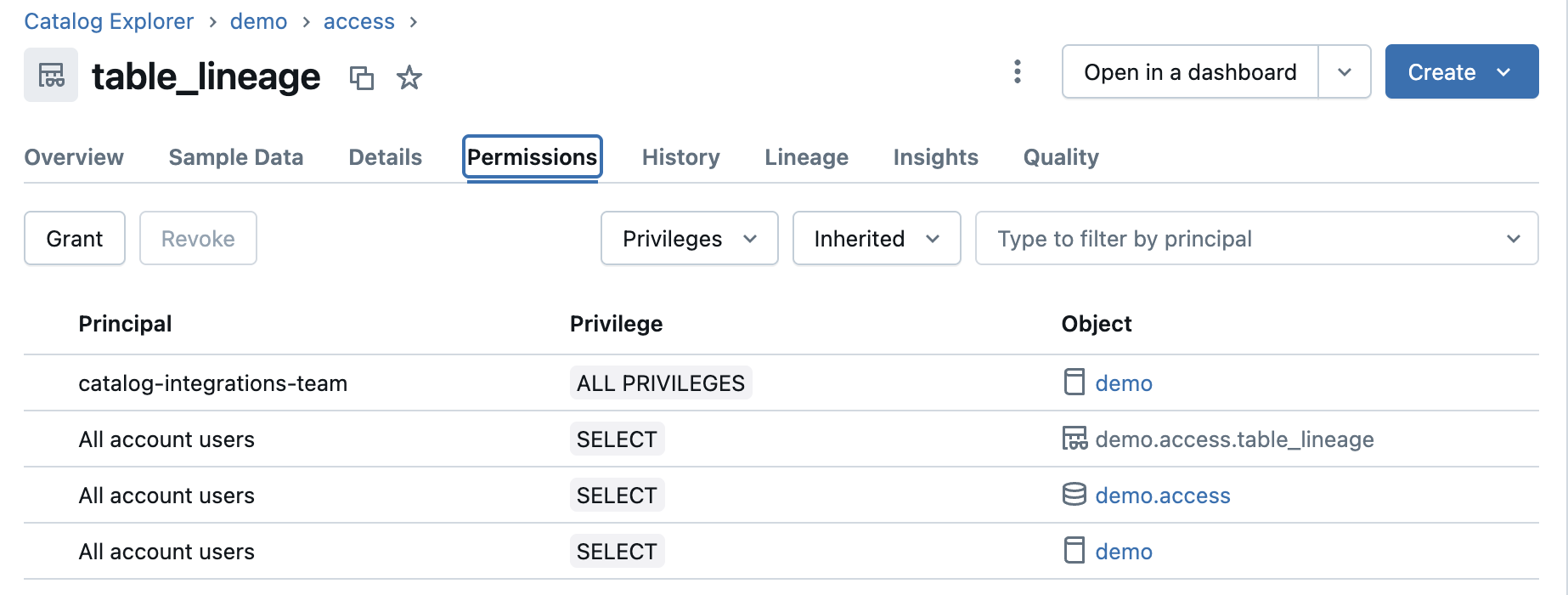
Show an example
This example shows a custom catalog named
demowith its associated privileges.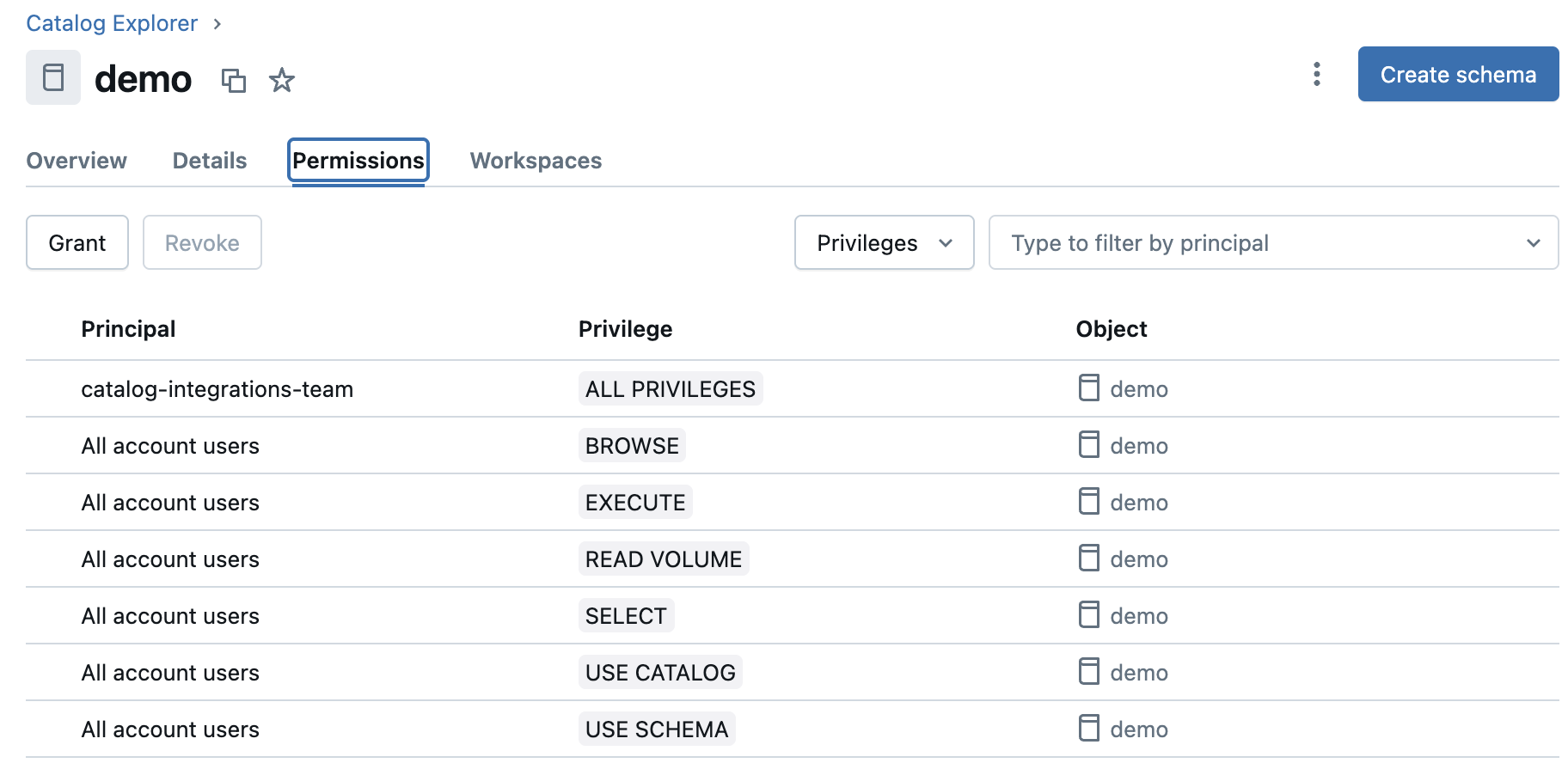
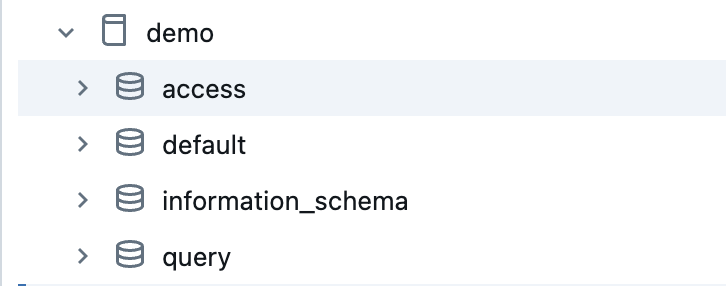
- Create two schemas in the catalog:
accessandquery. - Grant the following privileges on the
accessandqueryschemas: EXECUTE, READ VOLUME, SELECT, and USE SCHEMA.
Some privileges might be inherited from the catalog privileges granted in step 1.Show examplesThis example shows the privileges for the
accessschema.
This example shows the privileges for the
queryschema.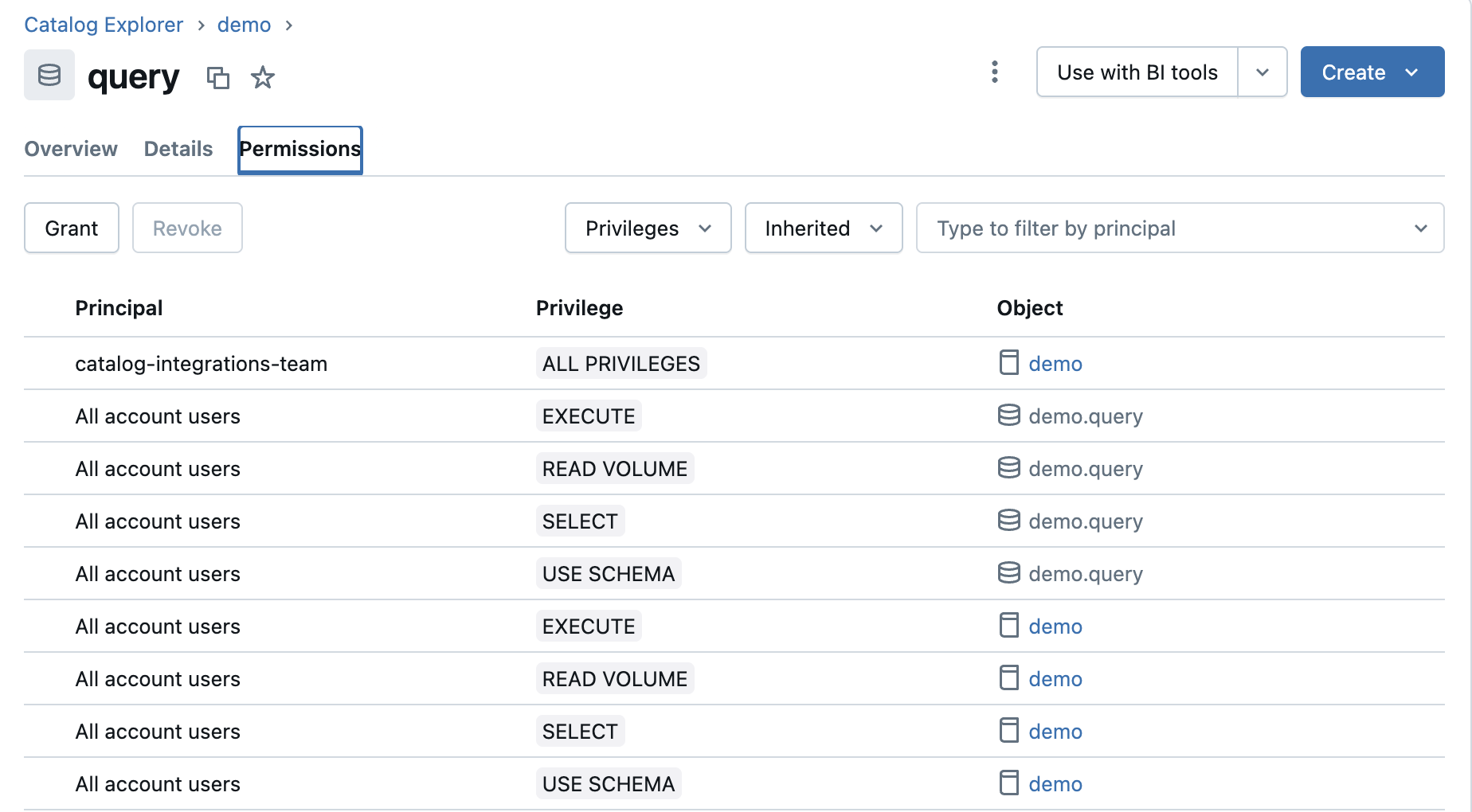
- In the
accessschema in thedemocatalog, create the following views:- A
column_lineageview based on thesystem.access.column_lineagetable. - A
table_lineageview based on thesystem.access.table_lineagetable.
- A
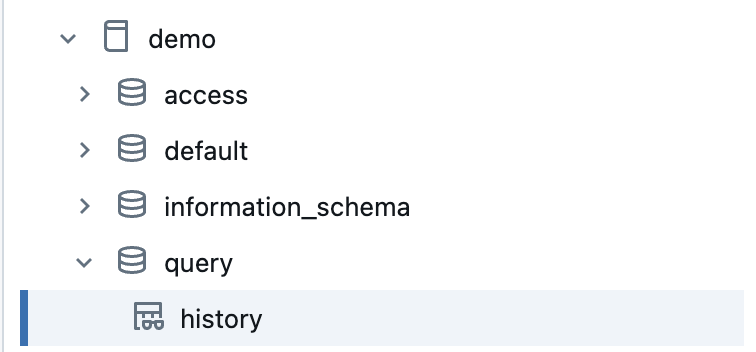
- In the
queryschema in thedemocatalog, create ahistoryview based on thesystem.query.historytable. - Grant the SELECT privilege on the following views created in steps 4 and 5:
column_lineage,table_lineage, andhistory.
- Create a catalog and grant the following privileges: BROWSE, EXECUTE, READ VOLUME, SELECT, USE CATALOG, and USE SCHEMA.


In your CPSH environment
Lineage enablement
- Technical lineage via Edge is enabled in your CPSH environment.
- You are using Collibra Platform Self-Hosted 2024.02 or newer.
- Be sure to review the Supported transformation details topic to understand the lineage information Collibra Data Lineage ingests from Databricks Unity Catalog.
Edge
-
You created and installed an Edge site.Important If you're using a Collibra Cloud site, go the Collibra Cloud site documentation to check if your data source is supported.
- The Edge site status must be Healthy.
- You've either integrated Databricks Unity Catalog or registered a Databricks file system.
Network and proxy configuration
- Edge can connect to all Collibra Data Lineage service instances in your geographic location.
- Optionally, you've connected to a proxy server.
- Optionally, use a custom certificate to allow the Edge capability to connect to your data source. In this case, you've saved the certificate as "ca.pem" in the same directory as the Edge site installer. If you've saved the certificate in another directory, use the
--caargument in the Edge site installation command.
CPSH permissions
As a technical lineage user, you can connect to Collibra Data Lineage by using the basic or OAuth authentication method. If you use the basic authentication method, ensure you have the Catalog Authorglobal role with the following global permissions. The username you use as the technical lineage user must match the value you entered in the DGC user name field when you enabled technical lineage via Edge.
- Catalog > Advanced Data Type > Add
- Catalog > Advanced Data Type > Remove
- Catalog > Advanced Data Type > Update
- Catalog > Technical lineage
As a Data Catalog user, ensure that your Edge integration engineer global role has the following global permissions. With these permissions, you can create connections and capabilities on Edge, configure the integration, and synchronize the integration.
- Manage connections and capabilities
- View Edge connections and capabilities
To add an Edge capability:
- You have a global role with the Product Rights > System administration global permission.
- You have a global role that has the Manage connections and capabilities global permission, for example, Edge integration engineer.
To synchronize technical lineage:
- A global role that has the following global permission:
- Catalog, for example Catalog Author
- View Edge connections and capabilities
- A resource role with Configure external system resource permission, for example Owner.