After you install an Edge site or are granted a Collibra Cloud site, you can create a connection to Snowflake.
Do you use a vault?
|
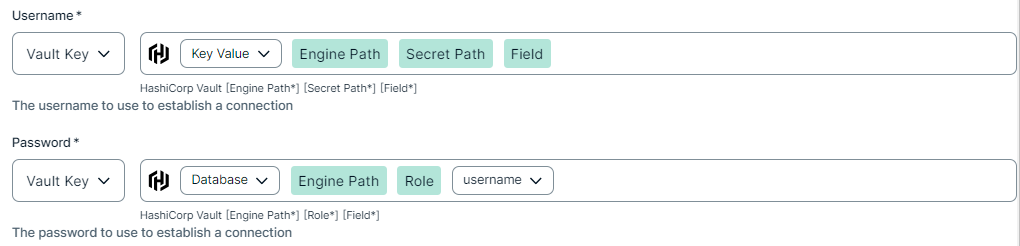
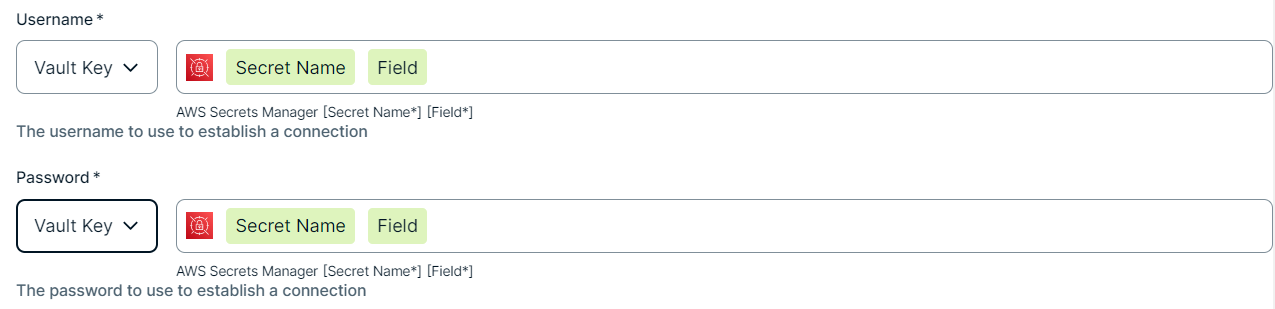
You can use a vault to add your data source information to your Edge site connection. Check the connection property table below to see which information is available for your vault. Vaults are not available for Collibra Cloud sites. |

No vault

AWS Secrets Manager

Azure Key Vault

CyberArk Vault

Google Secret Manager

HashiCorp Vault
|
|
|
|
||
|
How to use your vault...
To use your vault, do the following:
To use your vault, do the following:
To use your vault, do the following:
To use your vault, do the following:
To use your vault, do the following:
|
||



Prerequisites
In your CPSH environment
-
You created and installed an Edge site.Note
If you have defined an outbound (forward) proxy on your Edge site, the integration will take that configuration into account when connecting to Snowflake. The following proxies are supported, using either a HTTP or HTTPS proxy URL:
- Pass through (No authentication)
- Pass through (Basic authentication)
- No proxy for noProxy hosts defined by Edge
- Man-in-the-middle (MITM)
This integration is not supported on Edge sites installed using a Man-in-the-middle (MITM) proxy.
- You have added a vault to your Edge site.
- You have a global role that has the Manage connections and capabilities global permission, for example, Edge integration engineer.
In your Snowflake environment
You must grant the following privileges to a role, and not to an individual user. Authentication uses key-pair or a programmatic access token (PAT). The integration role requires:
USAGEprivilege on:- Each database and schema that holds the objects you want to tag.
- The database and schema where the tags are stored. Tags are often centralized in a governance schema, so this privilege is required for cross-database tagging.
OWNERSHIPprivilege on each target object that receives a tag value or description:GRANT OWNERSHIP ON <object> TO ROLE <role>. Outbound synchronization needs this privilege to alter the object and apply the tag value or set a description. Without it, synchronization completes without error but does not apply the tag value or description. For more information, go to the Snowflake documentation.- The integration role has one of the following, so that Collibra can apply tag values:
APPLY TAG ON ACCOUNTworks for all tags, orAPPLYon each specific tag object for individual tag-level access.
Steps
- Open a site.
-
On the main toolbar, click
 →
 Settings.
The Settings page opens. -
In the tab pane, click Edge.
The Sites tab opens and shows a table with an overview of your sites. - In the table, click the name of the site whose status is Healthy.
The site page opens.
-
On the main toolbar, click
- In the Connections section, click Create connection.
The Create connection page appears. - Select the Snowflake connection to connect to Snowflake.
- Enter the required information.
Field Description Required Available for vaults? Name The name of the Edge site connection for Snowflake.
 Yes
 No
Description The description of the connection.
No
No
Vault The vault where you store your data source values. No
No
Account The Snowflake account identifier in the following format:
org-account. To retrieve the organization account identifier, run this query in Snowflake:CopySELECT CURRENT_ORGANIZATION_NAME() || '-' || CURRENT_ACCOUNT_NAME() AS org_account_form;Legacy formats such as
xy123.eu-west-1are also accepted. To retrieve the legacy account locator, run this query in Snowflake:CopySELECT CURRENT_ACCOUNT() AS account_locator;This value can differ from the account name used in your Snowflake JDBC connection. Use the queries above to find the correct value instead of reusing the account name in the Snowflake JDBC connection.
Yes YesAuthentication Type The type of authentication used to connect to Snowflake. Select one of the following options:
- Key Pair
- Username and Password
- Programmatic Access token
No
No
Username The username to authenticate against the Snowflake account.
Yes YesPrivate Key File The private key file in P8 format for key pair authentication. No
YesPrivate Key Passphrase The password of the private key for key pair authentication. No
YesPassword The password for username and password authentication. No
YesProgrammatic Access Token (PAT) The PAT generated for authentication. No
YesRole The role to use in the Snowflake session. No
YesWarehouse The name of the Snowflake warehouse. If not specified, the user's default warehouse will be used. No
- Click Create.
The connection is added to the Edge site.
You can now add the Snowflake capability to an Edge site.