After you install an Edge site or are granted a Collibra Cloud site, you can create a connection to the Azure platform.
Do you use a vault?
|
You can use a vault to add your data source information to your Edge site connection. Check the connection property table below to see which information is available for your vault. Vaults are not available for Collibra Cloud sites. |

No vault

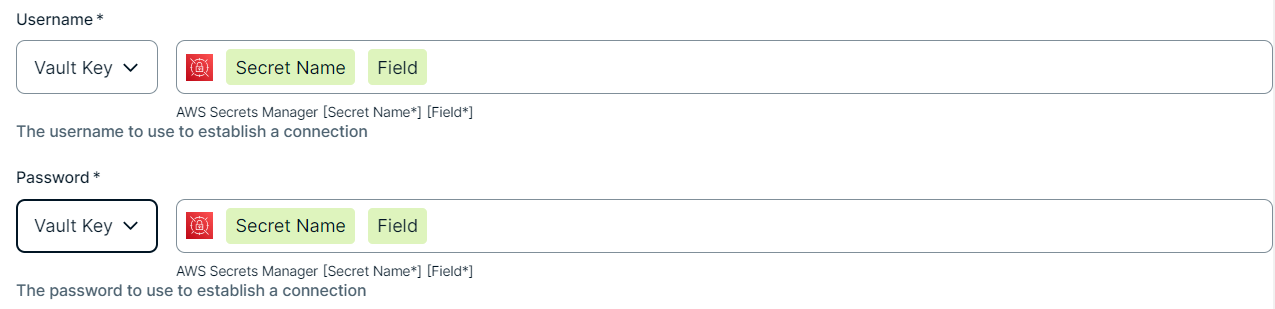
AWS Secrets Manager

Azure Key Vault

CyberArk Vault

Google Secret Manager

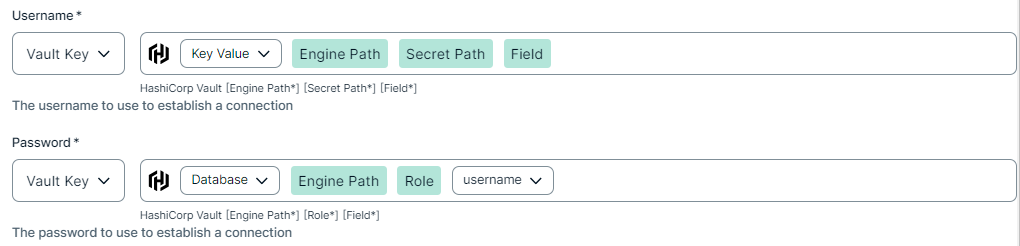
HashiCorp Vault
|
|
|
|
||
|
How to use your vault...
To use your vault, do the following:
To use your vault, do the following:
To use your vault, do the following:
To use your vault, do the following:
To use your vault, do the following:
|
||



Prerequisites
-
You created and installed an Edge site.Note
If you have defined an outbound (forward) proxy on your Edge site, the integration will take that configuration into account when connecting to the AI platform. The following proxies are supported, using either a HTTP or HTTPS proxy URL:
- Pass through (No authentication)
- Pass through (Basic authentication)
- No proxy for noProxy hosts defined by Edge
This integration is not supported on Edge sites installed using a Man-in-the-middle (MITM) proxy.
- In Azure:
- To integrate ADLS folders, you need an Azure Service Principal user that is defined in Azure and that has permissions to list the files which need to be integrated into Collibra. The Azure Service Principal user must have the "Reader" and "Storage Blob Data Reader" roles for the storage locations of your data. For information, go to the Azure documentation.
- If you use Microsoft Purview:
- The Azure Service Principal user must have the "Data reader" role to fetch entities/assets from the Microsoft Purview Rest API. For information, go to the Microsoft Purview documentation.
- If your ADLS storage is private, ensure that the Allow Azure services on the trusted services list to access this storage account checkbox in the Networking → Firewalls and virtual networks is selected.
- To integrate ADLS folders, you need an Azure Service Principal user that is defined in Azure and that has permissions to list the files which need to be integrated into Collibra. The Azure Service Principal user must have the "Reader" and "Storage Blob Data Reader" roles for the storage locations of your data. For information, go to the Azure documentation.
- You have created and installed an Edge site.
- You have added a vault to your Edge site.
- You have a global role that has the Manage connections and capabilities global permission, for example, Edge integration engineer.
Steps
- Open a site.
-
On the main toolbar, click
 →
→
 Settings.
The Settings page opens. -
In the tab pane, click Edge.
The Sites tab opens and shows a table with an overview of your sites. - In the table, click the name of the site whose status is Healthy.
The site page opens.
-
On the main toolbar, click
- In the Connections section, click Create connection.
The Create connection page appears. - Select the Azure connection to connect to Azure.
- Enter the required information.
Field Description Required Available for vaults? Name The name of the Edge site connection for Azure.
 Yes
Yes No
No
Description The description of the connection.
No
No
Vault The vault where you store your data source values. No
No
Service Principal ID The Application account ID to connect to the Azure.
For information on the Azure Service Principal user and the Application ID, go to the Azure documentation. Yes YesService Principal Secret The application secret for the Service Principal.
For information on the application secret value, go to the Azure documentation. Yes YesTenant ID The Tenant ID of your Azure Active Directory.
For information on the Directory (tenant) ID, go to the Azure documentation. Yes Yes - Click Create.
The connection is added to the Edge site.
You can now add the Azure ML capability to an Edge site.