You can work with Databricks in Collibra Platform Self-Hosted in the following two ways:
- Integrate all metadata of the databases from Databricks Unity Catalog. The integrated assets are Databricks databases, schemas, tables, database views, metric views, and columns. You can also choose to allow for sampling, profiling, and classification (in preview). We recommend using the Databricks Unity Catalog integration.
- Register individual Databricks databases via the Databricks JDBC driver.
It is important to understand the difference between these two ways because the resulting data in CPSH varies.
Way 1: Integrating metadata from Databricks Unity Catalog
You can integrate the metadata of all or multiple databases from Databricks Unity Catalog into CPSH. The integrated assets are Databricks databases, schemas, tables, database views, metric views, and columns. You can integrate Databricks Unity Catalog only via Edge.
Integrating Databricks Unity Catalog is the recommended way to work with Databricks Unity Catalog because it shows the hierarchy of the assets and allows you to set up sampling, profiling, and classification (in preview).
- Tip
-
- If you're looking for information on how to create technical lineage for Databricks Unity Catalog via Edge, go to the technical lineage for Databricks Unity Catalog documentation.
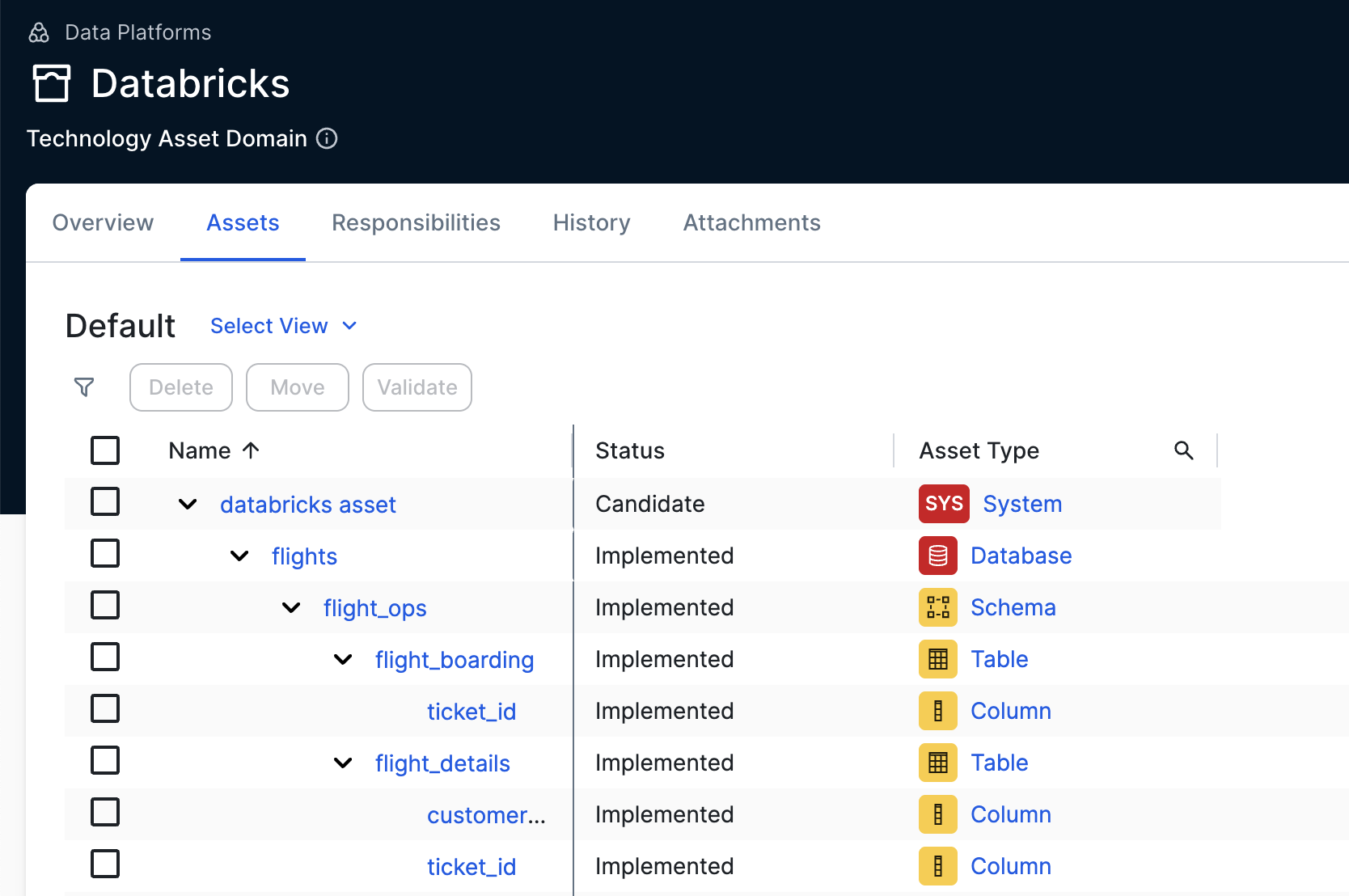
Suppose that you want to add 10 databases and profile the data.
If using only the Databricks JDBC connector
- Create 10 JDBC connections.
- Add the required capabilities to each connection.
- Register and synchronize each database individually.
If using the Databricks Unity Catalog integration with profiling
- Create 2 connections: one for the integration and one for JDBC.
- Add the required capabilities to the JDBC connection.
- Integrate Databricks Unity Catalog.
The resynchronization for the databases is managed through the Databricks Unity Catalog capability, and profiling is performed via the Database asset.
If you previously used a combination of integrating Databricks Unity Catalog and registering an individual Databricks database via the Databricks JDBC driver, and you want to switch to using only the integration, go to Switching to working only with Databricks Unity Catalog integration (in preview).
Supported table types
The Databricks Unity Catalog integration supports the following table types:
- EXTERNAL
- MANAGED
- STREAMING_TABLE
- VIEW
- METRIC VIEW
Way 2: Registering Databricks data source via Databricks JDBC connector
You can register a Databricks data source using the Databricks JDBC connector to ingest your metadata in Collibra. This process creates assets that represent your Databricks tables and columns, providing a clear view of your data landscape. You can also configure the connection to retrieve sample data, profile your data, and set up data classification.
For more information, go to Registering a Databricks file system via Databricks JDBC connector and Edge.
Combining the two ways
The two ways of working with Databricks don't cancel each other out. You can use both ways to show the information you want in CPSH. For example, you can use the integration of Databricks Unity Catalog to quickly get an overview of all your Databricks databases in CPSH. Once you identify the important databases, you can register them individually via the JDBC driver.
| Combining the two ways of working with Databricks |
|---|
|
|
Suppose that your Databricks Unity Catalog consists of three databases: A, B, and C.
- You integrate the metadata from Databricks Unity Catalog.
This results in the Database assets A, B, and C. - You register the metadata of database C to access the profiling and classification results.
The JDBC registration results in a Database asset C', with the same metadata as C. - You integrate the metadata from Databricks Unity Catalog again (because there have been updates).
- If you don't exclude database C, all databases will be updated, except for C'.
- If you exclude database C, database C will receive the "Missing from source" status, and you can manually remove these assets.
From that moment, you should:
- For A and B, use the Databricks Unity Catalog integration with exclude rules for C, to update the metadata.
- For C', use the synchronization via JDBC to update the metadata.
Important Use the same System asset for both integration and registration. Otherwise, assets will be duplicated.
Switching to working only with Databricks Unity Catalog integration (in preview)
If you previously used both the Databricks Unity Catalog integration and Databricks JDBC synchronization for some databases, and you now want to switch to using only the Databricks Unity Catalog integration, complete the following steps:
-
Update the existing Databricks Unity Catalog synchronization capability:
- Go to the existing Databricks Unity Catalog synchronization capability.
- Click Edit.
- Add the existing Databricks JDBC connection to the JDBC Databricks Connection field.
- Click Save.
- Resynchronize the Databricks Unity Catalog integration. Show how to synchronize Databricks Unity Catalog
-
On the main toolbar, click
 →
→
 Catalog.
The Catalog homepage opens. - Click Integrations.
The Integrations page opens. - Click the Integration configuration tab.
- Locate the Databricks connection that you used when you added the Databricks Unity Catalog capability and click the link in the Capabilities column.
The synchronization configuration page opens. - In the Metadata inbound tab, click the Edit icon.
- In Ingestion type, select Metadata ingestion to integrate only metadata from Databricks Unity Catalog.
AI model ingestion only and combined Metadata and AI model ingestion are deprecated from this tab. To integrate Databricks AI models, go to the Databricks Unity Catalog for AI documentation instead. - Complete the fields as needed.
Field Action Required System In System, select the System asset in which you want to link the Databricks assets.
You can update the System asset in the Databricks Unity Catalog integration synchronization, if needed. However, if you change the System asset, don't reuse a previously used System asset for the integration. For example:sys1>sys2> ... >sysN>sys1. Yes
YesDefault asset status (Deprecated) In Default asset status, select how you want to set the status of the synchronized assets. The possible values are:
- Implemented: Implemented means that all assets receive the "Implemented" status.
- No Status: No status means that newly created assets receive the first status listed in your Operating Model statuses, and that existing assets keep their assigned status.
This field for applying the default asset status in the synchronization configuration is deprecated and will be removed in the future. You can define the default status using the Default Asset Status field in the capability configuration instead. Ensure that the value in this field matches the one in the capability configuration, as this field still takes precedence over the capability value.
 No
No
Ingestion mapping version Select one of the following values to determine how schemas are integrated into domains:
- V0
- All schemas are included in domain mappings. Schemas that are not explicitly mapped must be excluded manually using domain exclude mapping.
- V1
- Only schemas explicitly mapped are included. All other schemas are automatically excluded. With this option, you do not need to exclude schemas you do not want to integrate.
ExampleIf you specify the following mappings in the Domain include mappings field:
- Path
Ordersand domainDomain A - Path
Orders > fk*and domainDomain B
Orderis the database, andfk*is any schema with a name that starts withfk.- If you select
V0, the Order database and all other schemas that do not start withfkare integrated intoDomain A.
All schemas starting withfkare integrated intoDomain B. You must manually exclude any additional schemas you do not want. - If you select
V1, the Order database is integrated intoDomain A, and all schemas starting withfkare integrated intoDomain B.
Schemas not explicitly mapped are automatically excluded, so you do not need to specify Domain exclude mappings.
No
Domain include mappings Optionally, in Domain include mappings, specify the databases, schemas, and tables that you want to integrate. Optionally again, also specify the CPSH domains where they need to be added.
This means you can use this field to limit the databases, schemas, and tables you want to integrate and define where they need to be added.Important- If you don't define any include mappings, the integration automatically creates new domains for each Database and Schema asset in the same community as the System asset. For more information, go to Integrated Databricks Unity Catalog data.
- If you include a path but don't define a domain, the integration automatically creates new domains in the same community as the System asset.
- If you selected
V0for the Version field and add a domain include mapping for the database but not for a related schema, the automatically created domain for the schema is added in the same community as the domain of the database. - Granular mappings have priority. For example, a match with a schema has priority over a match with a database. Similarly, a match with a table has priority over a match with a schema.
To limit the scope of metadata ingestion to specific domains in Collibra, add a domain include mapping:
- Click Add domain include mappings.
- In Path, add the path to the databases, schemas, and tables in Databricks Unity Catalog for which you want to integrate the metadata. You can use the question mark (
?) and asterisk (*) wildcards in the catalog, schema, and table names. If a catalog, schema, or table matches multiple lines, the most detailed match is taken into account. - Optionally, in Domain, select the CPSH domain in which you want to integrate the metadata. If you don't define a domain, the integration automatically creates new domains in the same community as the System asset.
Example- Path
Ordersand domainDomain B
In this case, the Orders Database asset and all its related assets will be integrated in Domain B. - Path
Orders > fk*and domainDomain B
In this case, the Orders Database asset will be integrated into its own domain in the same community as the System asset. All schemas that start withfkand their related assets will be integrated in Domain B. - Path
Orders > *and domainDomain B
In this case, the Orders Database asset will be integrated into its own domain in the same community as the System asset. All schemas in the Orders catalog and their related assets will be integrated in Domain B. Orders > * > audit_*
Integrates tables starting withaudit_across all schemas in Orders.* > * > temp?
Integrates tables matchingtempfollowed by exactly one character, across all catalogs and schemas.
Show full scenarioYou have a database Orders that includes multiple schemas.
- If you want to make sure that the Orders database and related schemas are added to Domain B, add the following include mappings:
- Path
Ordersand domainDomain B, to make sure the Database asset is added to Domain B. - Path
Orders > *and domainDomain B, to make sure all Schema assets in Orders are added to Domain B.
- Path
- If you want to make sure that the Orders database and related schemas are added to domain B, except for the schemas that start with
test_, add the following include mappings:- Path
Ordersand domainDomain B, to make sure the Database asset is added to Domain B. - Path
Orders > test_*and domainDomain C, to make sure that all schemas in Order that start with test_ are added to Domain C. - Path
Orders > *and domainDomain B, to make sure all other Schema assets in Orders are added to Domain B.
- Path
No
Domain exclude mappings Optionally, in Domain exclude mappings, specify the path to databases, schemas, and tables in Databricks Unity Catalog that you don't want to integrate.
Note The exclude mapping has priority over the include mapping.
To exclude specific metadata from being ingested into Collibra, add a domain exclude mapping:
- Click Add domain exclude mappings.
- In the field, add the path to the databases, schemas, and tables in Databricks Unity Catalog that you want to exclude. You can use the question mark (
?) and asterisk (*) wildcards in the catalog, schema, and table names. * > test: Excludes thetestschema in all catalogs.* > * > temp_*: Excludes all tables with names starting withtemp_across all catalogs and schemas.analytics > staging > *: Excludes all tables in thestagingschema of theanalyticscatalog.
Example No
Extensible properties mappings Via the Extensible properties mapping field, Databricks Unity Catalog allows you to add additional properties to Catalog, Schema, and Table objects.
Optionally, in Extensible properties mapping, specify the additional default system properties or custom properties that you want to integrate from Databricks Unity Catalog into CPSH.
You can integrate most values from the Details page from Catalog, Schema, Table, and View objects into specific attributes in CPSH assets. You can do this by adding the mapping between the fields for the objects in Databricks Unity Catalog and the Collibra attribute.
Important- If you use this feature, make sure to add any custom attributes/characteristics, as needed, to the asset type assignment.
- The name of the property starts with the object type, for example
catalogs.systemAttributes.metastore_id.catalogsrefers to Database assets,schemasto Schema assets,tableto Table assets, andviewsto Database View assets. - The following system properties are supported:
- Catalogs: "browse_only", "catalog_type", "connection_name", "created_at", "created_by", "isolation_mode", "metastore_id", "provider_name", "provisioning_info", "securable_kind", "securable_type", "share_name", "storage_location", "storage_root", "updated_at" , and "updated_by".
- Schemas: "catalog_type", "created_at", "created_by", "metastore_id", "securable_type", "securable_kind", "storage_location", "storage_root", "updated_at", and "updated_by".
- Table: "access_point", "catalog_name", "created_at", "created_by", "data_access_configuration_id", "data_source_format", "deleted_at", "metastore_id", "schema_name", "securable_type", "securable_kind", "sql_path", "storage_credential_name", "storage_location", "table_type", "updated_at", "updated_by", and "view_definition".
- Views: "access_point", "catalog_name", "created_at", "created_by", "data_access_configuration_id", "data_source_format", "deleted_at", "metastore_id", "schema_name", "securable_type", "securable_kind", "sql_path", "storage_credential_name", "storage_location", "table_type", "updated_at", "updated_by", and "view_definition".
To add an additional property mapping:
- Click Add another mapping.
- In Property name, do one of the following:
- To add a system attribute, select the Databricks Unity Catalog property name from the dropdown list.
- To add a custom attribute, type the name of the custom property manually.
Use the following naming convention:[object type].customParameters.[name of parameter].
For example:
catalogs.customParameters.Parameter1
schemas.customParameters.catalogAndNamespace.part.1
table.customParameters.view.catalogAndNamespace.part.2
views.customParameters.Paramerer2
- In Attribute, select the attribute in which you want to see the value.
No
Stop compute resource This field is important if the Compute Resource HTTP Path field was completed in the Databricks Unity Catalog capability to allow for source tag integration.
- If this field is set to Yes, the compute resource in Databricks Unity Catalog will be stopped right after the source tags are extracted.
- If this field is set to No, the compute resource remains active.
Tip To prevent clusters from running for the entire synchronization duration, you can also configure the Terminate after ... minutes of inactivity setting in Databricks. The setting ensures that clusters automatically stop after a period of inactivity. For more information, go to the Databricks documentation. No
Ingest metric views (in preview) Optionally, ingest metric views from Databricks Unity Catalog as dedicated assets. This option is turned off by default.
Note When this feature is generally available, Databricks metric views will be ingested as Metric View assets in CPSH by default. The option to ingest metric views will be removed from the integration settings.
If you're also using the Databricks JDBC driver, Metric View assets are initially ingested as Database View assets via JDBC ingestion:
- When the same assets are ingested via the Databricks Unity Catalog integration with the Ingest metric views option selected, these are automatically converted into Metric View assets.
- If you do not select the Ingest metric view option and run the synchronization, the same assets are automatically converted to Table assets.
No
Important When you integrate a data source without applying include or exclude mappings rules, and later on, exclude a registered asset using an include or exclude mapping during resynchronization, the related assets receive the Missing from Source status. - Click Save.
- Click Synchronize.
A notification indicates the synchronization has started.
-
On the main toolbar, click
If you previously set up sampling, profiling, and classification and added the JDBC connection specified in the Databricks Unity Catalog capability, you can now profile and classify the data and get sample data for the assets integrated by the Databricks Unity Catalog integration. For the steps to set up sampling, profiling, and classification, go to Steps: Integrate Databricks Unity Catalog via Edge.
Helpful resources
For more information about Databricks, go to the Databricks documentation.